









The Sky Button (also called Sky Switch) is a premium switch style in the WP Dark Mode plugin that provides a nature-inspired, sky-themed toggle for switching between Light Mode and Dark Mode. It offers a smooth, visually appealing alternative to the standard dark mode switch.
This document explains how to enable, configure, and customize the Sky Button.
Accessing & Enabling the Sky Button
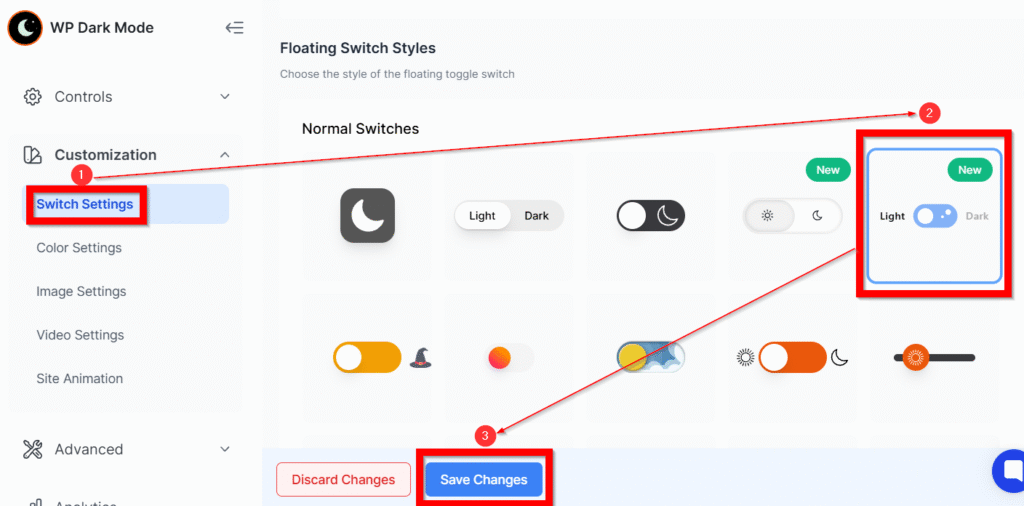
- In the left-hand menu, go to:
WP Dark Mode → Switch Settings - Inside Switch Settings, scroll to the Switch Styles section.
- Locate the “Sky Switch” option.
- Click to select the Sky Switch style.
- Scroll down and click Save Settings.
Customization Options
1. Switch Size #
Under Switch Size, you can control:
- Small, Medium, Large (Choose the size that best fits your website layout and design)
2. Switch Position
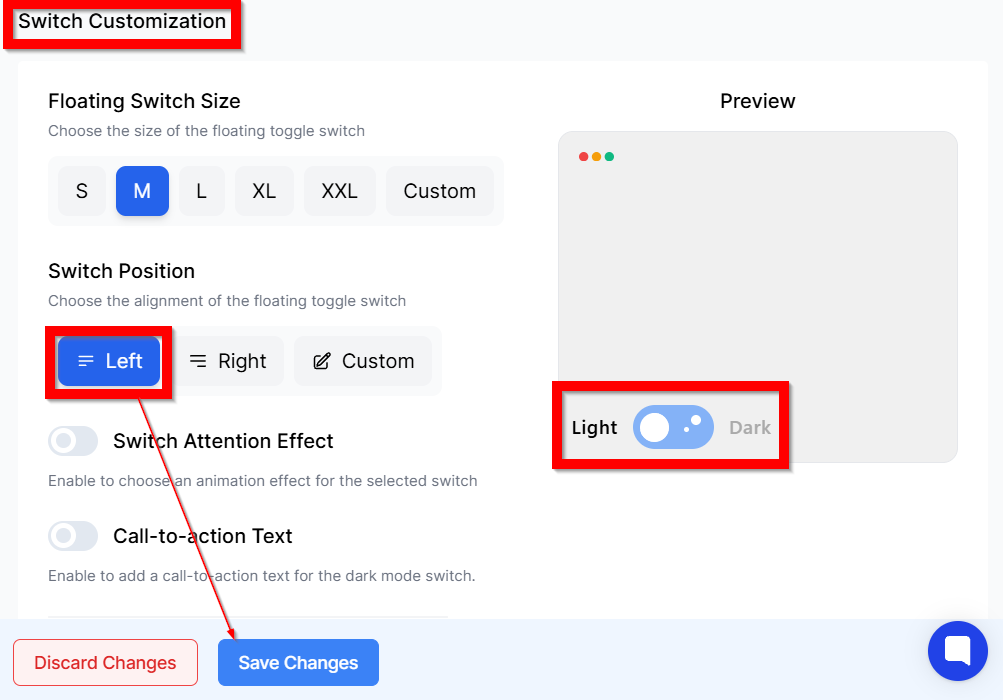
Navigate to: WP Dark Mode → Switch Settings → Switch Position
You can set the Sky Button’s position to:
- Bottom Right (default)
- Bottom Left
- Top Right
- Top Left
- Custom position (using CSS)
Testing the Sky Switch on Your Website
After enabling and saving the settings:
- Visit any public page on your website.
- Locate the Sky Button floating toggle.
- Click to switch between Light and Dark Mode

How does it appear on the frontend? Please take a look at this screenshot:

Troubleshooting
Sky Switch Not Working?
- Hidden by theme: Move it or test with a default theme.
- JS or plugin conflict: Disable other plugins temporarily.
- Cache issues: Clear cache or optimization plugin interference.
- Incorrect placement: Use [wp_dark_mode style=”24″] shortcode or widget in a visible area.


Add your first comment to this post