









WordPress does not load assets intelligently by default. Your contact form plugin loads JavaScript on every page, not just the one with the form. Your slider plugin enqueues CSS site-wide. Your theme ships an entire CSS framework when most pages use 10% of it. This is not a bug; it is how WordPress works.
The fastest way to increase WordPress site speed is to stop loading what each page does not need. Here is how to audit unused CSS and JavaScript, eliminate render-blocking resources, and get your Core Web Vitals scores where they need to be.
By the end of this guide, you will know how to increase WordPress site speed by eliminating unused CSS and JavaScript.
What Unused CSS and JavaScript Actually Cost You
Before diving into fixes, understand what you are paying for every time a page loads unnecessary assets.
Open Chrome DevTools on any WordPress page and check the Coverage tab. On most sites, 60–80% of loaded CSS and JavaScript goes completely unused on every single page load. Every one of those unrequested bytes competes for bandwidth, delays rendering, inflates Total Blocking Time (TBT), and directly hurts your Largest Contentful Paint (LCP), two of Google’s Core Web Vitals metrics.
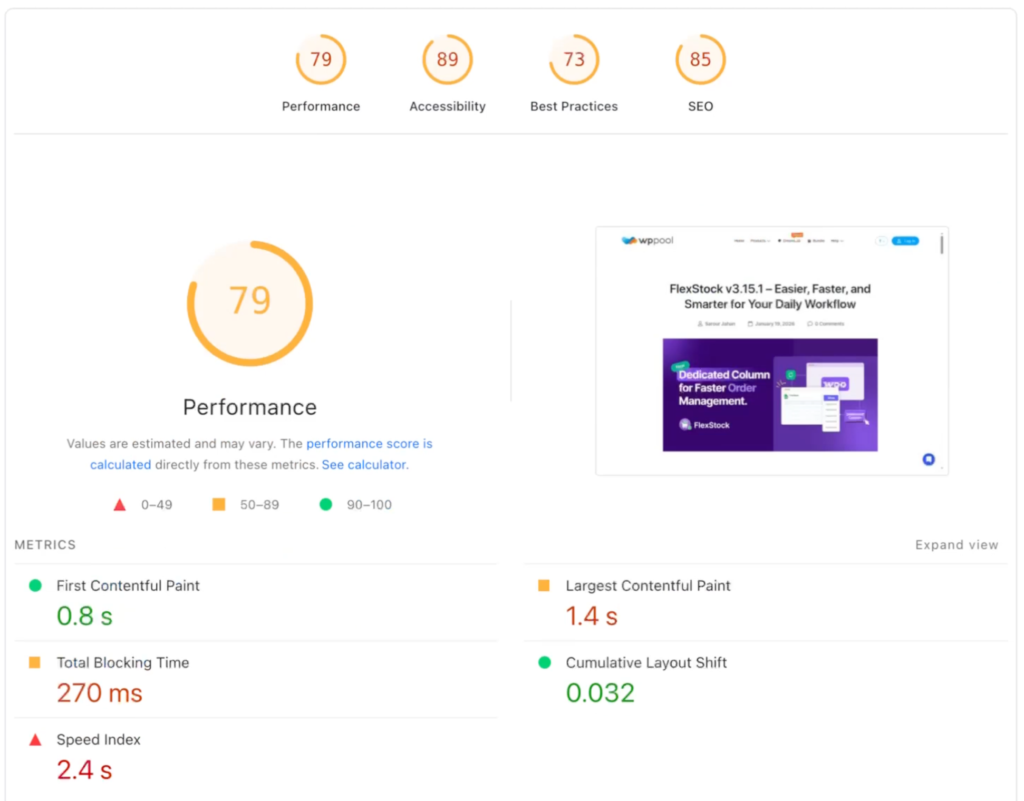
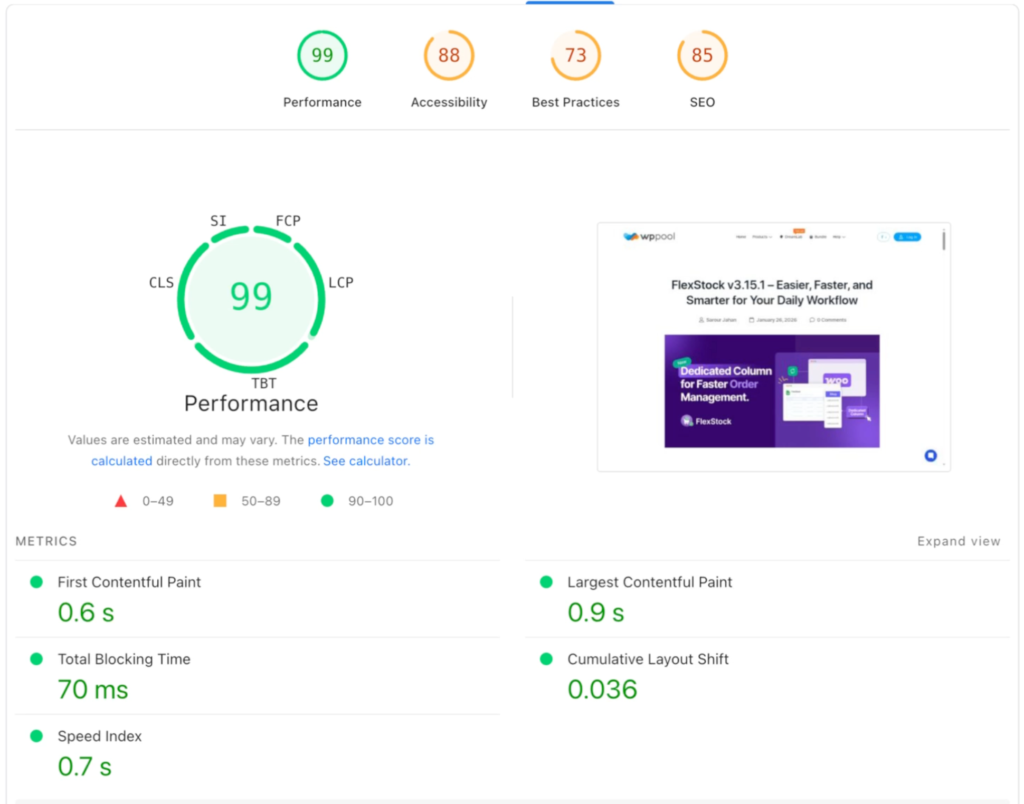
Here is what eliminating that bloat looked like on one real production WordPress site:
| Metric | Before | After | Change |
| PageSpeed Score | 79 | 99 | +25% |
| First Contentful Paint | 0.8s | 0.6s | -25% |
| Largest Contentful Paint | 1.4s | 0.9s | -36% |
| Total Blocking Time | 270ms | 70ms | -74% |
| Speed Index | 2.4s | 0.7s | -71% |
| Cumulative Layout Shift | 0.032 | 0 | -100% |
These numbers came from applying each step in this guide methodically, one page template at a time.
Your WordPress site is loading more than it needs
Open any page on your WordPress site in Chrome DevTools and check the Coverage tab. On most sites, 60-80% of loaded CSS and JavaScript goes completely unused.
This isn’t a theme problem or a plugin problem. It’s how WordPress works. Your slider plugin enqueues its CSS on every page, not just the one with a slider. Your contact form plugin loads JavaScript on the homepage even though the form lives on a single page. Your theme ships all of Bootstrap even though any given page uses maybe 10% of it. WordPress itself adds block editor styles, emoji detection scripts, and legacy files whether you need them or not.
Every one of those files competes for bandwidth and blocks rendering.
The fix is straightforward. These techniques work on any page — homepage, blog, landing pages, shop, docs, whatever. Here’s what we’ll cover:
- Auditing unused assets with Chrome DevTools Coverage
- Stripping CSS frameworks down to what you actually use
- Removing WordPress defaults you don’t need
- Conditionally dequeuing plugin assets by page type
- Deferring and async-loading third-party scripts
- Building page-specific stylesheets
- Adding JavaScript safety guards
Using a page builder like Elementor or Divi?
Most of this still applies. The Coverage audit, removing WordPress defaults, async/defer loading, and conditional dequeuing all work the same. The difference is that page builders generate their own CSS and JS per page, so don’t touch their internal assets. Also check your builder’s built-in performance settings first — Elementor has “Improved Asset Loading” under Settings, Divi has a “Performance” tab. Turn those on before doing anything manual. They may already handle some of this.
Here’s what this looked like on one real site:
| Metric | Before | After | Change |
| Performance Score | 79 | 99 | +25% |
| First Contentful Paint | 0.8s | 0.6s | -25% |
| Largest Contentful Paint | 1.4s | 0.9s | -36% |
| Total Blocking Time | 270ms | 70ms | -74% |
| Speed Index | 2.4s | 0.7s | -71% |
| Cumulative Layout Shift | 0.032 | 0 | -100% |
Step 1: Audit with Chrome DevTools Coverage
Before you remove anything, figure out what’s actually unused.
- Open any page on your WordPress site in Chrome
- Open DevTools (Cmd+Option+I on Mac, F12 on Windows)
- Press Cmd+Shift+P (or Ctrl+Shift+P) and type “Coverage”
- Click Start instrumenting coverage and reload page
- Wait for the page to fully load, then look at the results
Each file gets a red/blue bar. Red is unused bytes, blue is used. Sort by unused bytes to find the worst offenders.
What you’re looking for:
- CSS files with 70%+ unused code — framework files or plugin styles loaded on the wrong pages
- JavaScript files loaded but never executed — sliders, popups, and animations on pages that don’t use them
- Multiple files doing the same thing — duplicate jQuery versions, overlapping utility libraries
Write down every file with high unused percentages. Those are your targets.
Step 2: Strip down your CSS framework
If your theme uses Bootstrap, Foundation, or another CSS framework, you’re probably loading the whole library when the page uses a fraction of it.
Option A: Build a custom subset
If you’re on an older version like Bootstrap 4.x where tree-shaking isn’t straightforward, manually extract only the modules you use. The Coverage report shows exactly which CSS rules get applied.
Say a page only uses the grid system, typography, cards, and a few utilities. Pull out just those rulesets into a new minified file. On one site I worked on, this turned a 190KB Bootstrap file into something under 12KB.
Option B: Use PurgeCSS or UnCSS
For newer setups, plug PurgeCSS into your build process:
npm install -D purgecss
npx purgecss --css assets/css/bootstrap.css --content "**/*.php" --output assets/css/bootstrap-purged.css
Then, enqueue the purged file instead of the original.
Option C: Switch to utility-first
If you’re already thinking about a framework change, Tailwind CSS with its JIT compiler generates only the classes you use. The output files are tiny by default.
Step 3: Remove WordPress defaults you don’t need
WordPress loads several default assets that many themes never touch. Add this to your theme’s functions.php:
add_action( 'wp_enqueue_scripts', 'remove_unnecessary_defaults', 20 );
function remove_unnecessary_defaults() {
   // Block editor styles (if not using Gutenberg blocks on frontend)
   wp_dequeue_style( 'wp-block-library' );
   wp_dequeue_style( 'wp-block-library-theme' );
   // Global and classic theme styles
   wp_dequeue_style( 'global-styles' );
   wp_dequeue_style( 'classic-theme-styles' );
   // Emoji detection script and styles
   remove_action( 'wp_head', 'print_emoji_detection_script', 7 );
   remove_action( 'wp_print_styles', 'print_emoji_styles' );
   remove_action( 'admin_print_scripts', 'print_emoji_detection_script' );
   remove_action( 'admin_print_styles', 'print_emoji_styles' );
}
Test your site after each removal. If you use Gutenberg blocks in your post content, keep wp-block-library. The point is to remove what your setup doesn’t actually use.
Step 4: Conditionally dequeue plugin assets
This is where the biggest wins are. Plugins enqueue their assets globally, but most are only needed on specific pages.
The logic is simple: go through your Coverage report page by page, find which plugin assets are loaded but unused, and dequeue them with WordPress conditional tags.
Your blog pages probably don’t need slider scripts, contact form styles, or animation libraries. Your homepage probably doesn’t need documentation plugin assets. Every page type has stuff it doesn’t use.
add_action( 'wp_enqueue_scripts', 'conditionally_dequeue_assets', 20 );
function conditionally_dequeue_assets() {
   // Example: Blog pages don't need slider, form, or animation assets
   if ( is_home() || is_single() || is_archive() ) {
       wp_dequeue_style( 'contact-form-plugin-css' );
       wp_dequeue_style( 'slider-plugin-css' );
       wp_dequeue_style( 'popup-plugin-css' );
       wp_dequeue_style( 'animate-css' );
       wp_dequeue_script( 'slider-plugin-js' );
       wp_dequeue_script( 'popup-plugin-js' );
       wp_dequeue_script( 'wow-js' );
       wp_dequeue_script( 'waypoints-js' );
       wp_dequeue_script( 'counter-up-js' );
   }
   // Example: Homepage doesn't need docs or form assets
   if ( is_front_page() ) {
       wp_dequeue_style( 'docs-plugin-css' );
       wp_dequeue_script( 'docs-plugin-js' );
       wp_dequeue_style( 'contact-form-plugin-css' );
       wp_dequeue_script( 'contact-form-plugin-js' );
   }
   // Example: Landing pages only need their own styles
   if ( is_page( 'pricing' ) || is_page( 'features' ) ) {
       wp_dequeue_style( 'blog-sidebar-css' );
       wp_dequeue_script( 'comment-reply' );
       wp_dequeue_script( 'masonry-js' );
   }
}
Finding the correct handles: Add this temporarily to see all enqueued assets on any page:
add_action( 'wp_print_scripts', function() {
   global $wp_scripts, $wp_styles;
   echo '<!-- Enqueued Scripts: ' . implode( ', ', $wp_scripts->queue ) . ' -->';
   echo '<!-- Enqueued Styles: ' . implode( ', ', $wp_styles->queue ) . ' -->';
} );
View page source, note the handles, cross-reference with your Coverage report, and dequeue what doesn’t belong. Do this for every major page template on your site.
Step 5: Defer and async-load scripts
Some scripts can’t be removed but don’t need to block page rendering. Third-party tracking scripts, analytics, and chat widgets are the usual suspects.
WordPress 6.3+ has native support for the strategy parameter:
// Defer a script (executes after HTML parsing, in order)
wp_register_script( 'analytics-js', 'https://example.com/analytics.js', array(), null, array(
   'strategy' => 'defer',
   'in_footer' => true,
) );
// Async a script (executes as soon as downloaded)
wp_register_script( 'tracking-js', 'https://example.com/tracking.js', array(), null, array(
   'strategy' => 'async',
   'in_footer' => true,
) );
For older WordPress versions or scripts not registered through wp_enqueue_script, use a filter:
add_filter( 'script_loader_tag', 'add_defer_to_scripts', 10, 3 );
function add_defer_to_scripts( $tag, $handle, $src ) {
   $defer_handles = array( 'analytics-js', 'chat-widget', 'tracking-pixel' );
   if ( in_array( $handle, $defer_handles ) ) {
       return str_replace( ' src', ' defer src', $tag );
   }
   return $tag;
}
Rule of thumb: use defer for scripts that interact with the DOM. Use async for independent scripts like analytics or tracking pixels that don’t depend on anything else.
Step 6: Create page-specific stylesheets
Instead of loading one massive stylesheet everywhere, create lean stylesheets scoped to page types.
Your homepage, blog listing, single posts, shop, and landing pages all have different layouts. They don’t need to share the same 200KB stylesheet.
add_action( 'wp_enqueue_scripts', 'enqueue_page_specific_styles', 20 );
function enqueue_page_specific_styles() {
   if ( is_home() || is_archive() ) {
       wp_enqueue_style( 'blog-listing-css', get_template_directory_uri() . '/assets/css/blog-listing.css' );
   }
   if ( is_single() && get_post_type() === 'post' ) {
       wp_enqueue_style( 'single-post-css', get_template_directory_uri() . '/assets/css/single-post.css' );
   }
   if ( is_front_page() ) {
       wp_enqueue_style( 'homepage-css', get_template_directory_uri() . '/assets/css/homepage.css' );
   }
   if ( is_page( 'pricing' ) ) {
       wp_enqueue_style( 'pricing-css', get_template_directory_uri() . '/assets/css/pricing.css' );
   }
}
Each stylesheet should contain only the rules that page type needs. Your Coverage report tells you which rules are used where. Copy over only those.
Your blog listing might need grid, cards, and pagination. Your single post needs typography, code blocks, and comments. Your homepage needs hero, testimonials, and feature sections. No overlap required.
Step 7: Add JavaScript safety guards
When you dequeue scripts on certain pages, other JavaScript that calls those libraries will throw errors. Guard against this with typeof checks:
// Before (breaks if counterUp is dequeued)
$('.counter').counterUp({ delay: 10, time: 1000 });


// After (safe even if counterUp is not loaded)
if (typeof $.fn.counterUp !== 'undefined') {
   $('.counter').counterUp({ delay: 10, time: 1000 });
}


// Same pattern for any jQuery plugin
if (typeof $.fn.magnificPopup !== 'undefined') {
   $('.gallery').magnificPopup({ type: 'image' });
}


if (typeof $.fn.owlCarousel !== 'undefined') {
   $('.carousel').owlCarousel({ items: 3 });
}
Small change, prevents console errors everywhere. Add these guards to your main theme JavaScript file for every plugin call that might not be available on every page.
Putting it all together
Order matters. Here’s the workflow:
- Measure first — run PageSpeed Insights and save your baseline
- Audit — use Chrome Coverage to find unused CSS/JS on your key pages
- Remove WordPress defaults — quick wins, immediate impact
- Dequeue plugin assets conditionally — biggest gains, page by page
- Strip down your CSS framework — reduce the remaining CSS payload
- Create page-specific stylesheets — replace dequeued styles with lean alternatives
- Defer/async scripts — stop render-blocking on remaining necessary scripts
- Add JS safety guards — prevent breakage from dequeued dependencies
- Measure again — run PageSpeed Insights and compare
Don’t try to do everything at once. Start with your highest-traffic page template (check your analytics to find it), get that performing well, then move to the next.
Frequently asked questions
Q: How do I find unused CSS and JS on my WordPress site?
Ans: Open Chrome DevTools, go to the Coverage tab (Ctrl+Shift+P, type “Coverage”), reload the page, and review the report. Red bars indicate unused bytes. Focus on files with 70%+ unused code.
Q: Is it safe to dequeue WordPress default styles like wp-block-library?
Ans: Yes, if your theme doesn’t rely on Gutenberg block styles. Many classic and custom themes render fine without wp-block-library, global-styles, and classic-theme-styles. Test after dequeuing to make sure nothing breaks visually.
Q: Will removing unused scripts break my WordPress site?
Ans: It can if other scripts depend on them. Add typeof safety checks in your JavaScript before calling plugin functions, and use conditional tags like is_home() or is_single() to only dequeue on specific pages rather than globally.
Q: What’s the difference between async and defer for WordPress scripts?
Ans: Both load scripts without blocking page render. Async executes as soon as the script downloads, which can be out of order. Defer waits until the HTML is fully parsed, so execution order is preserved. Use defer for scripts that need the DOM. Use async for independent tracking scripts.
Q: How much can removing unused CSS and JS improve PageSpeed?
Ans: Depends on the site. On one project, dequeuing unused files and creating page-specific stylesheets moved the PageSpeed score from 79 to 99. Total Blocking Time went from 270ms to 70ms.
Conclusion
Unused CSS and JavaScript are the single most consistent source of WordPress performance bloat, and no caching plugin fixes it at the root. WordPress loads assets globally by default. You have to override that behavior yourself, page template by page template.
Audit first. Test after every change. The gains compound as you work through each template, and the end result is a site where every page loads only what it needs. Better Core Web Vitals, better PageSpeed score, faster experience for real users.
Run your baseline in PageSpeed Insights before touching anything. That number is what you are working to beat.
Add your first comment to this post