









If you’re looking to activate Dark Mode in the Divi Theme, you’re not alone. Dark Mode isn’t just a trend anymore; it’s become a standard expectation for modern websites.
That’s especially important for Divi users. As of 2026, around 2.1–2.3 million live websites are built using the Divi WordPress theme, making it one of the most widely used themes in the WordPress ecosystem. With so many Divi-powered sites online, standing out visually has become a real challenge.
Adding Dark Mode to your Divi website is a simple but powerful way to elevate design and user experience without rebuilding your site or writing complex code.
In this guide, we’ll walk you through how to activate Dark Mode in the Divi Theme in just 5 easy steps. But first, let’s get to know about the theme, shall we?
Table of Contents
- Divi Theme features
- Why using WP Dark Mode?
- How to Enable Dark Mode on Divi Theme
- Frequently Asked Questions
Divi Theme features
Divi is the flagship creation of Elegant Themes. It’s what’s commonly referred to as a mega theme. In other words, it’s much like a standard WordPress theme, but better, and bigger. Divi is built with beginners in mind. Everything from set-up to the interface, and how you can take care of updates, later on, has been built in a way that even a complete beginner can get the hang of very quickly.
Before we get into the Dark Mode in Divi Theme, here are some features of Divi Theme.
AI-Powered Website Building
Divi now includes powerful built-in tools designed to speed up your website creation process. With Divi AI and the Quick Sites feature, you can generate a complete website in just a few minutes by simply describing what you need.
Based on the input you give, Divi automatically creates pages, structures layouts, writes starter content, and generates relevant images to match your brand. While the results may still need refinement, this workflow can significantly reduce setup time and help you launch faster
Portability and Cloud Storage
Divi is highly portable, making it easy to transfer layouts and design assets between WordPress websites. With Divi Cloud, you can store unlimited assets in the cloud, including layouts, Theme Builder templates, and custom code snippets.
This means your favorite designs are always within reach on any new site you create. If you build multiple websites, this alone can save hours and make your workflow far more efficient.
Ease of Use with Professional Power
While Divi is beginner-friendly, it doesn’t compromise on professional capabilities. The visual drag-and-drop builder lets you see changes in real time, and you can customize every aspect of your site without writing a single line of code.
That said, the Divi Builder interface is quite different from the default WordPress editor, so you’ll want to spend some time exploring the interface to unlock its full potential. The good news? Once you get the hang of it, you’ll wonder how you ever built websites without it.
Full creative control
All aspects of your content can be customized through the Divi Builder interface, giving you full control over the design of your posts and pages. However, after a recent update, the newly added Theme Builder tool gives you full control over the other parts of your website, too.
Divi theme customizer options
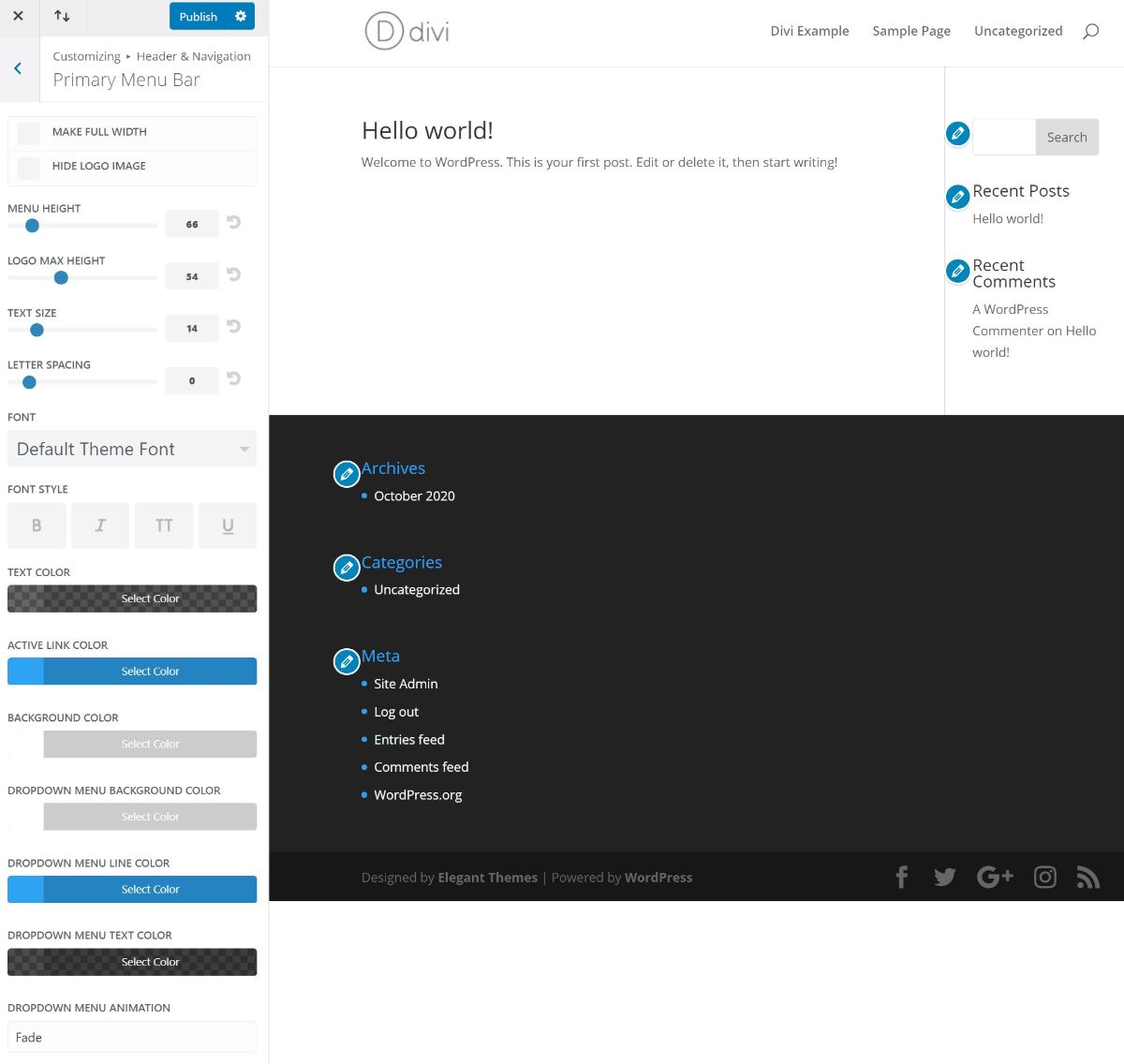
To customize the style and layout of your theme, Divi uses the native WordPress Customizer. This is nice because it lets you preview any changes that you make in real time. This works just like any other WordPress theme. For example, if you want to customize your header, you can open these settings in the Customizer and make changes:
Divi theme builder
Most WordPress themes that include page builders give you the ability to create custom post and pages designs. However, they don’t often allow you to customize the other parts of your site, such as the header, footer, and theme templates.
In the past, that was true of Divi, but thanks to a recent update, you’re no longer constrained to just the content areas. Now you can customize all aspects of your WordPress website via the Theme Builder feature.
Seamless WooCommerce Integration
If you’re building an online store, Divi offers dedicated WooCommerce modules that let you customize every aspect of your shop from product galleries and cart pages to checkout forms. You get complete design freedom while maintaining all of WooCommerce’s functionality.
Now you know why we are showing Divi dark mode implementation in this guide.
Why using WP Dark Mode?
Dark mode has been on trend for quite some time now, and users are really loving this feature. There are several compelling reasons to add dark mode to your Divi website.
Studies show that dark mode helps reduce bounce rates while increasing conversion rates for your website. When combined with Divi customization tricks, dark mode becomes an even more powerful tool for creating engaging user experiences. With WP Dark Mode, you’ll get access to features like:
- AI-Powered Color Preset Generator
- 24+ Floating Switch Styles
- 16+ Dark Mode Color Schemes
- AI-Powered Social Share Buttons
- Keyboard Shortcut Support
- Dark Mode analytics feature
- Performance Optimization options
- Dark Mode-based image support
- Use Custom Dark Mode Colors
- WordPress Post Editor in Dark Mode
- Customize Each Element As You Want
- All major WordPress themes are supported
- Dark mode Based Custom CSS
- Dark mode Switch in the menu
- Change the Background Image & Video based on modes
- Dark Mode Logo support
- Time-Based Dark Mode
- Dark mode Switch Shortcode
- Place Switch Above Post/Page Content
- Excludes Pages from Dark Mode
- Excludes Elements from Dark Mode
- Includes settings.
If you can use Divi dark mode effectively, then imagine where your website will go? That is why today we are going to show how to activate WP Dark Mode with Divi Theme.
Setting up Divi theme for your website
Setting up Divi Theme is pretty simple.
- You have to go to Elegant Themes, join the club, and get your own ZIP file containing the theme.
- Download the theme and click Install.
How to enable Dark Mode on Divi theme
You need to follow these easy steps in order to enable Dark Mode in your Elementor website.
Step 1: Install & activate Divi
To start off, you need to install Divi. You can activate it from your admin dashboard.
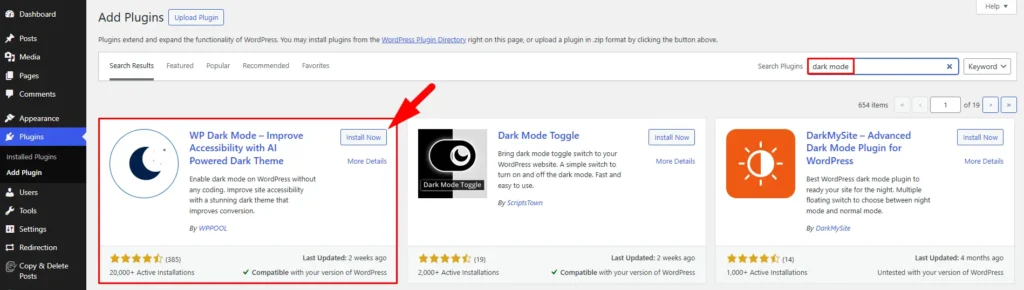
Step 2: Download WP Dark Mode
Download WP Dark Mode directly from your WordPress admin dashboard. The free version includes all essential dark mode features, while the Pro version offers advanced customization options.
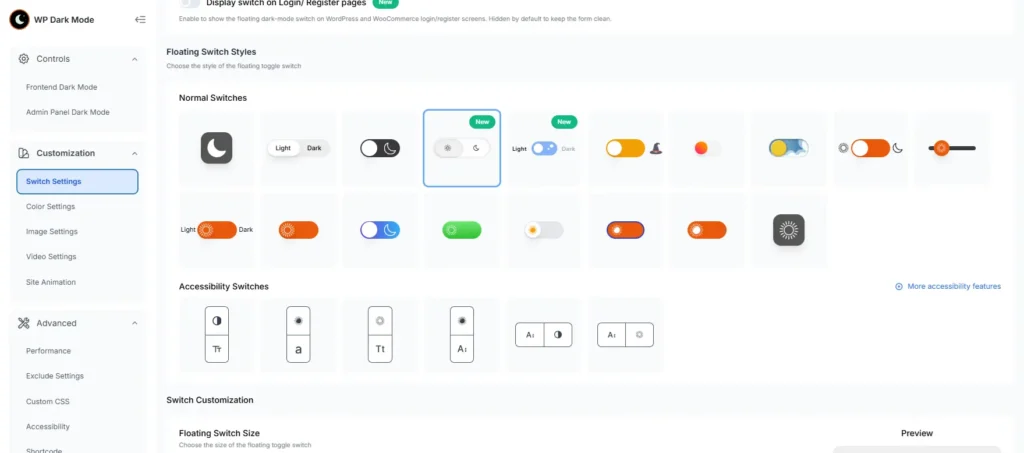
Step 3: Select the switch style you want to show
Go to WP Dark Mode-> Customizations ->Switch Settings. Now select the switch you want to show.
Step 4: Create a page with Divi
Now you need to create a page and customize it with the Divi Theme builder. Give it an awesome look.
Step 5: Update & publish
You are done. Just publish your page and you will see the magic.
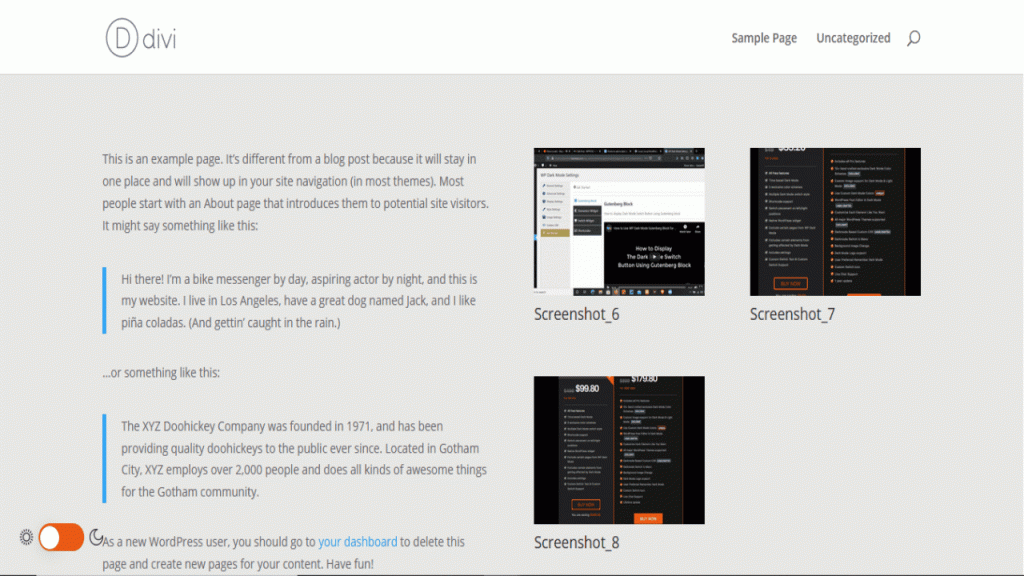
This is how you can enable Dark Mode in Divi Theme in an easy way.
Last word
Divi is a very famous theme and it has a lot of user base. However, to stand out you need to do something unique. And by unique we mean adding a customized dark theme for your Divi customized website.
Now that you know how to enable Dark Mode in Divi theme do it, you can go on trying for your own. Also, if you have any comments do let us know and we will try to get back to you as soon as we can.
If you are interested in learning more dark mode tips and tricks, check our guide on WordPress dark mode.
Frequently Asked Questions
How to activate Dark Mode in the Divi Theme?
You can easily activate Dark Mode in the Divi Theme using the WP Dark Mode plugin.
Can I use Dark Mode on my Divi website for free?
Absolutely! WP Dark Mode offers a free version available in the WordPress plugin repository that includes essential dark mode features.
Will Dark Mode affect my Divi website’s loading speed?
No, WP Dark Mode is lightweight and optimized for performance. It won’t negatively impact your Divi website’s loading speed.

Add your first comment to this post