









Managing data between Google Sheets and WordPress has always been a challenge. Manually copying and pasting spreadsheet data into WordPress tables is time-consuming, error-prone, and frustrating. But what if you could automatically sync a Google Sheets to WordPress table in real-time?
We’re excited to introduce FlexTable (Google Sheets to WordPress Table Live Sync) – a revolutionary WordPress plugin that eliminates manual data entry and keeps your website tables automatically synchronized with your Google Spreadsheets.
What is Google Sheets to WordPress integration?
Google Sheets to WordPress integration is a method of automatically syncing spreadsheet data with your WordPress website using plugins like FlexTable. It enables real-time data updates, eliminates manual copying, and displays spreadsheet information as formatted tables on your site without coding.
This integration is perfect for:
- E-commerce stores managing product inventories
- Educational institutions displaying class schedules
- Sports organizations showing league standings
- Businesses publishing team directories
- News sites presenting data journalism
- Event organizers maintaining attendee lists
💡 Is FlexTable Free?
Yes. FlexTable offers a free version that syncs up to 100 rows from Google Sheets to WordPress. For unlimited rows and advanced features like Elementor support, responsive tables, Search only display, AI-Integration and export options, upgrade to Pro for $69/year.
Features of Google Sheets to WordPress Table Live Sync Plugin
Before you know how this Google Spreadsheets plugin works, you should know it’s features as well. We have made sure to add features that will help the users flaunt their otherwise messed up data in a great way. The features include
Before diving into setup, let’s explore what makes FlexTable the best WordPress plugin for Google Sheets integration in 2026.
| FlexTable Features | Free | Pro |
| Live Data Synchronization | ✅ | ✅ |
| Fetch up to 100-row data | ✅ | Unlimited Data |
| Show Unlimited Entries | ❌ | ✅ |
| Swap Bottom Elements | ✅ | ✅ |
| Search Bar | ✅ | ✅ |
| Asynchronous Loading | ✅ | ✅ |
| Support | Limited | Premium 24/7 Support |
| Shortcode Support | ✅ | ✅ |
| Show Info block | ✅ | ✅ |
| Swap Filters | ✅ | Free-only feature, Pro manages via advanced customization |
| Allow Sorting | ✅ | ✅ |
| Pagination Support | ✅ | ✅ |
| Gutenberg Block | ✅ | ✅ |
| Responsive Table | ❌ | ✅ |
| 6 Table Pre-built Styles | ❌ | ✅ |
| Custom Styling | ❌ | ✅ |
| Advanced customization of tables & elements | ❌ | ✅ |
| Search Only Display | ❌ | ✅ |
| Instant AI-Generated Table Summaries | ❌ | ✅ |
| Smart AI Table Search | ❌ | ✅ |
| Export table from CSV, Excel, PDF, JSON, etc. | ❌ | ✅ |
| Vertical Scrolling | ❌ | ✅ |
| Horizontal Dragging | ❌ | ✅ |
| Elementor Widget Support | ❌ | ✅ |
| WordPress Multisite Support | ❌ | ✅ |
| Merge cells | ❌ | ✅ |
| Cache tables for faster loading | ❌ | ✅ |
| Importable images, links, checkboxes, etc. from Google Sheets | ❌ | ✅ |
| Hidable specific rows, columns, and cells | ❌ | ✅ |
| Multiple Spreadsheet Tabs managing | ❌ | ✅ |
Core Features (Free Version)
🎉 Live Data Synchronization The plugin automatically synchronizes all your data. Your website’s data table updates by fetching information directly from your Google Spreadsheet in real-time. No manual updates required!
📈 Fetch Up to 100 Rows of Data The free version allows you to sync 15 rows of data at a time from your Google Spreadsheet – perfect for small datasets, pricing tables, or feature comparisons.
📅 Rename Your Tables You’re not stuck with your Google Sheet name. Customize table names in WordPress to match your content strategy and SEO goals.
💁♂️ Shortcode Supported FlexTable automatically generates shortcodes for each table. Simply copy and paste them into any page, post, or widget area.
🔎 Built-in Search Bar When tables contain lots of data, visitors can use the integrated search functionality to find exactly what they need instantly.
‼️ Info Block Support The info block provides visitors with a quick overview of your table’s data structure at a glance, improving user experience.
🔃 Sorting and Swap Bottom Elements Users can sort data columns and swap elements from top to bottom or vice-versa, making data exploration intuitive.
🔄 Asynchronous Loading Tables load after main page content, ensuring fast initial page load times and improved Core Web Vitals scores.
✔️ Gutenberg Block Support Native WordPress block editor integration means you can manage tables directly within Gutenberg without touching code.
Pro Features
📑 Responsive Tables Pro version tables automatically adapt to mobile and tablet screens, with collapsible columns for optimal viewing on any device.
✈️ Export Tables Export your synchronized tables in multiple formats: CSV, Excel, PDF, JSON, and Print. Perfect for offline analysis and reporting.
✔️ Unlimited Row Sync Remove the 15-row limitation. Sync datasets with hundreds or thousands of rows from Google Sheets to WordPress.
🔗 Elementor Widget Support Drag-and-drop FlexTable widgets directly into your Elementor designs for seamless integration with your page builder workflow.
🧲 Vertical Scroll/Sticky Header Enable vertical scrolling in long tables while keeping column headers visible as users scroll – essential for data-heavy tables.
🎨 Custom Table Themes Create unlimited custom table designs with your brand colors, fonts, and styling without writing CSS.
🖼️ Import Images from Google Sheets Display images stored in your Google Sheet using the =IMAGE() function directly in your WordPress tables.
🔗 Sync Hyperlinks Import clickable links from Google Sheets, and even style them as buttons for better user engagement.
🤖 AI-Powered Features
- AI Summary: Auto-generate concise summaries of table data
- Ask AI: Let visitors ask natural language questions about table content
📊 Multiple Tab Support Sync data from specific sheet tabs in multi-tab Google Spreadsheets, not just the default first tab.
⚡ Smart Caching Intelligent caching reduces API calls and improves page load times while ensuring data freshness.
🎯 Merge Cells Support Properly display merged cells from Google Sheets, maintaining your original spreadsheet layout.
🔧 Custom CSS Support Advanced users can add custom CSS for pixel-perfect table styling beyond built-in themes.
How to Embed Google Sheets to WordPress?
Installing the Google Spreadsheet to WP Table Live Sync Plugin is very easy and simple. Just like any other WordPress Table plugin you can install this plugin on your WordPress site.
How do I connect Google Sheets to WordPress?
Installing FlexTable (Free Version)
Method 1: Install from WordPress Dashboard
- Log in to your WordPress Admin Dashboard
- Navigate to Plugins → Add New
- Search for FlexTable
- Click Install Now
- After installation, click Activate
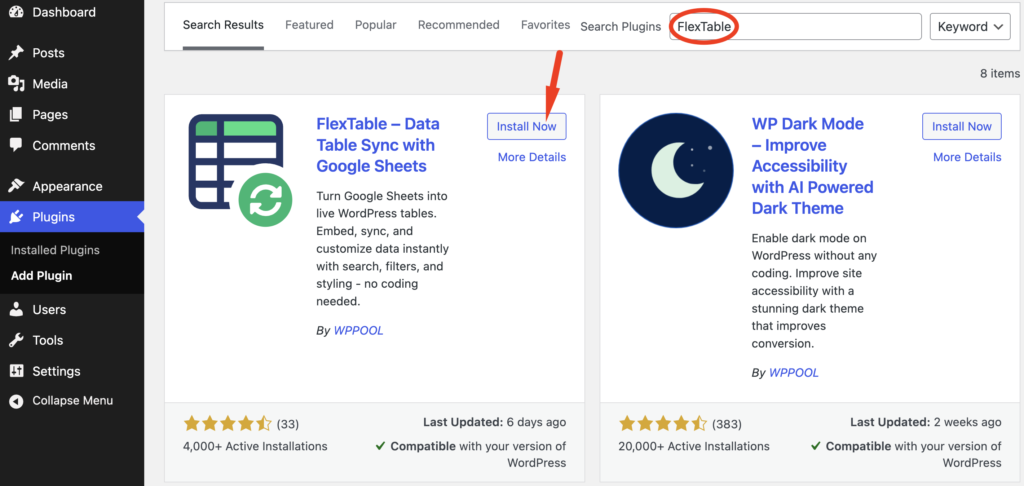
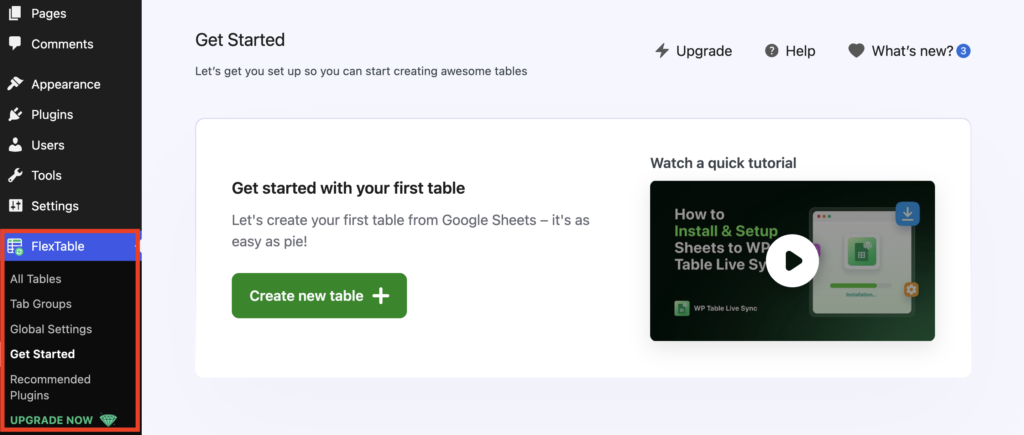
Once activated, FlexTable will appear in your WordPress dashboard menu.
Activating the FlexTable Pro Version
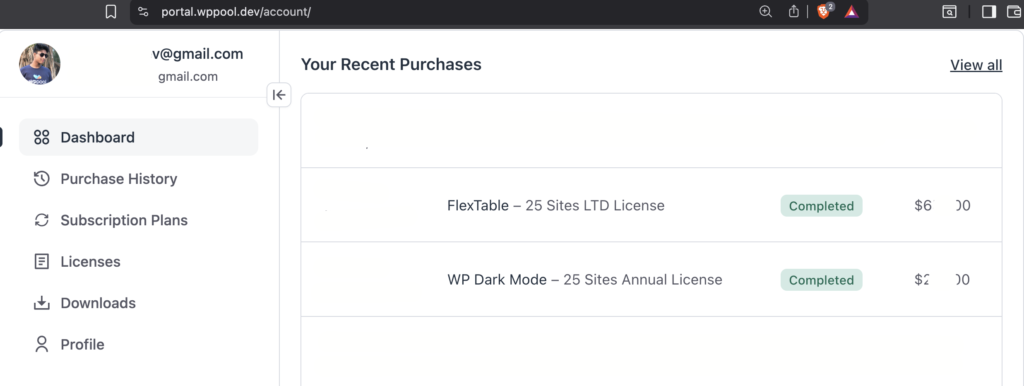
To activate FlexTable Pro, first purchase a suitable plan from our website and log in to your WPPOOL account using your credentials.
Step-by-Step Activation Process
Get the Pro Plugin & License Key
- After purchase, check your purchase confirmation email for the download link and license key,
or - Log in to your WPPOOL account and go to Licenses or Downloads.
- Download the FlexTable Pro ZIP file and copy the license.

Install the Pro Version
- Go to your WordPress Admin Dashboard.
- Navigate to Plugins → Add New → Upload Plugin.
- Upload the FlexTable Pro ZIP file and click Install Now.
- After installation, click Activate.
Activate the License
- Once the plugin is activated, you will see the option to activate the Pro version.
- Paste the copied license key into the license field.
- Click Activate License.
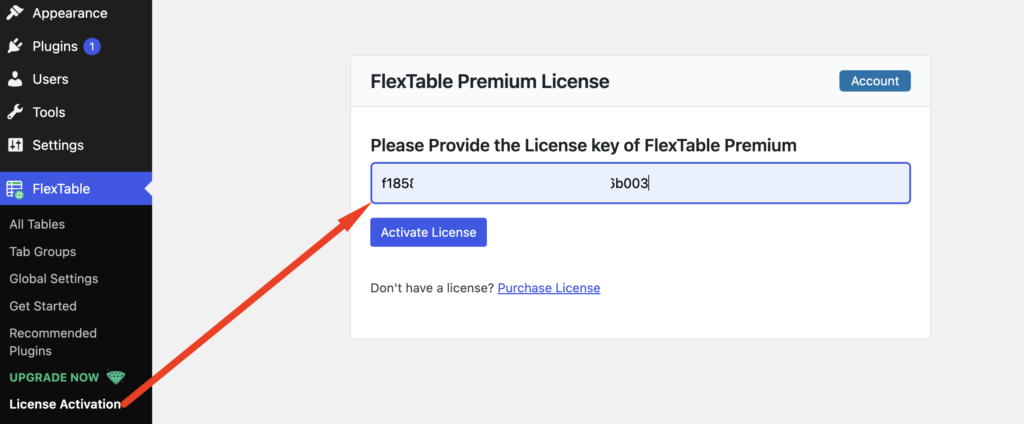
Once the license is successfully activated, all FlexTable Pro features will be unlocked and ready to use.
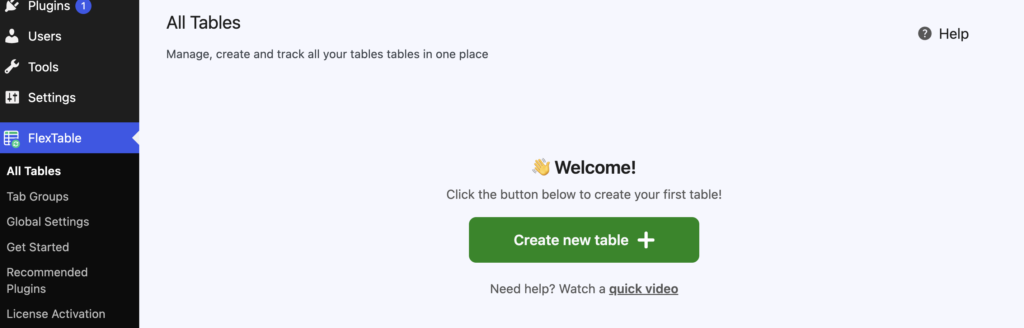
Enjoy using FlexTable Pro! 🚀
How to create a new table with Google Sheets to WP Table Live Sync
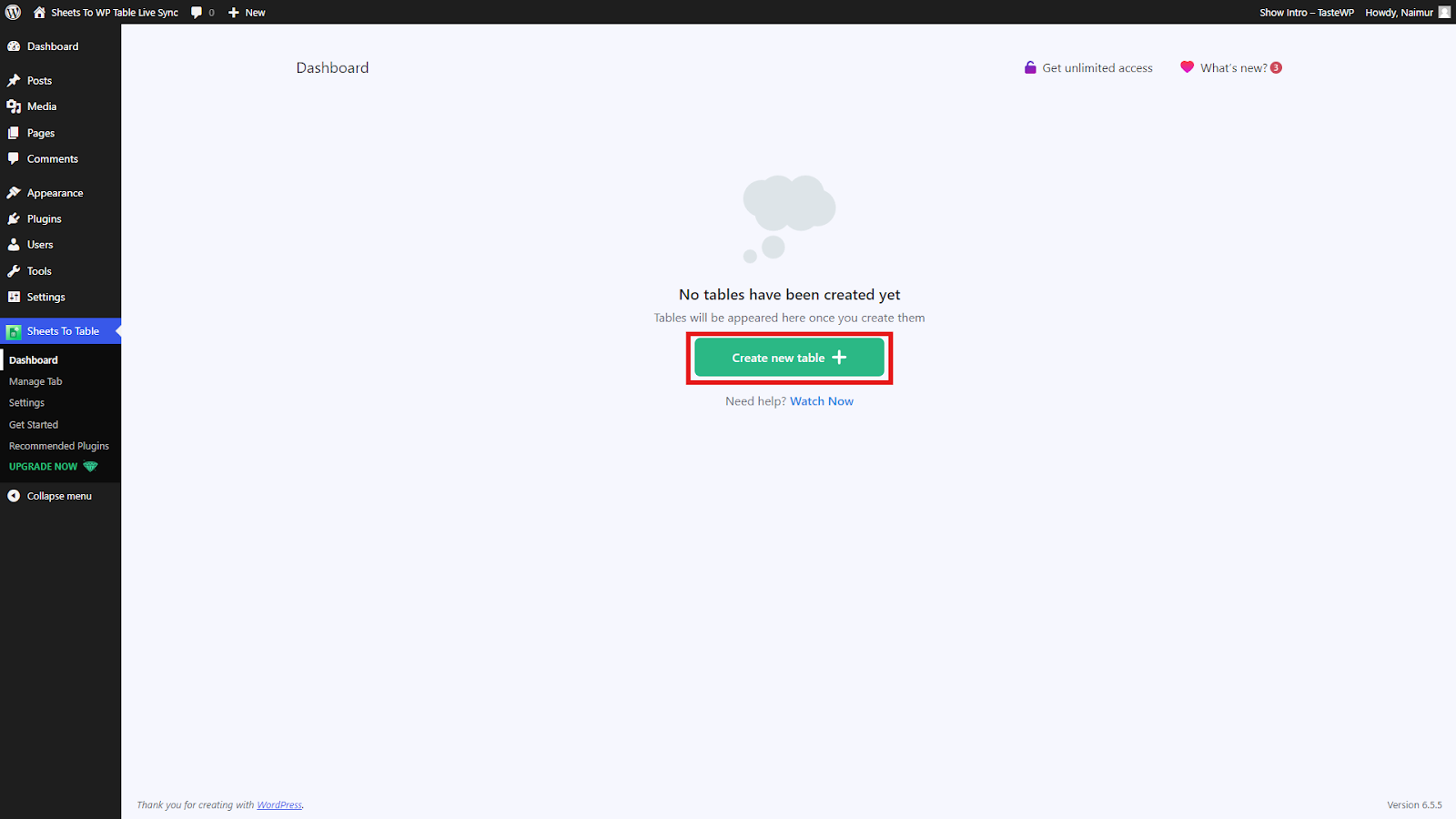
First, navigate to Sheets to WP Table Dashboard from your WordPress site’s dashboard. Next, click on “Create new table”.
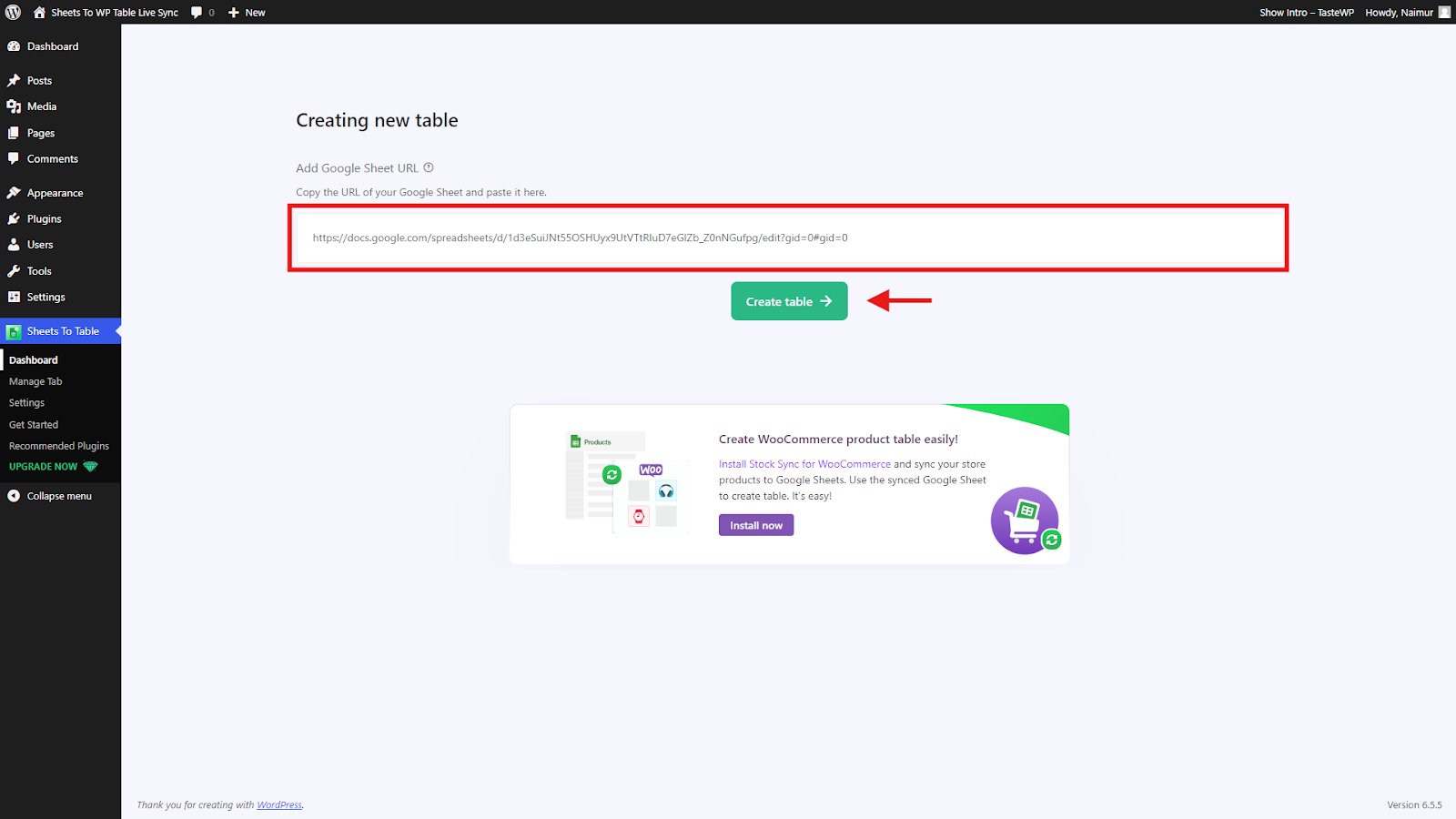
Afterward, copy the spreadsheet link from Google Sheets that you want to sync with WordPress. Once done, paste the link as instructed in the dashboard and click on “Create Table”.
In the next step, you can customize the settings as you require. After finalizing the settings as you want, click on the “Fetch & Save” button to complete the setup.
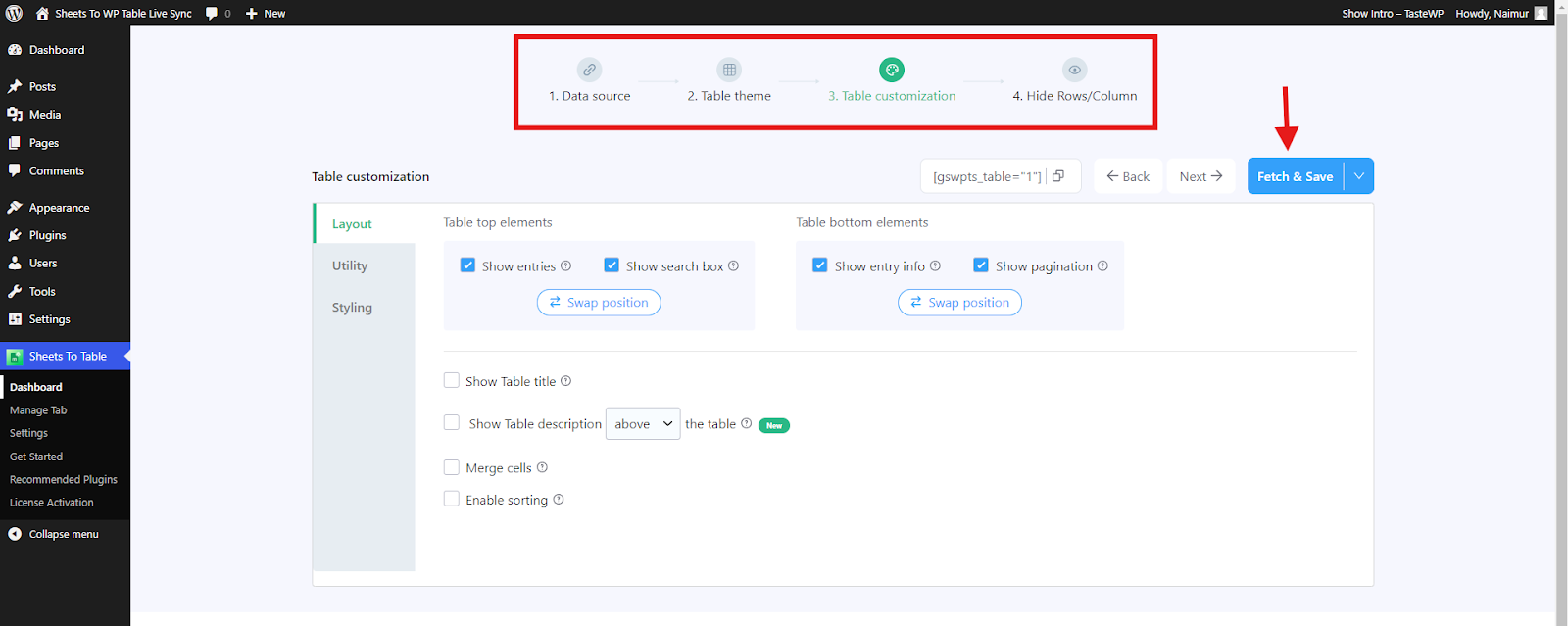
Finally, copy the table shortcode and paste it on any page/post of your website to start syncing with Google Sheets.
How to Use FlexTable with Gutenberg Block
FlexTable provides native Gutenberg integration for seamless table management within WordPress’s block editor.
Method 1: Create a New Table in Gutenberg
- Open the page/post editor where you want to add the table
- Click the “+” (Add Block) button
- Search for “Sheets to WP Live Table Sync”
- Click the block to insert it
- Click “Create New”
- Paste your Google Sheet URL
- Click “Create”
The table will be created and embedded automatically.
Method 2: Insert an Existing Table
- Add the “Sheets to WP Live Table Sync” block
- Click “Choose Table”
- Select your table from the dropdown
- Click “Insert”
- Click “Update” or “Publish”
The Gutenberg block provides live preview, so you can see exactly how your table looks before publishing.
Gutenberg Block Settings
Within the block, you can:
- Switch between different tables
- Toggle visibility of search bar
- Change rows per page
- Enable/disable sorting
- Adjust table alignment
How to Use FlexTable with Elementor Block
Pro users get exclusive Elementor widget support for drag-and-drop table building.
Method 1: Using the FlexTable Widget
- Edit your page with Elementor
- In the left sidebar, search for “Sheet to WP Table Live”
- Drag the widget to your desired section
- In the widget settings, select your table from the dropdown
- Customize widget settings:
- Table alignment
- Spacing
- Mobile visibility
- Click “Publish” or “Update”
Method 2: Using Shortcode with Elementor
- Copy your table shortcode from the plugin dashboard
- Open your page in Elementor
- Search for the “Shortcode” widget
- Drag it to your section
- Paste the shortcode in the shortcode field
- Click “Apply”
- Publish your page
Both methods work perfectly, but the dedicated widget offers more control over table appearance and behavior.
How to use FlexTable Advanced Features and Customization
FlexTable goes beyond basic table syncing with powerful advanced features.
1. Custom Table Themes
Create stunning table designs without writing code.
How to Create a Custom Theme:
- Go to Sheets to Table → Select your table
- Navigate to Table Theme
- Click “New Theme”
- Give your theme a descriptive name
- Customize:
- Header colors (background and text)
- Body colors (alternating row colors)
- Border styles (width, color, style)
- Pagination styles (button colors, alignment)
- Click “Create Theme”
- Apply your theme to any table
Pro Tip: Create multiple themes for different data types (pricing tables, comparison charts, data dashboards).
2. Import Background and Font Colors from Google Sheets
Display your WordPress table exactly as it appears in Google Sheets, including:
- Cell background colors
- Text colors
- Font weights
Setup:
- Edit your table in Sheets to WP Table Dashboard
- Go to Table Theme settings
- Check “Import colors and text styles from sheet”
- Click “Fetch & Save”
Your table now mirrors your Google Sheet styling perfectly.
3. Import Images from Google Sheets
Display images directly in your WordPress tables.
In Google Sheets, use the IMAGE function:
=IMAGE("https://example.com/image.jpg", 1)In FlexTable:
- Edit your table
- Go to Table Customization → Utility
- Enable “Import images from sheet”
- Click “Fetch & Save”
Images now appear in your synced table automatically.
4. Sync Hyperlinks and Create Buttons
Import clickable links from Google Sheets and style them as buttons.
Enable Link Import:
- Table Customization → Utility
- Enable “Import links from sheet”
- Click “Fetch and Save”
Style Links as Buttons (Custom CSS):
- Go to Settings → Custom CSS
- Add this code:
css
.swptls-table-link {
    background-color: #417AFF;
    color: white !important;
    padding: 10px 20px;
    border-radius: 5px;
    text-decoration: none !important;
    display: inline-block;
    transition: background-color 0.3s;
}

.swptls-table-link:hover {
    background-color: #2563eb;
}- Save and refresh your page
Links now display as styled buttons!
5. Use Merge Cells
Maintain merged cell layouts from Google Sheets in WordPress.
Enable Merge Cells:
- In table settings, toggle “Enable Merge Cells”
- Cells spanning multiple rows/columns display correctly
6. Hide Specific Rows and Columns
Control what data appears on your website.
Configuration:
- Table Customization → Utility
- Enable options to hide unwanted rows or columns
- Specify which rows/columns to exclude
Perfect for sheets containing internal data you don’t want public.
7. Multiple Spreadsheet Tab Support
Sync specific tabs from multi-tab spreadsheets.
Setup:
- Go to Settings → General
- Enable “Multiple Spreadsheet Tab” feature
- When creating tables, paste the specific tab’s URL from Google Sheets
- FlexTable syncs only that tab’s data
8. AI-Powered Features (Pro)
AI Summary
Auto-generate concise summaries of your table data.
Options:
- Always Show: Summary displays above/below table
- Collapsed: Users click to expand summary
- Generate on Click: Button triggers on-demand summary
Use Cases:
- Financial reports (key metrics summary)
- Product comparisons (highlight winner)
- Survey results (top insights)
Ask AI
Let visitors query table data conversationally.
How It Works:
- Text input appears below the table
- Visitors type questions like “What’s the highest value?”
- AI analyzes table data and provides answers
Use Cases:
- Data journalism (let readers explore datasets)
- Research tables (interactive data exploration)
- Product catalogs (find specific items)
9. Sticky Headers
Keep column headers visible while scrolling long tables.
Using Custom CSS:
css
#your-table-id thead th {
    position: sticky;
    top: 0;
    background-color: #417AFF;
    z-index: 10;
}
Pro version includes built-in sticky header toggle.
10. Smart Caching
Optimize performance with intelligent caching.
Configuration:
- Settings → Performance
- Enable “Smart Caching”
- Set cache duration (recommended: 24 hours for frequently updated data, 7 days for static data)
Benefits:
- Reduced API calls to Google Sheets
- Faster page load times
- Lower server resource usage
11. Custom Pagination
Customize how pagination looks and works.
Options:
- Pagination style (numbers, arrows, both)
- Button colors and hover effects
- Position (left, center, right)
- “Keep Pagination in Middle” option
Performance and SEO Impact of FlexTable
Does FlexTable Affect SEO?
No, FlexTable has minimal negative impact on SEO when configured properly.
✅ SEO-Friendly Output:
- Tables render as standard HTML elements
- Search engines can crawl and index table data
- Structured data potential for rich snippets
✅ Responsive Design (Pro):
- Mobile-friendly tables improve mobile SEO
- Prevents horizontal scrolling issues
- Better user experience signals to Google
✅ Content Indexability:
- All table text is indexable by search engines
- Helps with long-tail keyword rankings
- Provides additional content for topic authority
Performance Optimization Features
1. Asynchronous Loading
- Tables load after main page content
- Improves Largest Contentful Paint (LCP)
- Better Core Web Vitals scores
2. Conditional Script Loading
- FlexTable scripts only load on pages with tables
- Reduces unnecessary JavaScript on other pages
- Lighter page weight site-wide
3. Smart Caching
- Stores fetched data locally
- Reduces API calls to Google Sheets
- Faster subsequent page loads
4. Optimized Data Fetching
- Efficient sync mechanisms
- Prevents frequent heavy API requests
- Configurable cache duration
Best Practices for SEO and Performance
✅ Use descriptive table names for better content organization
✅ Enable caching for frequently accessed tables
✅ Limit table size on mobile (use pagination)
✅ Add table captions for context and accessibility
✅ Use semantic HTML (FlexTable does this automatically)
✅ Optimize images before importing (compress, resize)
✅ Monitor Core Web Vitals in Google Search Console
How to Troubleshoot Common Issues
Causes & Solutions:
❌ Sheet not published to web → Go to Google Sheets → File → Publish to web
❌ Incorrect URL format → Use the full sheet URL, not shortened links
❌ Sheet permissions not set → Click Share → Anyone with the link can view
❌ Shortcode incorrect → Copy fresh shortcode from plugin dashboard
Issue 2: Data Not Updating
Causes & Solutions:
❌ Browser cache → Clear browser cache or do hard refresh (Ctrl+F5)
❌ Plugin cache enabled → Wait for cache duration to expire, or clear cache manually in settings
❌ Asynchronous loading issues → Temporarily disable async loading to test
❌ Google Sheets API limits → Reduce sync frequency or implement longer cache duration
Issue 3: Images Not Importing
Causes & Solutions:
❌ IMAGE function not used correctly → Use =IMAGE("URL") format in Google Sheets
❌ Image import disabled → Enable in Table Customization → Utility
❌ HTTPS vs HTTP issues → Ensure image URLs use HTTPS
❌ External image blocked → Check if your hosting blocks external images
Issue 4: Links Not Working
Causes & Solutions:
❌ Link import disabled → Enable in Table Customization → Utility
❌ Link format incorrect in Sheets → Use proper hyperlink format in Google Sheets
❌ Smart Link Mechanism needed → Enable in Settings → General → Activate Link Support Mechanism
Issue 5: Styling Issues
Causes & Solutions:
❌ Theme CSS conflicts → Add custom CSS with !important flags
❌ Colors not importing → Enable “Import colors from sheet” option
❌ Responsive not working → Upgrade to Pro for responsive table support
Issue 6: Slow Page Load
Causes & Solutions:
❌ Large dataset → Enable pagination, limit rows per page
❌ No caching → Enable Smart Caching in settings
❌ Synchronous loading → Enable Asynchronous Loading
❌ Too many tables on one page → Split across multiple pages
Issue 7: Translation Not Working
Using Loco Translate:
- Install Loco Translate plugin
- Go to Loco Translate → Plugins → FlexTable
- Click “New language” or select existing
- Translate strings in the editor
- Click “Save”
Translations now appear across all FlexTable elements.
Real-World Use Cases: Google Sheets WordPress Integration
1. E-Commerce Product Inventory
Scenario: Online store with frequently changing stock levels.
Implementation:
- Sync Google Sheet containing product SKUs, prices, stock levels
- Sales team updates Sheet throughout the day
- Website automatically shows current inventory
- Use color coding (green=in stock, red=out of stock)
Benefits: No website updates needed, prevents overselling, improves customer experience.
2. Educational Institution Class Schedules
Scenario: University publishing semester course schedules.
Implementation:
- Academic department maintains master schedule in Google Sheets
- Multiple tabs for different departments
- FlexTable syncs specific department tabs
- Students see real-time schedule changes
Benefits: Centralized schedule management, instant updates, reduces administrative burden.
3. Sports League Standings
Scenario: Local sports league displaying team rankings.
Implementation:
- League coordinator updates game results in Google Sheets
- FlexTable displays current standings on website
- Automatic sorting by points/wins
- Includes team logos using image import
Benefits: Instant standings updates, no manual website editing, engaged fans.
4. Company Team Directory
Scenario: Growing company with employee directory.
Implementation:
- HR maintains employee list in Google Sheets
- Includes photos (imported via IMAGE function)
- Contact links (email, phone) synced as clickable buttons
- Search functionality helps find specific employees
Benefits: Always current directory, easy HR updates, professional presentation.
5. Event Attendee Lists
Scenario: Conference displaying registered attendees.
Implementation:
- Google Form responses flow into Google Sheets
- FlexTable syncs attendee names, companies, countries
- Real-time registration count
- Searchable by company or name
Benefits: Social proof, networking opportunities, transparent registration.
6. Data Journalism
Scenario: News site publishing election results or COVID statistics.
Implementation:
- Journalists update data in Google Sheets as information arrives
- Charts and tables on website update automatically
- AI Summary provides key insights
- Ask AI lets readers explore data
Benefits: Breaking news capability, data transparency, reader engagement.
7. Cryptocurrency Price Tracker
Scenario: Crypto blog tracking coin prices.
Implementation:
- Google Sheets pulls prices via GOOGLEFINANCE or API
- FlexTable displays on website with auto-refresh
- Color coding for price changes
- Links to trading platforms
Benefits: Real-time data, no manual updates, increased page views.
8. Restaurant Menu with Pricing
Scenario: Restaurant with seasonal menu and pricing changes.
Implementation:
- Restaurant manager updates menu items and prices in Google Sheets
- Website displays current menu automatically
- Special dietary tags (vegan, gluten-free) with custom styling
- Image import for food photos
Benefits: Menu accuracy, easy price updates, appealing presentation.
Conclusion
So, we have talked about Google Sheets to WordPress Table Live Sync plugin in detail. As you can see, this plugin helps in creating a data table for any kind of WordPress site.
Also, the process is so easy that anyone with or without any coding knowledge can use this Google Sheets WordPress table plugin. So, what are you waiting for? Grab your copy now!
Frequently Asked Questions (FAQs)
How do I connect Google Sheets to WordPress?
To connect Google Sheets to WordPress, install the FlexTable (Sheets to WP Table Live Sync) plugin from your WordPress dashboard. Then, publish your Google Sheet to the web, give it editor access, copy the sheet URL, and paste it into the plugin’s Create Table section. Click ‘Fetch Data’ to import your spreadsheet data automatically. The entire process takes less than 5 minutes and requires no coding knowledge.
Is the Google Sheets to WordPress plugin free?
Yes, the FlexTable plugin offers a free version that allows you to sync up to 15 rows of data from Google Sheets to WordPress. The free version includes live data synchronization, shortcode support, search functionality, sorting features, and Gutenberg block support. For unlimited rows, responsive tables, export options, Elementor support, and vertical scroll features, you can upgrade to the Pro version.
Does the table automatically update when I change data in Google Sheets?
Yes, the FlexTable plugin provides live synchronization between your Google Sheets and WordPress tables. When you update data in your Google Spreadsheet, the changes automatically reflect on your WordPress site. This real-time sync feature ensures your website always displays the most current information without manual updates or re-importing data.
Can I use this plugin with Elementor or Gutenberg?
Yes, the FlexTable plugin is compatible with both Elementor and Gutenberg. The free version includes Gutenberg block support, allowing you to easily add tables to your pages using the block editor. The Pro version adds Elementor widget support, enabling you to drag and drop Google Sheets tables into your Elementor designs. You can also use shortcodes with any page builder.
How many rows can I sync from Google Sheets to WordPress?
The free version of FlexTable allows you to fetch and display up to 15 rows of data from your Google Spreadsheet. If you need to display more data, the Pro version offers unlimited row synchronization, allowing you to sync and display as many rows as your Google Sheet contains. This makes it ideal for large datasets, product catalogs, or extensive data tables.
Do I need coding knowledge to use this plugin?
No, you don’t need any coding knowledge to use the FlexTable plugin. The plugin provides a user-friendly interface where you simply paste your Google Sheets URL, fetch the data, and embed the table using an automatically generated shortcode. The setup process is designed for WordPress users of all skill levels, from beginners to advanced users.
Can I customize the appearance of the WordPress table?
Yes, FlexTable provides various customization options. You can enable or disable the table title, control the number of rows displayed per page, add search functionality, enable sorting features, and swap filter positions. The Pro version offers additional customization including responsive table settings, vertical scroll options, sticky headers, custom themes, and the ability to export tables in multiple formats (CSV, Excel, PDF, JSON).
Is the plugin compatible with my WordPress theme?
Yes, the FlexTable plugin is designed to work with any WordPress theme. It uses standard WordPress practices and is compatible with popular themes and page builders. The tables are responsive (Pro version) and will adapt to your theme’s styling. If you encounter any compatibility issues, the plugin offers support options and documentation to help resolve any conflicts.
What happens if I exceed the 15-row limit in the free version?
If your Google Sheet contains more than 15 rows, the free version of FlexTable will only sync and display the first 15 rows of data. To display all your data without limitations, you’ll need to upgrade to the Pro version which supports unlimited row synchronization. The Pro version also includes additional features like table export, Elementor support, and responsive table options.
Can I use multiple Google Sheets on the same WordPress site?
Yes, you can create multiple tables from different Google Sheets on the same WordPress site. Each table is managed separately in the plugin’s dashboard, and each gets its own unique shortcode for embedding. The Pro version includes a ‘Multiple Spreadsheet Tab’ feature that allows you to save and manage multiple spreadsheet tabs efficiently.
How do I get support if I have issues with the plugin?
WPPOOL provides multiple support channels for FlexTable users. You can access the plugin documentation for setup guides and troubleshooting tips, contact support through the WPPOOL website, join their community for peer assistance, or submit a support ticket. Pro users receive priority support with faster response times.
Will this plugin slow down my WordPress site?
No, FlexTable is optimized for performance. It includes an asynchronous loading feature that loads tables after the main page content, ensuring fast page load times. The plugin uses efficient code and caching to minimize impact on your site’s speed. For best performance, enable
Add your first comment to this post