









Elementor lacks a native data table widget, leaving site owners trapped between two bad options: manually styling static HTML tables cell-by-cell or installing heavy 50-in-1 add-on packs that bloat code, slow down page speeds, and ruin mobile layouts.
For site managers handling dynamic data (like class schedules, staff directories, or product catalogs), updating static rows in WordPress quickly becomes an administrative nightmare.
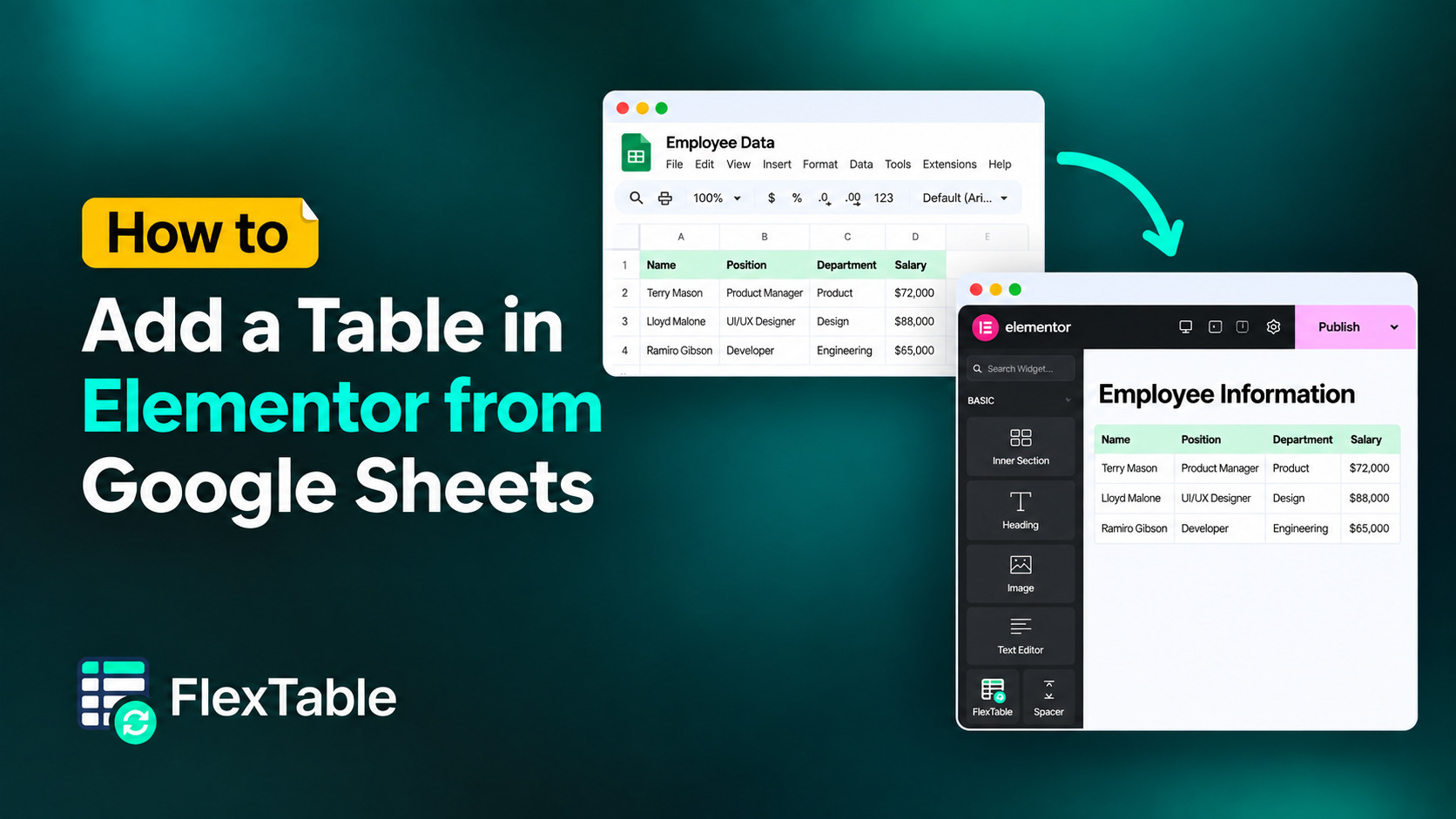
Connecting Google Sheets directly to Elementor solves this entirely. By adding a table to Elementor with FlexTable, you can manage all raw data inside Google Spreadsheets while automatically displaying fast, stylized, and responsive tables directly on your website.
Why Native Elementor Tables Fall Short for Live Data
For site owners managing frequent updates, traditional table creation methods in Elementor fail to scale. Building an elementor table without a dedicated dynamic tool creates four core maintenance issues:
- The Backend Maintenance Bottleneck: Updating 50+ rows of information inside WordPress editor widgets eats up valuable team hours every week.
- The “Heavy Add-On” Trap: Popular 50-in-1 Elementor add-on bundles (like Essential Addons, JetElements, or Premium Addons) introduce bulky JavaScript files and external CSS dependencies that hurt Core Web Vitals and slow mobile page loads.
- Broken Mobile Display: Standard HTML tables frequently stretch past mobile container boundaries or force awkward horizontal scrollbars on smartphones.
- Static Import Limits: Static CSV imports force you to manually re-upload files and reconfigure styling every time a single row changes.
A dedicated wordpress elementor table plugin like FlexTable replaces static maintenance by turning Google Sheets into a live WordPress table engine.
Step-by-Step: Adding a Table to Elementor with Google Sheets Sync
Prerequisite: Make sure you have the FlexTable plugin installed and activated on your WordPress site. Search for “FlexTable” in your WordPress Dashboard under Plugins ➔ Add New, click Install Now, and then Activate.
Setting up a live, auto-updating spreadsheet table in Elementor takes only a few minutes and requires zero coding.
Step 1: Connect Your Google Sheet to FlexTable
Organize your dataset inside Google Spreadsheets. Ensure the header row clearly labels your columns (e.g., Course Name, Instructor, Schedule, Room Number) and set your spreadsheet sharing settings to “Anyone with the link can view.“
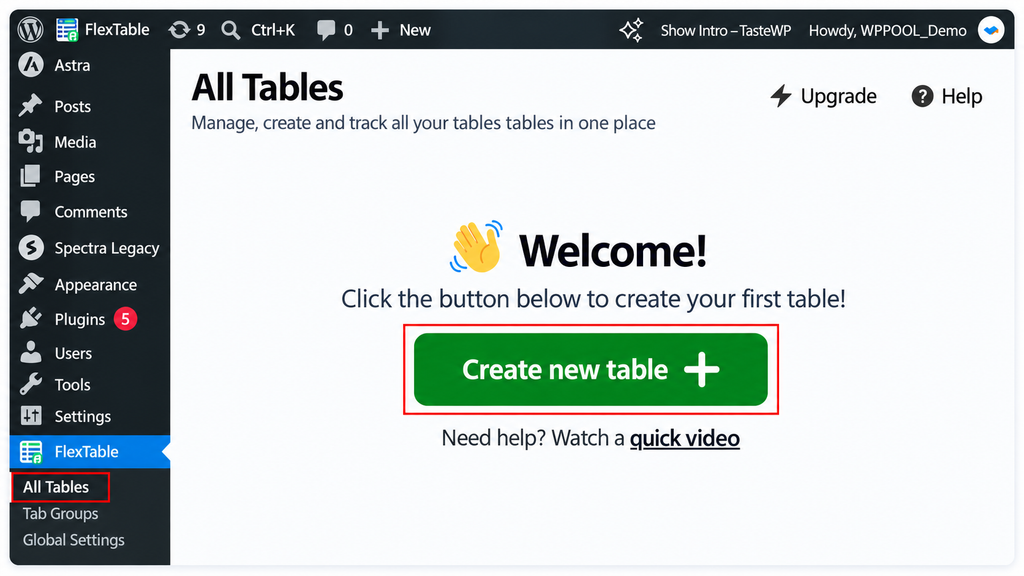
Next, navigate to your WordPress Dashboard, go to FlexTable ➔ All Tables, and click Create New Table.
Paste your public Google Sheet URL into the source link field and click Create table from URL.
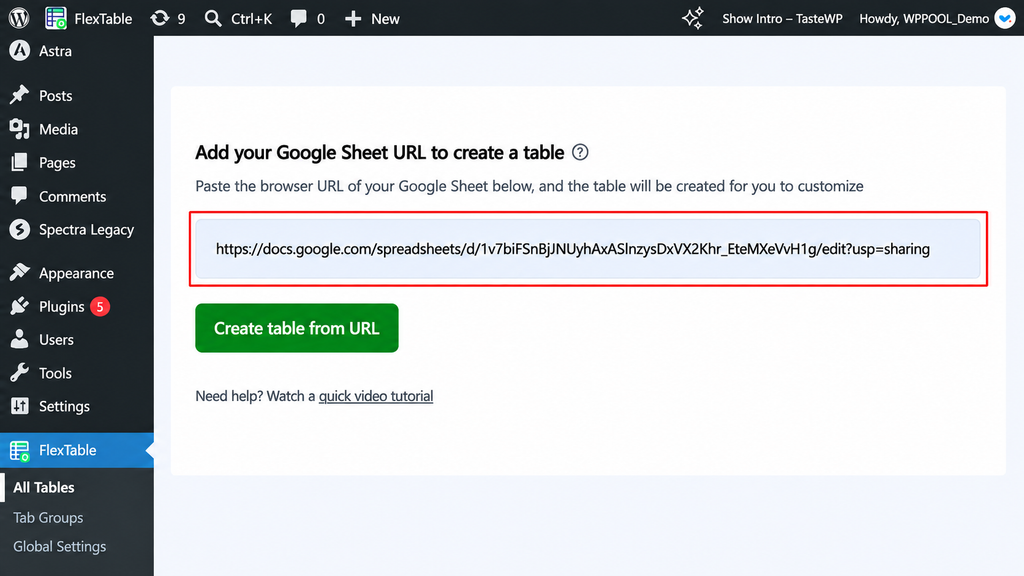
FlexTable will automatically import your data. For a complete walk-through, read our detailed guide on how to create a Google Sheets table in WordPress.
Step 2: Customize Your Table Appearance & Functions
Once connected, FlexTable opens a setup wizard with a live preview at the bottom of your screen. Adjust your table settings across three simple areas:
- Design & Layout:
- Theme: Choose a pre-built style (e.g., Simple, Minimal, or Dark Knight) or customize colors under Customize Theme Options.
- Controls: Toggle search bars, column sorting, pagination, multi-column filters, and downloadable export buttons (Excel, PDF, CSV).
- Mobile Display: Under Styling, pick your preferred Responsive Style (Default, Collapsible, or Scrollable) so your table looks clean on smartphones without writing CSS.
- Visibility Controls:
- Hide specific rows or columns on mobile/desktop screens without altering your original Google Sheet.
- Choose display modes under Conditional Table View (e.g., standard table vs. search-only lookup).
- AI Enhancements:
- Enable AI Table Summary or the Ask AI Assistant widget to let visitors interact with or summarize your data using natural language.
Click Save changes to lock in your settings and verify your live table in the bottom preview pane before publishing.
Step 3: Embed Directly Inside Elementor
Open your target page in the Elementor visual editor. FlexTable offers two seamless ways to display your dynamic table:
- The Native Elementor Widget: Search for the “Sheet to WP Table Live” widget in the left-hand Elementor panel. Drag the widget into your section and select your desired table from the dropdown menu.
- The Shortcode Method: If you prefer using shortcodes, copy the generated shortcode from your FlexTable dashboard, add Elementor’s native Shortcode Widget to your page, and paste the shortcode.
Once placed, click Update. Your table will render live on the front end, auto-updating whenever changes are saved in your Google Sheet.
Real-World Use Cases: Where Live Sync Saves Hours
Educational Class Schedules & Academic Portals
Schools, universities, and training centers update course timetables, instructor office hours, and exam schedules constantly. By utilizing FlexTable’s Search-Only Display mode, administrators can convert large spreadsheet databases into clean lookup portals where students type in their student ID or course code to pull up specific records.
Staff Directories & Organizational Catalogs
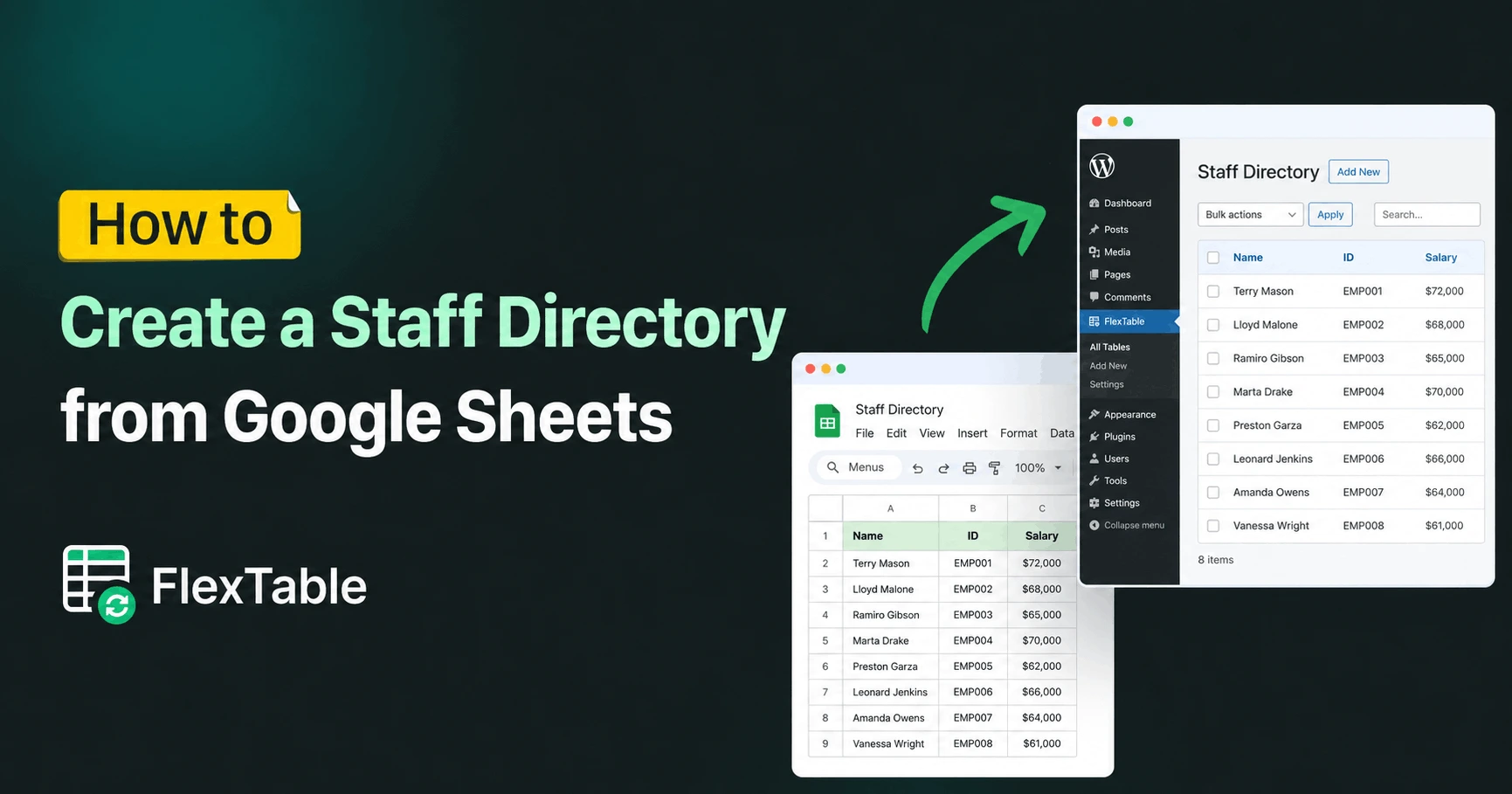
HR teams and department managers can maintain company staff directories directly inside a shared spreadsheet. Check out our blueprint on building a WordPress staff directory with Google Sheets to see how updating phone numbers, department titles, or email addresses in Google Sheets instantly reflects across all elementor tables without giving non-technical staff WordPress admin access.
Elementor Comparison Table & Pricing Grids
Creating an elementor comparison table or an elementor pricing table helps buyers review product specs side by side. FlexTable automatically parses image URLs into live thumbnails and transforms spreadsheet hyperlinks into styled Call-to-Action (CTA) buttons, allowing e-commerce managers to adjust live product catalogs on the fly. You can also explore the core advantages of Google Sheets to WP Table Live Sync for complex data management.
Ensuring Mobile Responsiveness Without CSS Code
Creating an elementor responsive table using custom CSS @media queries requires technical expertise and extensive testing across multiple screen breakpoints. For a complete overview of alternative approaches, see our complete guide on how to make a responsive WordPress table.
FlexTable handles smartphone layouts automatically. Depending on your data density, you can toggle built-in mobile layout modes directly within the plugin interface:
| Mobile Display Mode | Best For | Smartphone User Experience |
| Collapsible View | Multi-column directories & schedules | Collapses extra columns into expandable parent rows with a simple + button. |
| Stacked View | Product comparison & pricing grids | Transforms horizontal rows into vertical cards stacked cleanly on top of each other. |
| Scrollable Container | Dense financial or numeric data | Wraps the table in a smooth touch-enabled horizontal container with visible scroll indicators. |
Performance First: Live Sync vs. Site Speed
Recent data from the HTTP Archive Core Web Vitals Report shows that over 50% of mobile websites fail overall Core Web Vitals assessments, largely due to unoptimized third-party scripts and heavy DOM structures.
Adding static iFrames or unoptimized 50-in-1 page builder add-on packs to display Google Sheets data can severely impact Largest Contentful Paint (LCP) and Interaction to Next Paint (INP) scores. To see how FlexTable compares against traditional plugins, read our round-up of the best WordPress table plugins compared.
FlexTable addresses performance through Local Server Caching & Asynchronous Data Fetching. Instead of forcing your server to query Google’s API on every single page view, FlexTable serves a cached HTML snapshot stored locally on your WordPress server. Learn more about setting up these connections in our tutorial on how to insert WordPress tables using Google Sheets. You can define exact cache refresh intervals to guarantee lightning-fast page loads while keeping front-end data completely fresh.
Frequently Asked Questions
Does Elementor have a built-in table widget?
No, Elementor Core does not feature a native table widget. Adding custom tables requires writing manual HTML/CSS, using complex shortcode plugins, or installing a dedicated widget tool like FlexTable.
Will editing my Google Sheet automatically update my Elementor site?
Yes! FlexTable continuously syncs data from your Google Sheet to your front-end Elementor pages without requiring you to log into WordPress or re-upload files. For step-by-step setup details, see our guide on how to embed Google Sheets to WordPress table plugin.
How does an elementor table handle mobile responsiveness?
FlexTable includes native responsive controls. You can select Collapsible, Stacked, or Scrollable display modes inside the plugin options to ensure tables fit mobile displays automatically without writing CSS code.
Can non-technical team members update table data without WordPress access?
Yes. You can delegate spreadsheet editing permissions to team members (such as teachers, department assistants, or store managers) in Google Sheets. They can update raw data inside Google Sheets without needing WordPress admin credentials.
How does FlexTable handle private or sensitive spreadsheet data?
FlexTable offers a Search-Only Display feature designed specifically for sensitive or large datasets. Instead of rendering a public master list, it displays a clean search input where visitors enter specific details (e.g., student IDs or registration numbers) to retrieve only their individual row.
Will fetching live Google Sheets data slow down my site?
No. FlexTable uses local server caching and smart asynchronous loading. It serves pre-rendered local snapshots rather than making live external API calls on every page load, keeping your Core Web Vitals clean.
Can visitors summarize or ask questions about my table using AI?
Yes! FlexTable Pro features an Instant AI Summary tool that automatically creates concise key takeaways above your table, as well as an interactive Ask AI Assistant that lets users type natural language questions to find specific details instantly.
Does FlexTable work as a Divi table plugin or Beaver Builder table solution?
Yes! While FlexTable features a dedicated native Elementor widget, it also functions perfectly as a Divi table plugin or Beaver Builder table integration. Simply copy the generated shortcode from your FlexTable dashboard and paste it into Divi’s Text/Code module or Beaver Builder’s HTML/Text module to display live-synced Google Sheets tables anywhere on your site.
Stop Updating WordPress Tables Manually
Adding a table to Elementor shouldn’t mean sacrificing site speed or spending hours copying spreadsheet cells into WordPress. By pairing Elementor with FlexTable’s Google Sheets sync, your data stays updated automatically while keeping your page load fast and mobile layouts clean.
Ready to automate your workflow? Try FlexTable to set up live Google Sheets tables in Elementor in minutes.



Add your first comment to this post