









If you’ve ever managed a busy WooCommerce store, you already know the pain: juggling hundreds of orders, manually checking products, and fighting messy spreadsheets that never seem to stay clean.
You’re not alone, according to WP Tavern’s 2024 eCommerce Insights Report, over 64% of WooCommerce store owners say their biggest frustration is managing and organizing orders efficiently. And for stores handling multi-product orders, the problem multiplies.
Let’s be honest, your spreadsheet should make your life easier, not harder. But when one order with five products turns into a single cell packed with commas, chaos follows. Reports break, analytics go wrong, and your fulfillment team wastes hours untangling data that should’ve been clear from the start.
At FlexOrder, we’ve seen this story play out countless times. That’s why our mission is simple:
To make WooCommerce order management fast, reliable, and frustration-free – right inside Google Sheets.
And with our latest update, we’re solving one of the most requested pain points from our users – bringing clarity to multi-product orders with a new feature that lets you display each product in separate rows.
Why This Update Matters Now
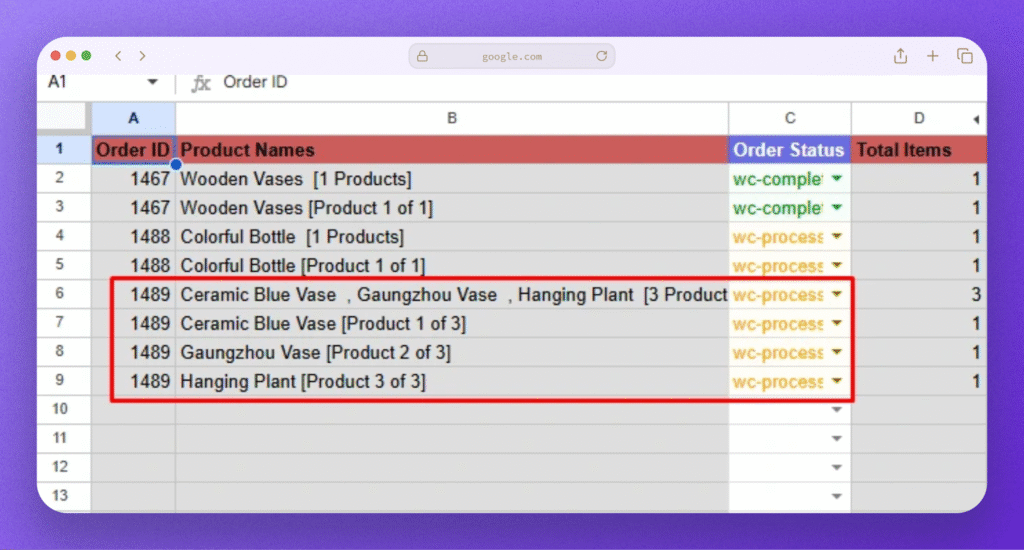
Imagine you’re dealing with 500 orders in a day – and 30% of those orders contain multiple products. Yet your Google Sheets just shows one row per order, cramming all product names, quantities, SKUs into one cell separated by commas. Try filtering, sorting, or reporting on that, and you’ll spend hours cleaning data instead of making decisions.
It’s not an exaggeration, many WooCommerce users with complex sales catalogs struggle with this every day.
In fact, data shows that the average number of items per order is trending upward. According to Shippit, the average number of items per online order increased from 2.9 to 3.4 between 2022 and 2024. News.com.au
That’s why in this release we’re introducing “Separate Rows for Multiple Products.” Because when your data is structured, your operations become powerful.
The Hidden Pain in Multi-Product Orders
Here are the most common frustrations we heard from users:
- Unreadable, overstuffed cells: All products mashed into one line makes it nearly impossible to parse at a glance
- No per-product sorting or filtering: You can’t isolate “all orders including Product A” easily
- Error-prone manual cleanup: You or your team must split text, use formulas, or rebuild spreadsheets
- Reporting nightmares: Product-level revenue, margins, or performance gets obscured
- Team confusion & miscommunication: One person sees “2× Item A, 1× Item B”; another sees “Product A, Product B” in a single column
Even with tools to sync WooCommerce and Google Sheets, if the data is messy, your workflow breaks down.
What We’ve Built: “Separate Rows for Multiple Products”
Here’s the new feature, in a nutshell:
- Every product in a multi-item order gets its own row in your connected sheet
- The order-level information (order ID, date, customer) is duplicated per row, while product-level fields (product name, quantity, SKU) are isolated
- You still see “Order #1234” but now instead of one cell showing “A ×2, B ×1”, you get:
| Order ID | Customer | Product | Quantity | … |
| 1234 | Alice | A | 2 | … |
| 1234 | Alice | B | 1 | … |
This change turns your sheet into a true relational view just like a database.
How It Solves Real User Frustrations
| Pain Point | Before | After (with Separate Rows) |
| Hard to filter on a specific product | You’d have to parse text or use complex formulas | Just filter the “Product” column |
| Sorting by product metrics | Messy because multiple items in one cell | Each product is in its own row |
| Reporting & pivot tables | Requires manual cleanup or splitting | Ready to use in pivots, charts, dashboards |
| Team misinterpretation | Ambiguity in how orders are represented | Clear, unambiguous, standardized cells |
| Time wasted on fixes | Hours spent cleaning data | Seconds to run reports and export |
Because now each product is represented clearly, everything downstream – from fulfillment to analytics, becomes easier and faster.
The Impact: From Chaos to Clarity
By implementing this feature, users can:
- Save hours weekly on data cleanup
- Make faster decisions on inventory, trends, and promotions
- Minimize errors in shipping or reporting
- Enable team members (non-technical) to work with clean data
- Scale confidently – adding SKUs or bundles doesn’t break your sheet
Also, cleaner data means better dashboards, better integrations, and better insights.
Getting Started: See It, Learn It, Try It
You can start using Separate Rows for Multiple Products in just a few clicks:
1️⃣ Make sure you’re using FlexOrder – Order Sync with Google Sheets (Ultimate version)
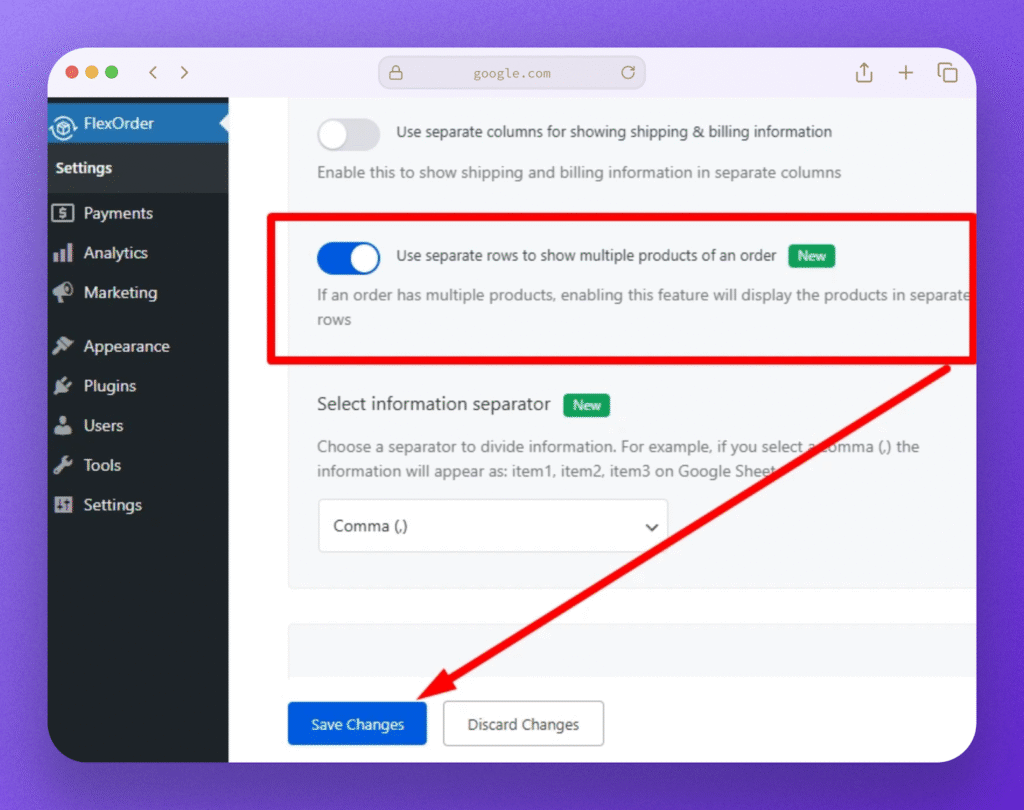
2️⃣ Go to FlexOrder → Settings
3️⃣ Enable the toggle: “Use separate rows to show multiple products of an order”
4️⃣ Click Save Changes
From now on, every order with multiple products will appear in separate rows – no formulas, no manual editing, no extra plugins.
Want to See It in Action?
We’ve got you covered – choose how you want to explore:
🔗 Read the Documentation: Step-by-step guide to enabling and using the feature:
🎬 Explore the Live Demo: See how FlexOrder handles multi-product orders in real time:
💬 Need Help: Our support team acts like your own developers – ready to guide you anytime:
At FlexOrder, we don’t just build features, we build partnerships.
Whether you’re setting up your first WooCommerce sync or managing thousands of daily orders, our team is here to help you every step of the way.
Final Call: Simplify Your Workflow Today
Don’t let messy order data slow down your growth.
Update to the latest version of FlexOrder Ultimate, enable Separate Rows, and transform your order management from chaos to clarity – today.




Add your first comment to this post