









To enjoy this feature, you will need to activate FlexOrder – Order Sync with Google Sheets for the WooCommerce Ultimate version. Activate the version first if you haven’t done so yet.
Enable Separate Rows for Multiple Products #
- Navigate to FlexOrder > Settings.
- Enable the Use separate rows to show multiple products of an order toggle.
- Click Save Changes.

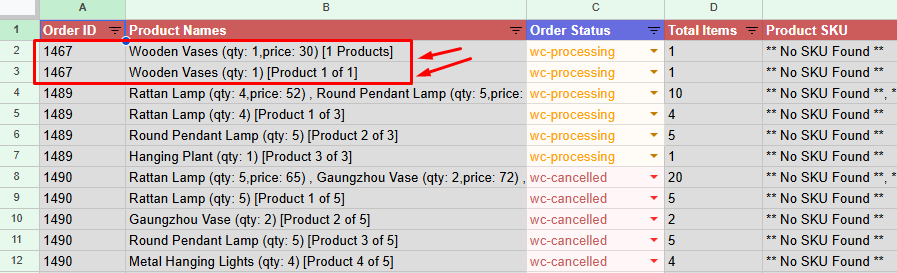
If an order contains multiple products, they will be recorded separately.

After enabling this feature it will appear in separate rows in your connected Google Sheets.

Notes:
When the “Order Separation (Multiple Products of an Order)” option is enabled, each order is displayed in a more detailed, item-based format.
Instead of showing all products under a single row (For Single Product Order), the system splits the order into multiple entries:
- One row for the parent order.
- Additional rows for each individual product/item
For example, if an order includes Product 1 and Product 2, they will appear as separate entries with different serial numbers, rather than being grouped under one order row.


Add your first comment to this post