









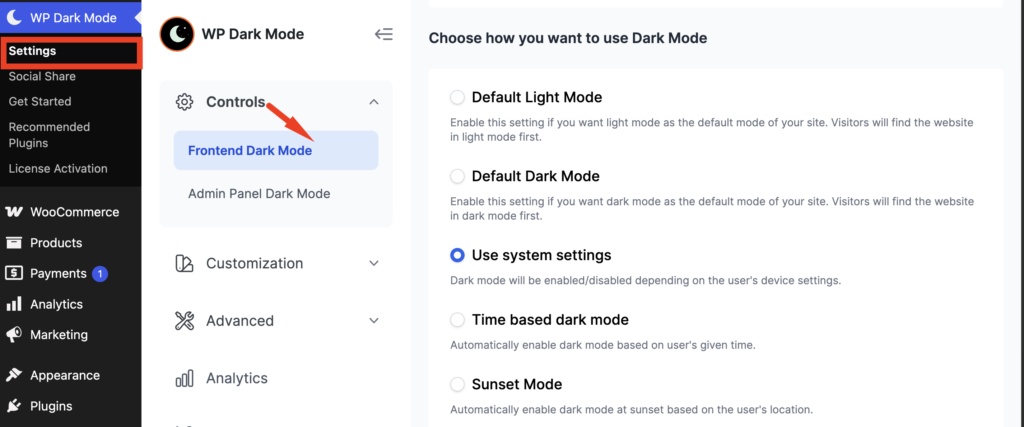
The Frontend Dark Mode settings allow you to control how dark mode is applied to your website and visitors. WP Dark Mode provides five different modes, each designed for a different use case.
Accessing the Frontend Dark Mode Settings #
To configure the Frontend Dark Mode behavior:
WP Dark Mode → Settings → Controls → Frontend Dark Mode →Enable Frontend Dark Mode
From this page, you can choose one of the following dark mode options:
- Default Light Mode
- Default Dark Mode
- Use System Settings
- Time-Based Dark Mode
- Sunset Mode
1. Default Light Mode #
How it works #
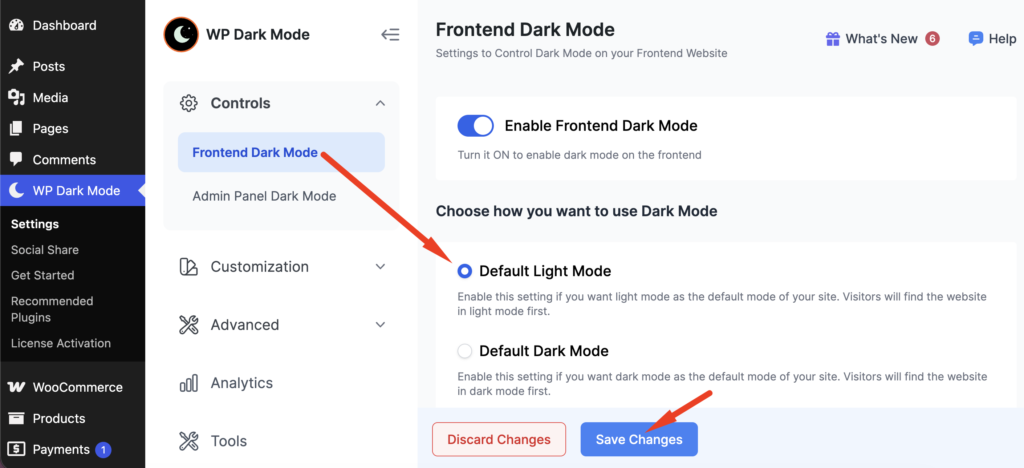
This is the default behavior of your website.
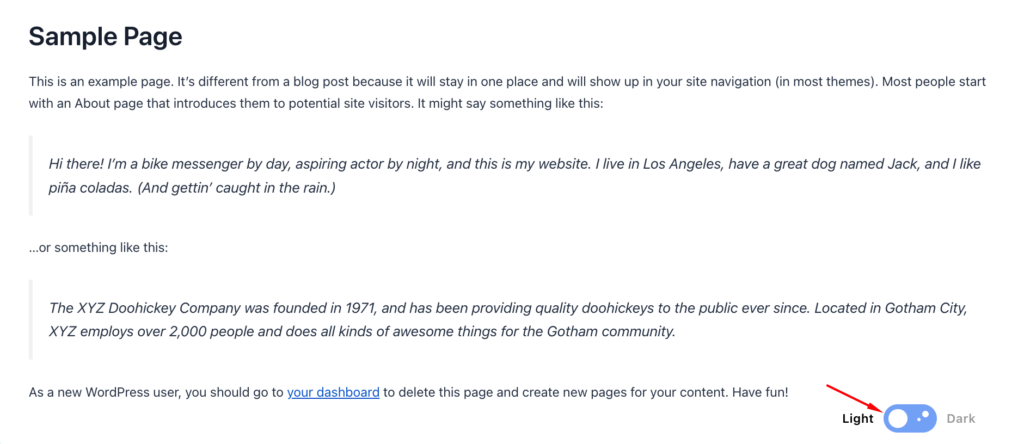
- Visitors initially see your website in Light Mode.
- If the Floating Switch is enabled, visitors can manually switch to Dark Mode.
- Their selected preference is remembered for future visits.
Plugin Settings👇
User View👇
Best for: Websites that primarily use a light theme but want to offer visitors an optional Dark Mode.
2. Default Dark Mode #
How it works #
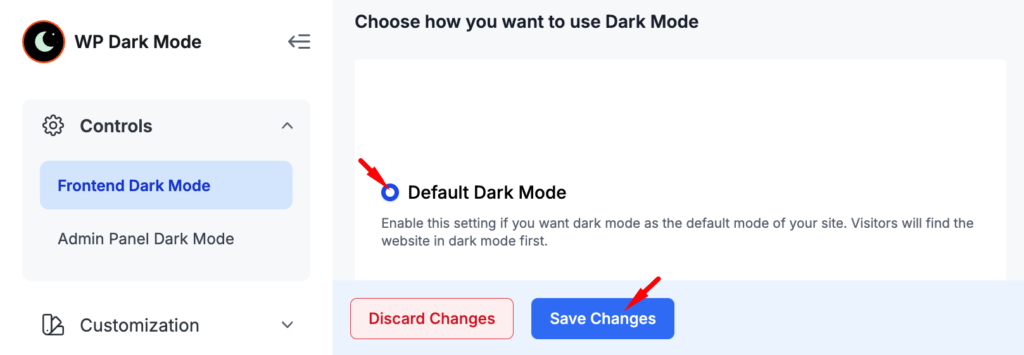
Your website loads in Dark Mode by default.
- Every visitor initially sees the site in Dark Mode.
- If the Floating Switch is enabled, visitors can switch back to Light Mode.
- Their preference is saved for future visits.
Plugin Settings👇
User View👇
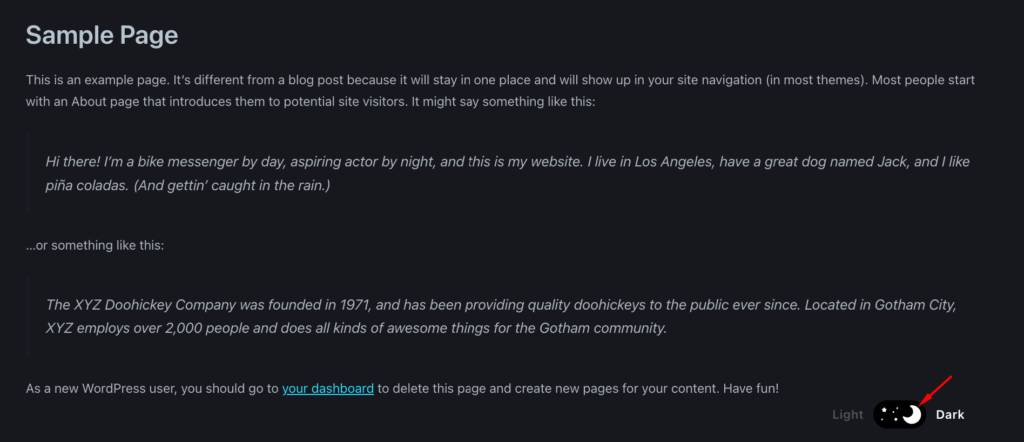
Best for: Websites that are designed primarily for a dark appearance.
3. Use System Settings #
How it works #
WP Dark Mode automatically follows the visitor’s operating system or browser appearance preference.
For example:
- If the visitor’s device is set to Dark Mode, your website loads in Dark Mode.
- If their device is set to Light Mode, your website loads in Light Mode.
This provides a seamless experience that matches the visitor’s device settings.
Recommended Configuration: Disable the Display Floating Switch.
If visitors manually toggle the switch, their saved preference overrides the system setting, preventing the website from automatically following the device theme.
Plugin Settings👇
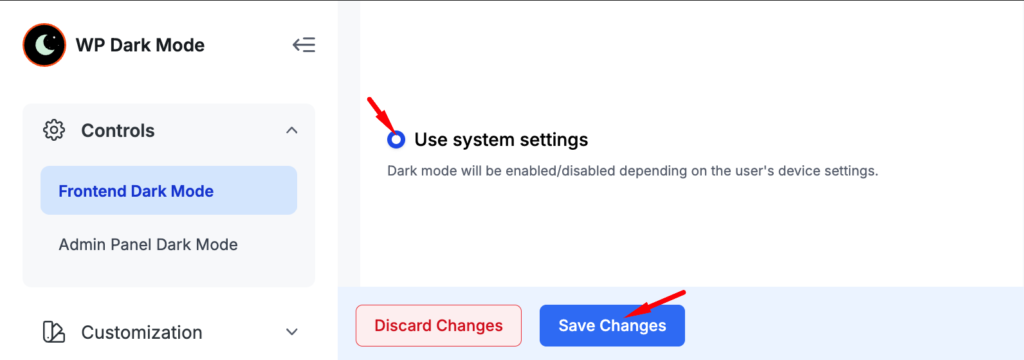
User View👇


Best for: Websites that automatically respect users’ device preferences.
4. Time-Based Dark Mode #
How it works #
Dark Mode is automatically enabled during a specified time range.
You can configure:
- Start Time
- End Time
Example:
- Start: 6:00 PM
- End: 6:00 AM
During this period, visitors will see Dark Mode. Outside of this period, the website switches back to Light Mode.
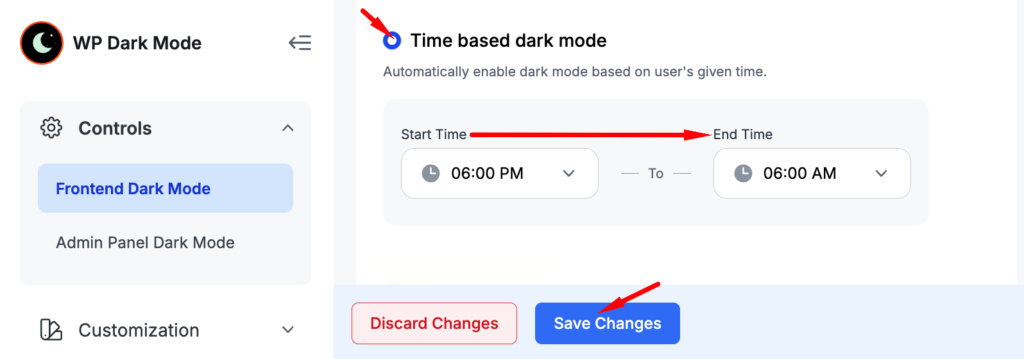
Recommended Configuration: Disable the Display Floating Switch.
If a visitor manually changes the theme using the floating switch, their saved preference takes priority over the scheduled time, preventing automatic switching.
Prefer a visual guide? Watch our quick tutorial to get started.👇
Best for: Websites that want Dark Mode only during evening or nighttime hours.
5. Sunset Mode #
How it works #
Dark Mode is automatically enabled at sunset and disabled at sunrise based on the visitor’s geographical location.
Instead of setting manual times, WP Dark Mode calculates sunrise and sunset automatically.
This creates a more natural day/night experience for visitors in different regions.
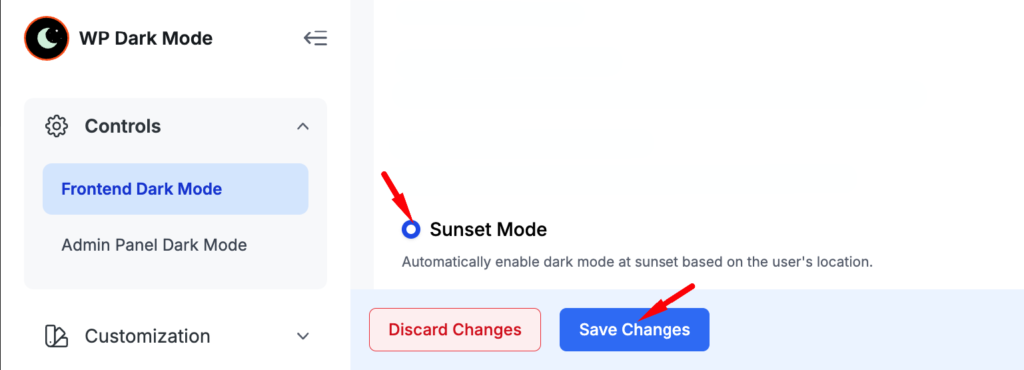
Recommended Configuration: Disable the Display Floating Switch.
If visitors manually change the theme using the floating switch, the saved preference overrides the automatic sunset/sunrise behavior.
Best for: Websites that want Dark Mode to change naturally based on local daylight hours.
Mode Comparison #
| Mode | How it Works | Manual Time Required | Follows Device Settings | Recommended to Disable Floating Switch |
| Default Light Mode | Website loads in Light Mode by default | No | No | Optional |
| Default Dark Mode | Website loads in Dark Mode by default | No | No | Optional |
| Use System Settings | Matches the visitor’s device theme | No | ✅ Yes | ✅ Yes |
| Time-Based Dark Mode | Enables Dark Mode during a scheduled time range | ✅ Yes | No | ✅ Yes |
| Sunset Mode | Automatically switches between Light and Dark based on local sunrise/sunset | No | No | ✅ Yes |
Important Note #
Disabling the Display Floating Switch (Recommended for Automatic Modes) #
If you are using Use System Settings, Time-Based Dark Mode, or Sunset Mode, it is recommended to disable the Display Floating Switch.
Navigation: WP Dark Mode → Settings → Customization → Switch Settings → Display Floating Switch

Turn the Display Floating Switch off, then click Save Changes.
Why is this recommended? #
The floating switch allows visitors to manually switch between Light and Dark Mode. Once a visitor uses the switch, WP Dark Mode saves their preference in the browser. This saved preference takes priority over the automatic dark mode settings.
As a result:
- Using System Settings will no longer follow the visitor’s device theme.
- Time-based dark mode will no longer switch according to the configured schedule.
- Sunset Mode will no longer automatically switch based on the visitor’s local sunrise and sunset times.
For the most reliable automatic behavior, disable the Display Floating Switch when using any of these three modes.
Best Practice #
Choose only one automatic mode (Use System Settings, Time-Based Dark Mode, or Sunset Mode) if you want dark mode behavior to be fully automated.
For the most consistent experience, disable the Display Floating Switch. This prevents visitors’ manual selections from overriding the automatic behavior and ensures the chosen mode works as intended.
That’s a better approach for end-user documentation. Instead of only mentioning the website type, explain why someone would choose that mode and what benefit it provides.
Common Use Cases #
1. Default Light Mode #
Use Cases
- Business or corporate websites – Keep the familiar light appearance while allowing visitors to switch to Dark Mode if they prefer.
- Blogs and documentation sites – Provide a bright, easy-to-read experience during the day without forcing Dark Mode on all users.
Benefit: Best when Light Mode is your primary design but you still want to offer Dark Mode as an optional feature.
2. Default Dark Mode #
Use Cases
- Gaming or technology websites – Creates a modern, immersive experience that aligns with the site’s branding.
- Creative portfolios or entertainment sites – Make visual content stand out and provide a premium dark-first appearance.
Benefit: Ideal when your website is designed to be viewed in Dark Mode by default.
3. Use System Settings #
Use Cases
- SaaS applications or user dashboards – Automatically match each visitor’s operating system theme, creating a seamless experience.
- Accessibility-focused websites – Respect the user’s device preference without requiring manual switching.
Benefit: Visitors always see the website in the same theme as the rest of their device, improving comfort and consistency.
4. Time-Based Dark Mode #
Use Cases
- News, blogs, or educational websites – Automatically enables Dark Mode during evening hours, making content more comfortable to read in low-light environments.
- Businesses with predictable operating hours – Display a lighter theme during the day and switch to Dark Mode at night without manual intervention.
Benefit: Automatically provides a more comfortable viewing experience based on a predefined schedule.
5. Sunset Mode #
Use Cases
- Global websites with visitors from different regions – Automatically switches themes based on each visitor’s local sunrise and sunset time.
- Reading or lifestyle websites – Reduces eye strain by enabling Dark Mode naturally after sunset.
Benefit: Offers the most natural experience by adapting to the visitor’s local daylight conditions without requiring manual time configuration.


Add your first comment to this post