









Connect your WooCommerce store with WhatsApp to enable one-click product inquiries and instant order requests. FormyChat’s WooCommerce integration adds a customizable WhatsApp button to your store’s Shop Page, Product Page, and soon Cart & Checkout pages. This lets customers start a WhatsApp conversation directly from any product they’re viewing.
The feature is fully customizable and works seamlessly across all types of WooCommerce shop page templates – whether you are using the default WooCommerce Shop page, creating a shop page with shortcodes, or building it with Gutenberg blocks.
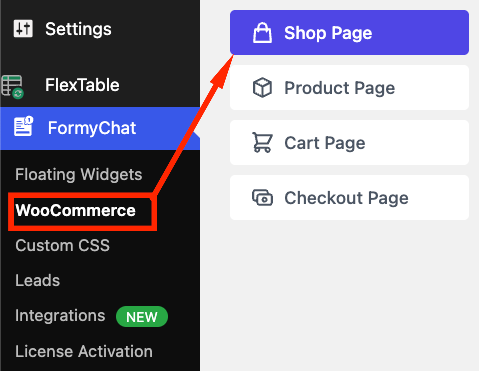
How to Navigate to This Feature: WordPress Dashboard → FormyChat → WooCommerce
You’ll see four sections:
- Shop Page
- Product Page
- Cart Page (Coming Soon)
- Checkout Page (Coming Soon)
Each section allows you to configure how the WhatsApp button appears and behaves on its corresponding WooCommerce page.
WhatsApp Button for Shop Page #
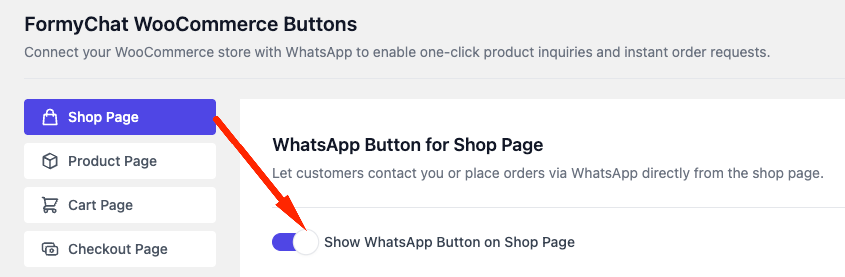
This feature allows you to display a WhatsApp button on the WooCommerce Shop Page, letting customers contact you before purchasing. Show WhatsApp Button on Shop Page: Toggle this option ON to activate the WhatsApp button for all products displayed on the Shop Page. Once enabled, additional settings will appear.
Configuration Options #
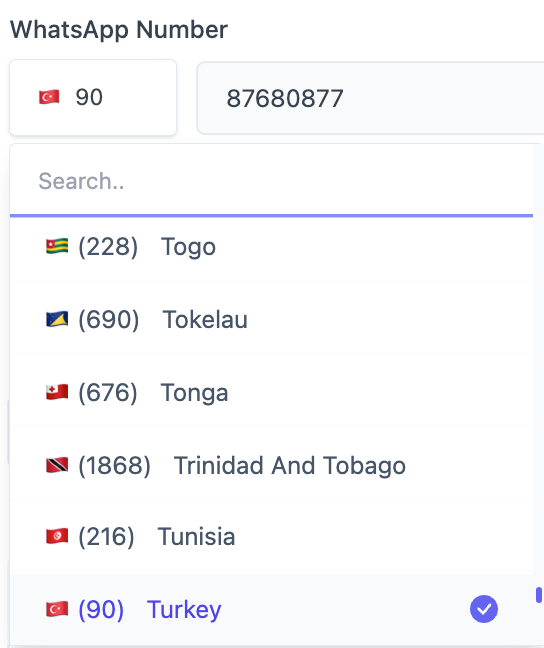
WhatsApp Number #
- Select your country.
- Enter your phone number without the country code. FormyChat will automatically format it for WhatsApp.
Button Position #
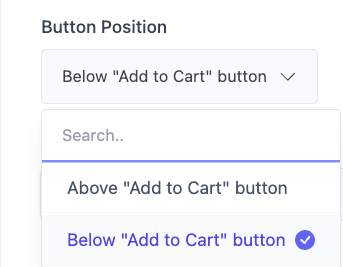
Choose where the WhatsApp button appears relative to the product’s “Add to Cart” button:
- Above “Add to Cart” button
- Below “Add to Cart” button
Button Text: Specifies the text displayed on the WhatsApp button.
Default: Buy on WhatsApp (You may customize this label as needed.)

Pre-filled Message: Define the default message that customers will send when they click the button.
This message supports dynamic placeholder tags.
Example:
Hello! I'd like to ask about {product_name} (SKU: {product_sku}) on {site_title}.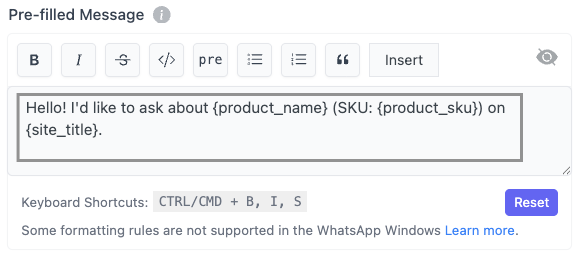
Supported Dynamic Tags: You may use the following tags to auto-fill product or site information:

Tag | Description |
| {product_name} | Name of the product |
| {product_slug} | Product slug (URL-friendly name) |
| {product_sku} | Product SKU |
| {product_price} | Current product price |
| {product_regular_price} | Regular price before sale |
| {product_sale_price} | Sale price |
| {product_stock_status} | Stock availability |
| {current_url} | Current page URL |
| {current_title} | Current page title |
| {site_title} | Site title |
| {site_url} | Website URL |
| {site_email} | Site admin email |
| {date} | Current date |
| {time} | Current time |
Keyboard Shortcuts for Editor #
- CTRL/CMD + B → Bold
- CTRL/CMD + I → Italic
- CTRL/CMD + S → Strikethrough
Note: Some formatting rules may not be supported in WhatsApp Windows. Learn more.
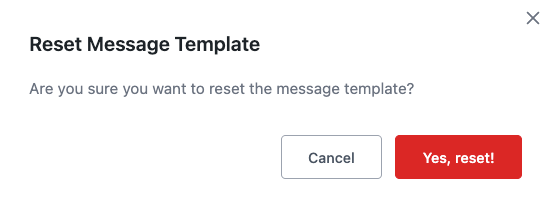
Reset Button: The Reset button restores all message template settings to their default values.
When clicked:
- A confirmation message appears:
“Are you sure you want to reset the message template?” - If confirmed → All settings revert to default.
- If canceled → Your customization remains unchanged.
Advanced Options: Click Advanced to expand additional appearance and behavior settings.
Button Style Customization
| Option | Description |
| Background color | Color of the button |
| Background hover color | Color when hovering |
| Text color | Color of button text |
| Text hover color | Text color on hover |
| Button Border Radius | Controls rounded corners (in pixels) |
Preview Section (Live Button Preview) #
On the right side of the settings page, you will find a Preview panel. This panel displays a real-time preview of your WhatsApp button based on your current settings.
The preview updates instantly, allowing you to see exactly how the button will look on your website before saving the changes. This helps ensure the design matches your store’s branding and provides visual confirmation of all adjustments.
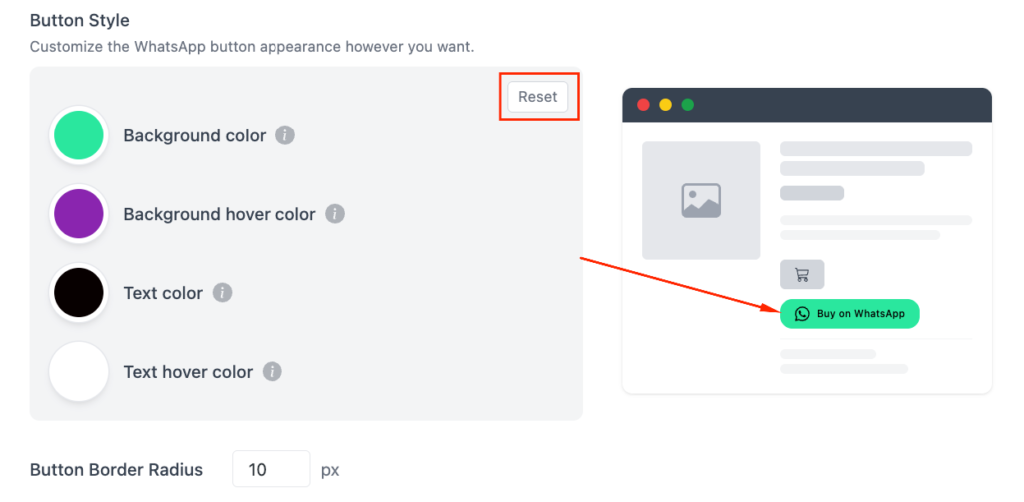
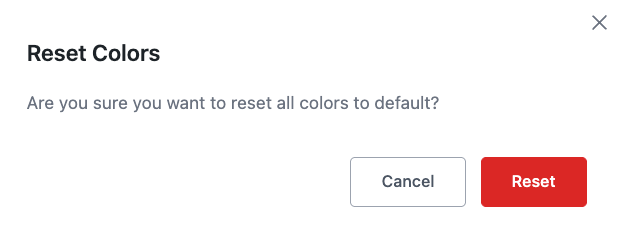
Reset Color: The Reset button restores all customizations to their default values.
When clicked:
- A confirmation message appears:
“Are you sure you want to reset all colors to default?” - If confirmed → All settings revert to default.
- If canceled → Your customization remains unchanged.
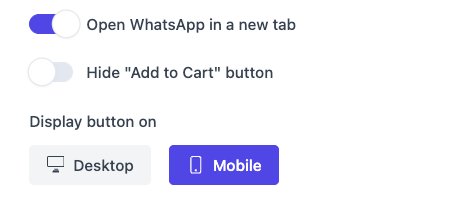
Behavior Options #
- Open WhatsApp in a new tab: Opens WhatsApp Web or WhatsApp App in a separate tab/window.
- Hide “Add to Cart” button: Useful for stores that accept orders only through WhatsApp.
- Display button on: You may enable/disable based on device type.
- Desktop
- Mobile
Save Your Configuration #
After completing all settings and customizations, click the Save button to apply your changes.
This ensures that your WhatsApp button configuration is activated and displayed correctly on the Shop Page and Single Product Page.

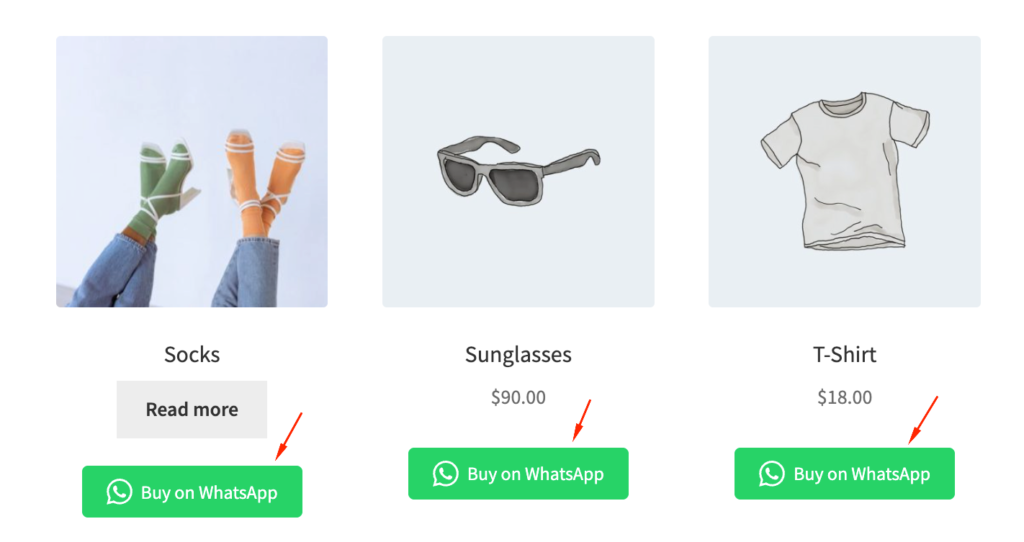
How It Appears on the Shop Page #
After configuration, the WhatsApp button will appear at your chosen position for every product on the shop page. It will also automatically appear on individual product pages, unless disabled separately.
WhatsApp Button for Single Product Page #
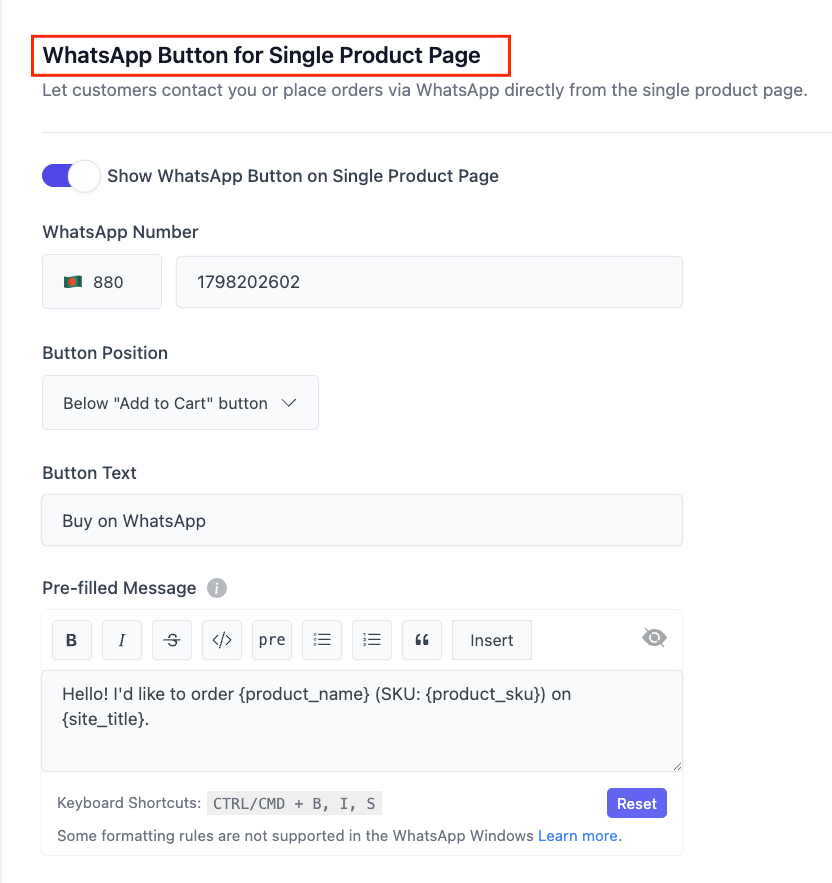
This feature places a dedicated WhatsApp button on the Single Product Page, allowing customers to contact you while viewing a specific product.
Enable the Feature #
- Show WhatsApp Button on Single Product Page
- Toggle ON to activate.

Once enabled, all configuration options (similar to Shop Page) will appear.
The configuration items WhatsApp number, button text, pre-filled message, dynamic tags, styling, and advanced settings remain the same as the Shop Page configuration.
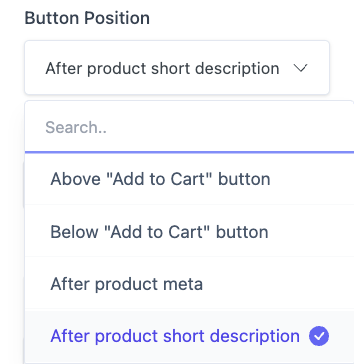
Additional Button Position Options #
In addition to the positions available for the Shop Page, the Single Product Page includes:
- After product meta
- After the product’s short description
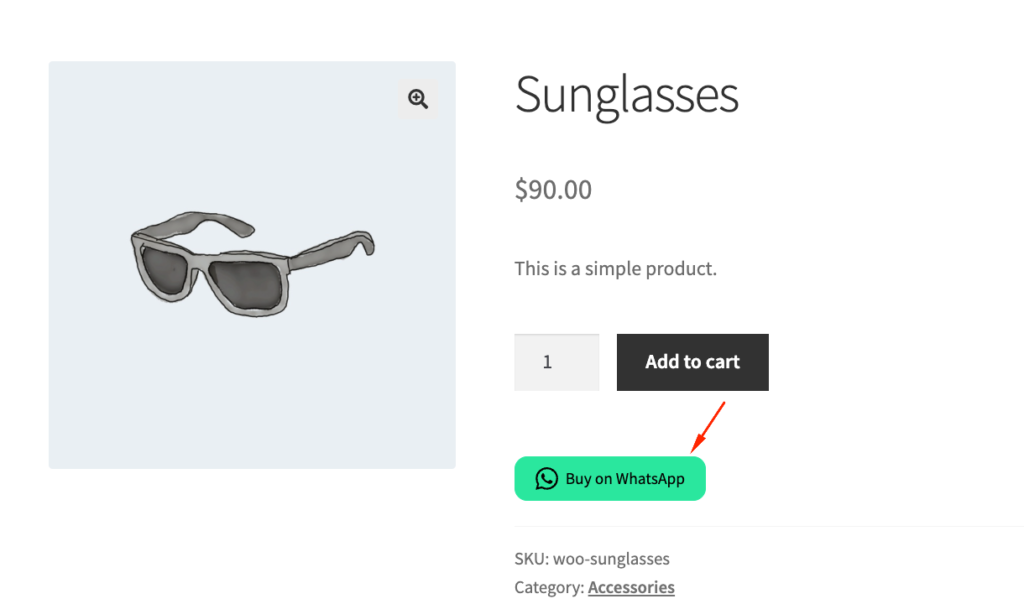
How It Appears on the Product Page #
Once configured:
- The WhatsApp button will appear on every product on the Shop Page.
- It will also appear on the Single Product Page based on your selected position.
- Customers can click the button to contact you or place an order directly through WhatsApp with pre-filled product details.


Add your first comment to this post