









Overview
WP Dark Mode includes accessibility options that help make your website easier to use for people with disabilities. These features allow users to control how content appears and interact with dark mode using accessible controls.
Accessibility options include:
- Typography adjustments for better readability
- Accessible toggle switches
- Screen reader-friendly announcements
- URL parameters to enable or disable dark mode
These settings help improve usability for users who rely on assistive technologies or need better visual control.
Where to Find Accessibility Settings
You can configure accessibility features from the WordPress dashboard.
Go to: WordPress Dashboard → WP Dark Mode → Advanced → Accessibility #
From this section, you can enable accessibility switches and configure typography-related settings.
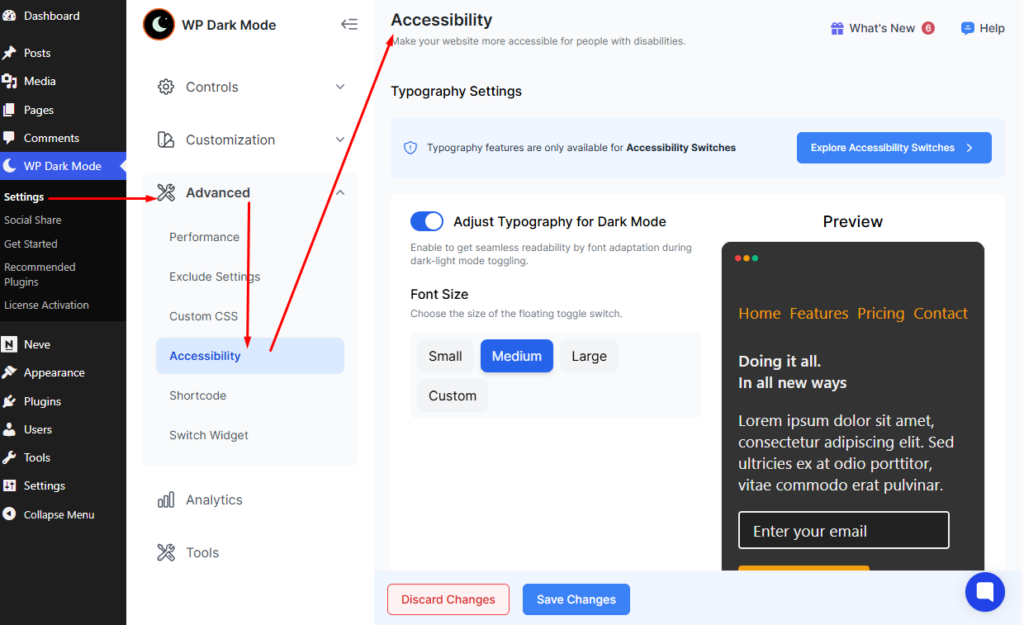
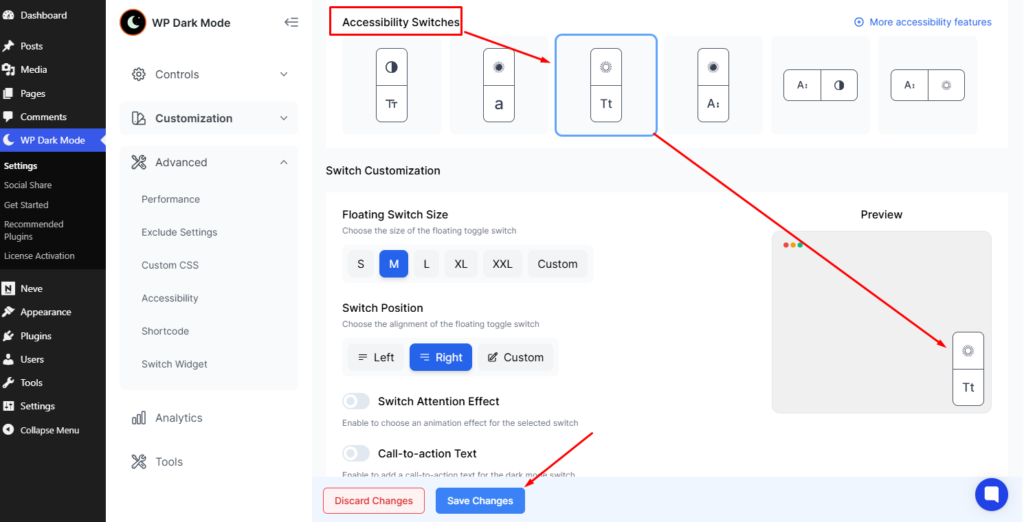
Accessibility Switches #
Accessibility Switches provide controls that improve usability for visitors, especially those using assistive technologies.
Some features in this section, such as typography adjustments, are only available when Accessibility Switches are enabled.
Once enabled, additional customization options will appear.
Typography Features (Accessibility Switches Only) #
Typography settings allow you to improve readability when dark mode is active. These settings are located in:
Dashboard → WP Dark Mode → Advanced → Accessibility → Explore Accessibility Switches
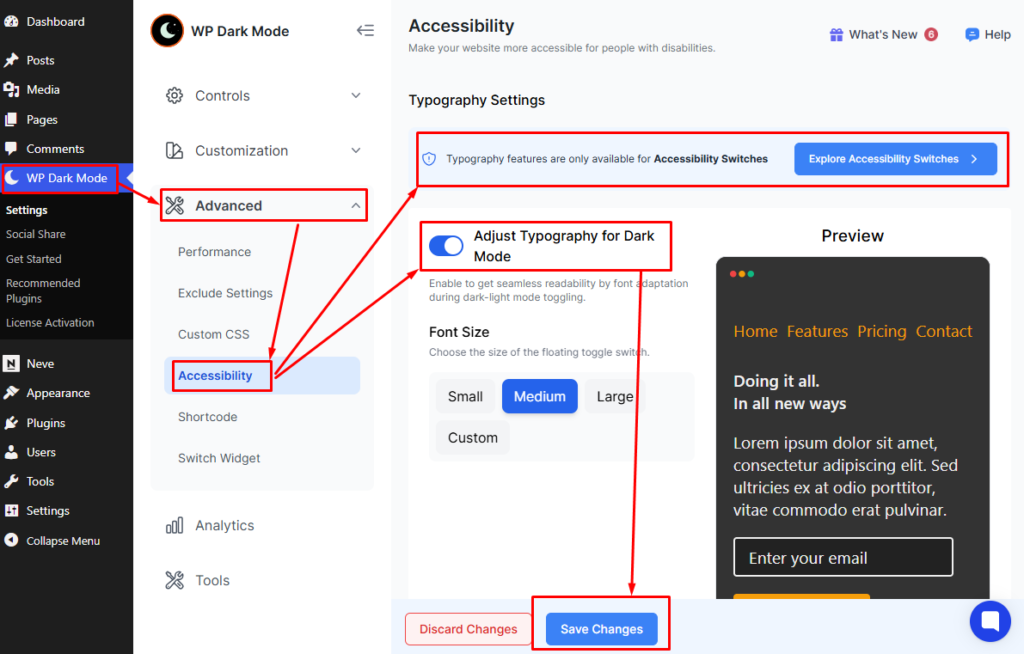
Adjust Typography for Dark Mode #
This setting allows you to adjust typography when Dark Mode is enabled.
When activated, text can appear larger or easier to read for users browsing in dark environments.
User Benefits #
- Improves readability for users with low vision
- Makes long content easier to read
- Helps users who prefer larger text in dark mode
Behavior #
- Typography adjustments apply when dark mode is active
- Layout adapts automatically to the selected typography settings
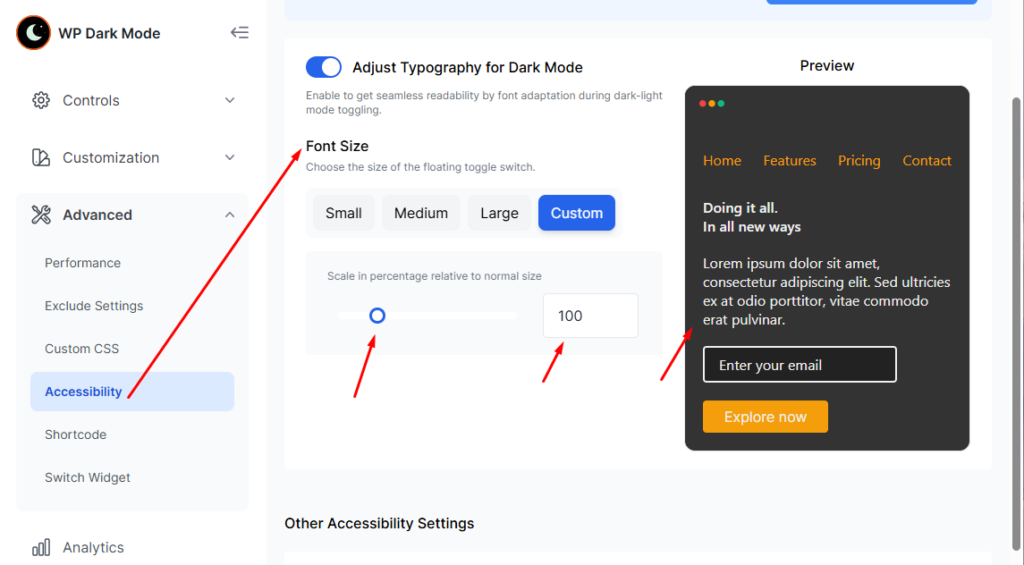
Font Size #
The Font Size option allows you to control the text size of the floating accessibility switch.
Dashboard → WP Dark Mode → Advanced → Accessibility → Font Size
What It Does #
This setting adjusts the text size displayed in the floating toggle switch.
User Benefits #
- Makes the toggle switch easier to read
- Helps users with visual impairments identify the control
- Improves visibility of the accessibility switch
Keyboard Shortcuts #
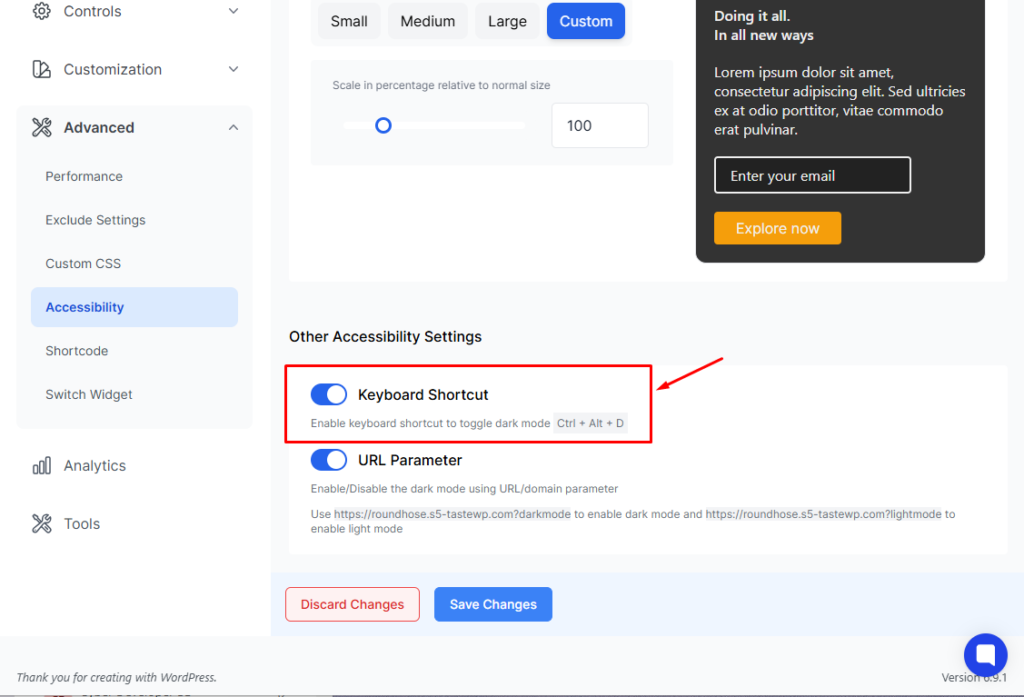
WP Dark Mode supports keyboard interaction, so users can toggle dark mode without using a mouse.
Default Shortcut: Ctrl + Alt + D (Toggle Dark Mode) #
Expected Behavior (No page refresh is required)
When the shortcut is pressed:
- The website switches between light and dark mode.
- The change happens instantly.
- The user preference is saved (if enabled).
UX Notes #
Keyboard shortcuts improve accessibility for:
- Keyboard-only users
- Power users
- Users with motor accessibility needs
URL Parameter for Dark Mode #
WP Dark Mode allows dark mode to be enabled or disabled directly from a URL using parameters.
This feature can be useful for testing, sharing links, or controlling how a page loads.
Enable Dark Mode via URL #
To enable dark mode, add the following parameter to the website URL:
When users visit this link, the website loads in Dark Mode.
Enable Light Mode via URL #
To force the website to load in light mode, use:
This disables dark mode for that visit.
Use Cases #
URL parameters can be helpful for:
- Sharing dark mode versions of a page
- Testing dark mode display
- Providing alternate viewing modes
Screen Reader Support
Accessibility switches in WP Dark Mode are designed to work with screen readers.
When the dark mode switch is toggled, assistive technologies can detect the change and announce the current state.
Screen Reader Behavior #
When using a screen reader, the switch may be announced as:
- Dark Mode On
- Dark Mode Off
- Light Mode On
- Light Mode Off
This helps visually impaired users understand whether dark mode is currently enabled or disabled.
Accessibility Behavior
When a user toggles the switch:
- The website instantly switches between dark and light mode.
- The change is detectable by assistive technologies.
- Screen readers announce the current state of the switch.
This ensures users relying on accessibility tools can easily understand the interface state.
Known Limitations
In certain situations, dark mode may require additional adjustments.
Possible limitations include:
- Images or videos that require manual brightness tuning
- Custom website themes that override dark mode styles
- Third-party plugins that use fixed color schemes
Administrators may need to apply custom CSS for full compatibility.


Add your first comment to this post