









FlexMeeting Moderator Access Control allows administrators to control who can join meetings as moderators. Users without moderator permission will automatically join as regular participants and will not be able to control or end meetings.
Important: Moderator access control is supported only in Managed Branded Meeting API and JaaS 8×8 API meetings. Public hosting is open for all by default.
How to Enable #
- Go to FlexMeeting Ultimate → Admin Settings
- Scroll to Allow Moderator Access
- Select which user roles can join meetings as moderators
- Save the settings
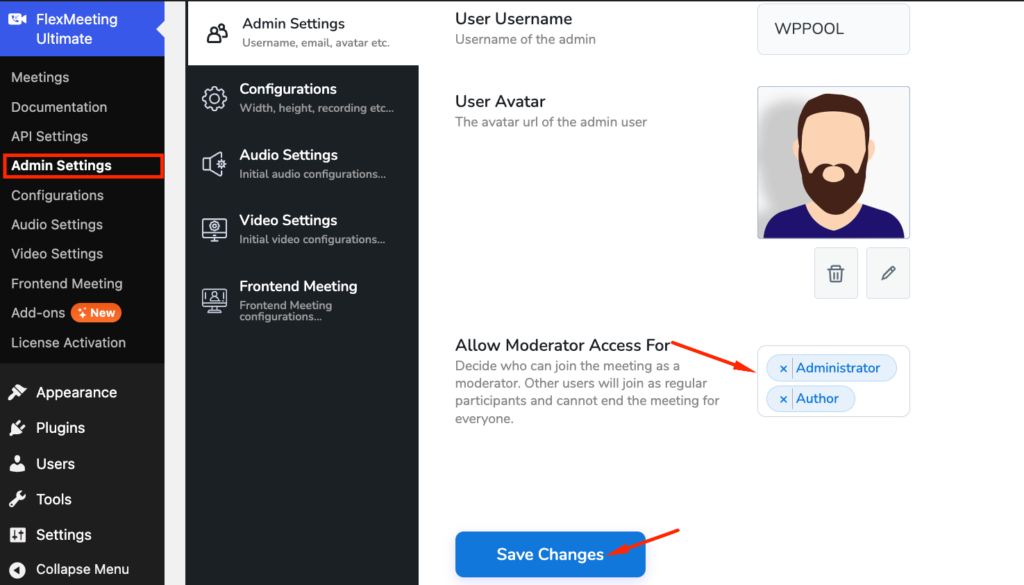
Supported roles include: #
- Administrator
- Editor
- Author
- Contributor
- Subscriber
This configuration applies globally to all meetings.

Meeting-Specific Moderator Access #
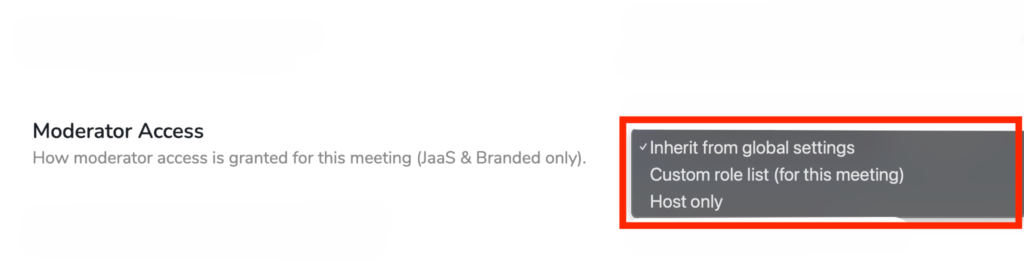
When creating a meeting, an administrator can choose how moderator access is handled for that meeting.
Available Options: #
Inherit From Global Settings: Uses the moderator roles configured in the admin settings.
Custom Role Access: Allows custom moderator roles for a specific meeting only.
Example:
- One meeting may allow Editors to act as moderators
- Another meeting may allow only Administrators
Host Only: Only the meeting host receives moderator access. All other users join as participants.
Moderator Capabilities #
- Manage participants
- Control meeting settings during the session
- End the meeting for all users
- Maintain order and monitor the meeting
Only assigned moderators can perform these actions; others join as participants.
Built for Diverse Meeting Needs #
General Business Meetings & Team Security #
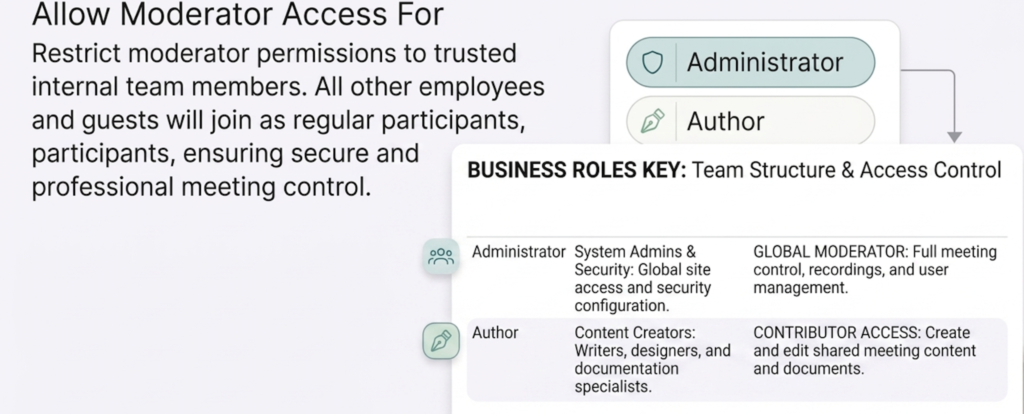
Organizations can restrict moderator access to trusted internal team members such as Administrators, Managers, or Team Leads. Employees, guests, or external users will automatically join as regular participants without moderator permissions.
The feature improves overall meeting security and ensures only approved users can manage live sessions.
Online Course Creators (LMS / Paid Courses) #
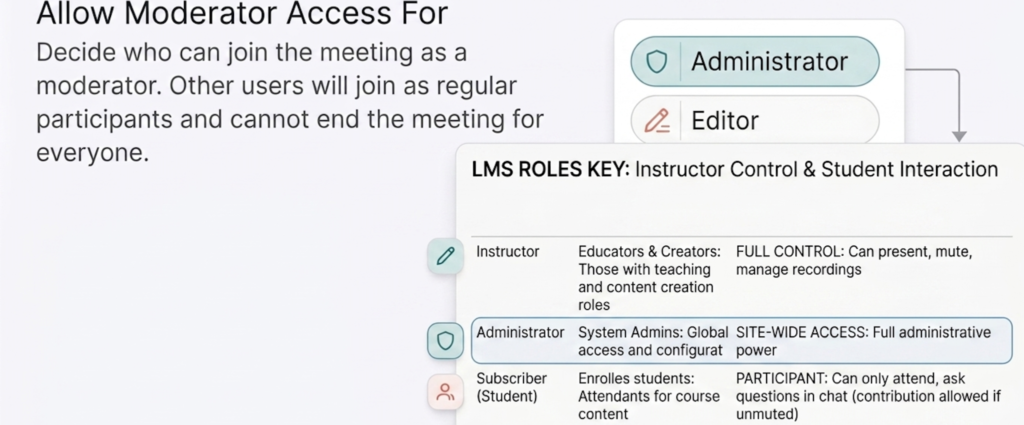
Online educators and LMS website owners can allow only instructors, tutors, or administrators to join live classes as moderators while students join as participants.
How to Use FlexMeeting in LMS Platforms Like Tutor LMS->Documentation
Example:
- Teachers can manage discussions, mute participants, and control the session
- Students can attend and interact without receiving moderator permissions
This creates a more structured virtual classroom experience and prevents students from accidentally disrupting live classes.
Ideal For #
- Paid course platforms
- Coaching programs
- Virtual classrooms
- Educational membership websites
Additional Benefits #
- Better classroom management during live sessions
- Improved control over student participation
- More secure and professional online learning experience
- Prevents unauthorized users from accessing moderator controls
Membership Site Webinars & Community Events #
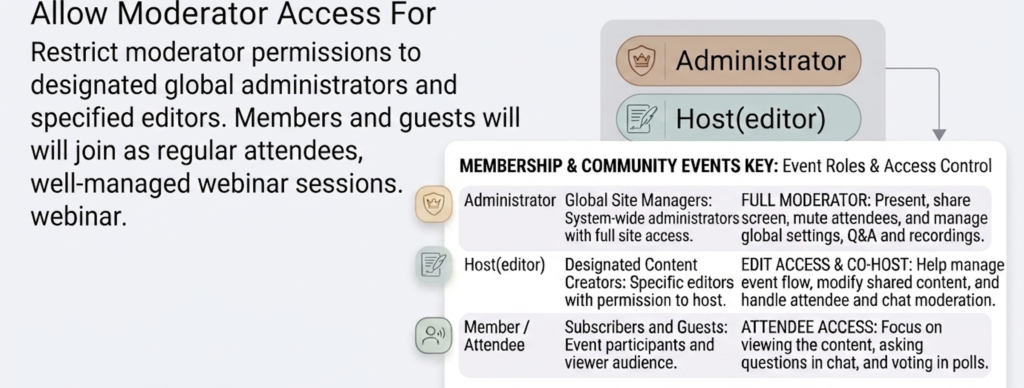
Membership site owners and community managers can host webinars where only hosts or staff members receive moderator access.
Members, subscribers, or guests will join as regular attendees.
This is useful for:
- Live webinars
- Product launches
- Community Q&A sessions
- Private membership events
- Online workshops
Hosts can fully manage the session while attendees focus on viewing and participating without accessing moderator controls.


Add your first comment to this post