









This guide explains how to export archived orders from ArchiveMaster. You can use this feature for backup purposes, further processing, or data analysis. You have the option to export orders in three different formats: CSV, JSON, or XML.
Steps to Export Archived Orders:👇
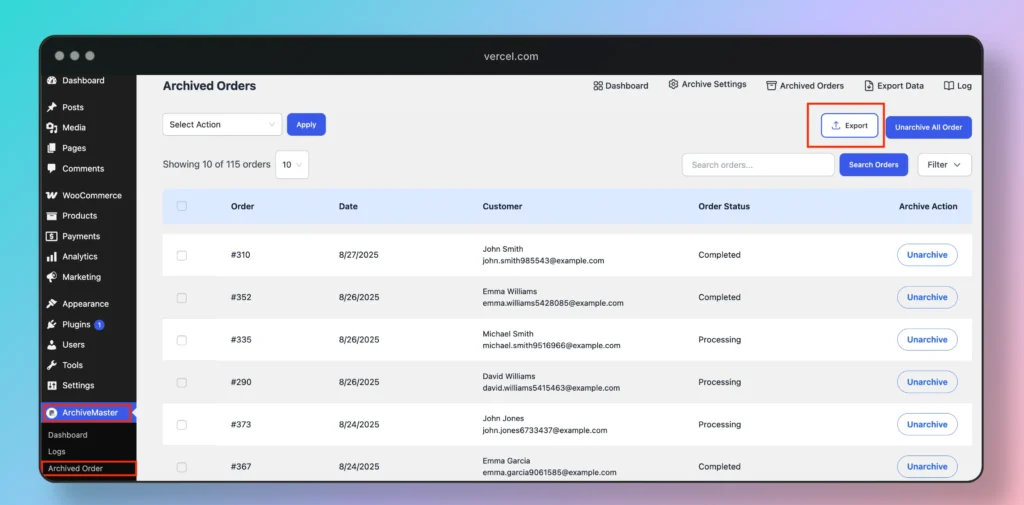
Navigate to Archived Orders: Go to ArchiveMaster > Archived Order.
Locate the Export Button: On the Archived Orders page, find the Export button located to the left of the Unarchive All Orders button.
Before exporting, configure the following options:
- Export File Name: Choose the desired name for the exported file.
- Sort Order: Select how you want the orders to be sorted:
- Ascending
- Descending
- Export Format: Choose the file format for the export:
- JSON
- XML
- CSV
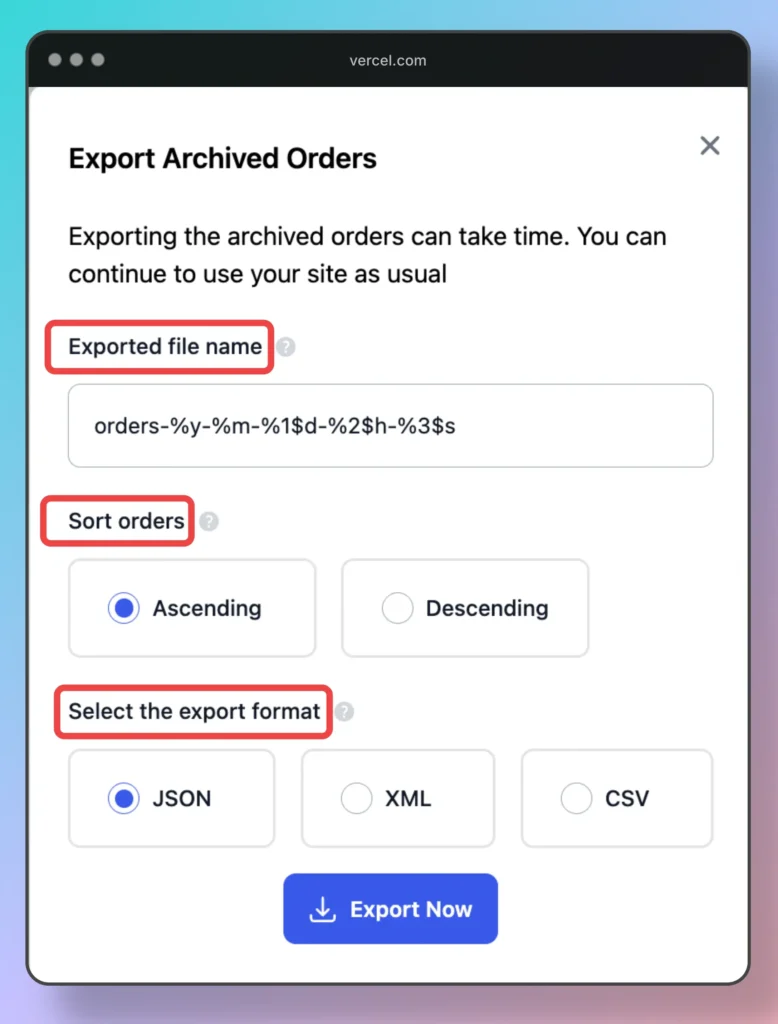
Start the Export Process: Once all settings are configured, click the Export button. The export will begin, and you’ll see a progress bar indicating the status of the export.
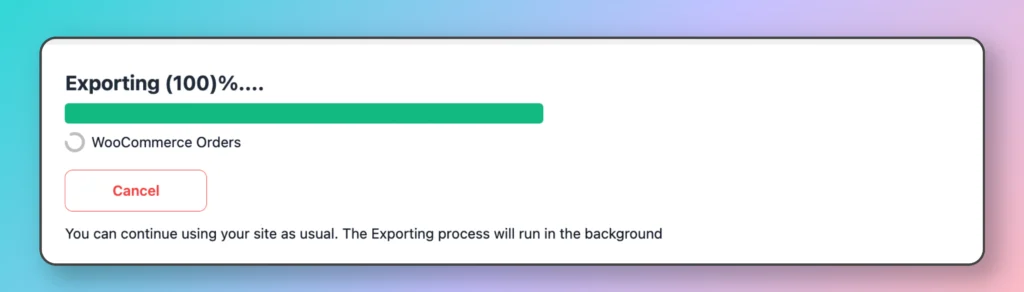
Completion: Once the export is complete, a notification will appear, displaying Exporting Completed along with relevant details. A Download File button will also appear, allowing you to save the file to your computer.

By following these steps, you can easily export your archived orders and save them in your preferred format.
Cancel Export (if needed):
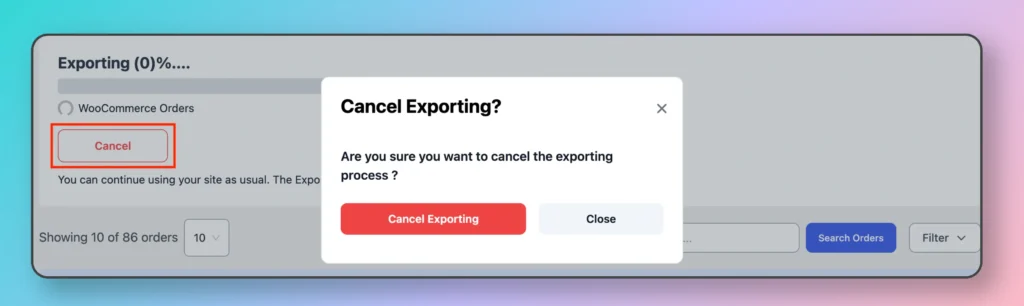
- If you wish to cancel the export process, click the Cancel button.
- A confirmation pop-up will appear, asking if you’re sure you want to cancel the export.
- Confirm your choice, and the export process will be canceled.


Add your first comment to this post