









With FlexStock Plugin for WooCommerce, you can manage Product Brands from Google Sheets, sync them to your WooCommerce store, and display them on the product page.
Follow this step-by-step guide to set it up.
Step 1: Go to Your FlexStock Plugin Settings #
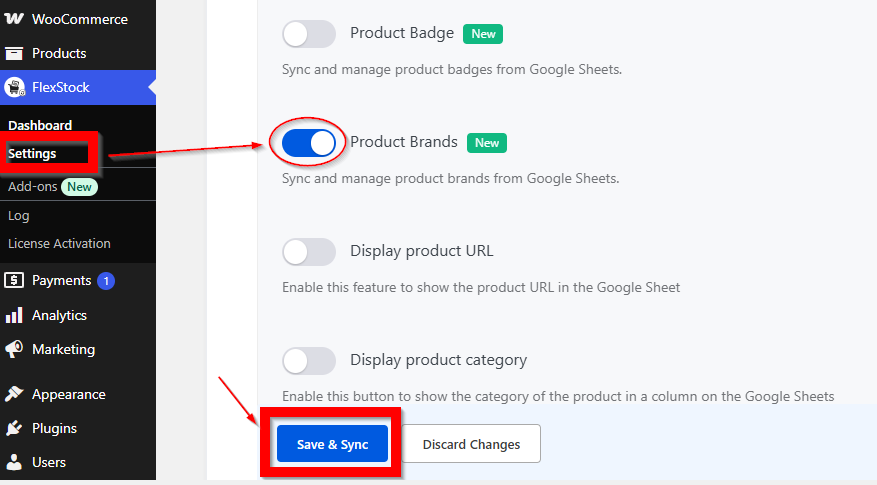
Go to your FlexStock Plugin settings in the WordPress dashboard.
Enable the Product Brands column for your connected Google Sheet, then click Save & Sync.
Step 2: Open the Connected Google Sheet #
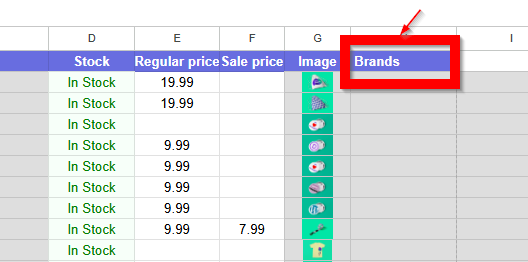
Open the Google Sheet connected to your WooCommerce store through FlexStock.
Locate the column used for product brands.
Step 3: Enter Brand Names for Your Products #
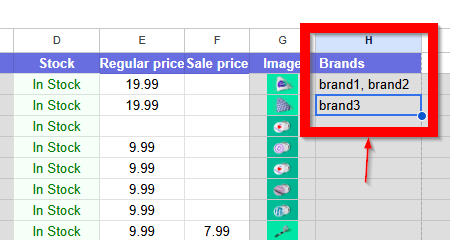
In the brand column, enter the brand name for each product. If you want to assign multiple brands, separate them with a comma (,)
Example: brand1, brand2, brand3 #
Make sure the brand names are entered consistently to avoid duplicates.
For example, use:
Nike
and not both:
NikeNIKEnike
unless your setup intentionally treats them as different values.
Step 4: Save and Sync the Sheet #
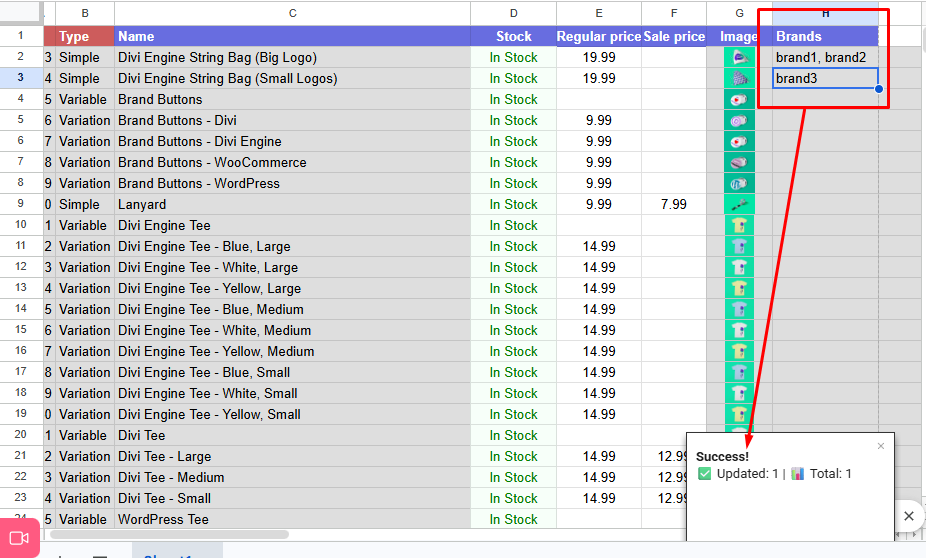
After entering the brand names, save your changes in Google Sheets.
If your FlexStock setup syncs automatically, the product brands will be sent to WooCommerce based on your sync schedule.
Step 5: Verify the Brand in WooCommerce #
Once the sync is complete, go to your WooCommerce Products > Brands in the WordPress dashboard and open one of the updated products.
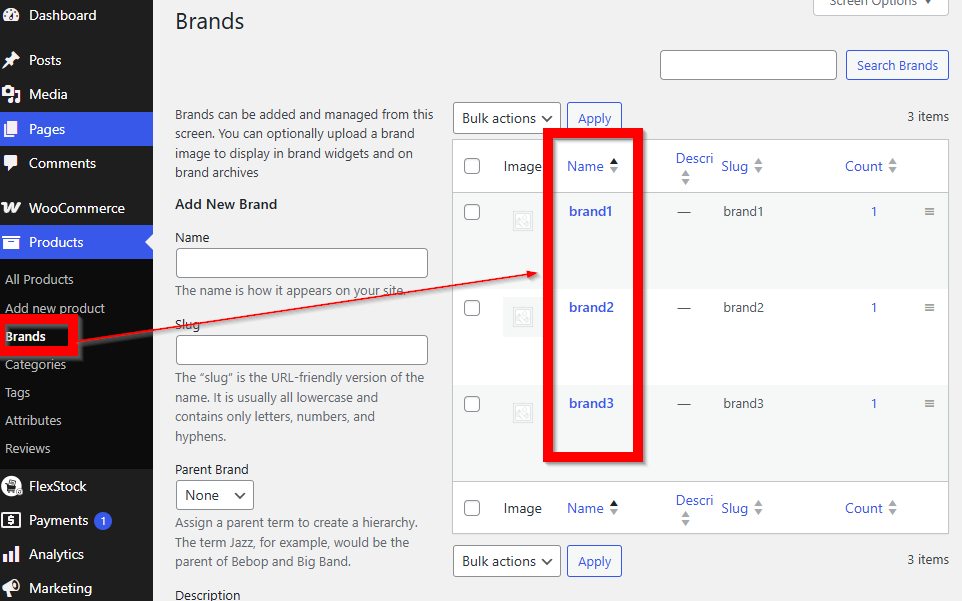
This confirms that FlexStock successfully synced the product brand from Google Sheets to WooCommerce.
Step 6: Display Product Brands on the Front End #
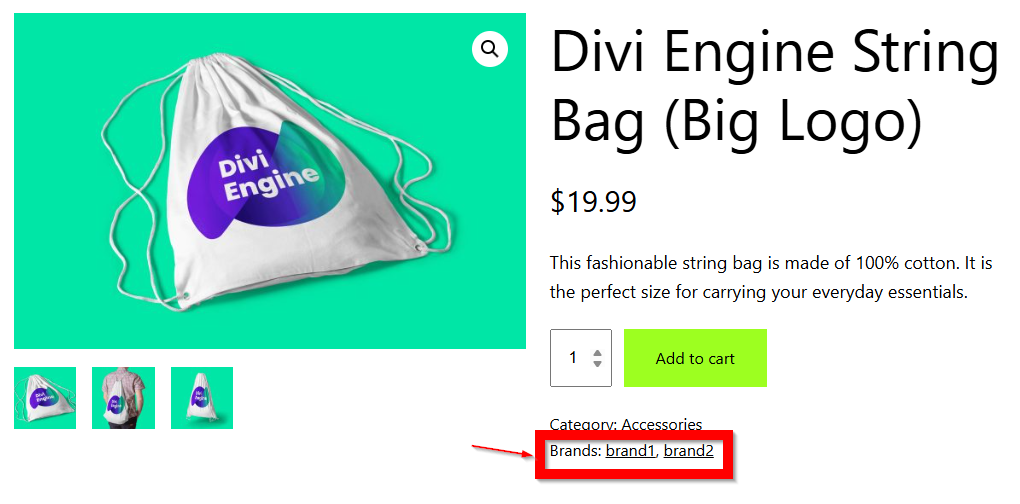
After syncing, the product brand can be displayed on the single product page, depending on your theme or brand integration.
Important Notes #
- Make sure the Product Brands column is enabled in FlexStock.
- Use consistent brand naming to avoid duplicate brand entries.
- Products must already exist in WooCommerce.
- Front-end display depends on your theme and brand support.
- If the brand does not appear immediately, wait for the next sync or run a manual sync.


Add your first comment to this post