









- Step 1: Select the “WooCommerce Orders” archive option.
- Step 2: Set the date range to choose which orders you want to archive
- Step 3: Archive storage
- Step 4: Archive Overview
- Archive Orders from the Order Details Page
- How to View & Restore Archived Orders
- How to archive multiple orders from the WooCommerce orders page.
- How to Archive Multiple Orders
- How to View &Restore Archive Orders
In the ArchiveMaster dashboard, click on Archive Settings to start setting up the archiving process.
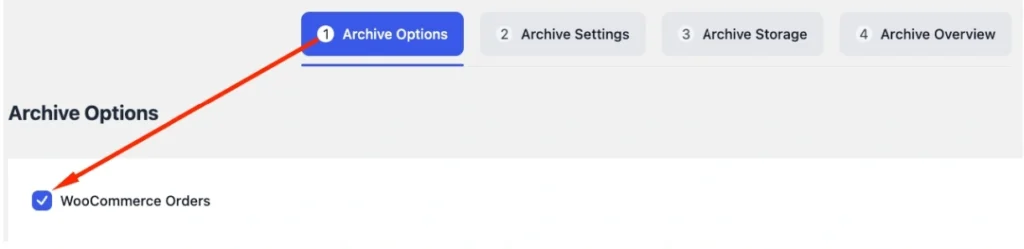
Step 1: Select the “WooCommerce Orders” archive option. #
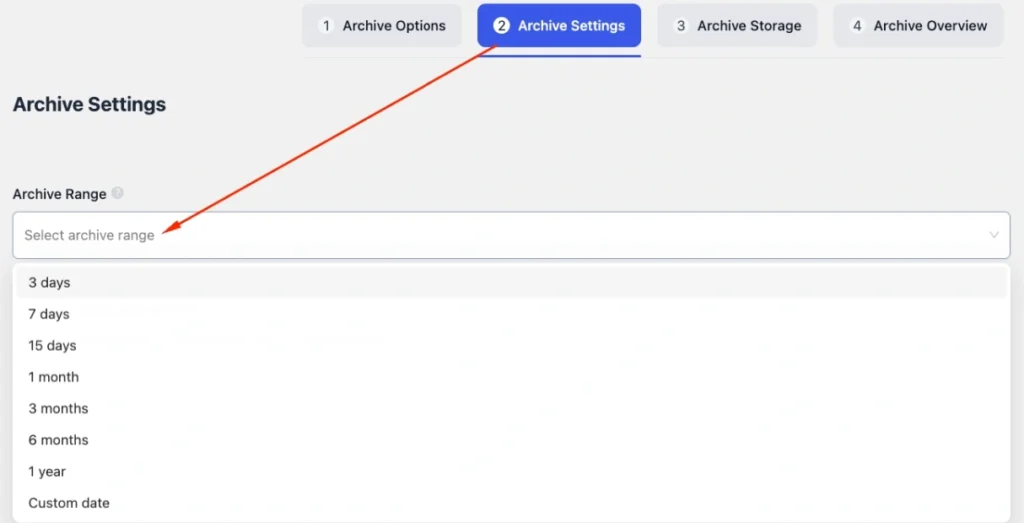
Step 2: Set the date range to choose which orders you want to archive #
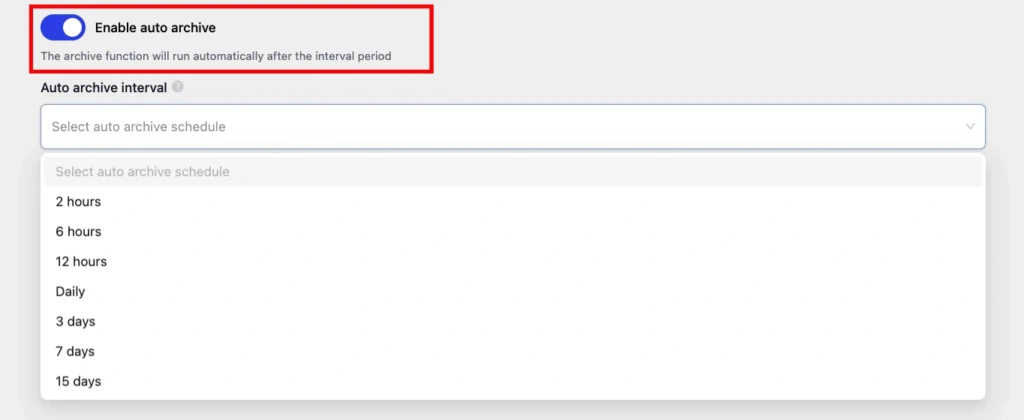
Alternatively, you can enable Auto Archive to run the archiving process automatically instead of using the manual archive option.
Enable Auto Archive to run archiving automatically. Select your preferred schedule interval.
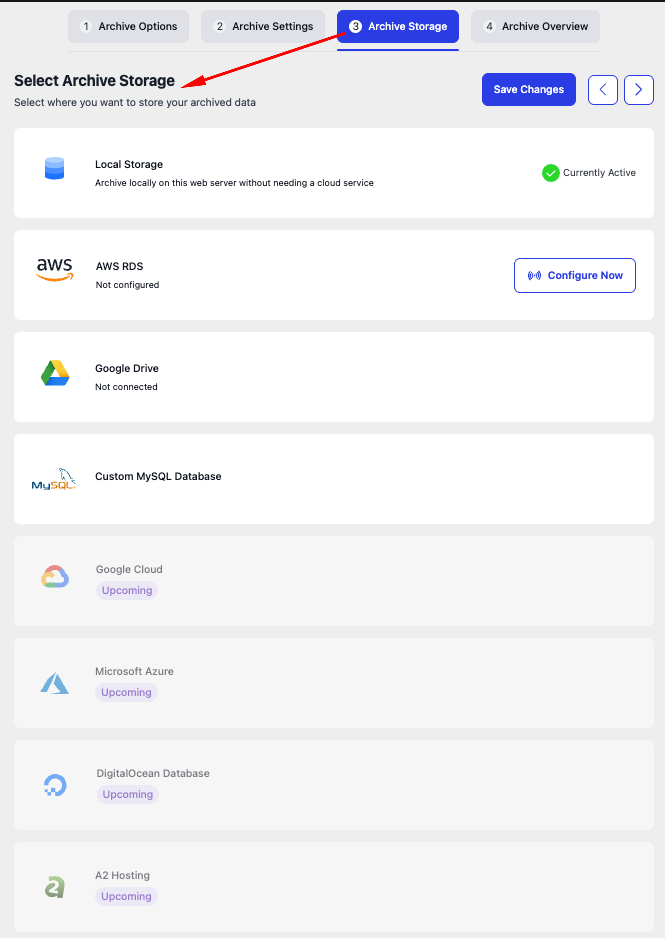
Step 3: Archive storage #
Choose where your archived data is saved. Local Storage is enabled by default — no setup needed. You can switch to AWS RDS, Google Drive, or a custom MySQL database at any time. More storage options, including Google Cloud, Azure, and DigitalOcean, are coming soon.
To change your storage, go to Archive Settings → Archive Storage, select a storage, and click Save Changes.
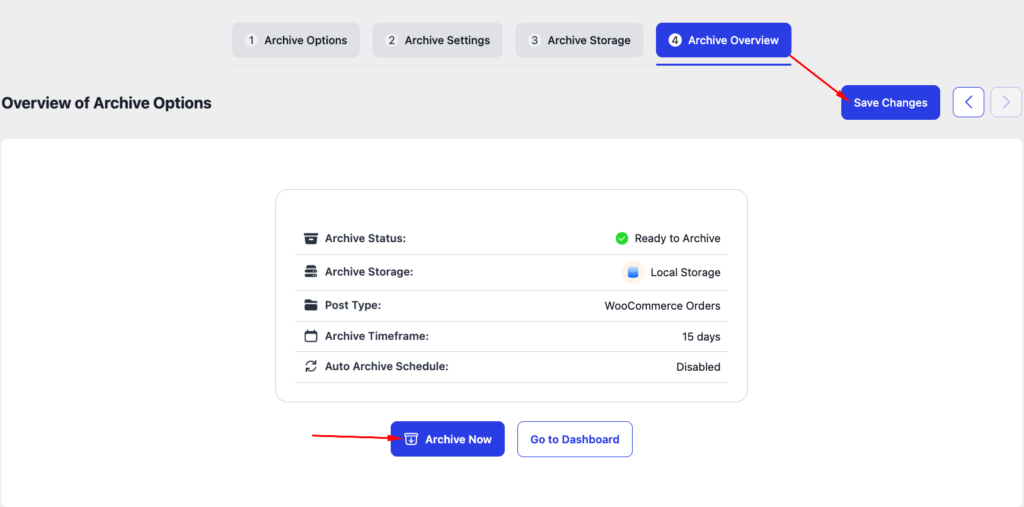
Step 4: Archive Overview #
The Archive Overview section presents a concise summary of the current archive configuration, including the archive readiness status, storage destination, selected data type (WooCommerce Orders), applicable date range, and the automation schedule setting. This section helps quickly review the settings to make sure everything is correct before starting the archive process.
All set, click Save to apply the settings. Once everything is confirmed, click Archive Now to start the archive process.
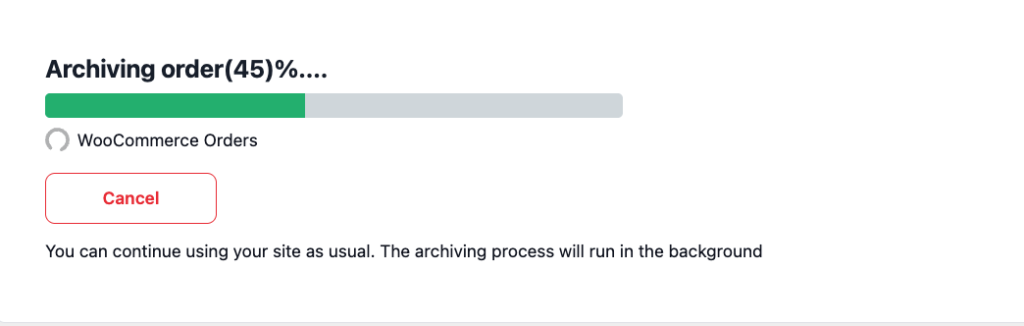
Your old order data, based on the date range you set, will begin archiving immediately.
Archive Orders from the Order Details Page #
The Order Archiving feature lets users archive orders directly from the Order Details page. Archived orders are removed from the active Orders list and stored in Archived Orders, and can be restored anytime if needed.
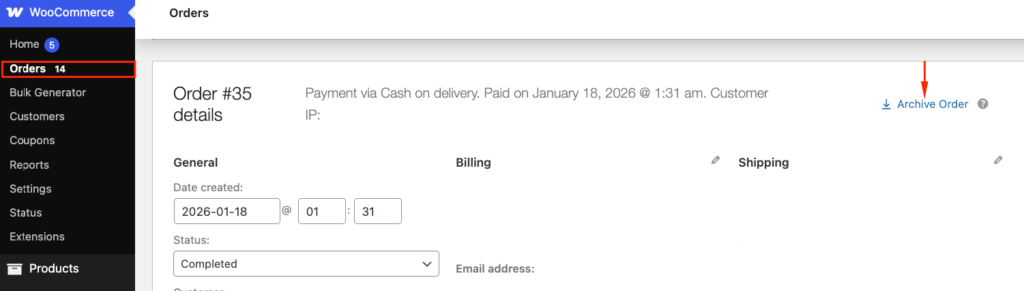
How to Archive an Order: Go to Orders, open an order, click Archive Order, and confirm the action when prompted.
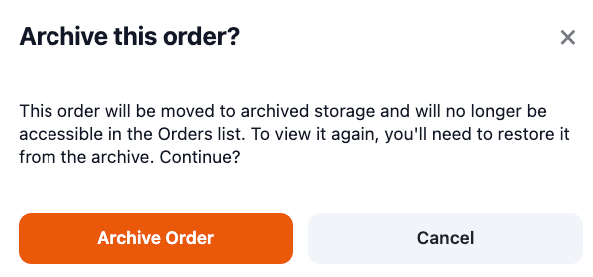
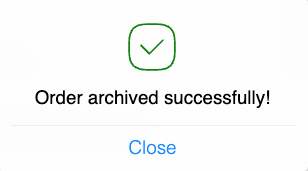
The order is now archived successfully.
How to View & Restore Archived Orders #
- Click on the Archived Orders (CTA)
- View all archived orders in this list.

- Open Archived Orders
- Select the archived order
- Click Unarchive Orders
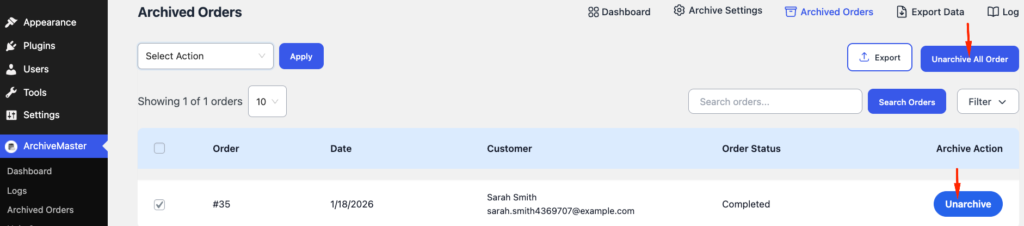
🔄 The order will be moved back to the active Orders list and will be accessible again.
How to archive multiple orders from the WooCommerce orders page. #
This feature allows users to archive multiple orders at once from the WooCommerce Orders page using Bulk Actions, making order management faster and more efficient.
How to Archive Multiple Orders #
Go to WooCommerce → Orders, select the orders using checkboxes, choose Archive Orders from the Bulk Actions menu, and click Apply. Confirm the prompt to complete the archive action.
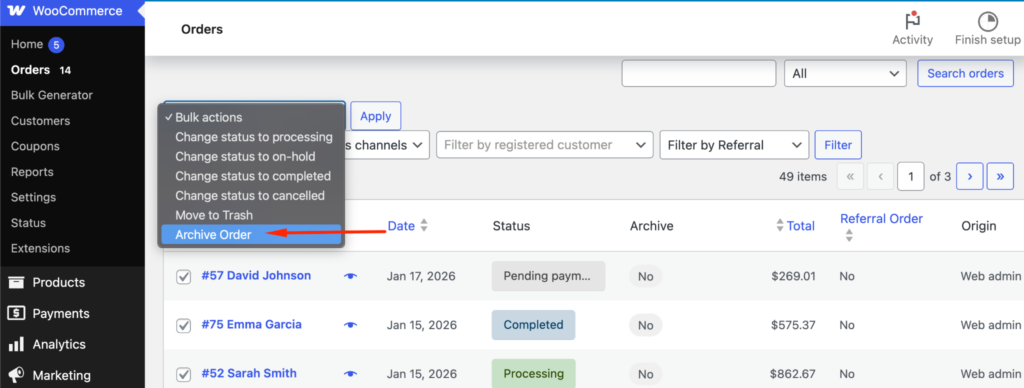
All selected orders will be archived successfully.
How to View &Restore Archive Orders #
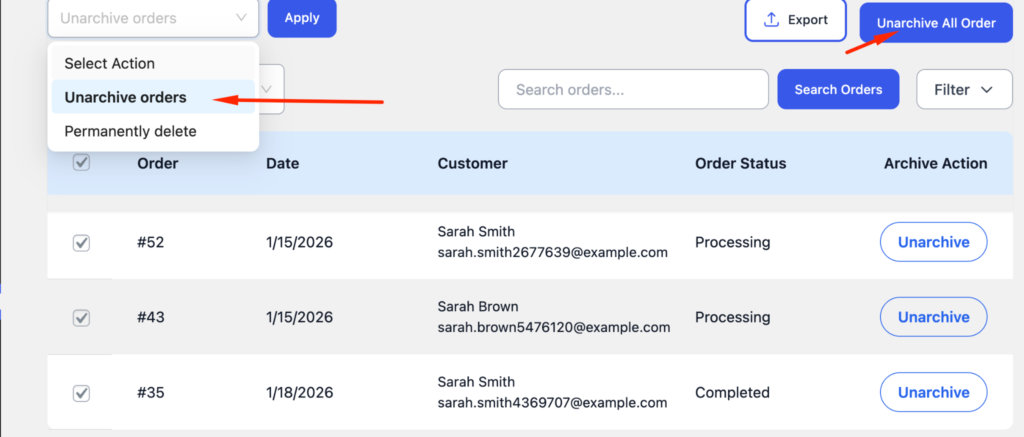
Click Archived Orders, select the orders you want, and choose Unarchive (single or bulk). Apply the action to restore them to the active Orders list.
Check out ArchiveMaster


Add your first comment to this post