









Overview: WP Dark Mode now includes AI-powered social share buttons, allowing visitors to share your content directly with leading AI assistants such as ChatGPT, Grok, Perplexity, Gemini, and Claude. These buttons automatically include customizable prompts and page metadata, creating a seamless way for users to interact with your content using their preferred AI tools.
Access Social Share Settings: Go to your WordPress Dashboard. Navigate to WP Dark Mode > Social Share. Enable the Social Share option. Once enabled, you can set up your AI social channels.
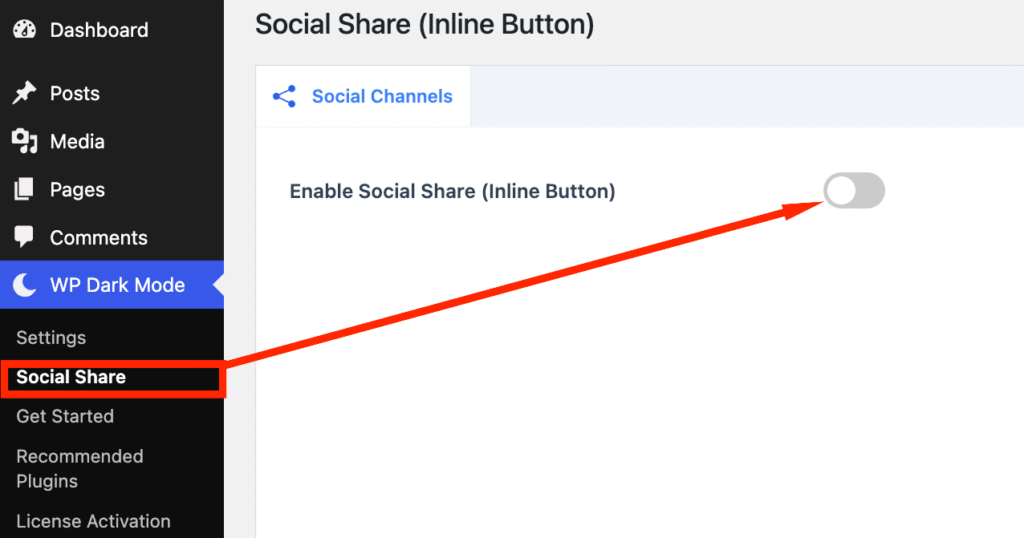
Enable AI Social Channels: Turn on your preferred social channels. Select the AI platforms you want to display:
- ChatGPT
- Grok
- Perplexity
- Gemini
- Claude
These platforms will appear as share buttons on your website.
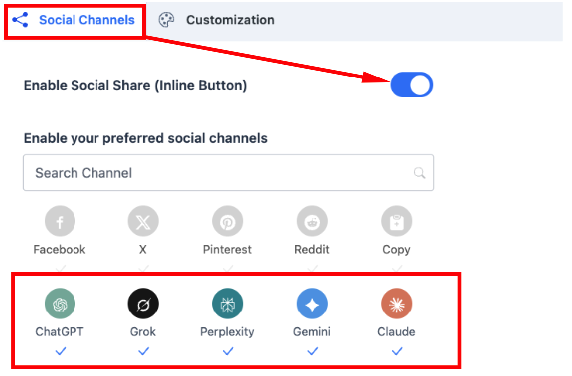
Manage Channels:
- Reorder Channels: Use drag-and-drop to rearrange the order in which share buttons appear.
- Edit Channel Label: Change the display label for any AI channel.
- Device Visibility: Each channel features device-specific visibility controls:
- Show/Hide on Phone
- Show/Hide on Desktop
This allows you to customise which buttons appear on each device.
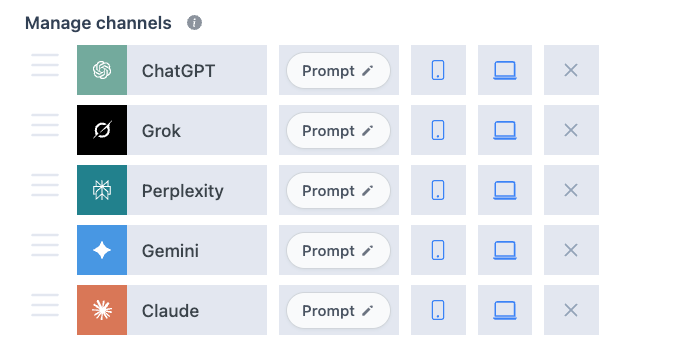
Customise the AI Prompt: Each AI share button can send a preset prompt when clicked.
To customize this: Click the Customize button ✏️ on any channel. A pop-up window will open where you can edit the prompt text.
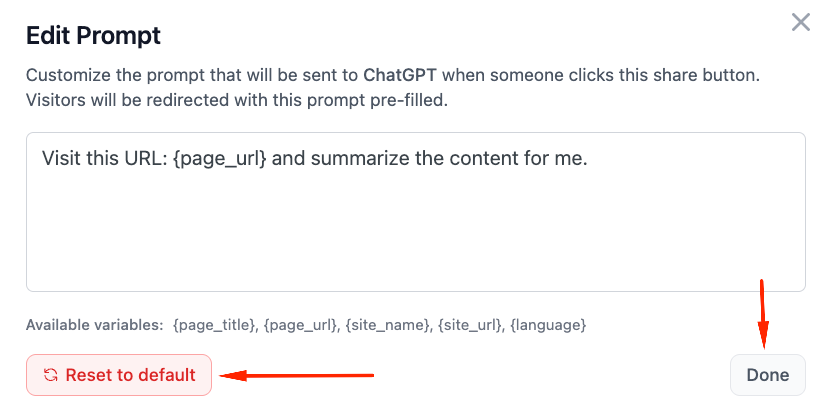
Available Variables:
You can use these variables inside the prompt:
| Variable | Description |
| {page_title} | Title of the current page |
| {page_url} | URL of the current page |
| {site_name} | Your website’s name |
| {site_url} | Homepage URL |
| {language} | Site language code |
These variables automatically generate the correct values for users.
Reset and Save:
- Reset to Default restores the original prompt.
- Done closes the pop-up.
Inline Button Display Customization (Simplified)
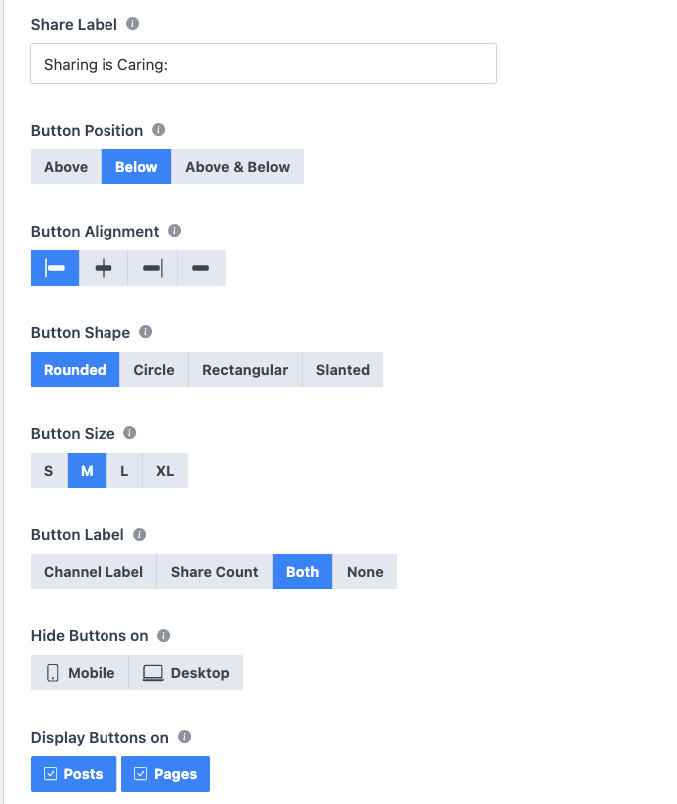
Customize how AI share buttons appear on your website:
- Inline Button Template: Choose a button style.
- Share Label: Text shown before the buttons.
- Button Position: Choose where the buttons appear (before or after content).
- Button Alignment: Align buttons left, center, or right.
- Button Shape: Select rounded, square, or circular buttons.
- Button Size: Set the button size.
- Button Label: Show or hide channel names and share counts.
- Display Buttons On: Select which content types display the buttons.
- Total Shares: Enable the total share counter.
Save and Publish:
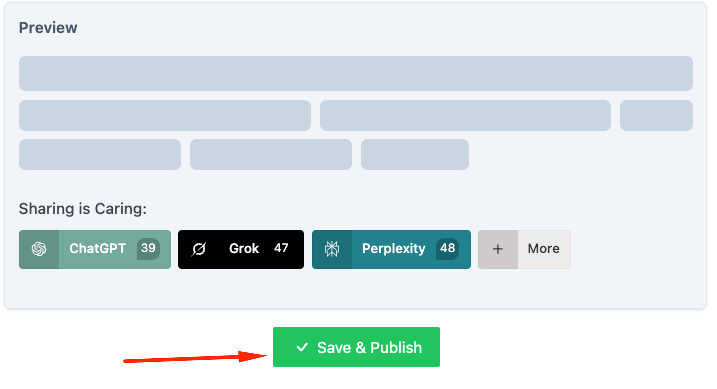
Once all configurations and customizations are complete, click Save & Publish to activate the AI-powered share buttons on your website.
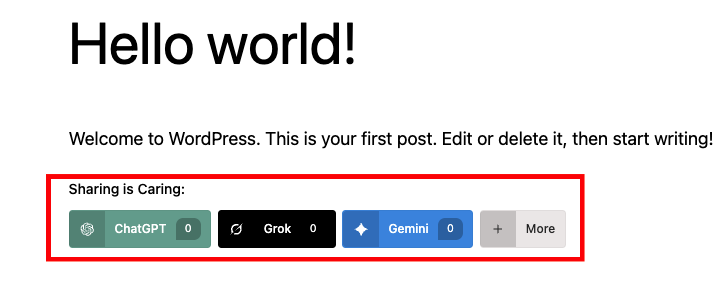
How does it appear on the frontend? Please take a look:


Add your first comment to this post