









The Custom Triggers feature in the WP Dark Mode plugin allows you to use any existing element – such as a button, menu item, or icon as a manual toggle for switching between Light Mode and Dark Mode. This gives you more placement flexibility, especially when your site design requires a custom location or integration with theme-built UI components.
This document explains how to access, enable, and configure Custom Triggers.
Accessing & Enabling Custom Triggers:
In the left-hand WordPress menu, go to: WP Dark Mode → Switch Settings Inside Switch Settings, scroll to the Custom Triggers section.
To enable and configure: Locate the Custom Triggers input field.
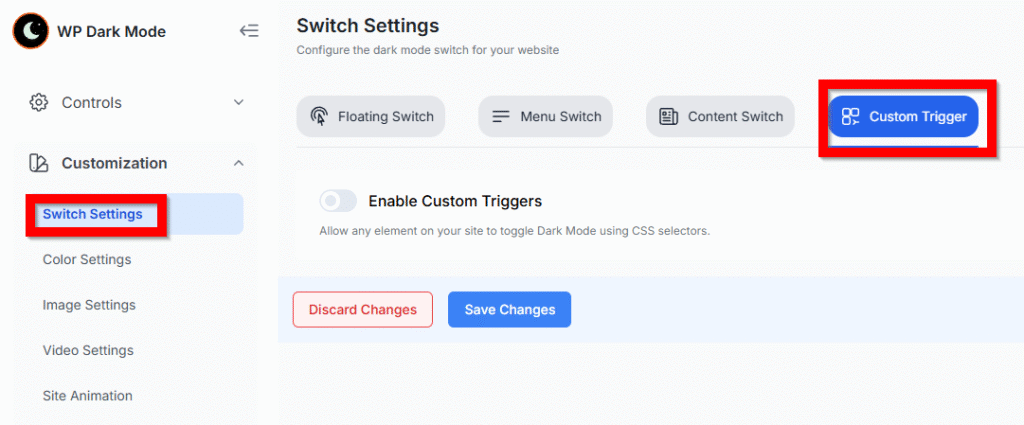
Enable Custom Triggers and click the + icon to add a new trigger.

Enter one or more CSS selectors for the elements you want to use as dark-mode toggles. Scroll down and click Save Settings.

Once saved, any element matching the selector will function as a dark-mode switch.
Configuration Options
1. Adding CSS Selectors #
You can assign any element by entering its selector, such as:
- .dark-mode-btn
- #toggle-dark
- .menu-item-darkmode
Each selector should uniquely identify the button or element intended for toggling.
Multiple Triggers #
If you want more than one trigger, add additional selectors – one per line. All listed selectors will work as independent manual toggles.
3. Trigger Action #
WP Dark Mode automatically binds toggle behavior to every Custom Trigger. When the assigned element is clicked:
- If the site is in Light Mode, it switches to Dark Mode.
- If the site is in Dark Mode, it switches back to Light Mode.
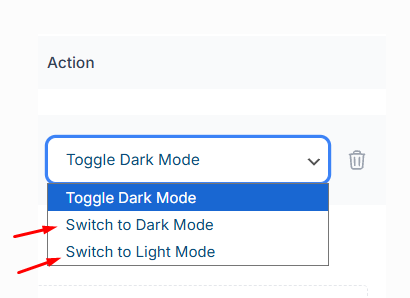
No additional settings are required -any selector you add becomes a complete Light/Dark toggle.
Testing Custom Triggers on Your Website
After saving your settings:
- Visit any public page of your website.
- Click the element you assigned as a Custom Trigger (button, icon, menu item, etc.).
- The site should toggle between Light Mode and Dark Mode immediately.

Results:
When you click on the site’s button under .kb-button, the Dark Mode toggle also works.
You can apply this functionality to any other class, ID, section, etc., as needed.
Troubleshooting Custom Triggers in WP Dark Mode
Setup:
- Add CSS selector: Target the element you want as a trigger (e.g., .my-button or #toggle-dark).
- Ensure uniqueness: The Selector must match only one element. Use the browser inspector to check.
- Test: Click the element to switch Dark Mode.
Troubleshooting:
- Element loads late: For dynamic elements, ensure the trigger attaches after loading.
- Wrong or duplicate selector: Make sure it matches only one element.
- Theme/builder conflict: Some themes override clicks; try a simpler element or default theme.


Add your first comment to this post