









On this page
FlexTable has a built-in MCP server. It lets AI assistants like Claude, ChatGPT (Codex), Cursor and VS Code build your tables for you. You type what you want. The AI makes the table from your Google Sheet, styles it and adds it to a page.
MCP is free in FlexTable. FlexTable Pro adds more tools, like brand themes and hiding rows and columns.
Best for: Anyone who uses an AI assistant and wants tables without clicking through settings.
Prerequisites:
- FlexTable 3.26.0 or newer.
- WordPress 6.9 or newer.
- You are an administrator.
- Your site uses HTTPS (a local test site also works).
- Your Google Sheet is shared as Anyone with the link. See How to create a new table.
Short on time? Watch the 1-minute tutorial instead.
What you can ask the AI to do #
With MCP on, your AI assistant can:
- Create a table from a Google Sheet.
- Change a table’s settings, name or sheet.
- Apply a table theme.
- Find a page and add the table to it.
- Read the data in a table to answer questions.
- Undo its last change.
For example, you can type:
“Turn my Price list Google Sheet into a table, use the Minimal theme and add it to a new Pricing page.”
1. Turn on MCP #
Go to WordPress Dashboard → FlexTable → Global Settings → MCP.
- Turn on Enable MCP.
- The badge next to MCP: connect AI clients changes from Off to Ready.
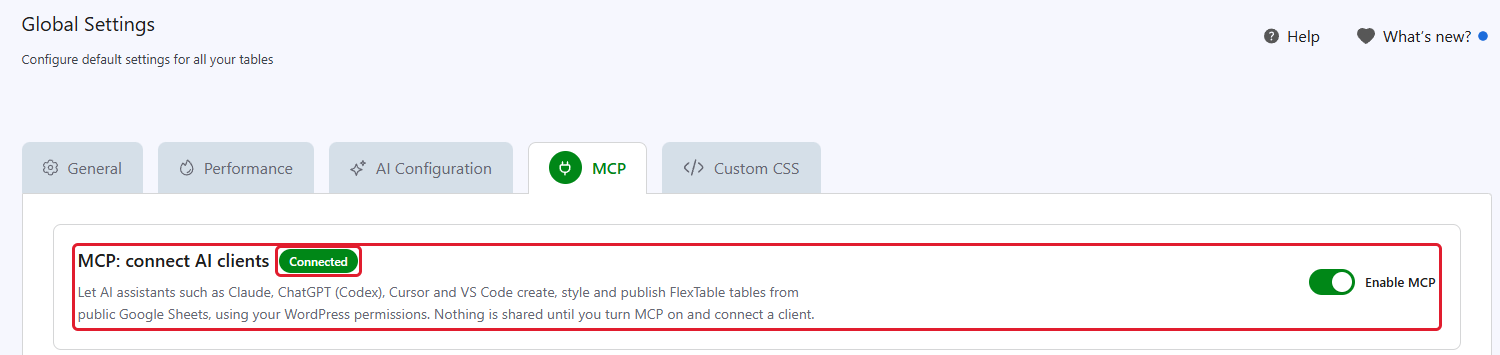
Note: Nothing is shared until you turn on MCP and connect an assistant.
2. Check the safety settings #
Under Credentials and policies, the safe options are already on. You can leave them as they are.
| Setting | What it does | Default |
|---|---|---|
| Only accept credentials generated here | Only keys made on this screen can use MCP. | On |
| Default credential expiry | How long a key works before it stops. | 90 days |
| Pages and posts | Drafts only lets the AI make draft pages. It can’t publish or change live pages. | Drafts only |
| Allow deleting tables and tab groups | Lets the AI delete tables. It always asks you first. | Off |
| Allow reading table data | Lets the AI read the rows visitors can see. Hidden rows, columns and cells are never shared. | On |
If you change something, click Save changes.
3. Connect your AI assistant #
- Scroll to Connect an AI client.
- Pick your assistant: Claude Code, Claude Desktop, Claude.ai connector, Codex (ChatGPT), Cursor, VS Code or Others.
- Choose how long the key should work in Credential expires after.
- Tick the box that starts with I understand that Generate prompt creates an Application Password.
- Click Generate prompt.
- Click Copy prompt.
- Paste the prompt into your AI assistant. It sets everything up for you.
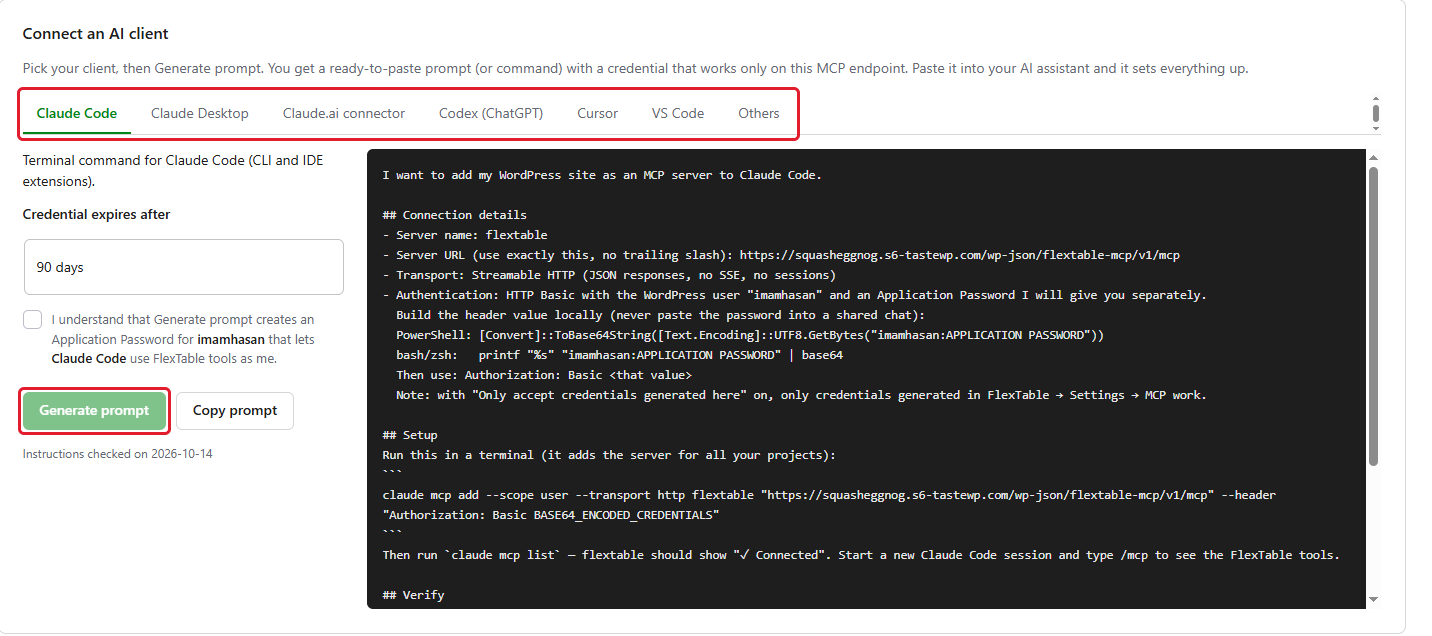
Important: The key is shown only once. If you lose it, generate a new prompt.
To check that it works, ask your assistant: “Call flextable-get-status and show me the result.”
4. See what is connected #
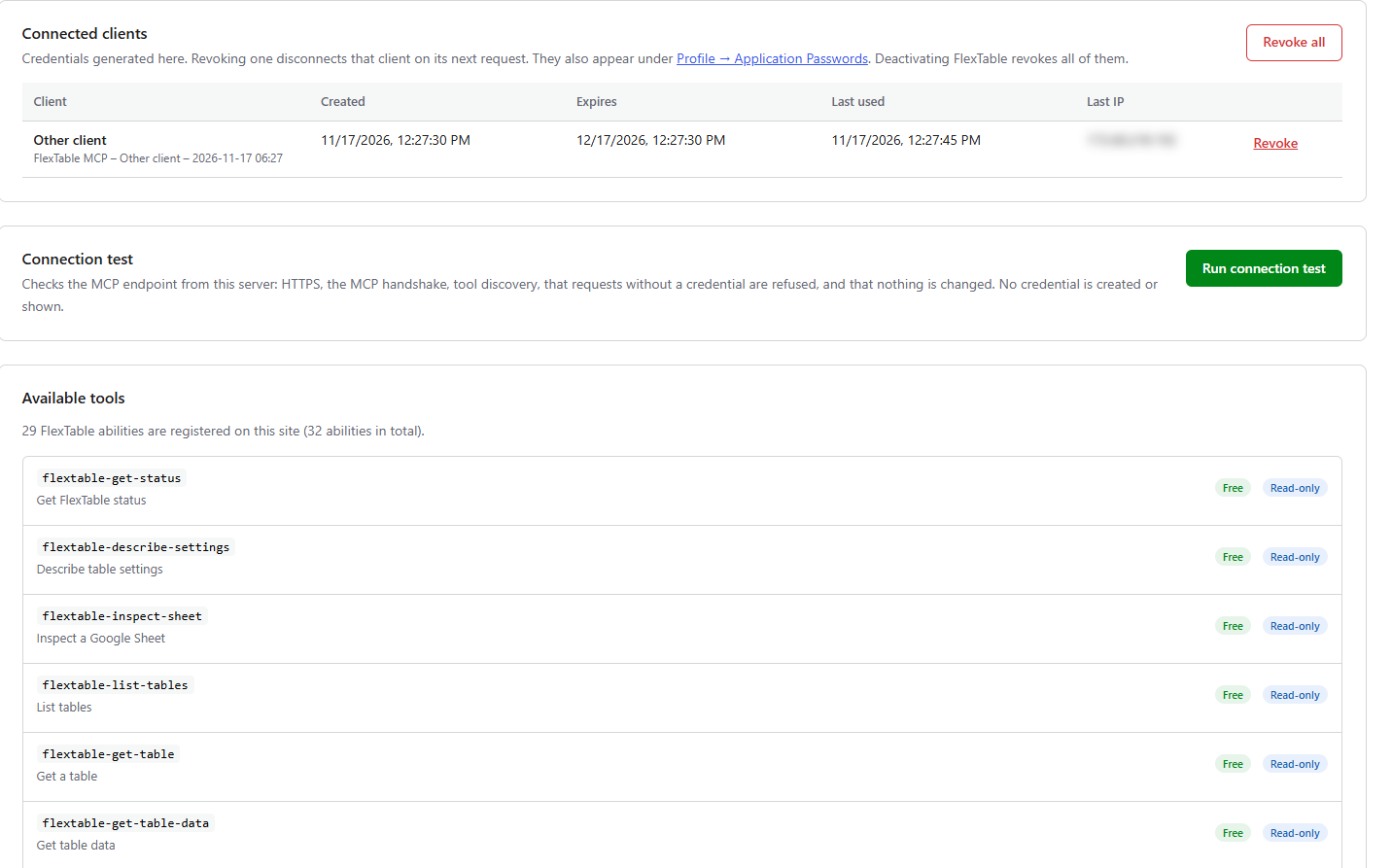
Scroll down to see three more sections:
- Connected clients: every assistant you connected, with when it was last used. Click Revoke to cut one off. Click Revoke all to cut off all of them.
- Connection test: click Run connection test to check that MCP works on your site.
- Available tools: every action the AI can take. Each one is marked Free or Pro.
5. Check what the AI did #
Recent activity lists every action the AI took, with the time and the result. FlexTable keeps this list for 90 days.
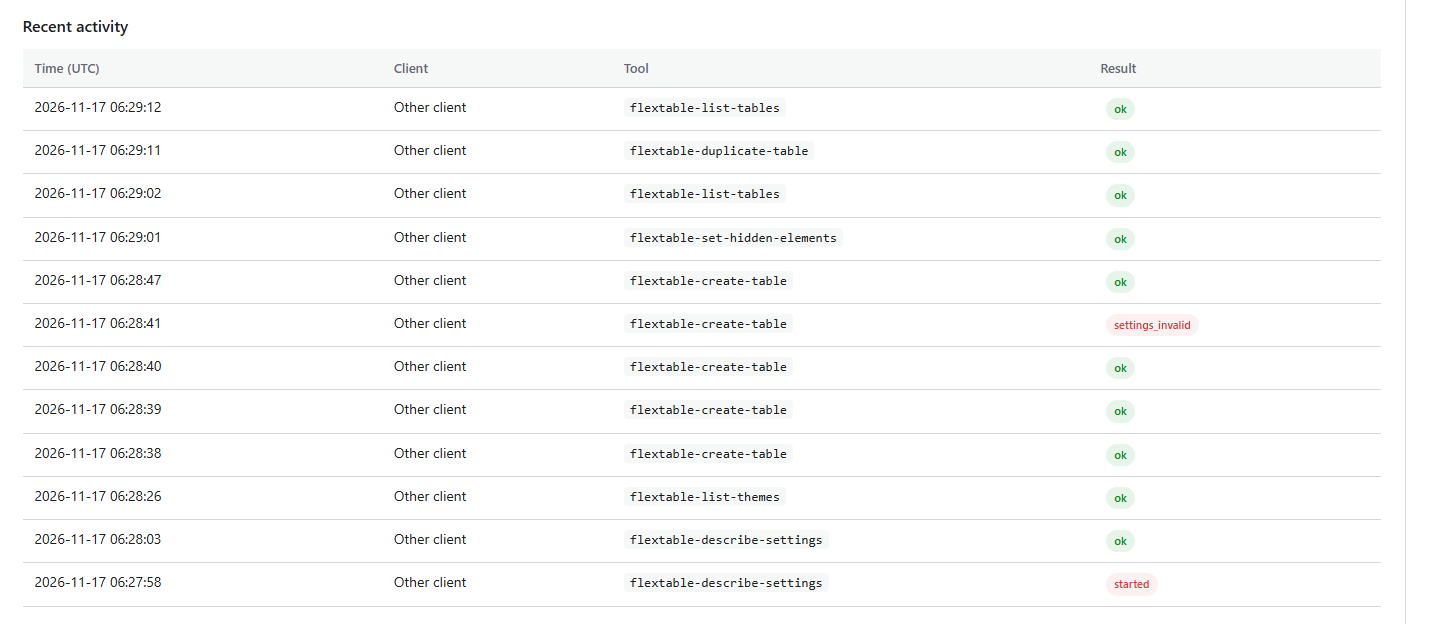
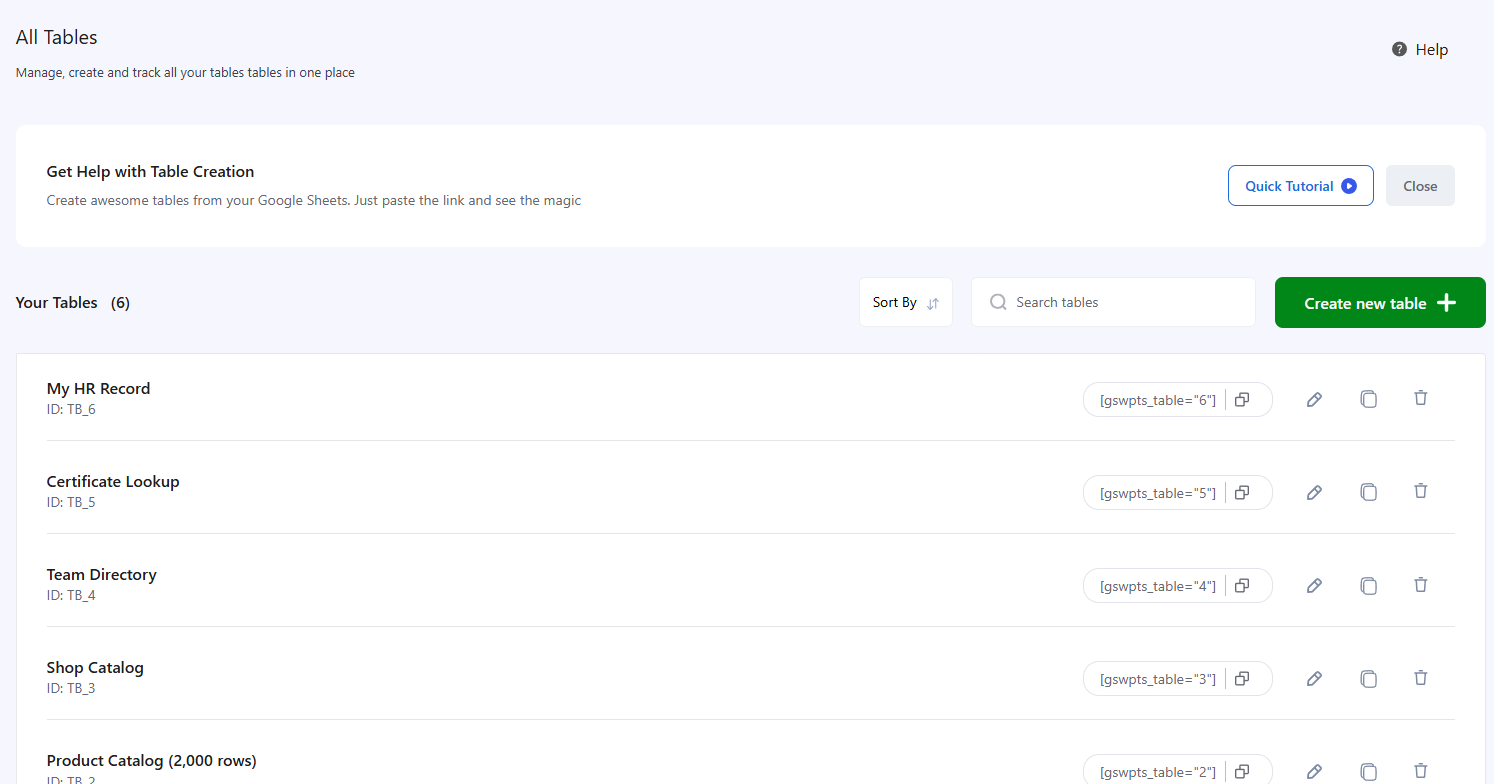
The tables the AI makes show up in FlexTable → All Tables, like any other table. You can edit them by hand too.
Free vs Pro #
| Free | Pro | |
|---|---|---|
| Create, update, duplicate and refresh tables | ✅ | ✅ |
| Apply built-in themes | 2 themes | 9 themes |
| Add tables to pages, undo changes | ✅ | ✅ |
| Save your own brand theme | – | ✅ |
| Hide rows, columns and cells | – | ✅ |
| Tab groups | – | ✅ |
| Save an AI summary for visitors | – | ✅ |
| Tools | 22 | 29 |
Important notes #
- The AI never edits your Google Sheet. It only reads it.
- Big changes need your OK. The AI shows a preview first and asks you to confirm.
- You can undo. Ask the AI to undo its last change.
- Turning off MCP stops all assistants at once. You can keep their keys or revoke them.
- Deactivating FlexTable revokes every key.
Common issues & tips #
- The AI can’t connect? Make sure your site uses HTTPS. Then click Run connection test.
- Your key stopped working? It may have expired. Generate a new prompt.
- Application Passwords are turned off? Some security plugins block them. Allow them for your admin user.
- The AI can’t add the table to an Elementor, Divi or Beaver Builder page? That’s expected. Add the table in the page builder instead. See How to display tables in Elementor.
- The AI says a setting is “not available on this site”? That setting needs FlexTable Pro.
FAQ #
Do I need an OpenAI or Gemini key for MCP?
No. Your AI assistant does the thinking. FlexTable only gives it the tools.
Can the AI publish pages?
Only if you allow it. The default is Drafts only.
Is MCP free?
Yes. Free has 22 tools. Pro adds 7 more.
Add your first comment to this post