









FlexTable provides three responsive styles to help you display tables effectively across different screen sizes: Default, Collapsible Style, and Scrollable Style.
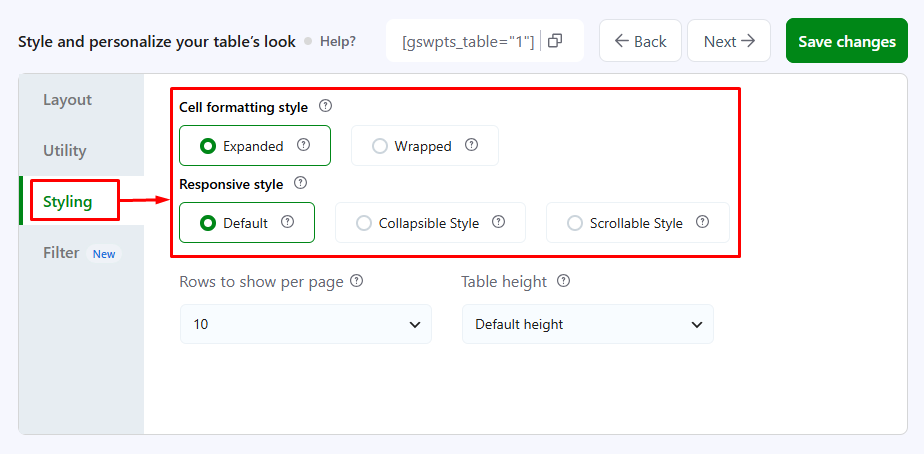
You can configure these options from the Styling panel in the Table customization step. This guide explains how to select each responsive style, save your changes, and verify the results on your website.
Step 1: Open the Responsive Style Settings #
- Log in to your WordPress dashboard.
- Open FlexTable and select the table you want to customize.
- Navigate to Table customization.
- Select Styling from the left-hand menu.
- Locate the Responsive style setting.
You will find three available options:
- Default
- Collapsible Style
- Scrollable Style
Choose the option that best suits your table’s content and layout.
Step 2: Configure the Responsive Style #
Default #
The Default option uses FlexTable’s standard table layout. Choose this option if you want to keep the default presentation of your table without selecting the collapsible or scrollable layout.
To configure it:
- Go to Table customization → Styling.
- Under Responsive style, select Default.
- Click Save changes.
Frontend result
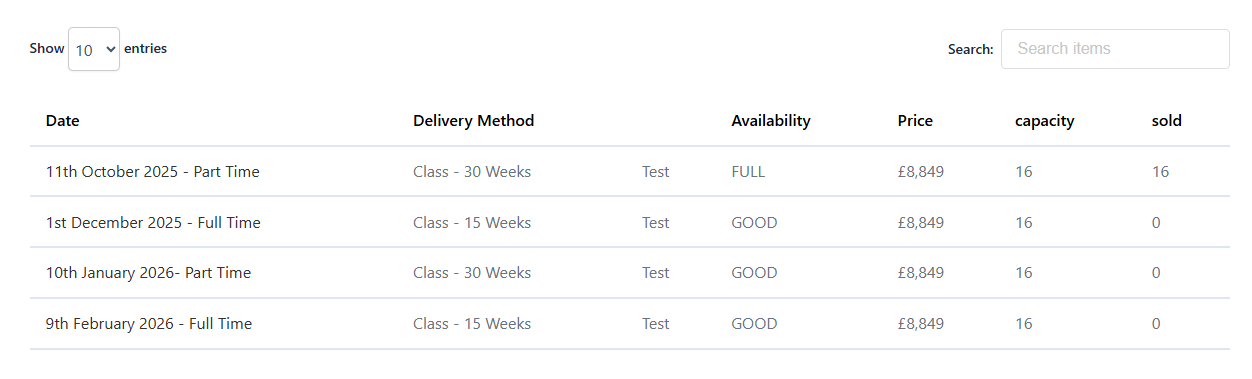
Open the page containing your table and check its appearance on different screen sizes.
On Desktop:
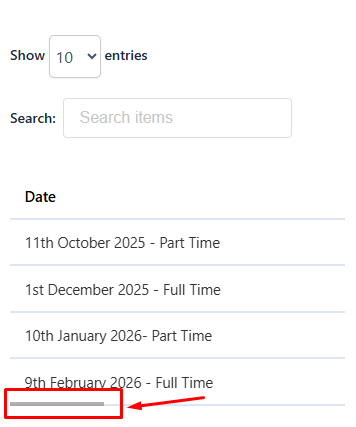
On Mobile (Expanded Scrollable Format):
Collapsible Style #
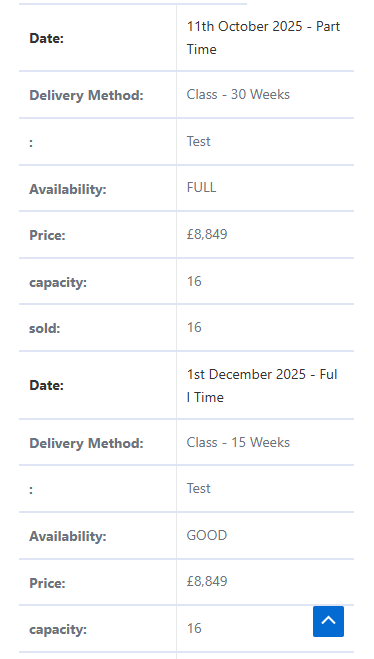
The Collapsible Style option provides an alternative layout for viewing table data on smaller screens. It is useful when a table contains multiple columns and you want visitors to access the information through a more compact presentation.
To configure it:
- Go to Table customization → Styling.
- Under Responsive style, select Collapsible Style.
- Click Save changes.
Frontend result
Visit the published page and view the table on a mobile device or in your browser’s responsive preview. Check how the table content is presented and interact with any available expand or collapse controls.
On Mobile (Collapsible Style):
Scrollable Style #
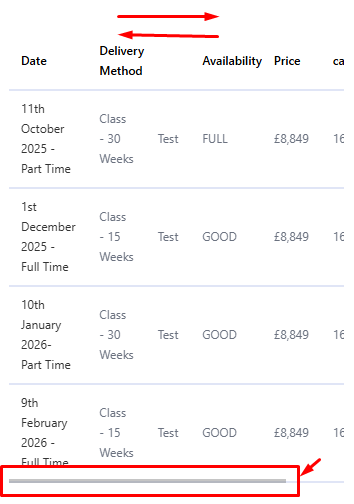
The Scrollable Style option allows visitors to navigate horizontally through a table when its columns extend beyond the available screen width. This is useful for wide tables containing product details, pricing information, comparisons, or other datasets with multiple columns.
To configure it:
- Go to Table customization → Styling.
- Under Responsive style, select Scrollable Style.
- Click Save changes.
Frontend result
Open the published page on a mobile device or use your browser’s responsive preview. Check that visitors can scroll horizontally to view columns that do not fit within the visible area.
On Mobile (Scrollable Bar):
Step 3: Save and Verify Your Changes #
After selecting your preferred responsive style:
- Click Save changes in the top-right corner of the Table customization screen.
- Open the page containing your FlexTable table.
- Refresh the page to view the updated layout.
- Test the table on desktop and mobile screen sizes.
- If the changes are not visible, clear the relevant website or browser cache and check again.
Always verify the result on the frontend to ensure the table displays as expected for your visitors.
Which Responsive Style Should You Choose? #
- Default: For the standard table presentation.
- Collapsible Style: For a more compact way to present table data on smaller screens.
- Scrollable Style: For wide tables where visitors need to access additional columns horizontally.
Choose the style that best matches your table structure and the way visitors need to interact with its data.
Tutorial Video:


Add your first comment to this post