









Instead of scrolling through large tables manually, users can filter data by specific values, search terms, or multiple terms across multiple columns directly from the front end. With FlexTable Table Filtering, you can also control filters from the backend, predefine filter behavior, and even hide filter controls while still showing filtered results.
Step-by-Step Setup Guide #
Step 1: Open Your Table in FlexTable #
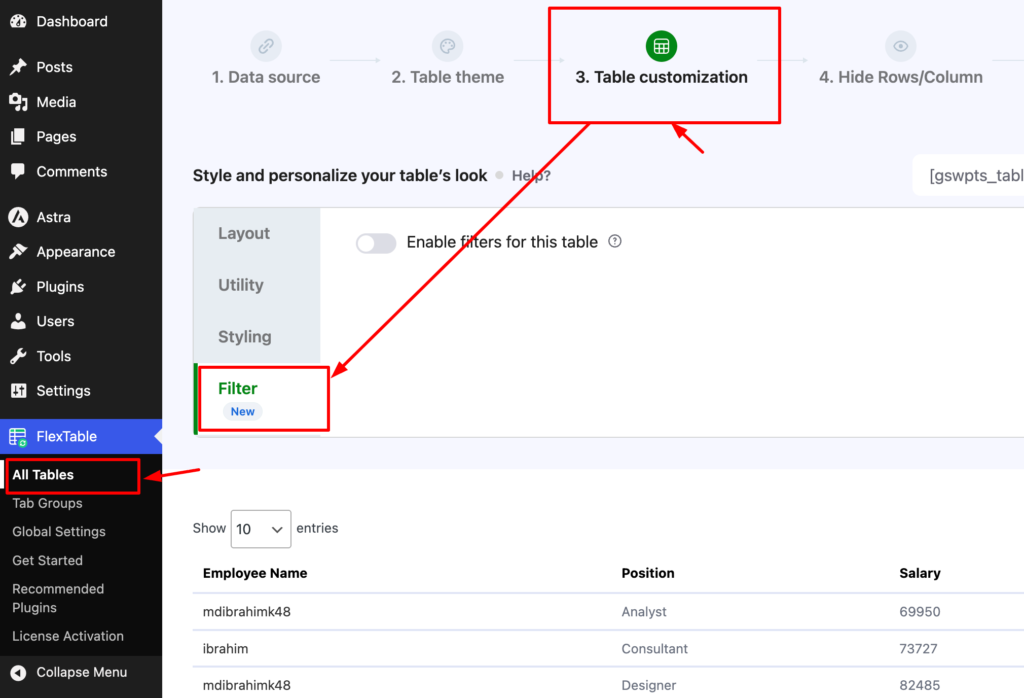
Go to your WordPress dashboard and open the table you want to edit.
Navigate to: FlexTable → All Tables → Edit Table
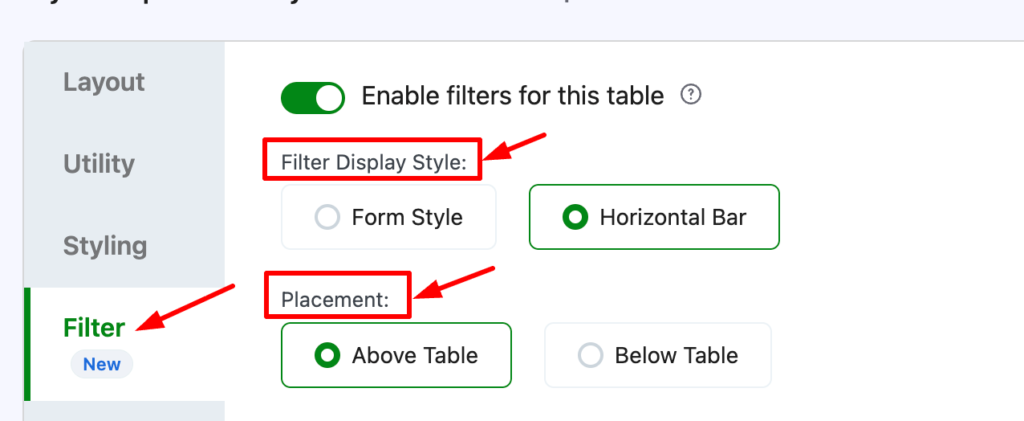
Then go to: Table Customization → Filter
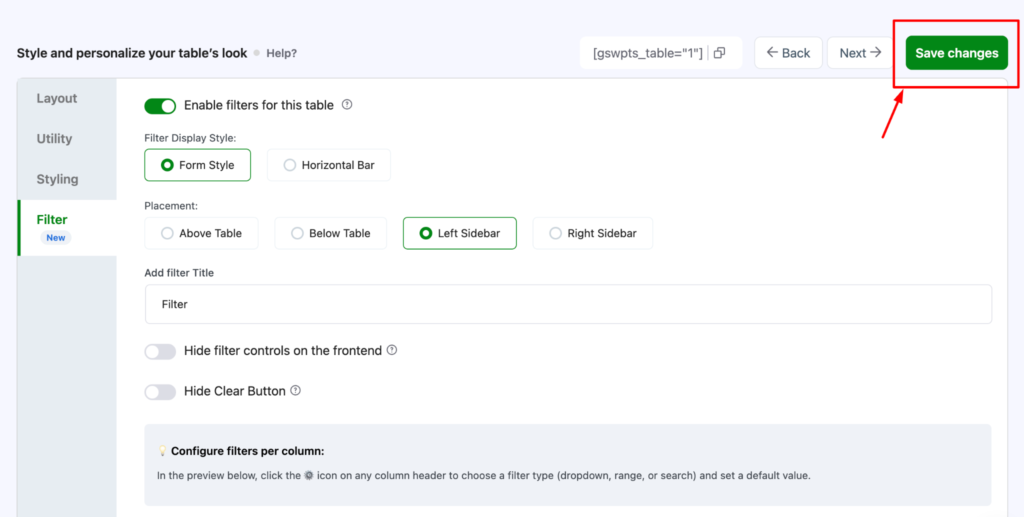
Step 2: Enable Filters for This Table #
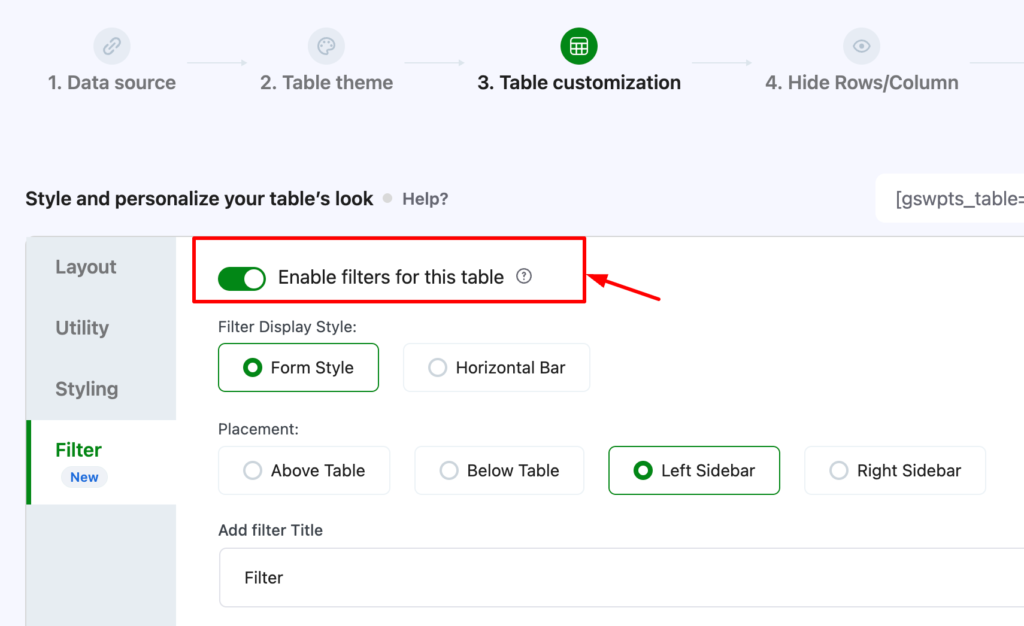
Turn on the option: Enable filters for this table
This activates filtering for the current table.
Step 3: Choose the Filter Display Style #
Select one of the available display styles:
- Form Style
- Horizontal Bar
Choose the style that best fits your table layout and website design.

Step 4: Choose Filter Placement #
Choose where the filters should appear:
- Above Table
- Below Table
- Left Sidebar
- Right Sidebar
Pick the placement based on your content layout and how visible you want the filters to be.
Step 5: Add a Filter Title #
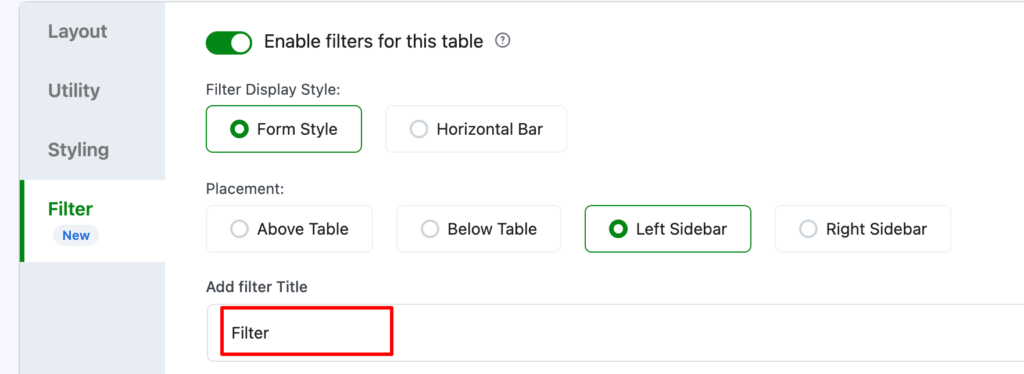
Enter a title for the filter section if needed.
Examples:
- Filter
- Search Table
- Narrow Results
- Refine Data
This title appears above the filter controls depending on the selected display style.
Step 6: Configure Frontend Visibility Options #
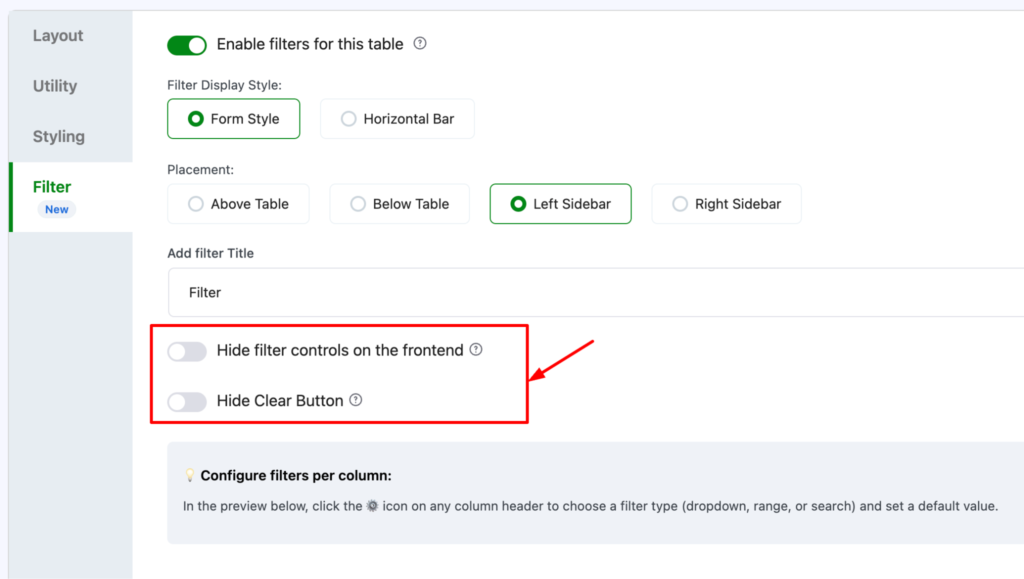
Set these optional controls based on your needs:
- Hide filter controls on the frontend
- Hide Clear Button
These options are especially useful for predefined or controlled filtering experiences.
Step 7: Save Changes #
After configuring your filters, click: Save Changes
Then, view the table on the front end to test the filtering behavior.
Filter Display Styles #
FlexTable gives you different ways to present filters on the front end.
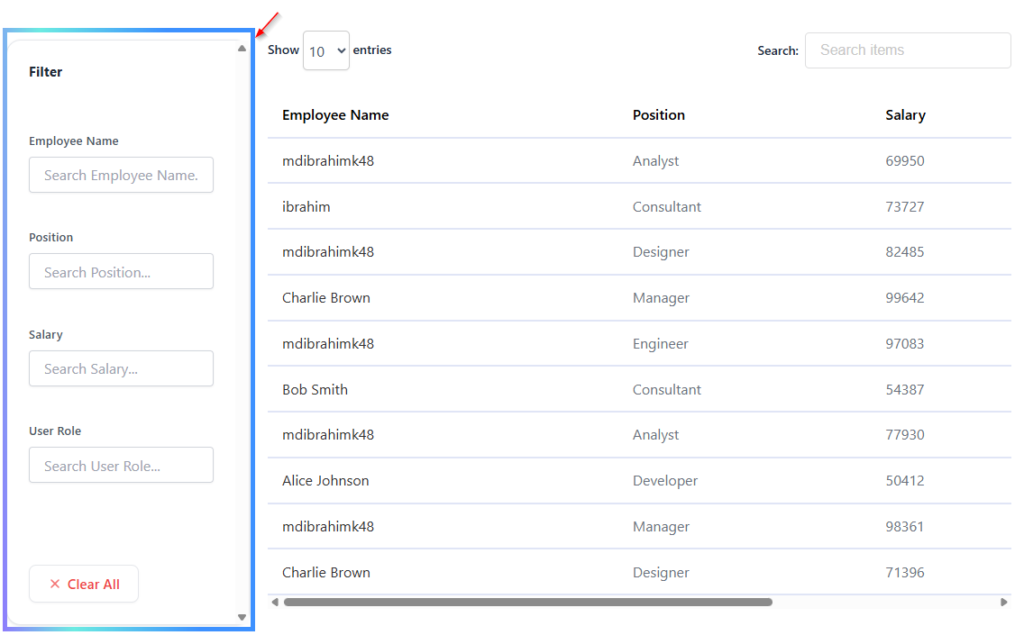
Form Style #
In Form Style, filters appear in a structured filter area, similar to a form layout.
This is useful when you want a more standard and organized filter panel.
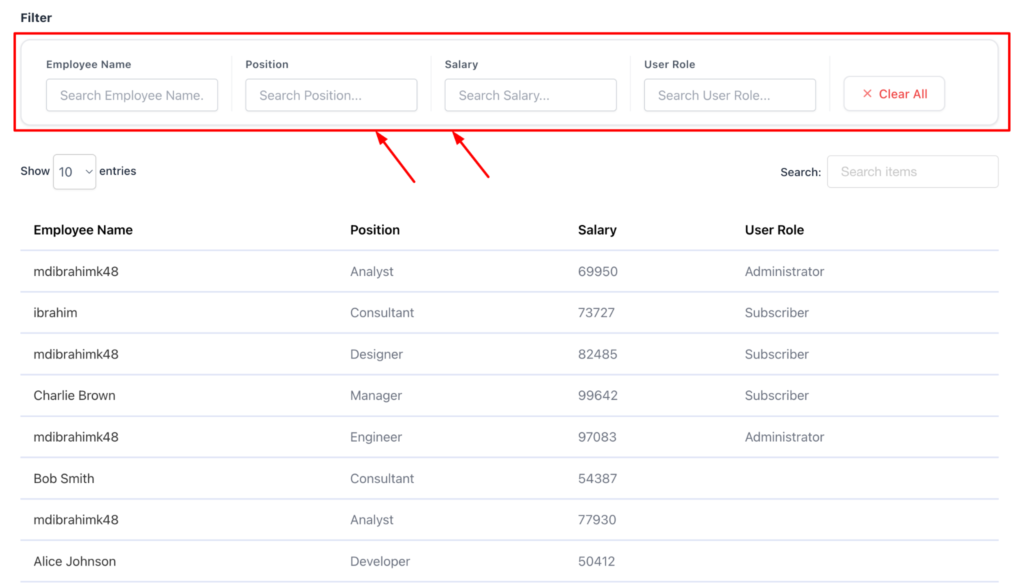
Horizontal Bar #
In Horizontal Bar mode, filters are displayed in a row-based layout, usually above or below the table.
This works well when you want a compact and modern filtering experience.
Filter Placement Options #
You can choose where the filters appear on the table layout.
Available placements: #
- Above Table – best for quick filtering
- Below Table – useful when filtering is secondary
- Left Sidebar – ideal for advanced or multiple filters
- Right Sidebar – useful if it fits your theme layout better
Configure Column Filter (Per Column) #
FlexTable allows you to enable and customize filtering at the individual column level. This gives you precise control over how each column behaves in the filtering system.
How to Access Column Filter Settings #
- Open your table in the editor
- Locate the table preview section
- Click the ⚙ (settings icon) on the desired column header
- The Configure Column Filter panel will open
Example Configuration Workflow #
To configure a column like “Position”: #
- Click the ⚙ icon on the Position column
- Enable “Enable filter for this column”
- Set Filter Type → Single Select/ Multi Select/ Text Search
- Enable Exact Match for precise filtering
- (Optional) Set a Default Value
- (Optional) Enable Hide this filter field on the frontend
- Click Done to save
Predefined / Backend-Controlled Filters #
FlexTable also allows you to define filters from the backend.
This means the table can already be filtered before the user interacts with it.
To configure predefined or backend-controlled filters, go to: Conditional Table View → Search Only Display / User-specific Display
This is useful when you want to show only a specific subset of rows based on predefined conditions. Common use cases:
- Showing different filtered views for different users
- Showing products from a specific brand
- Displaying records for a selected region/data
Limiting the table to a certain status #
Practical Use Cases #
Product Tables – Let users filter by: #
- Category, brand, stock, price, rating
Useful for WooCommerce product comparison or specification tables.
Pricing Tables – Users can search or filter plans by: #
- Billing cycle, plan type, user count
Business Directories – Visitors can narrow listings by: #
- City, service type, company category, rating
Real Estate / Property Tables – Filter by: #
- Location, price, number of bedrooms, property type
Inventory / Data Tables – Useful for internal teams filtering by: #
- SKU, warehouse, stock level, supplier, status
Event or Schedule Table – Users can filter by: #
- Event type, date, venue, speaker, availability
Things You May Find Confusing #
Why does a filter show no results #
Usually, this happens because:
- The selected value does not exactly match the available data
- Multiple filters are active at the same time
- The column contains inconsistent formatting
- A predefined filter is already narrowing the table
Why multiple filters reduce results quickly #
FlexTable applies active filters together, so each additional filter narrows the result set further. This is expected behavior.
Tips for Best Results #
- Use clean and consistent data in each column
- Choose filter types that match the data structure
- Use dropdowns for repeating values
- Use search for names, titles, and keywords
- Test filters on the front end after saving
- Avoid inconsistent spacing or spelling in filtered columns
- Use predefined filters for landing pages or segmented table views
Filtering is not returning the expected rows #
Check the following:
- The values in the table are case-sensitive where applicable
- The filter value exactly matches the stored table value
- Multiple filters are not narrowing the results too much
- The table data is clean and consistent
Final Thoughts #
The new FlexTable Table Filtering feature gives you a powerful way to make tables more interactive, searchable, and user-friendly.
By choosing the right display style, using clean and consistent table data, and understanding how exact-match and multi-column filtering work, you can create a much better experience for your visitors.
Whether you are building product tables, directories, pricing comparisons, or large data tables, FlexTable filtering helps users find what they need faster and with less effort.


Add your first comment to this post