









Follow these steps to configure the real-time synchronization between your WooCommerce store and Google Sheets using FlexStock.
Prefer a visual walkthrough? Check out our step-by-step YouTube tutorial instead-
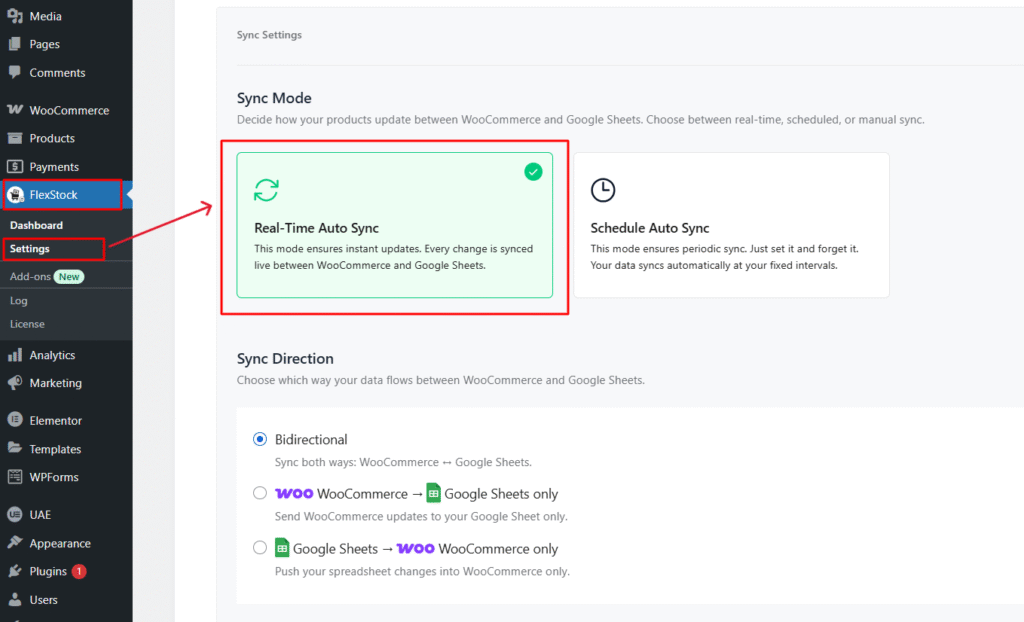
Access Settings:
- Go to your WordPress Dashboard.
- Navigate to FlexStock → Settings → Sync Settings.
Choose Sync Mode: Under Sync Mode, you will find two options:
- Choose Option 1: Real-Time Auto Sync ( Which is the default mode, available in the free version ). This enables bi-directional real-time syncing between WooCommerce and Google Sheets.
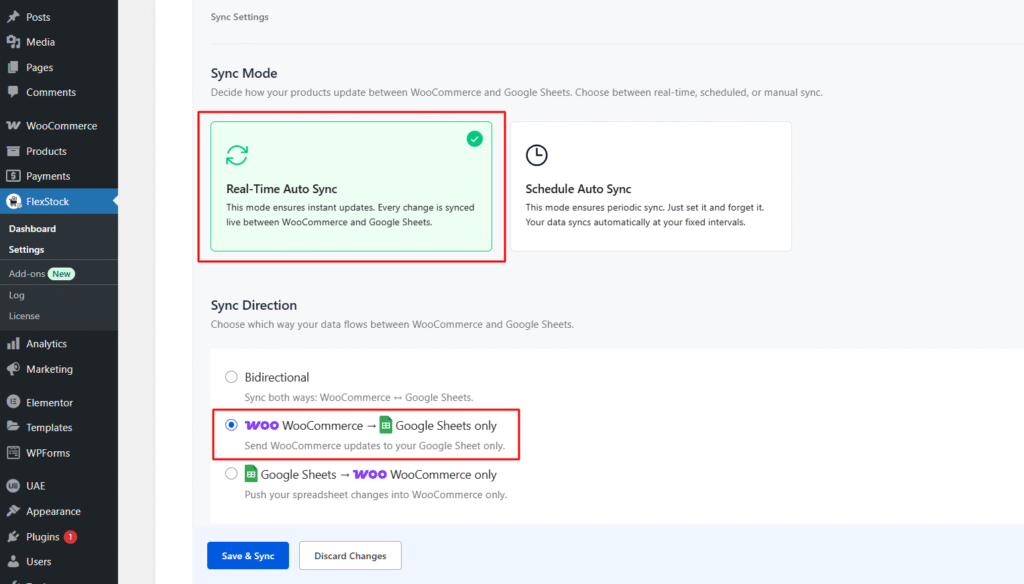
WooCommerce → Google Sheets (Free Version):
If you want to send WooCommerce updates only to Google Sheets: Select WooCommerce → Google Sheets only. Click Save.
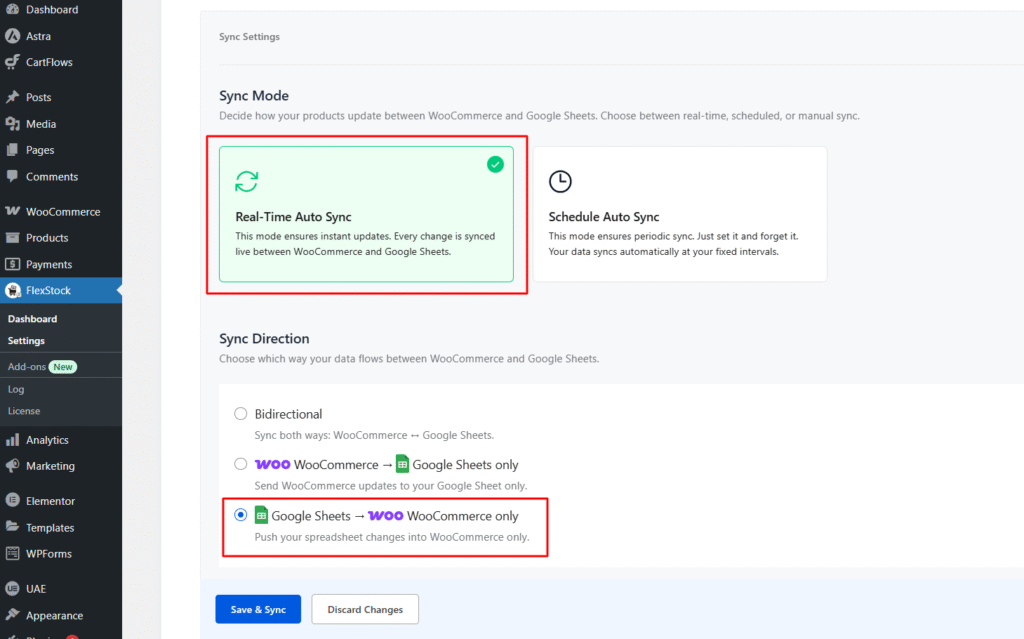
Google Sheets → WooCommerce (Ultimate Version):
- To update your WooCommerce store directly from Google Sheets, you’ll need the Ultimate Version of FlexStock.
- Make sure the Ultimate version is activated before proceeding.
- You can [purchase it here] or learn how to activate it in our step-by-step guide.
Enable Google Sheets → WooCommerce Sync:
- After confirming your Ultimate version activation,
- Select Google Sheets → WooCommerce only.
- Click Save.


Add your first comment to this post