









Overview: The Formula Feature allows you to use Google Sheets formulas to dynamically update product data (such as SKU, price, or stock) inside the FlexStock sheet. Any formula-based changes are reflected automatically in the Google Sheet, and it is synced to WooCommerce based on your selected schedule.
This feature is ideal for users who want to manage product data from multiple sheets or external vendor sources without manual updates.
Prefer reading? Continue with the step-by-step guide below.
How to Navigate This Feature: Go to WordPress Dashboard → FlexStock → Settings → Preferences → Scroll down to Formula Feature.
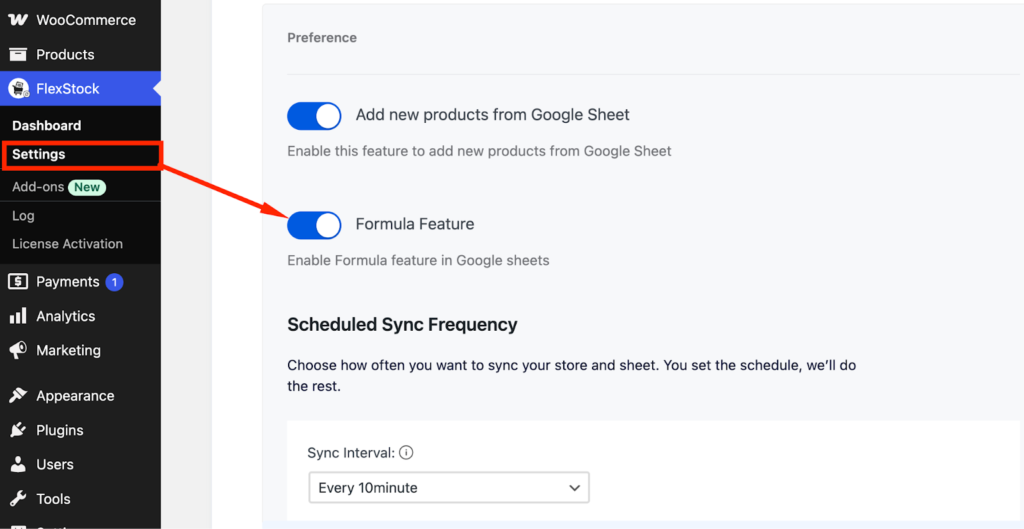
How the Formula Feature Works (Simple Explanation)
You can use any kind of valid Google Sheets formula, based on your need, simple, complex, or advanced. The Formula Feature does not limit you to specific formulas. If the formula works in Google Sheets, it will work with this feature.
When the Formula Feature is enabled:
- You can add formulas to your Google Sheet
- Formulas can pull or calculate data from other tabs or external sheets
- The connected Google Sheet tab updates automatically based on the formula results
- FlexStock plugin syncs the updated data to WooCommerce according to your chosen schedule.
No manual copy-paste is required.
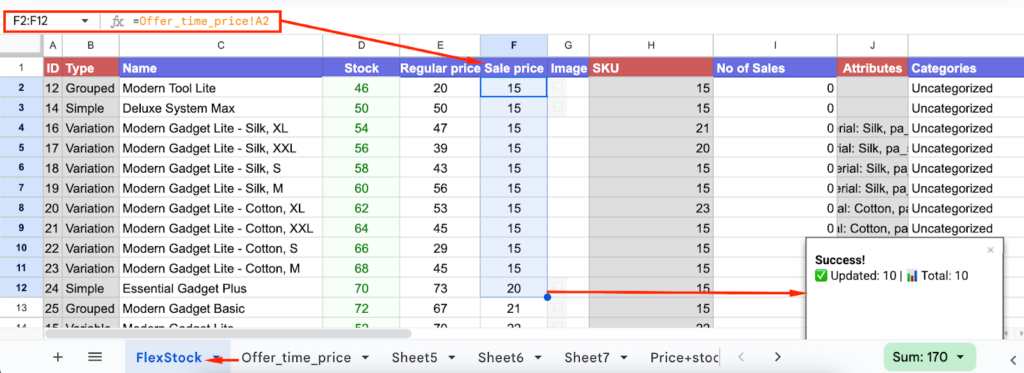
Example 1: Update Sale Price Using Another Sheet Tab (Same Google Sheet)
Scenario:
You want to update the Sale Price in the FlexStock tab using data from another tab within the same Google Sheet. This allows you to bulk update prices easily without directly syncing to WooCommerce instantly.
- Plugin connected tab: FlexStock
- Source tab: offer_time_price
- Column to update: Sale Price
How It Works (Simple):
- Update or manage offer prices inside the offer_time_price tab
- Use a simple formula to pull the value into the FlexStock tab
- Drag or scroll to apply the formula to multiple rows (bulk update)
- Prices update in WooCommerce based on your selected sync interval
Simple Formula Example:
=offer_time_price!A2👉 Just drag down or scroll with your mouse to apply this formula to multiple rows.
Offer price tab → FlexStock sale price column mapping
Example 2: Advanced Vendor Price & Stock Update (External Sheet)
Scenario:
Your vendor maintains price and stock data in a separate Google Sheet. You want those updates to automatically reflect in your store while still keeping control before syncing to WooCommerce.
Sheet Structure:
- Vendor external tab: VendorStock+Price
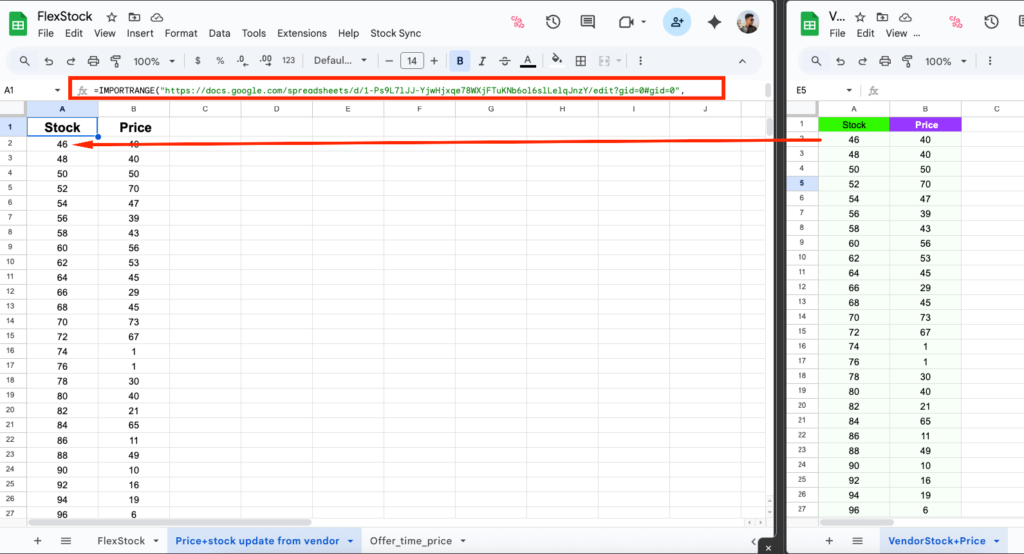
- Local intermediate tab: Price+stock update from vendor
- Plugin connected tab: FlexStock
Step 1: Connect Vendor Sheet to Local Tab.. Use the following formula inside the Price+stock update from the vendor tab:
=IMPORTRANGE("Google Sheet URL", "VendorStock+Price!select range")On first use, Google Sheets will ask for permission. Click Allow access.
Step 2: Connect Vendor Data to FlexStock. Inside the FlexStock tab, pull the required value using:
='Price+stock update from vendor'!A2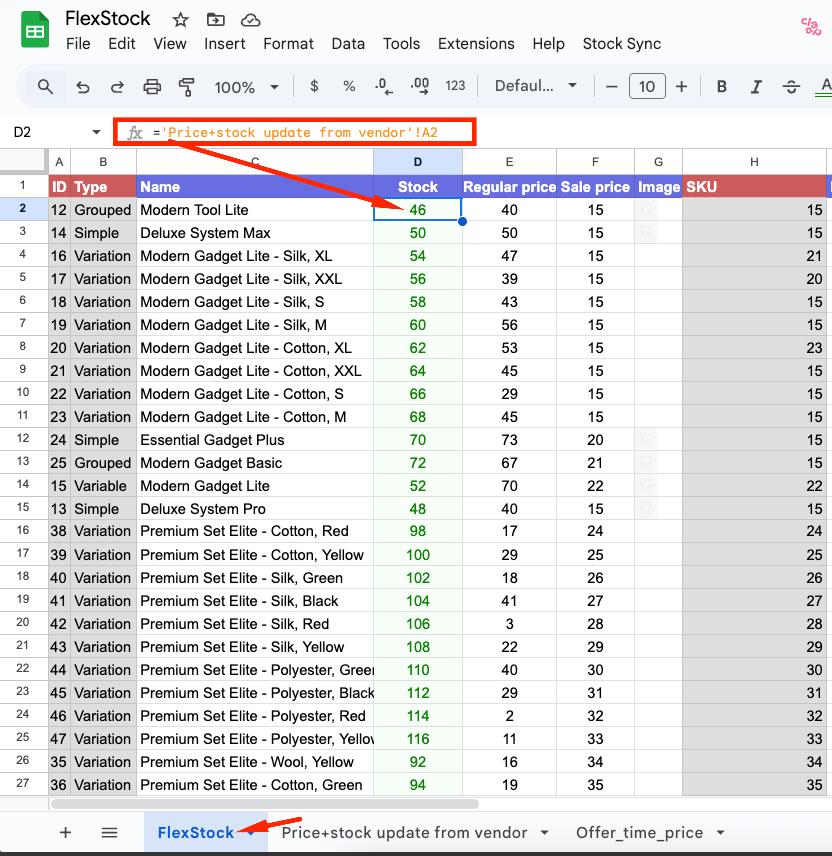
How This Works: Vendor sheet → intermediate tab → FlexStock flow
- Vendor updates the price or stock in their sheet.
- Price+stock update from vendor updates automatically via a formula.
- FlexStock updates instantly using the linked formula.
- FlexStock plugin syncs the updated data to WooCommerce based on your selected interval.
Important Notes: #
- Formula updates appear instantly in Google Sheets
- WooCommerce updates follow the selected sync schedule
- Complex and advanced formulas are fully supported
- All formulas shown in this documentation are for example purposes only.
Common Issues & Tips: #
- Data not updating? Ensure the Formula Feature is enabled
- IMPORTRANGE not working? Check access permissions
- WooCommerce has not been updated yet. Wait for the next scheduled sync


Add your first comment to this post