









Now you can send your FormyChat leads information directly to Google Sheets. All connected leads can be synced with Google Sheets in real-time, making it easier to track, manage, and analyze lead information in one place.
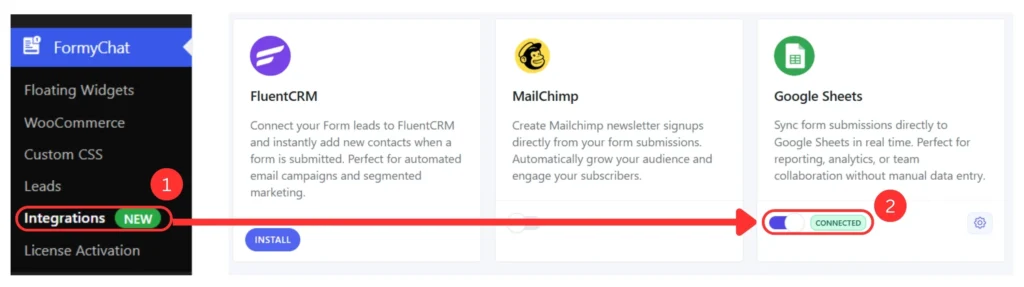
To begin, head over to your WordPress dashboard and navigate to FormyChat >Integrations.
Simply toggle the Google Sheets button to start the process.
Connecting Google Sheets: #
To start, click on the Gear Icon from the Google Sheets integration menu, and a pop-up banner will appear. This banner will suggest that you connect your Google account from there.
Click on the “Continue with Google”.
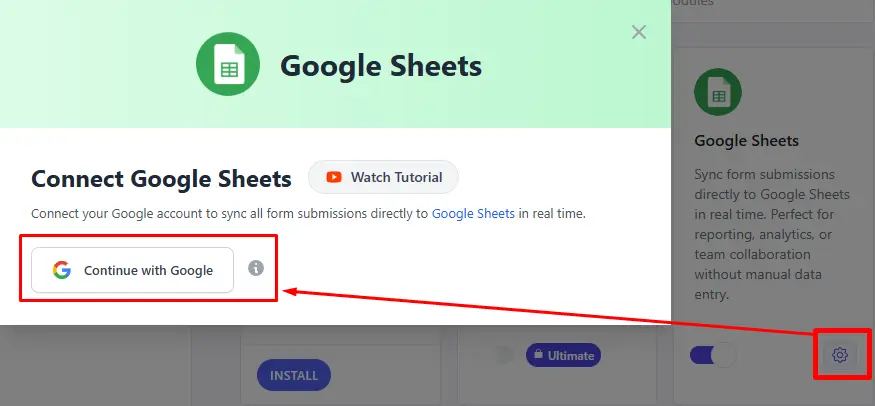
Once you click the “Continue with Google” button, you will be redirected to Google to authorize access to your spreadsheet.
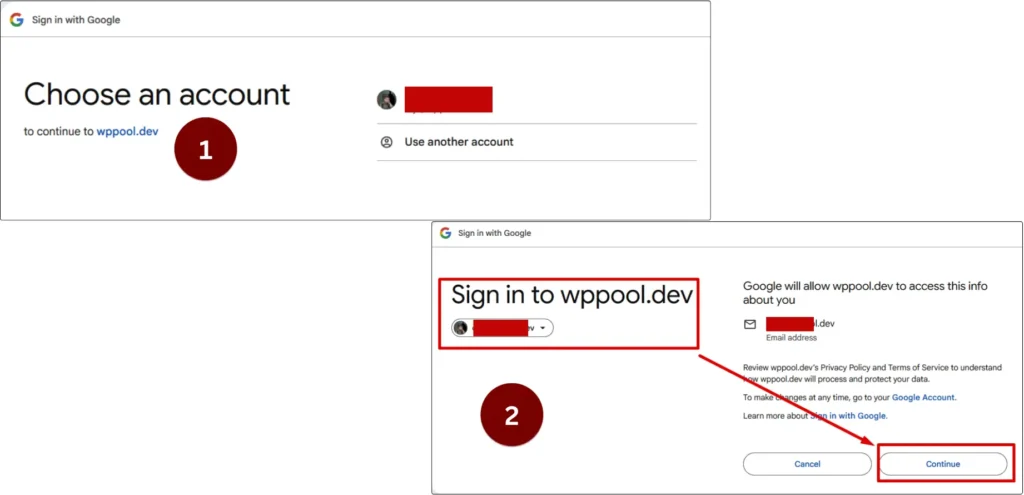
Select your preferred Gmail account and proceed with giving all the necessary access permissions that Google asks for.
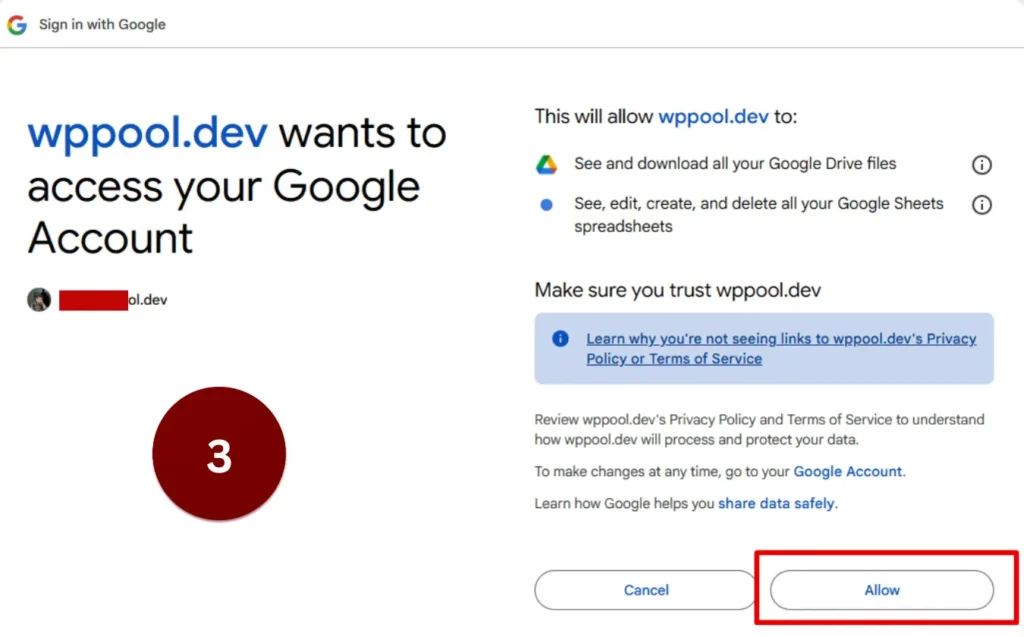
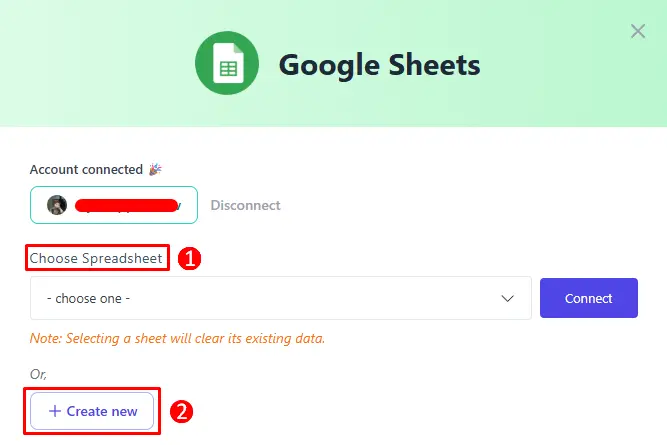
Once you’re done giving all the required access, you’ll be asked to either connect to an existing sheet or create a new sheet. This is where all your leads’ information will be stored and organized.
Connecting an Existing Google Sheet: #
First, we will choose and connect an existing sheet that we had previously created.
Point to be noted, Selecting a sheet will clear its existing data.
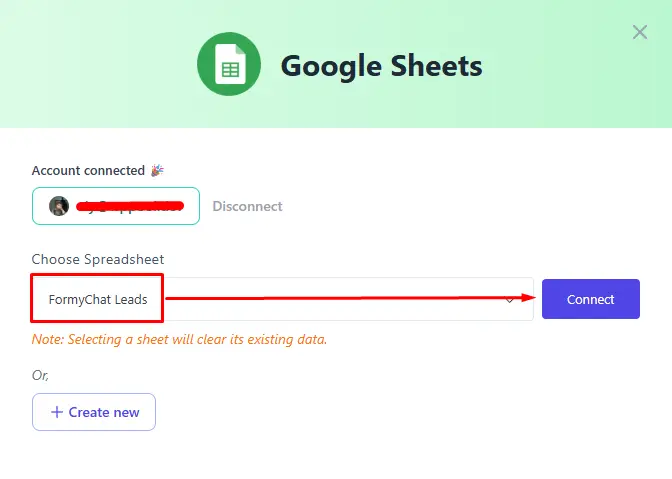
Simply click on the dropdown menu, select your sheet from the list, and then press the Connect button.
Creating a new Google Sheet: #
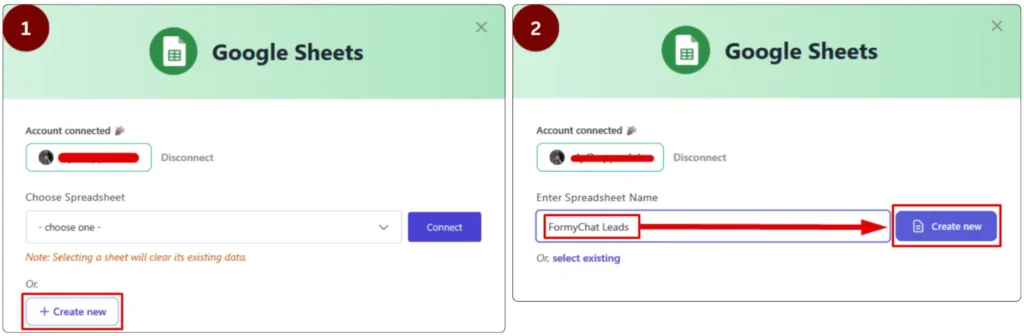
Proceed by clicking on the Create New button, then give your New Sheet a name (e.g., FormyChat Leads), and then click on the Create New button to complete creating your FormyChat lead-capturing sheet.
Additional Options: #
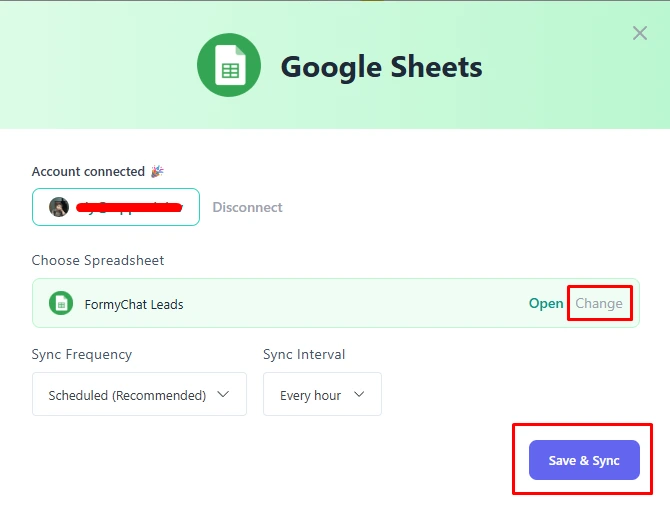
Once you’ve successfully connected your Google Sheets with FormyChat, you can modify two important settings: Sync Frequency and Sync Interval.
Sync Frequency: #
With the sync frequency setting, you can choose and determine how frequently you want FormyChat to sync your leads with your connected Google Sheets. There are three options available:
- Scheduled (recommended): This option allows you to determine how frequently the leads will be synced. You can set specific time intervals for automatic syncing.
- Real-time: This option updates and syncs the leads in real-time, meaning there is no waiting period or interval in between. Every new lead appears in your Google Sheet immediately.
- Manual: With this option, you’ll need to sync the leads manually every single time to make sure they appear on Google Sheets. The system won’t do it automatically.
Note: If you select the Scheduled sync frequency option, only then will you be able to update and customize the Sync Interval time.
Sync Interval: #
With the sync interval setting, you can determine exactly how frequently the leads will be synced with your Google Sheets. There are five different time interval options that you can choose from:
- Every 15 minutes
- Every 30 minutes
- Every Hour
- Every 6 hours
- Daily
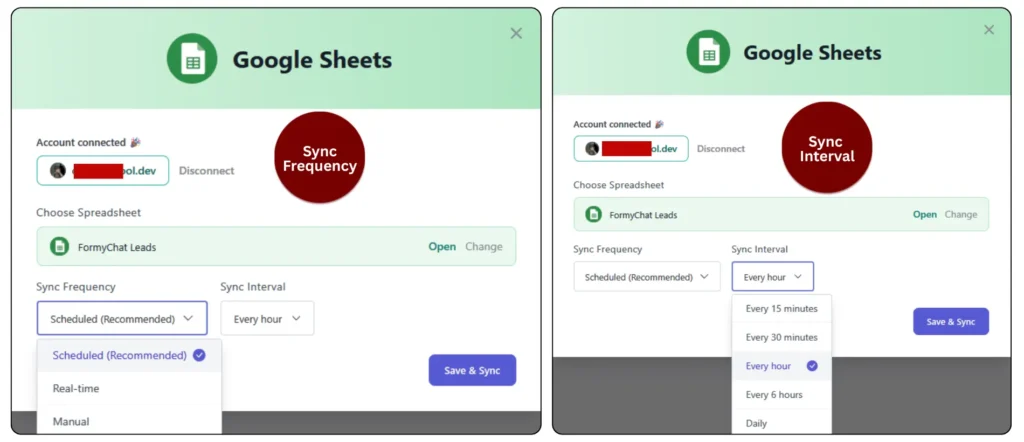
Make changes according to your needs and preferences, and then proceed by clicking the “Save & Sync” button to save your settings.
Final Results: #
Once you’ve set up and connected your Google Sheets properly, all the leads will be stored there automatically based on your chosen sync settings.
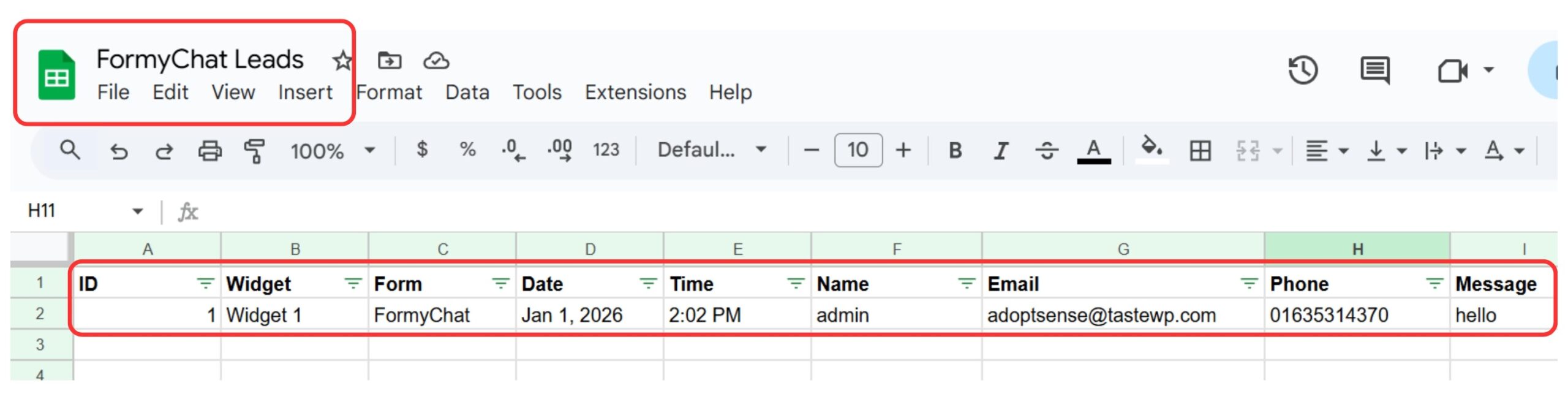
You can always go back and select a different sheet by clicking the Change button. You can also proceed with a manual sync at any time by clicking the “Sync Now” button.
Thats it!


Add your first comment to this post