









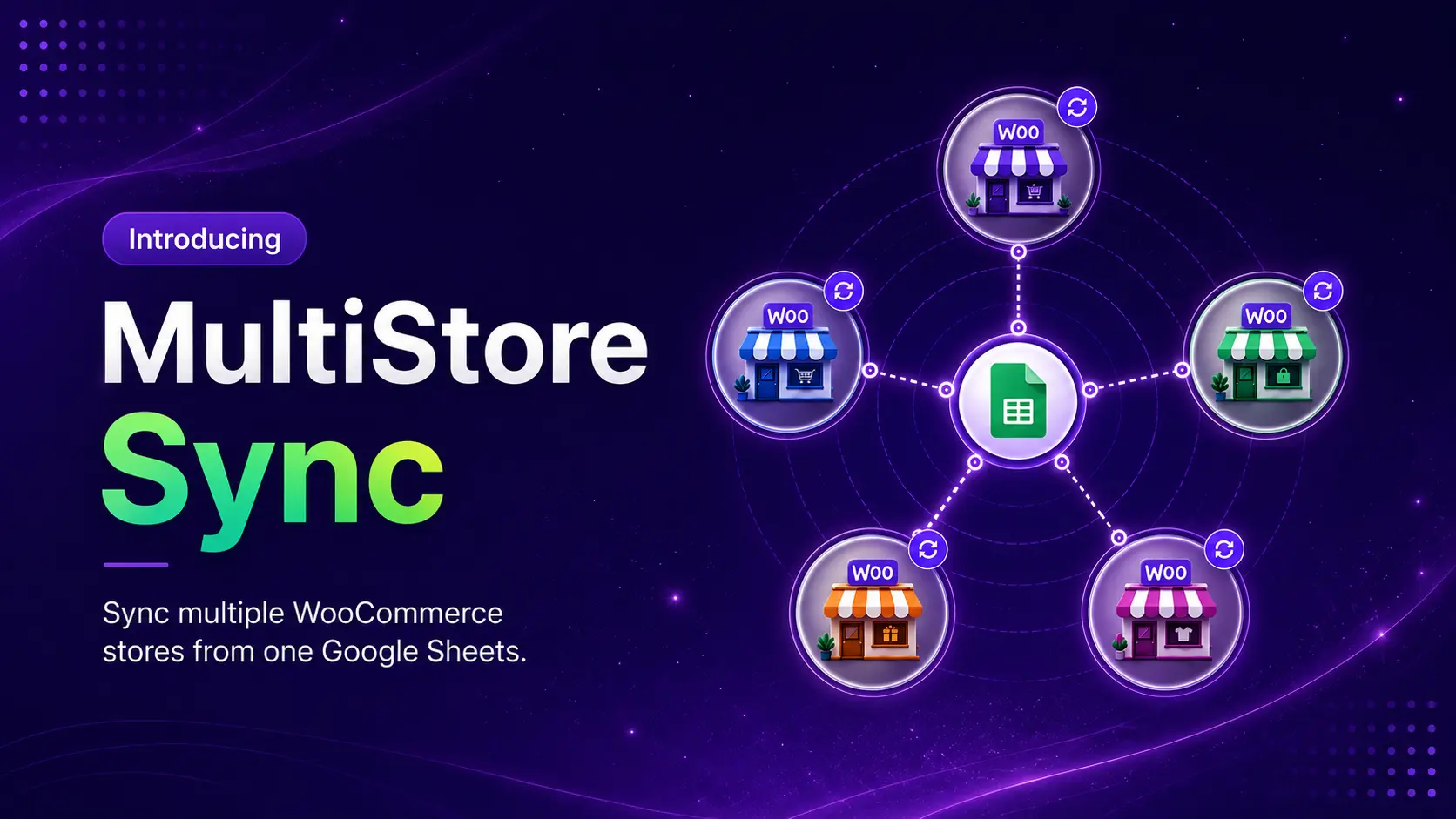
If you run more than one WooCommerce store, you already know the problem. You update a product on Store A. Then you log into Store B and do it again. Then Store C. Miss one, and your stock numbers stop matching reality.
In short: to manage multiple WooCommerce stores without repeating the same work everywhere, you need one central place to make changes once and push them out to every connected store. FlexStock’s Multi-Store Sync add-on does this using a Google Sheet as the control panel, so you edit stock, price, or product data in one spreadsheet and it syncs across every store you connect.
Here’s what that actually looks like, and how to set it up.
What It Takes to Manage Multiple WooCommerce Stores
To manage multiple WooCommerce stores means keeping products, stock, and pricing consistent across two or more separate WooCommerce sites, without manually repeating every update on each one.
Store owners usually end up with more than one store for a simple reason. Maybe they sell the same products under different brands. Maybe they run a retail site and a wholesale site off the same inventory. Maybe they’ve split by country so each store can use its own currency and language.
Whatever the reason, the stores still share products, or at least some of them. That’s where the real work starts.
The Part Nobody Warns You About: Manual Work Multiplies
Running one WooCommerce store is a job. Running three is not three times the job, it’s worse, because mistakes compound.
Update a price on Store A and forget Store B, and you’ve got two different prices for the same product live at the same time. Sell out on Store A but Store B still shows “in stock,” and you’ve got an angry customer waiting on a backorder that doesn’t exist.
Common pain points store owners run into:
- Updating the same product across every store, one by one
- Keeping shared stock numbers aligned by hand
- Managing separate brands with no clean system tying them together
- Moving product data from one store to another manually
- Losing time jumping between dashboards that don’t talk to each other
None of this is a WooCommerce problem specifically. It’s a “more than one of anything” problem. The fix is having one place that pushes changes everywhere, instead of a person doing it store by store.
Two Common Ways People Try to Manage Multiple Stores
Before getting into the FlexStock approach, it helps to know the general paths people take.
Option 1: WordPress Multisite.
You run every store from one WordPress installation, with each store as a sub-site. This can cut hosting costs and centralize updates, but it also means all your stores share one database and one point of failure. If you want to go deeper on the setup itself, this WooCommerce multistore guide walks through it.
Option 2: Separate installations, connected by a tool
Each store is fully independent, its own WordPress install, its own hosting. A plugin or app sits between them to sync inventory or products. This gives you more flexibility and less risk of one store’s problem taking down the others. Most WooCommerce multistore plugins fall into this category, and this comparison of WooCommerce multistore plugins breaks down how they differ.
FlexStock Multi-Store Sync is built for the second path, but with one difference: the control layer isn’t another dashboard. It’s a Google Sheet you already know how to use.
FlexStock Multi-Store Sync: One Spreadsheet, Every Store
FlexStock already lets you sync a single WooCommerce store with a Google Sheet, so you can bulk-edit stock and pricing without touching the WordPress admin for every product. If you haven’t set that up yet, start with the FlexStock and Google Sheets setup guide first, since Multi-Store Sync builds on top of it.
The Multi-Store Sync add-on takes that same idea and connects it across stores. Instead of one store talking to one sheet, you get a network: one central spreadsheet, several stores feeding into it or pulling from it.
Two Ways Your Stores Can Behave
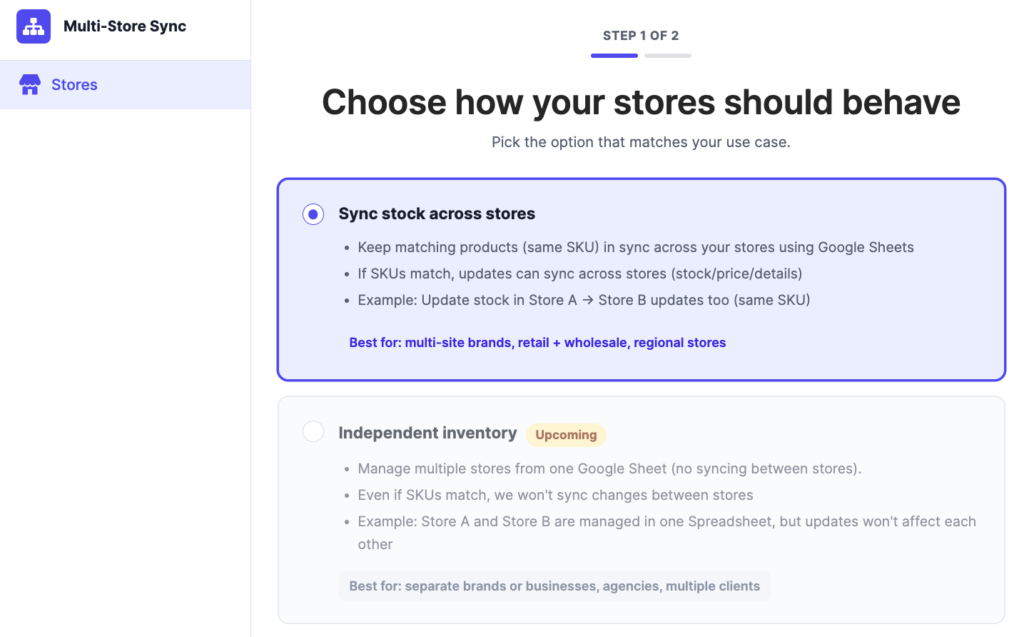
When you set this up, you pick one of two modes:
- Sync stock across stores: Products with matching SKUs stay in sync. Update stock on Store A, and Store B updates too, as long as the SKU matches. This fits stores selling the same catalog, like a retail site and a wholesale site pulling from the same inventory.
- Independent inventory: Stores are managed from one sheet, but changes on one store don’t touch another, even if SKUs match. This fits agencies managing separate client stores, or brands that need to stay fully walled off from each other. This mode is marked as an upcoming feature, and you can track its progress on the FlexStock roadmap.
Source Stores and a Destination Store
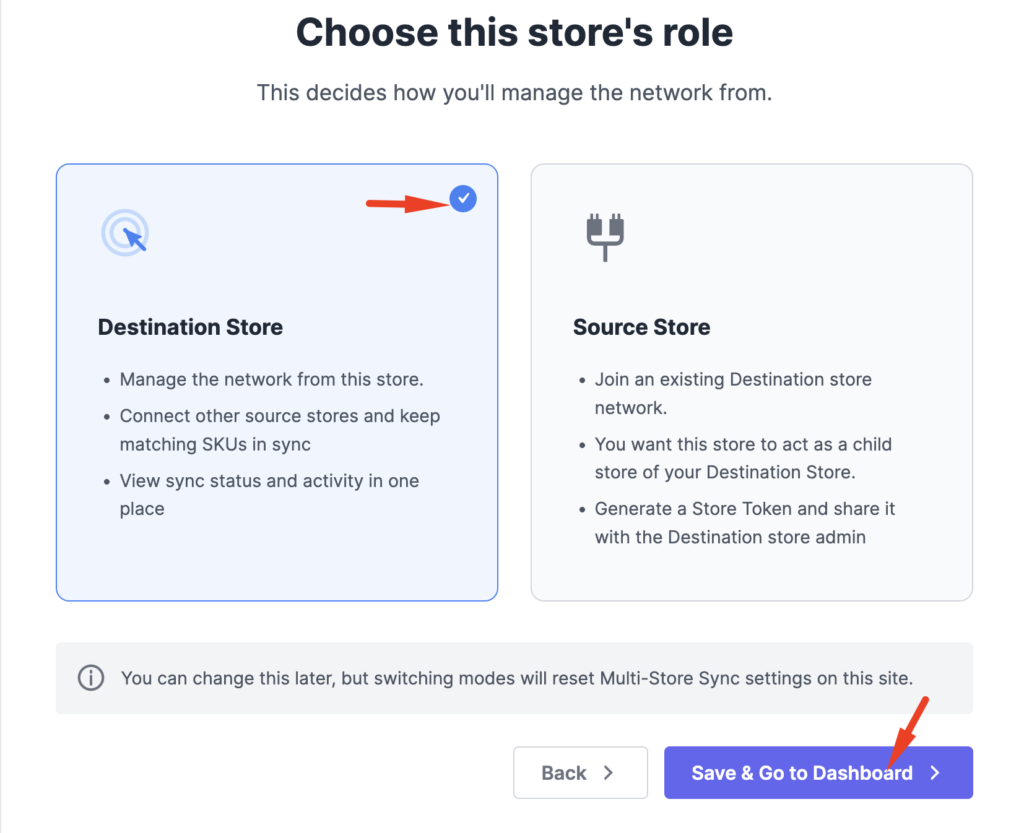
Every store in the network takes one of two roles.
- A Source Store shares its products with the network. It generates a token and hands that token to whichever store is managing things.
- A Destination Store is the one managing store. It connects to each Source Store using their tokens and keeps matching SKUs in sync from a single dashboard.
Once you know which store is which, setup takes about ten minutes.
How to Set Up FlexStock Multi-Store Sync
Before you start, make sure FlexStock is installed and activated on every store you want to connect, and that each one is already synced with Google Sheets.
1. Install the Multi-Store Sync add-on
From your WordPress dashboard, go to FlexStock, then Add-ons, and activate Multi-Store Sync on every store you’re connecting.

2. Choose how your stores should behave
On first setup, you’ll pick “Sync stock across stores” or “Independent inventory.” Sync stock is the option available today and the Independent inventory option will be soon introduced.
3. Set each store’s role
Pick Source Store for stores that will share products, or Destination Store for the one store that manages the network. You can switch this later, but switching resets the Multi-Store Sync settings on that site.
4. On each Source Store, generate a token
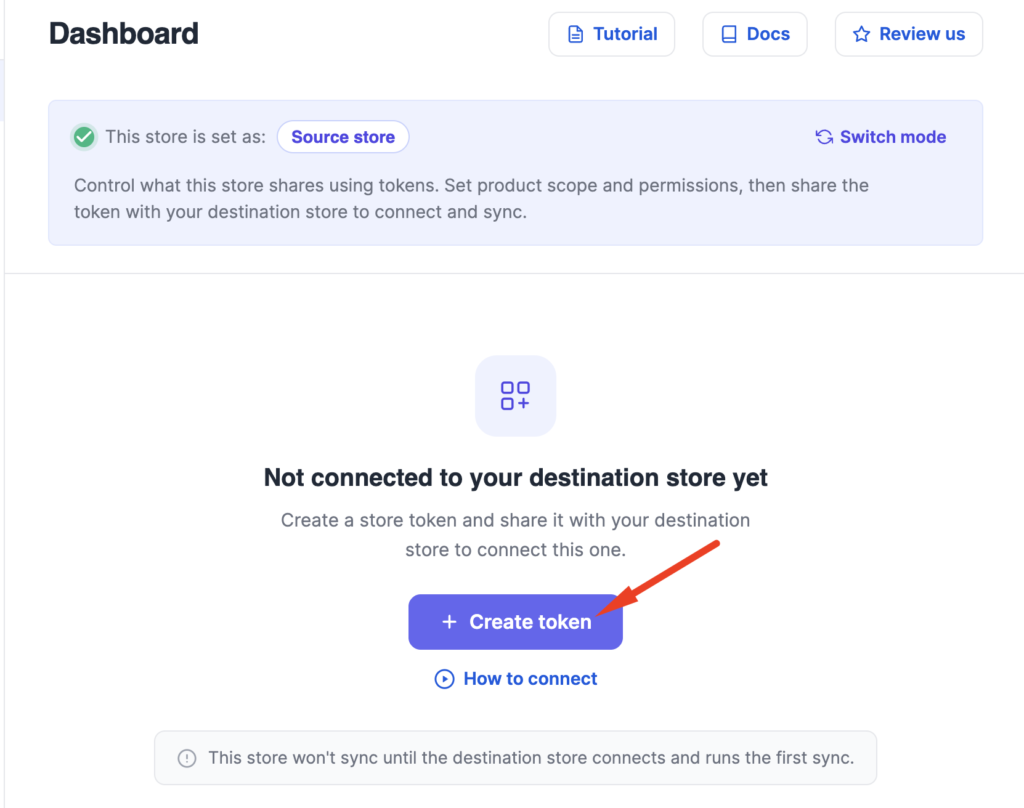
Click Create Token, then Generate Token. This token is what connects that store to your Destination Store.
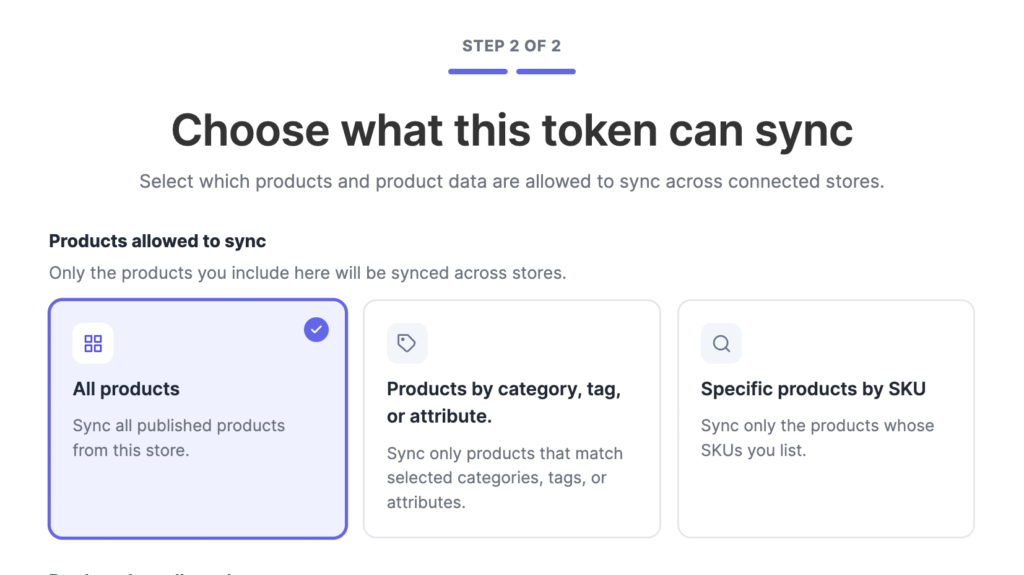
5. Choose what the token can sync
You can sync all products, only products matching certain categories, tags, or attributes, or specific products by SKU. If you only want your Music and Clothing categories syncing, for example, select just those.
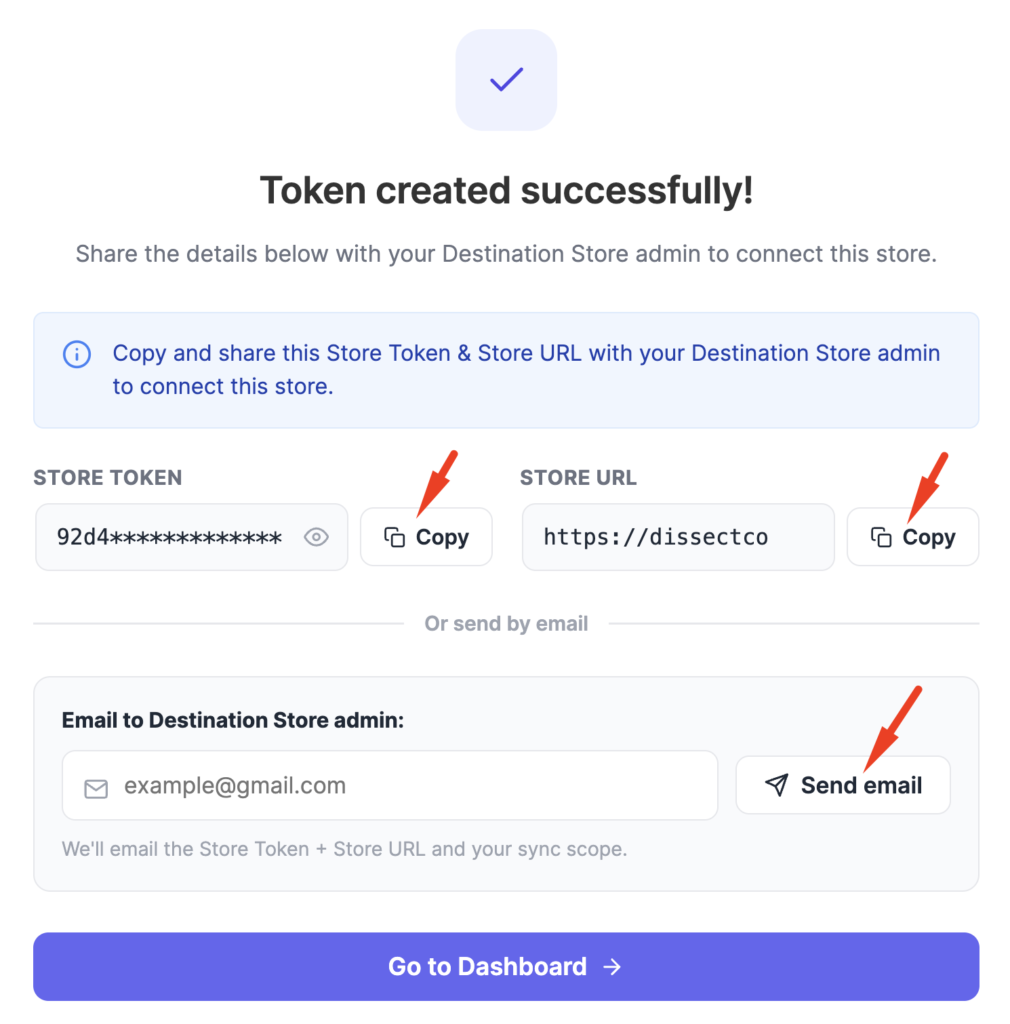
6. Send the token to your Destination Store admin
Copy the Store Token and Store URL, or use the built-in “Send email” option to deliver both automatically.
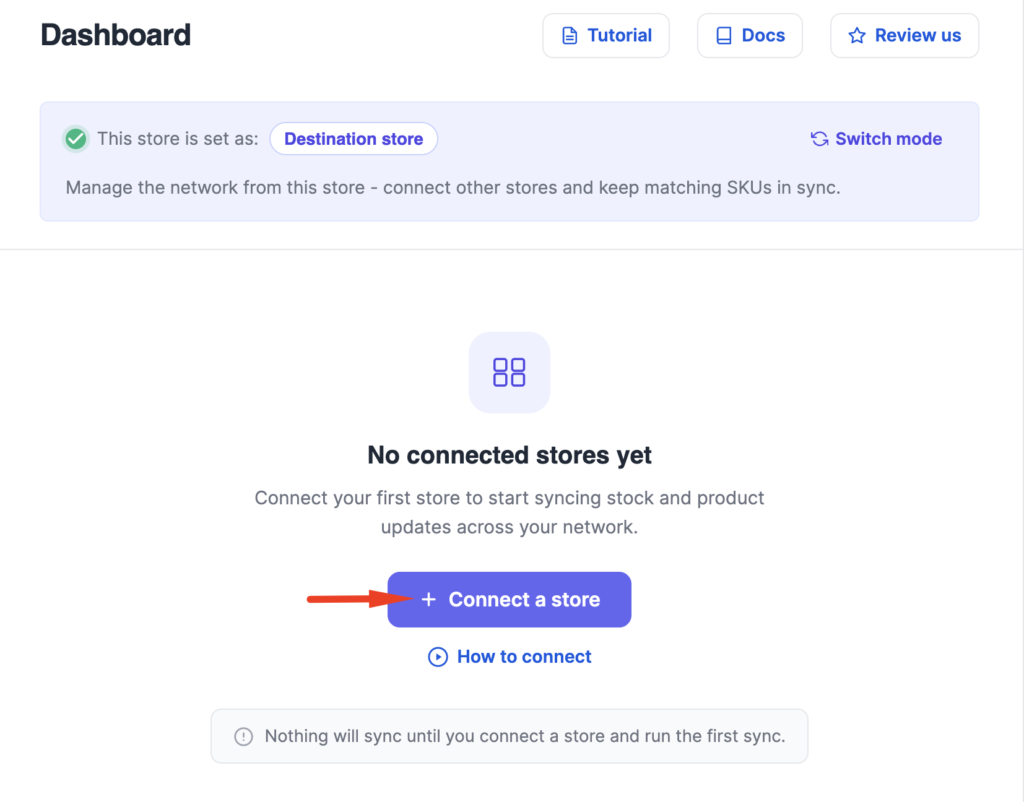
7. On your Destination Store, connect each Source Store
Go to Multi-Store Sync, click “Connect a store,” and paste in the Store Token and Store URL you were given. Click Verify Connection.
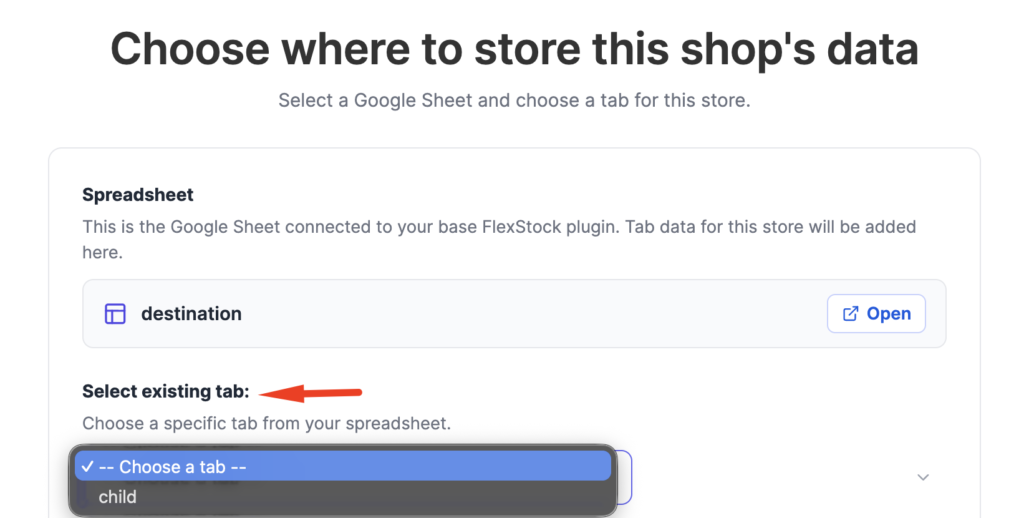
8. Pick where synced data lands in your sheet
Choose an existing tab, or let the add-on create a new one automatically for that store.
9. Review and confirm the first sync.
You’ll see a summary of what’s about to happen, how many products will be created, updated, or skipped. Check the confirmation box and click “Connect & Sync.”
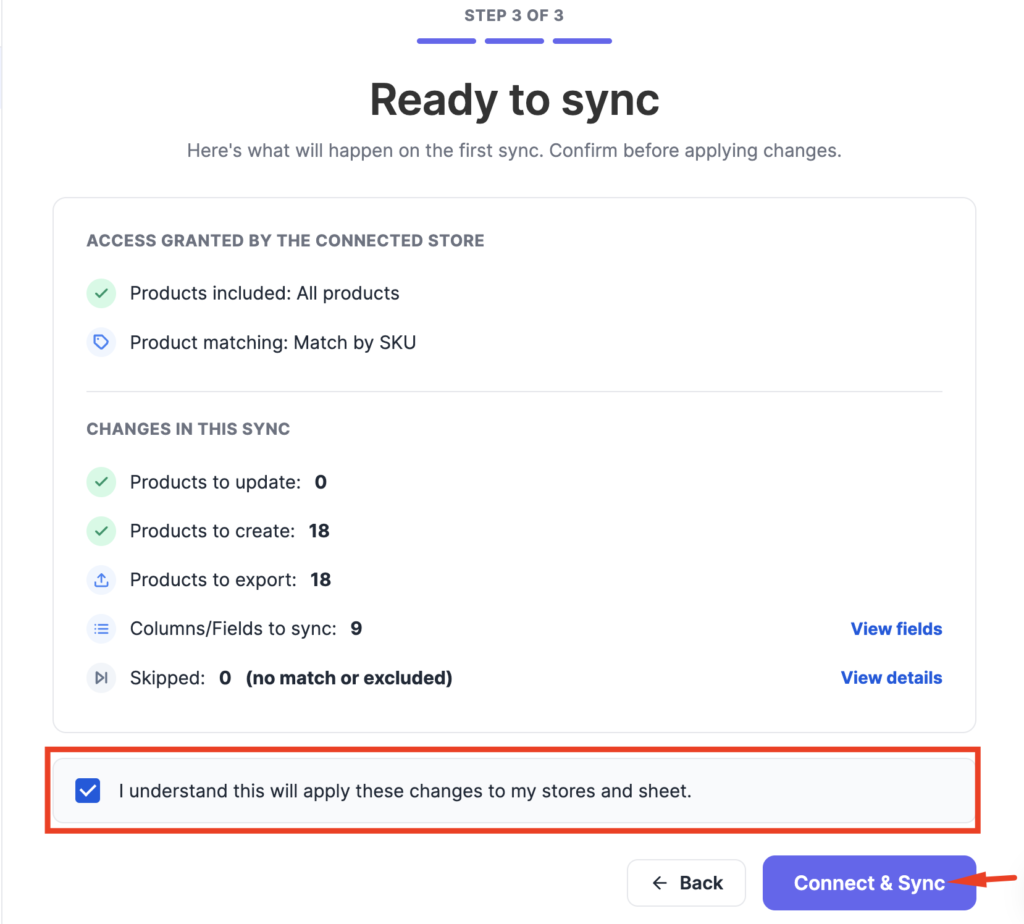
That’s it. From here, updates made in the Google Sheet, or changes made on a Source Store, flow through to every connected store sharing that SKU.
Choosing Exactly What Syncs
Not every store needs every piece of product data updated everywhere. FlexStock lets you control this at two levels.
Which products sync. Pick all products, a filtered set by category, tag, or attribute, or a manual list of specific SKUs. If you’re only testing the setup, start with a small SKU list rather than syncing your entire catalog on day one. And if you need to clean up or reorganize categories before syncing, this guide on bulk editing WooCommerce product categories is worth doing first.
Which fields sync. Stock, price, sale price, name, images, and a handful of other supported columns. If two stores use different pricing but share stock, you can sync stock and leave price untouched. Getting these settings right matters more than most people expect. A quick refresher on WooCommerce inventory management done correctly will save you from syncing the wrong fields and creating a mess you have to unwind later.
Who This Setup Actually Works For
Multi-store sync isn’t one-size-fits-all. Here’s where it tends to fit:
- Same catalog, multiple storefronts. You sell the identical product line across a few stores and want stock and pricing to match everywhere without manual updates.
- Retail plus wholesale. One inventory source, two different pricing structures and customer experiences.
- Regional stores. Separate stores per country or region, still pulling from one central stock count.
- Spreadsheet-first teams. Anyone who already thinks in spreadsheets for bulk edits, pricing rules, or inventory logic will find the Sheet-as-control-panel approach faster than clicking through multiple WordPress dashboards.
One store owner managing around 85,000 products across their catalog said their old import process used to take more than 28 hours. With FlexStock, pricing and stock updates now sync in seconds, according to a review on the FlexStock product page.
The Bottom Line
You don’t need a bigger team to manage multiple WooCommerce stores well. You need one place to make a change once and trust it lands everywhere it should. That’s what FlexStock Multi-Store Sync is built to do, using a spreadsheet you probably already know how to use.
FAQ
Can I sync the same SKU across multiple stores?
Yes. Shared Stock mode keeps any store sharing that SKU updated automatically when stock changes on one of them.
Can I manage stores without syncing their inventory?
Independent inventory mode lets you manage every store from one place while keeping their stock counts fully separate. This mode is marked upcoming.
Do I need Google Sheets to use this?
Not for every workflow, but the spreadsheet is what makes bulk edits and cross-store control fast. Most users manage day-to-day syncing directly through the sheet.
Can I move products from one store to another?
Yes. Product import and export between connected stores is supported.
Is this different from a normal multistore plugin?
Most multistore plugins just connect stores and sync data in the background. FlexStock lets you choose exactly how each store behaves, shared, independent, or a mix, and gives you a spreadsheet to control it from.
Add your first comment to this post