









With dark mode fast becoming a web design standard, providing visitors with a seamless dark theme option is one of the quickest ways to elevate user experience, boost accessibility, and keep readers engaged longer.
If you build your pages using WPBakery Page Builder, adding a sleek dark mode toggle is easier than ever thanks to the power of WP Dark Mode. WP Dark Mode seamlessly integrates with WPBakery as a native element, allowing you to drag, drop, and customize your switch anywhere on your layout without writing a single line of code.
In this guide, we’ll walk you through what WPBakery brings to the table and provide a step-by-step tutorial on setting up Dark Mode on WPBakery websites in just a few minutes!
What Exactly is WPBakery Page Builder?
WPBakery Page Builder (formerly Visual Composer) is one of the most widely used and established drag-and-drop page builders in the WordPress ecosystem. It empowers designers, agencies, and site owners to build complex, highly custom layout structures without writing any code.
WPBakery works seamlessly with virtually any WordPress theme, allowing you to customize landing pages, portfolio layouts, e-commerce sections, and blog posts using an extensive library of visual building blocks.
Key Functions & Features of WPBakery Page Builder
To understand why WPBakery powers millions of websites, here are the primary core features that make it so effective:
1. Dual Editing Modes (Frontend & Backend Editors)
- Frontend Editor: A visual, inline “What You See Is What You Get” (WYSIWYG) editor. You can edit text, drag elements, and adjust styling directly on the page to see real-time design results.
- Backend Editor: A fast, structured schematic editor built into the WordPress dashboard. It is ideal for organizing large, content-heavy pages using a clean tree-style layout of rows and columns.
2. 50+ Built-In Content Elements & 250+ Add-ons
Out of the box, WPBakery includes over 50 drag-and-drop elements; such as text blocks, image galleries, buttons, accordions, tabs, video players, and post grids. It can also be expanded with hundreds of third-party add-ons to add ultra-specific functionalities.
3. Professional Template Library
Access a massive repository of pre-designed page layouts and sections. You can import professionally styled templates in seconds, swap out the text and media, or save your own custom layouts to reuse across your site.
4. Advanced Responsive Design Controls
WPBakery automatically handles mobile responsiveness. It provides device-specific options that allow you to adjust column widths, change element stacking orders, alter margins, or hide specific elements entirely on tablets and smartphones.
5. User Role Manager & Granular Access Controls
For multi-author blogs or client projects, WPBakery includes an advanced Role Manager. Site admins can restrict which user roles (e.g., Editors, Authors) have access to specific content elements, templates, or backend settings.
6. Built-in Grid Builder & Custom CSS Styling
Construct custom dynamic grids for blog posts, portfolios, or WooCommerce products. Advanced users can also take advantage of built-in custom CSS options and custom class fields to apply specific design tweaks.
Why Add Dark Mode to Your WPBakery Site?
- Enhanced User Experience & Eye Comfort: Reduces screen glare and eye strain for visitors browsing in low-light environments.
- Modern Aesthetic Appeal: Gives your website a stylish, sleek, and high-tech visual appearance.
- Seamless Page Builder Integration: WPBakery and WP Dark Mode work together natively, making element placement instant.
- Higher Engagement: Keeps users browsing longer with lower bounce rates and better accessibility features.
Powerful WP Dark Mode Features
Before jumping into the setup, here is what makes WP Dark Mode the ultimate dark theme plugin for WPBakery and WordPress:
- Native Page Builder Support: Dedicated WPBakery element for easy switch placement.
- 24+ Floating & Inline Switch Styles: Choose from dozens of modern, aesthetic toggle buttons.
- AI-Powered Custom Color Presets: Automatically generate matching dark mode color schemes that fit your brand.
- OS-Based & Time-Based Dark Mode: Automatically triggers dark mode based on the user’s device settings or local time.
- Image & Video Replacement: Display different images or videos when dark mode is activated to keep visual hierarchy intact.
- Dark Mode Analytics: Track how many visitors toggle dark mode on your site directly from your dashboard.
Step-by-Step Guide: How to Enable Dark Mode on WPBakery Websites
Follow these quick steps to get a functional dark mode switch live on your WPBakery site today:
Step 1: Install & Activate WPBakery Page Builder
To get started, make sure WPBakery Page Builder is installed and activated on your WordPress site, and your license is verified.
Step 2: Download & Activate WP Dark Mode
Next, install WP Dark Mode:
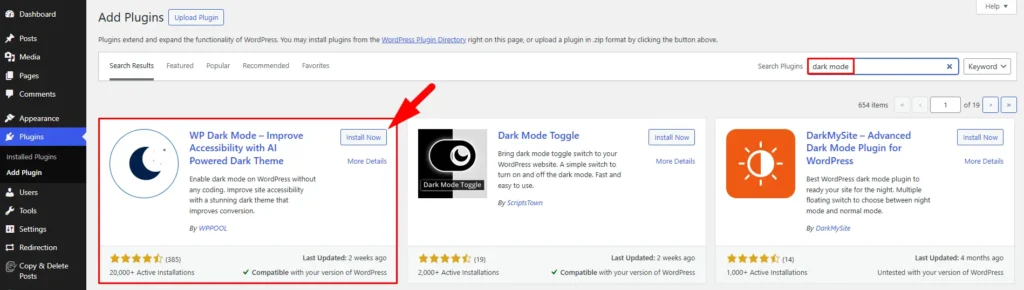
- Go to your WordPress Dashboard $\rightarrow$ Plugins $\rightarrow$ Add New.
- Search for WP Dark Mode.
- Click Install Now and then Activate.
Note: The free version of WP Dark Mode includes full WPBakery element integration and essential features. For advanced customization, custom color presets, and premium switch styles, you can upgrade to the Pro version.
Step 3: Open a Page with WPBakery
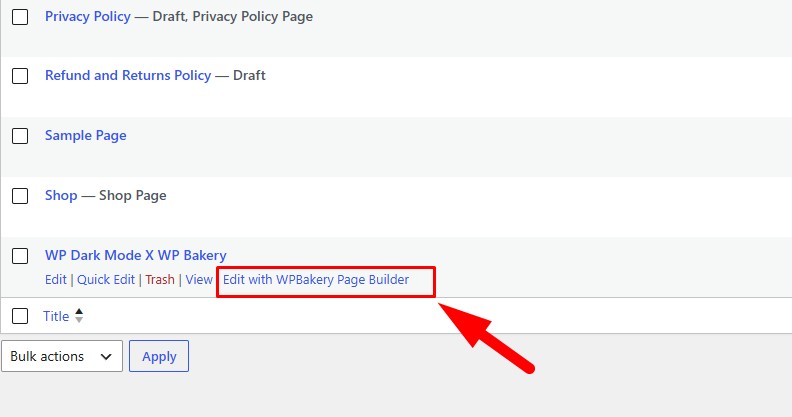
Navigate to Pages $\rightarrow$ All Pages in your WordPress dashboard. Hover over the page where you want to add the dark mode toggle and click Edit with WPBakery Page Builder.
Step 4: Add a New Element
Once inside the WPBakery Page Builder interface, click the + (Add Element) button on any section or column where you’d like to place the switch.

Step 5: Search and Select the “Dark Mode Switch” Element
In the element modal, search for “Dark” or click on the WP Dark Mode tab. Select the Dark Mode Switch element to add it to your layout.

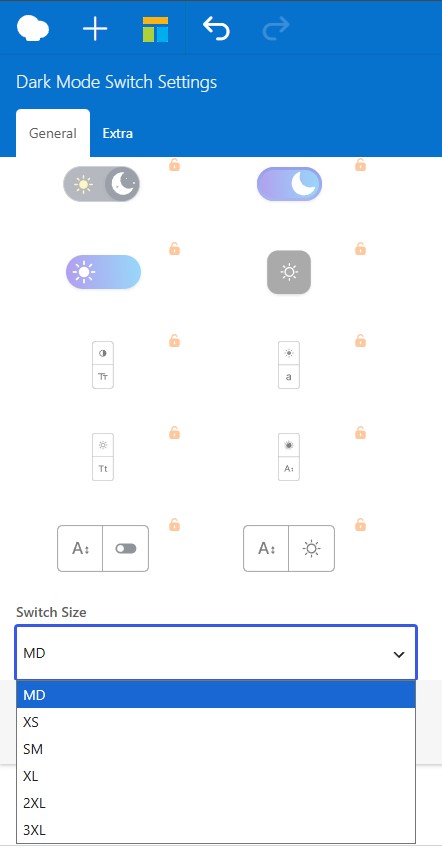
Step 6: Customize Your Switch Settings
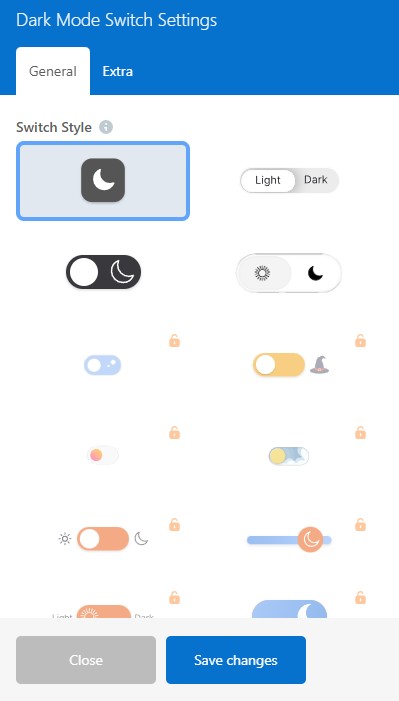
Click on the element settings icon to open the Dark Mode Switch Settings panel:
- Switch Style: Select your preferred toggle button style under the General tab.
- Switch Size: Adjust the button sizing (options range from XS to 3XL).
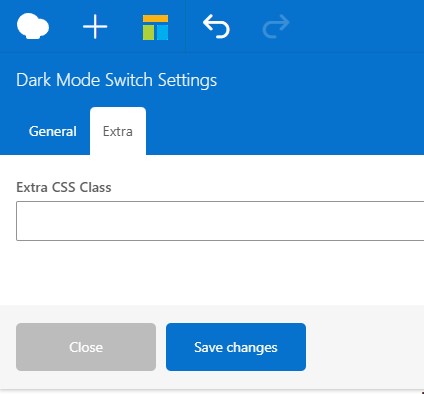
- Extra CSS Class: Under the Extra tab, add custom CSS classes if you want further design adjustments.
- Click Save Changes when you’re done customization.
Step 7: Update & Publish
Preview your page layout to ensure the switch matches your design aesthetic. Click Update to publish your changes. Your visitors can now toggle between Light Mode and Dark Mode effortlessly!

Frequently Asked Questions (FAQ)
1. Is WP Dark Mode free to use with WPBakery?
Yes! WP Dark Mode provides a feature-rich free version that includes the dedicated WPBakery element, standard switch styles, and core dark mode functionality.
2. Can I place the Dark Mode switch anywhere on my page?
Absolute flexibility! You can drag and drop the Dark Mode Switch element into headers, content columns, footers, or sidebars using the WPBakery editor.
3. Does WP Dark Mode work with all WordPress themes?
Yes, WP Dark Mode is designed to be compatible with all standard WordPress themes and major page builders right out of the box.
Wrapping Up
Adding Dark Mode on WPBakery websites is a simple yet high-impact upgrade for your WordPress site. Whether you use WPBakery, build with Elementor or design on Divi, WP Dark Mode’s effortless integration helps you provide an exceptional, accessible experience for every visitor across all major page builders.
Ready to transform your site experience? Get WP Dark Mode Today!

Add your first comment to this post