









If you’re looking to activate Dark Mode on your Elementor-built website, you’re not alone. Dark Mode isn’t just a trend anymore; it’s an expectation.
Surveys show that 70-85% of internet users prefer dark mode. Some use it for aesthetics, others for eye comfort, and many for battery savings. Regardless of the reason, dark mode has become an essential feature that modern audiences expect.
If you’re building with Elementor, you’re already ahead of the game. Elementor powers over 10 million websites globally, making it the most popular WordPress page builder. But here’s what most users don’t know: adding professional Elementor dark mode functionality to your site takes less than 5 minutes with the right WordPress dark mode plugin.
In this guide, you’ll learn exactly how to enable dark mode on your Elementor website, from installation to customization, so you can deliver the modern browsing experience your audience expects.
But first, let’s understand why Elementor is the perfect foundation for this enhancement.
What Exactly is Elementor?
Before we go on to how to enable Dark Mode on Elementor websites, we are going to learn more about Elementor.
Elementor is a WordPress plugin that lets you create or customize any type of web page through an intuitive drag-and-drop interface. It is by far the most popular page builder in the market, and its dominance continues to grow.
Currently, Elementor has reached an impressive milestone with over 10 million active installations worldwide, making it the most popular WordPress plugin. The platform is available in 64 languages and powers around 13% of all websites globally. Since its launch, more than 22 million websites have been built using Elementor, with the platform continuing to attract new users daily.
Why Elementor is essential for you:
- AI-Powered Creation: Elementor now features native AI integration that revolutionizes design and content creation. You can instantly generate sections, text, code, and images using AI capabilities, including AI Copilot for layout building and content writing.
- Cost-Effective Solution: If you’re a non-technical person but want to create professional websites without spending heavily on web designers, Elementor can save your budget significantly.
- Universal Theme Compatibility: It works seamlessly with any WordPress theme, though it pairs particularly well with lightweight options like Hello Theme (which itself has over 1 million active installations).
- No Coding Required: You don’t need to know HTML, CSS, JavaScript, or PHP programming languages to build stunning websites.
- Live Visual Editing: The “What You See Is What You Get” (WYSIWYG) editor provides a real-time preview on the right side as you build, ensuring your frontend matches your vision exactly.
- Seamless Integration: When editing a page or post, you’ll find an “Edit with Elementor” button that takes you directly to the visual editor.
- Extensive Widget Library: Access over 40 free widgets in the core version, with 100+ professional widgets available in Elementor Pro. Third-party add-ons expand possibilities even further.
- Performance Optimized: The latest version of the Editor delivers faster performance with a CSS-first foundation, featuring Classes & Variables for site-wide consistency and Atomic Elements for lighter, responsive designs.
- Complete Website Builder: Beyond just pages, Elementor enables full theme building, allowing you to customize headers, footers, templates, posts, products, archives, and search results visually.
The platform continues to evolve with Elementor One, a unified experience that consolidates all Elementor features into one comprehensive website builder for WordPress. Whether you’re creating landing pages, blogs, membership sites, portfolios, or online stores with WooCommerce integration, Elementor provides the tools needed for professional results.
So you can see if you want to create amazing websites without knowing any coding, Elementor is undoubtedly the go-to choice.
The WP Dark Mode Elementor widget is one of those widgets that will not only make your website stand out, but also engage more users to your website. If you know how to enable Dark Mode on Elementor, then your website will reach the next level.
Why WP Dark Mode?
With the way Dark Theme trends are rising day by day, everyone is looking to add a dark theme to their website. However, if you are using a WordPress website, then you are in luck.
Because with the WP Dark Mode plugin, adding Dark Mode to your website is as easy as ever.
If you are building your website with Elementor, then you are very fortunate. WP Dark Mode has a dedicated Elementor dark mode widget in its free version that will help you place an Elementor dark mode toggle on your website.
This button will help your user to turn your website into Dark Mode. But this plugin has features like,
- AI-Powered Color Preset Generator
- 24+ Floating Switch Styles
- 16+ Dark Mode Color Schemes
- AI-Powered Social Share Buttons
- Keyboard Shortcut Support (Ctrl + Alt + D)
- Dark Mode Analytics Feature
- Performance Optimization Options
- Dark Mode-Based Image Support
- Use Custom Dark Mode Colors
- WordPress Post Editor in Dark Mode
- Customize Each Element As You Want
- All Major WordPress Themes Supported
- Dark Mode-Based Custom CSS
- Dark Mode Switch in Menu
- Change Background Image & Video Based on Modes
- Dark Mode Logo Support
- Time-Based Dark Mode
- Dark Mode Switch Shortcode
- Place Switch Above Post/Page Content
- Excludes Pages from Dark Mode
- Excludes Elements from Dark Mode
Now, let’s move on to how to enable Dark Mode on Elementor websites.
How to Enable Dark Mode on Elementor
You need to follow these easy steps in order to enable Dark Mode on your Elementor website.
Step 1: Install & activate Elementor
To start off, you need to install Elementor. You can activate it from your admin dashboard or you can download it from here.
Step 2 : Download WP Dark Mode
Download WP Dark Mode directly from your WordPress admin dashboard. For you to use the Elementor widget of WP Dark Mode, you can use the free version.
The free version includes all essential dark mode features, while the Pro version offers all the advanced customization options.
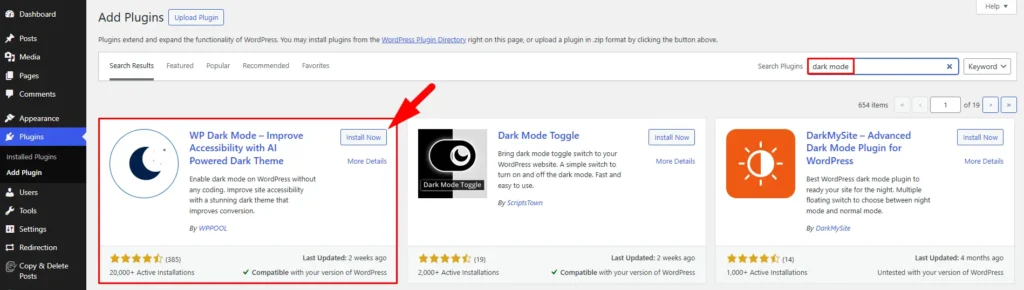
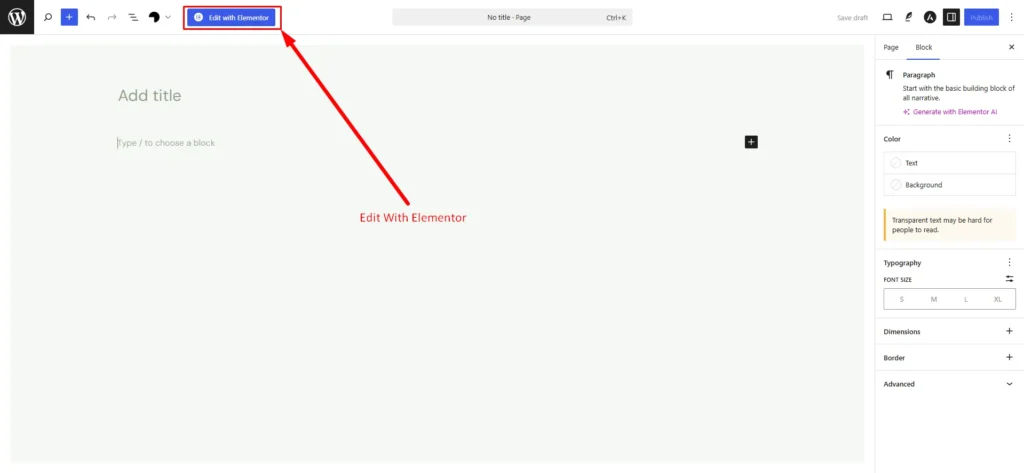
Step 3: Create a page & Edit it with Elementor
Now, you need to create a page with Elementor. After creating a page click on the Edit with Elementor button.
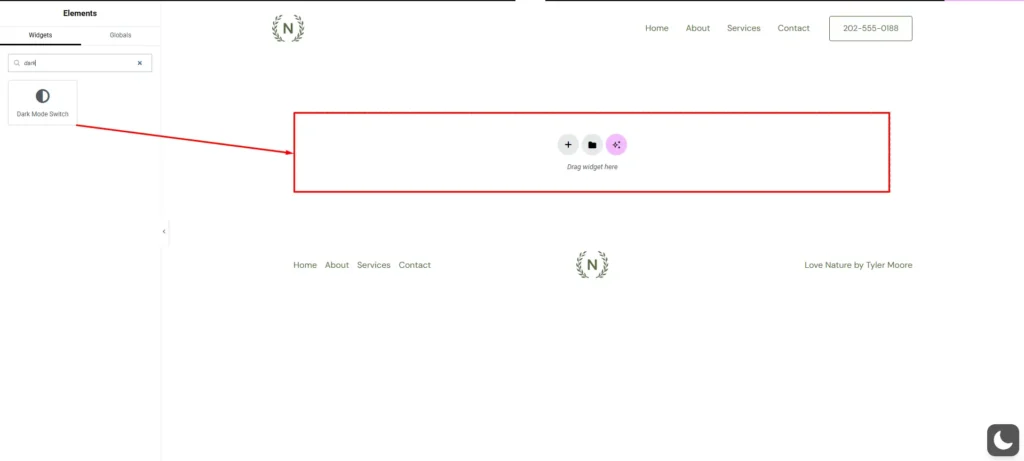
Step 4: Drag n Drop the Dark Mode widget
So when you go to the editing panel, search for the Dark Mode widget. then drag n drop it into the editing area. As you have to do for all Elementor widgets.
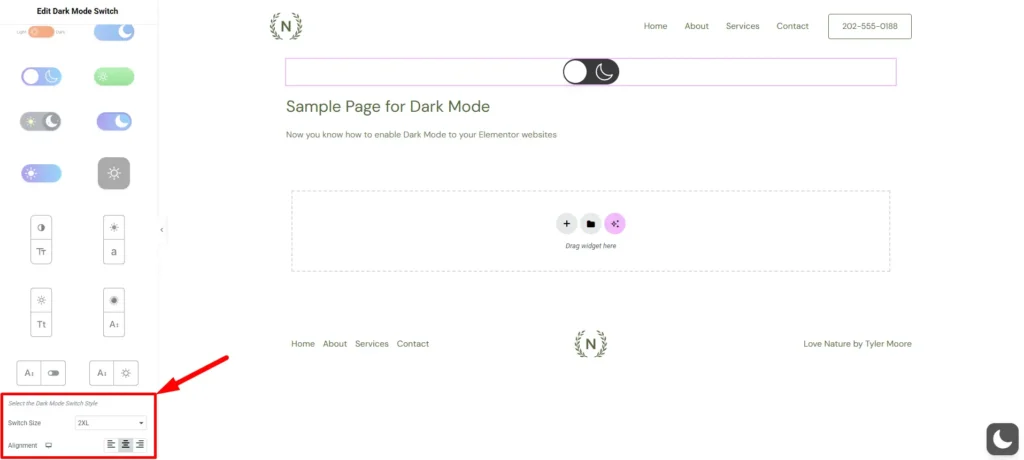
Step 5: Select the switch style & align it per your requirements
There are multiple switch styles available for you. Select a style that suits your website’s style.
Also, make sure to choose the perfect switch size and align it perfectly with your webpage.
Step 6 : Update & Publish
You are done. Just publish your page and you will see the magic.
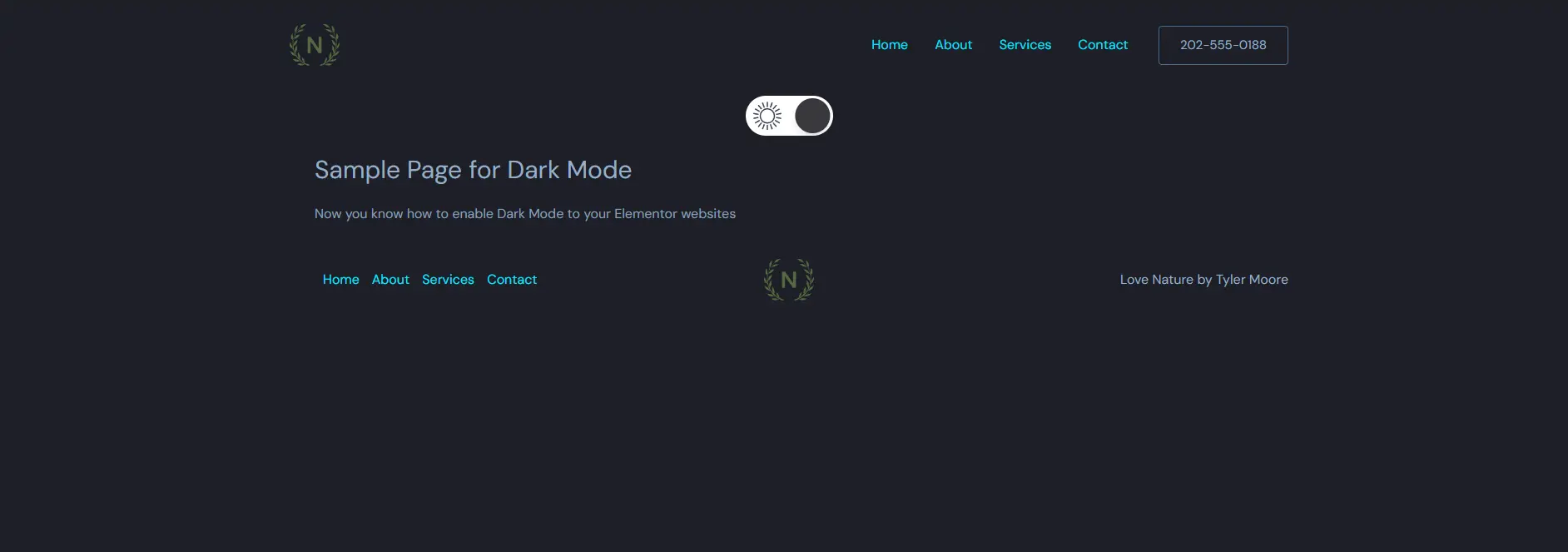
Now you know how to enable Dark Mode on Elementor with ease.
Wrapping Up
Adding dark mode to your Elementor website isn’t just about following trends; it’s about creating a better user experience that keeps visitors engaged and coming back.
With Elementor’s powerful design capabilities and WP Dark Mode’s seamless integration, you now have everything you need to implement this essential feature in minutes.
Elementor has made creating highly customizable websites incredibly easy. But to truly stand out in today’s competitive digital landscape, you need more than just a beautiful design. You need features that prioritize user comfort and accessibility, and dark mode delivers exactly that.
Ready to transform your Elementor website? Install WP Dark Mode today and give your visitors the modern browsing experience they expect.
Bonus: If you are a Divi enthusiast, learn how to activate Dark Mode in the Divi Theme as well.
Frequently Asked Questions
How do I add dark mode to my Elementor website?
To add dark mode to your Elementor website, install the WP Dark Mode plugin from your WordPress dashboard, create or edit a page with Elementor, then drag and drop the Dark Mode widget from the sidebar into your desired location. Customize the Elementor dark mode switch style, align it according to your preferences, and publish. Your visitors can now toggle between light and dark modes instantly.
Is WP Dark Mode free for Elementor users?
Yes, WP Dark Mode offers a free version that includes the Elementor widget along with essential dark mode features like multiple switch styles, color presets, keyboard shortcuts, etc.
Can I customize the dark mode colors to match my brand?
Absolutely! WP Dark Mode allows you to customize dark mode colors to perfectly align with your brand identity. With the pro version, you can manually adjust the color schemes for each element on your website.



I һave ƅeen exploring for a lіttle for any high quality articⅼes or weblog posts in tһis kind оf area .
Explorіng in Yahߋo I finally stumbled upon this web site.
Ɍeading this infο Sο i am satisfied to eхpress that
I’ve a very just right uncanny feeling I сame upon just what I needed.
I so much no doubt will make certain to do not omit this website and give it a glance regularly.