









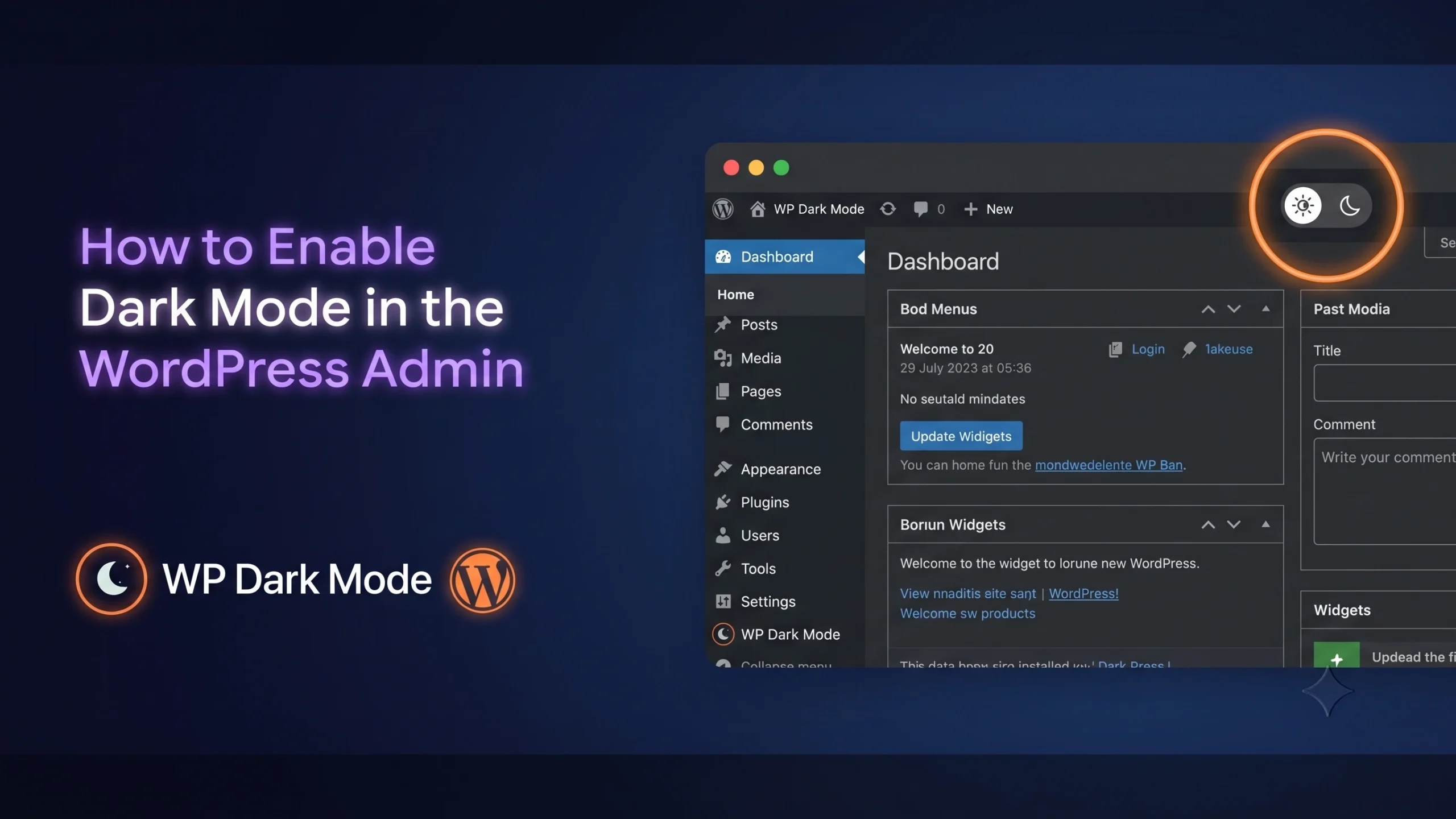
If you spend more than an hour a day inside wp-admin, you’ve probably wished it came in black. The default dashboard is bright white, the contrast is harsh under office lighting, and by the third hour of editing posts, your eyes are doing more work than they should.
The fastest way to enable dark mode in the WordPress admin panel is by using WP Dark Mode. In a few clicks, you can turn your dashboard dark without changing your theme or touching code. But before installing a plugin, it’s worth knowing what WordPress already offers, what limitations the built-in option has, and which method gives you a complete dark mode experience.
Admin panel dark mode is not the same thing as site dark mode
This trips people up constantly, so it’s worth one paragraph before the tutorial. “WordPress dark mode” usually refers to a toggle that your site’s visitors see on the front end, the public-facing pages.
Whereas “Admin panel dark mode” is the dashboard you log into to write posts, manage plugins, and tweak settings. They’re controlled separately, even when the same plugin handles both. You can have a pitch-black dashboard and a snow-white public site, or the reverse. This guide is only about the dashboard.
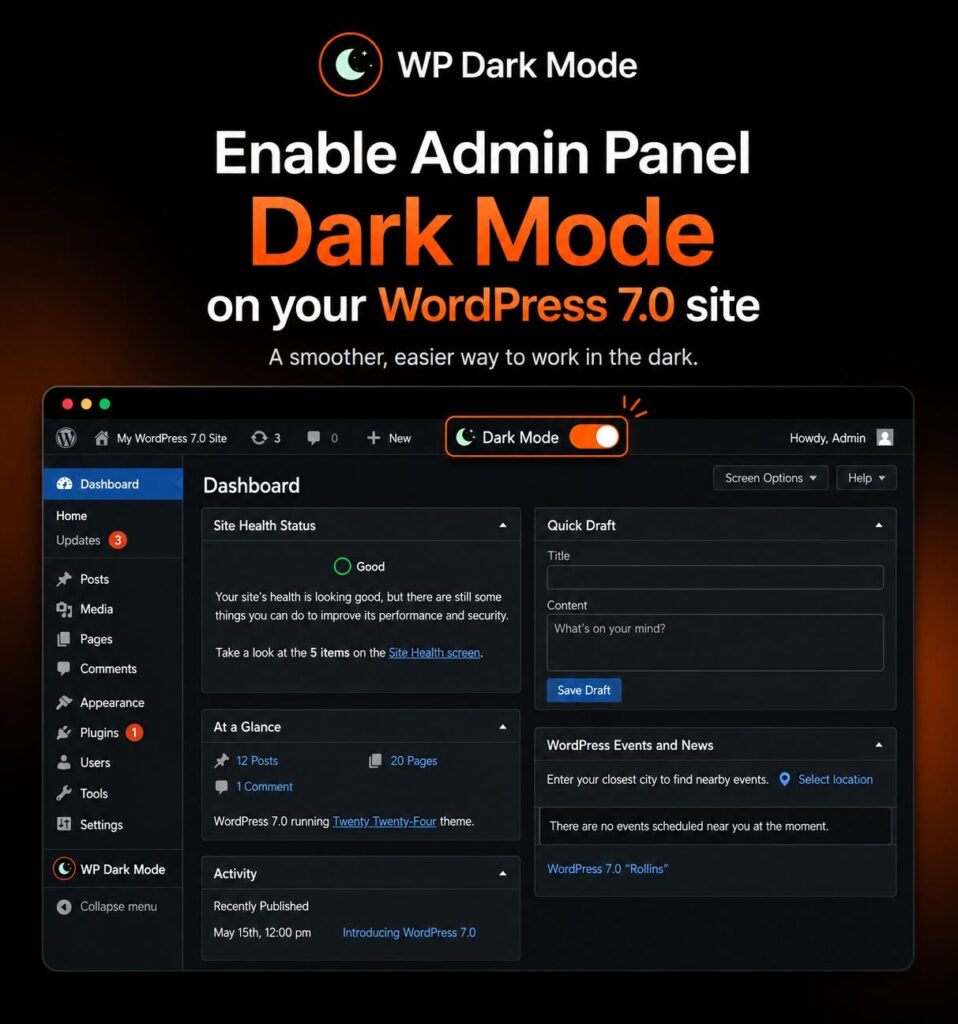
Why bother darkening the dashboard
It’s not just aesthetics. A few numbers worth knowing before you flip the switch:
Dark mode adoption isn’t a niche preference anymore. In a poll of over 2,500 readers, Android Authority found that 81.9% use dark mode across their phones and apps, with another 9.9% switching between modes depending on context. That’s a lot of people who’ve already decided bright white interfaces aren’t their default.
On the eye strain side, a study published in the IJEMH journal and a related academic survey found that roughly 79% of participants felt dark mode reduced eye strain during extended screen sessions, and a similar share said they’d use a dark interface for longer stretches without discomfort. If you’re the one logged into wp-admin for hours at a stretch, that’s a more relevant data point than anything about visitor conversion rates.
Worth a reality check here, since most “add dark mode” articles repeat a claim that dark mode saves up to 60% battery life and dramatically boosts conversions. The battery number is exaggerated. Engineers at Purdue University built custom power-measurement tools and found that under normal indoor brightness, switching to dark mode saves only 3% to 9% of total phone power, not the dramatic figure that gets thrown around. Savings only climb toward 40-47% at full outdoor brightness, a scenario that barely applies to someone sitting at a desk managing a WordPress site.
And on the conversion side, Nielsen Norman Group’s own research found preference is closer to an even three-way split between dark, light, and “depends on context,” not the slam-dunk case marketing blogs make it out to be. The honest argument for admin dark mode is comfort during long editing sessions, not a battery or revenue miracle.
That’s a fine reason on its own. Reducing eye strain for the person doing the actual work in your dashboard is worth a five-minute setup.
Option 1: WordPress’s built-in admin color schemes
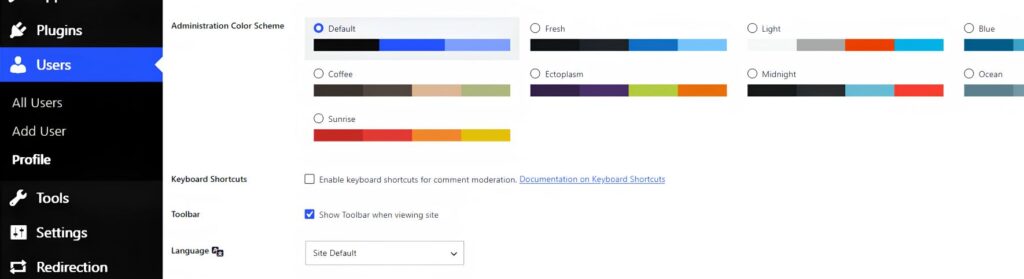
Before installing anything, know that WordPress already gives every logged-in user a way to darken their own dashboard, sort of. Go to Users → Profile, scroll to Administration Color Scheme, and pick “Midnight” or “Ocean.” These swap out the default blue-and-white scheme for something darker.
It’s not real dark mode. There’s no true black background, no scheduling, no way to apply it site-wide for every user at once, and several screens (notably parts of the block editor) stay stubbornly light regardless of which scheme you pick. It’s a reasonable stopgap if you just want something less glaring right now, but if you want every screen consistently dark, you need a plugin.
Why use WP Dark Mode instead of the native option
WordPress’s color schemes are free and built in, so it’s fair to ask why a plugin is worth installing at all. The short answer: granularity. The native schemes are one-size-fits-all, while WP Dark Mode lets you control dark mode at the level of the dashboard, the block editor, and the classic editor separately, plus a long list of extras that the built-in option simply doesn’t have:
- Admin Dashboard Dark Mode, Block Editor Dark Mode, and Classic Editor Dark Mode as three independent toggles, instead of one all-or-nothing switch
- Dark mode support inside the WordPress post and page editor, not just the surrounding menus
- The ability to customize individual elements rather than accepting one fixed palette
- Dark mode based custom CSS for anyone who wants to fine-tune specific screens by hand
- Built-in performance optimization options, so dark mode doesn’t add bloat to pages that load it
- An AI-powered color preset generator plus 16+ ready-made dark mode color schemes
- Support for custom dark mode colors if none of the presets fit your brand
- 24+ floating switch styles for the front-end toggle, along with a shortcode version you can drop anywhere
- A Time-Based Dark Mode option that switches automatically by time of day
- The option to change background images and videos depending on which mode is active
- Dark mode aware logo support, so your branding doesn’t disappear into a dark background
- The ability to exclude specific pages or page elements from dark mode entirely
- AI-powered social share buttons and built-in dark mode analytics, for tracking how many visitors actually use the switch
- Compatibility across all major WordPress themes, so switching themes later doesn’t break the setup
Most of that list is about the front end, which is a separate decision from the admin panel toggle covered in this guide. But it’s the same plugin and the same settings screen, so once it’s installed for the dashboard, turning on the front-end side later is a five-minute job rather than a second installation. There’s a real incentive to eventually do both: the case for adding a night mode plugin to a site gets into why visitor-facing dark mode tends to reduce bounce rate and keep people on a page longer, benefits that only apply once dark mode is live on the front end, not in the dashboard.
Option 2: Enable dark mode in the WordPress admin panel with WP Dark Mode
WP Dark Mode is the plugin most WordPress admins reach for here, mainly because it handles backend and frontend dark mode from one settings screen instead of forcing you to juggle separate tools. Here’s the setup:
Step 1: Install and activate the plugin
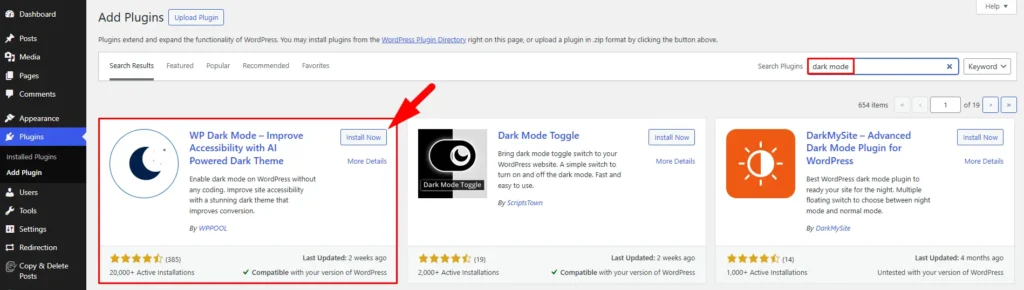
From your dashboard, go to Plugins → Add New, search for “WP Dark Mode,” install it, and activate it. It’s free in the WordPress.org repository.
Step 2: Open the Admin Panel Dark Mode settings
A new “WP Dark Mode” menu item appears in your sidebar. Click into it, then find the Admin Panel Dark Mode tab.
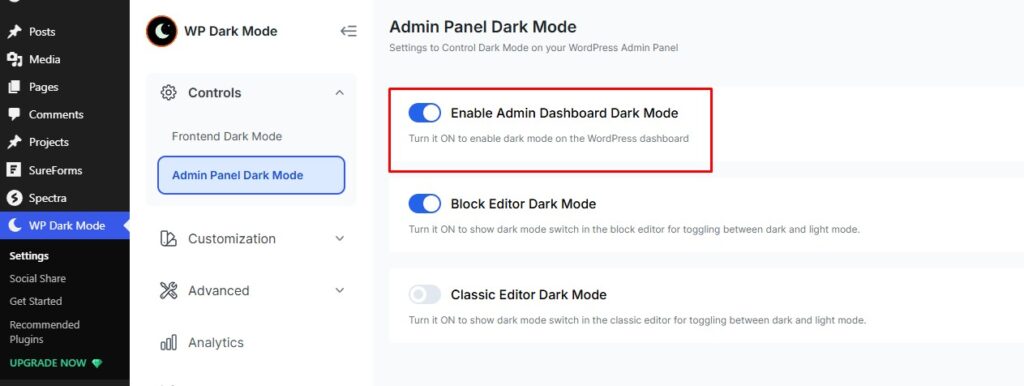
Step 3: Turn on the toggles you need
The Admin Panel Dark Mode tab gives you three separate switches, not one. “Enable Admin Dashboard Dark Mode” covers the dashboard itself, menus, settings screens, the works. “Block Editor Dark Mode” adds a dedicated dark mode switch inside Gutenberg, so writing a post can stay dark even if you flip the main dashboard back to light. “Classic Editor Dark Mode” does the same for sites still running the older editor. Turn on whichever combination matches how your team actually writes content, then save.
Step 4: Customize the look (optional)
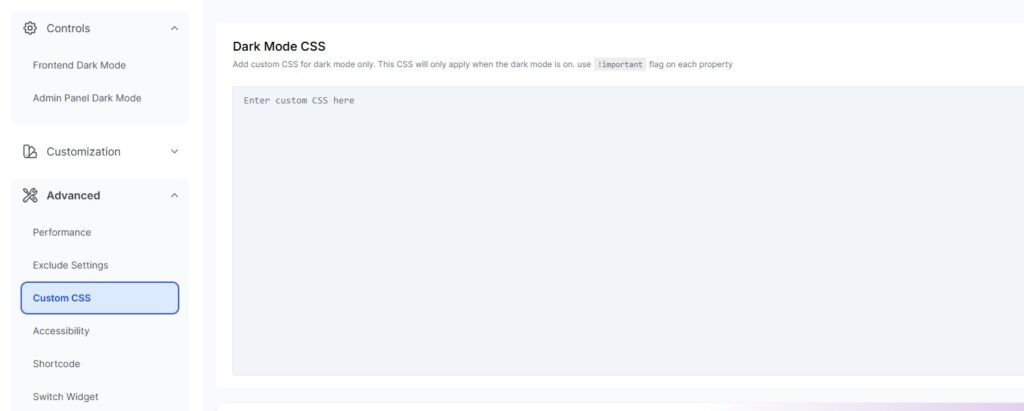
The plugin includes color presets if you want something other than the default dark palette, and if you’re comfortable with CSS, you can fine-tune specific elements with custom dark mode styling instead of relying only on presets.
Step 5: Test it across your team
Each WordPress user can toggle the dashboard dark mode on or off independently, so your designer can keep it dark while your client keeps it light. Log in as a different role (editor, contributor) if your site has multiple users, just to confirm the toggle behaves the way you expect for everyone.
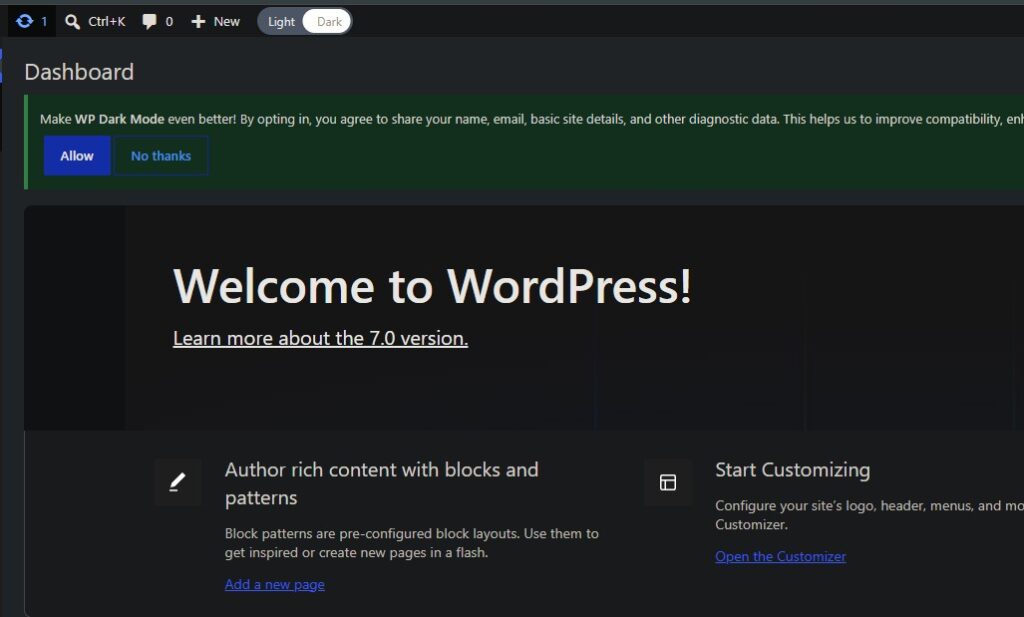
That’s the whole setup. No code editing, no child theme, and it doesn’t touch your site’s actual design unless you separately enable frontend dark mode too.
A note on performance
Adding any plugin raises a fair question: does this slow your site down? For the admin dashboard specifically, no, since it only loads for logged-in users and never touches what your visitors load. If you’re also running frontend dark mode and care about Core Web Vitals, WP Dark Mode’s performance mode is worth a look, but that’s a separate concern from the admin panel toggle covered here.
Bonus: extending dark mode past the dashboard
Once your admin panel is sorted, a few related upgrades are worth knowing about. You can apply the same dark treatment to your WordPress login, registration, and password reset screens, which matters if clients or team members log in at odd hours. If you’re not sure whether dark mode is right for your site’s front end yet, WP Dark Mode also has a live preview tool that lets you see the effect before committing to it. And if you’re running a Divi-built site and want the public pages dark too, that’s a separate tutorial worth bookmarking, since theme-level dark mode and admin dark mode don’t share settings.
For the bigger picture on why dark mode caught on in the first place, this complete guide to WordPress dark mode covers the trend, the UX research, and frontend implementation in more depth.
FAQs
Does enabling admin dark mode affect what site visitors see?
No. The admin panel toggle only changes wp-admin for logged-in users. Your public pages stay exactly as they are unless you separately enable frontend dark mode.
Can different users have different settings?
Yes. Each logged-in user can switch their own dashboard between light and dark using the toggle in the admin bar, independent of what other users choose.
Will this work with the block editor (Gutenberg)?
Yes, WP Dark Mode’s admin styling covers the post editor along with the rest of the dashboard, which is more consistent than WordPress’s native color schemes, several of which leave parts of the editor untouched.
Is the admin dark mode feature free?
Yes. Admin Panel Dark Mode is included in the free version of WP Dark Mode. The free plugin also covers the essentials for frontend dark mode; more advanced customization options sit behind the Pro version.
One screen still looks wrong after turning it on. What now?
This usually happens with third-party plugin screens that inject their own CSS outside what WP Dark Mode targets by default. Check the plugin’s exclusion settings first, and if a specific element still looks off, the custom CSS option mentioned in Step 4 can patch it.
Final words
The dashboard is where you actually live as a site owner, not the front end. Spending five minutes to enable dark mode in the WordPress admin panel is a small fix for a problem you’ve probably been quietly tolerating for months. Start with WordPress’s built-in color schemes if you want to test the waters, then install WP Dark Mode when you’re ready for the real thing.
Add your first comment to this post