









Key Takeaways
- You’ll know what Dark Mode is.
- Why Dark Mode is Necessary for your Eyes.
- We’ll discuss Positives and Negatives of Dark Mode.
- You’ll know how to enable Dark Mode on WordPress Website.
Imagine waking up in the middle of the night to check an important notification. And as soon as you unlock the phone, the intense bright light of the screen ends up jolting your entire brain.
The eyes cannot handle this sudden strain, and as a result, you find it harder to go back to sleep. And even after you wake up in the morning, you notice that there is a dull pain in your head. In extreme cases, you may even experience a migraine for the rest of the day.
This is precisely why dark mode is gaining popularity day by day. Users are using dark mode on websites and apps to reduce eye strain.
In this article, we’re going to tell you all about the pros and cons of using dark mode on websites. That way, you can decide for yourself whether it’s a good idea to switch to dark mode permanently.
Additionally, we’ll inform you how to enable dark mode on your WordPress sites so you can go from light mode to dark mode conveniently.
Table of Contents
- Key Takeaways
- 6 Pros Of Having A Dark Mode On Websites
- 5 Cons Of Using Dark Mode On Websites
- How To Enable Dark Mode On Your WordPress Site?
- Wrap-Up
- FAQ
6 Pros Of Having A Dark Mode On Websites
According to a survey conducted by Android Authority, around 81.9% of readers in a sample group of 2500+ readers confirmed using dark mode for their devices and applications.
But why is dark mode getting so popular among users? Here’s a rundown of 6 pros of using dark mode on websites:
Lessens Blue Light Exposure
On average, a person spends upwards of 40% of their waking hours looking at their phone/desktop/laptop screens.
When a device is set to light mode, it’s comparatively bright. The higher the brightness level is, the more a person is exposed to the blue light rays from the screen.
Alternatively, when a device is set to dark mode, the interface is automatically less bright, which, in turn, lessens blue light exposure. Blue light exposure is the leading cause of eye strain and may intensify into headaches, migraines, etc.
Hence, if you suffer from such issues, you should try shifting to dark mode while looking at screens or monitors to lessen overall eye strain.
Helpful In Dark Ambiance
In a low-light setup, dark mode is more impactful than light mode. In a dark ambiance, words or texts may feel sharper than usual due to the brightness level.
But with dark mode on, texts will seem clearer and won’t be harsh on the eyes. So, when visitors drop by your site during night-time, they will have an easier time navigating and browsing your content.
Increases Attention Span
As there is less glare coming from the screen, it’s easier to read through documents or work on projects for an extended period without feeling tired.
Let’s say you have an exam tomorrow and need to read three PDFs and watch two hour-long lectures by today. Using dark mode will help you to retain your interest, and in turn, your attention greatly.
Improves User Experience
As mentioned earlier, most users prefer to use dark mode, especially during night-time, as it’s less harsh and reduces eye strain. When visitors can explore comfortably, they’ll stay on your website longer. That means, your website bounce rates will go down significantly and website impressions will go up.
Enabling the dark mode also helps to strengthen your brand experience. The dark background makes the brand logo, message, CTA, etc. pop out more.
Users, in turn, can find important sections quickly and can explore more in less time.
Battery-friendly For OLED/AMOLED Displays
Fun fact – the earliest computers only had dark mode i.e., it’s not a new invention. The CRT (Cathode Ray Tube) monitors couldn’t produce enough power to light up the entire screen. So, most of the power was used on texts and images while the rest of the screen remained black.
Now, with OLED and AMOLED displays as well, it’s better to use dark mode, as it consumes less battery power. Dark pixels essentially require little to no power compared to light/bright pixels. As a result, dark mode is not only eye-friendly but also battery-efficient.
Provides Sleek Aesthetics
Dark mode makes websites look modern, up-to-date, and super dynamic. Bright colors go well against a dark backdrop, and they increase the aesthetic appeal of a website significantly.
Texts, images, and other visual elements look rich and sleek in dark mode. Additionally, they look complex and playful – which captures the attention of the visitors from a mile away.
Looking to amp up your website performance and impressions with a cool, new look? Check out the 7 Best Practices In Web Design For a Higher Conversion Rate.
5 Cons Of Using Dark Mode On Websites
Dark mode is sleek but not without constraints. Check out the 5 cons of using dark mode on websites:
Low Readability In Bright Environment
If you’re outside on a sunny day, you’ll find that you can barely see anything on the phone screen. As the sunlight reflects on the screen, it’s harder to detect the dark pixels in a bright environment.
When this happens, you’ll be at a disadvantage with dark mode. You’ll either need to increase the screen brightness or turn on light mode to see things clearly.
Halation Effect – Text Bleeds Into Dark Backgrounds
Dark mode often causes a halation effect where bright texts on dark backgrounds generate a glaring effect. This is known as the halation effect, where texts seem to bleed.
And no, the term ‘bleeding’ in this case doesn’t refer to actual blood. Essentially, the bright pixels seem to disintegrate into the nearby dark pixels towards the edge. And that produces a glaring effect – which many users dislike or find disorienting.
Causes Strain For Myopic People
If you have myopic eyes, you might experience more eye strain with dark mode. If the texts are not as bright compared to the background, your eyes will have a hard time detecting them.
This, in turn, will stress the eyes and cause your condition to worsen.
Requires Complex Color Schemes
Dark mode requires complex color schemes to not overwhelm the users. It’s not enough to use contrasting colors like black and white. You need to use complementary contrasting colors.
Well, that seems like an oxymoron, doesn’t it?
But, no. The gist is that you need to come up with color schemes that’ll look good in both dark mode and light mode.
According to Mailjet, 31% of marketers feel that the main issue with dark mode is the color inversion. So, a design that looks good in dark mode may not look as great in light mode.
For instance – if you use light colors like yellow, orange, light green, etc. only, they’ll get lost in a light background. And you might lose the attention of important website visitors.
Generates Negative Screen Space
While the dark mode feels modern and dynamic, it also feels compact. As most of the screen is dark, it feels like there’s less space overall.
So, unless you utilize the negative space smartly, visitors may find your site clunky and congested. And that’s not good.
How To Enable Dark Mode On Your WordPress Site?
Looking to enable dark mode on your WordPress sites? Look no further than the WP Dark Mode plugin straight out of WordPress’s repository itself.
Here’s a step-by-step overview on how to install and enable Dark Mode on your website in the quickest possible time:
Step 1: Activate The Plugin
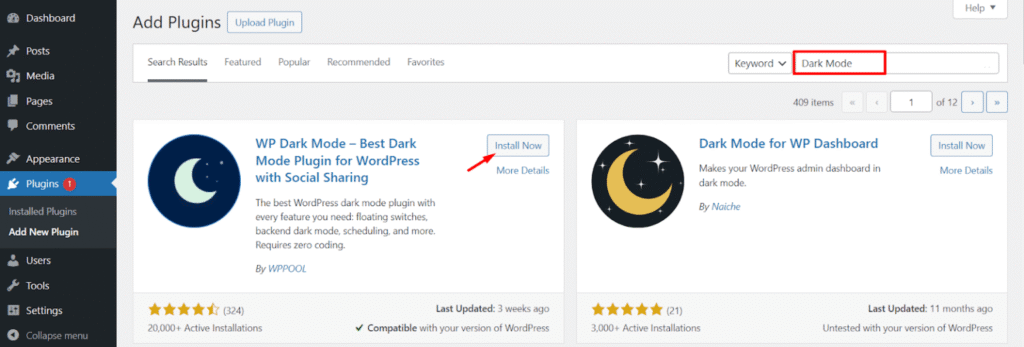
Image: Install WP Dark Mode from Add Plugins.
To activate this plugin, go to WP Admin, find the Plugin section, and select Add New. Select WP Dark Mode from the list.
Step 2: Enable Dark Mode From Settings
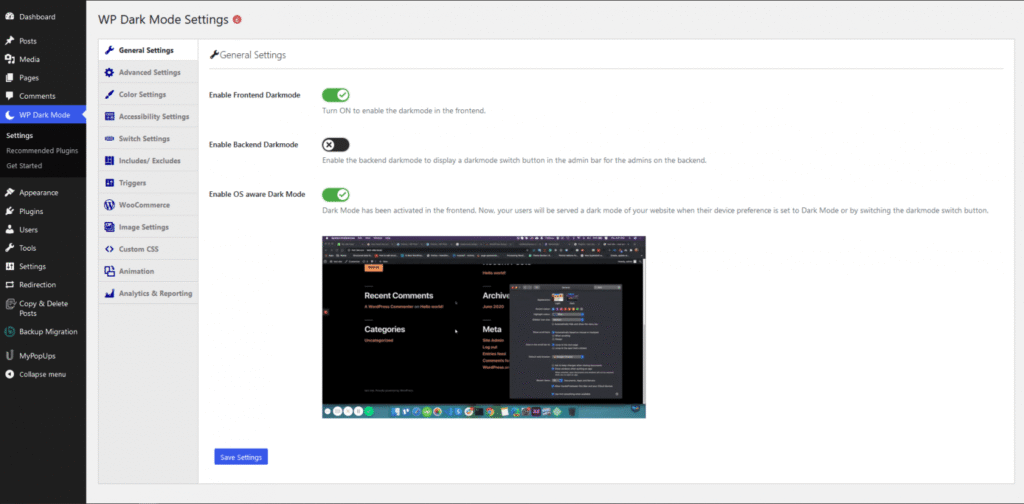
Image: WP Dark Mode Settings
Again, go to WP Admin, find WP Dark Mode from the Plugins section, click on it, and go to Settings.
Click on General Settings next. You’ll see three primary options here. Here’s a rundown of all three for your convenience:
- Enable FrontEnd Darkmode: This enables dark mode on the frontend of your WordPress websites.
- Enable Backend Darkmode: By enabling this, you can display a dark mode switch button in the admin bar for backend admins.
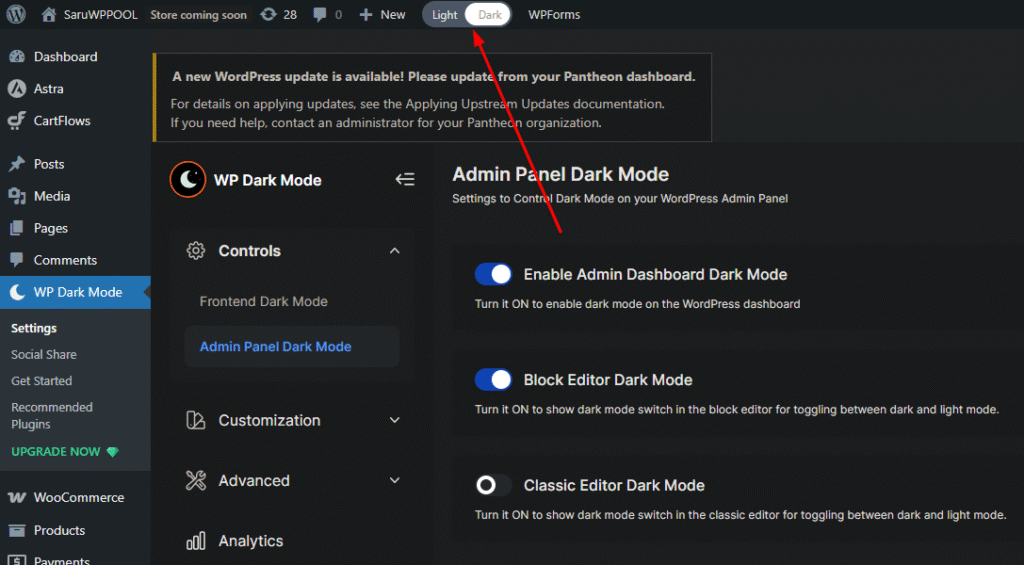
Image: Enable Backend Darkmode
Can you notice the toggle switch at the top? If your website has multiple admins, enabling this can help them to switch to their preferred mode when they log on.
- Enable OS aware Darkmode: Enabling this means the mode will be automatically adjusted to the user’s OS. That means – if their device is set to dark mode, they’ll see the dark mode version of the website. If they switch to light mode, the website will auto switch to the light mode version.
Step 3: Show & Customize Floating Switch
Follow previous steps to go to WP Dark Mode settings. Click on Switch Settings.
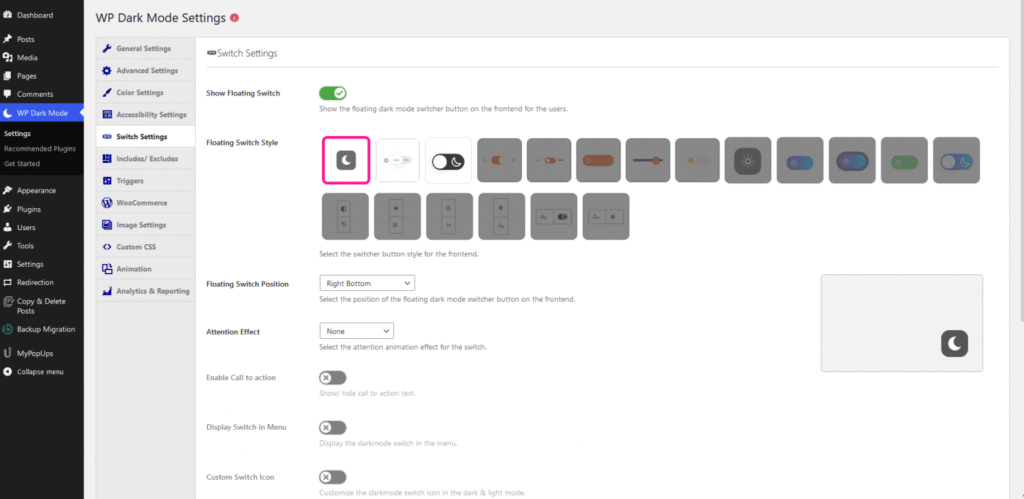
Image: Customize Floating Switch
Enable Show Floating Switch to give your users the opportunity to turn dark mode on and off at will while visiting your website. There will be a separate icon once you enable this. By clicking on it, users can view the dark mode version even if their device isn’t set to dark mode itself.
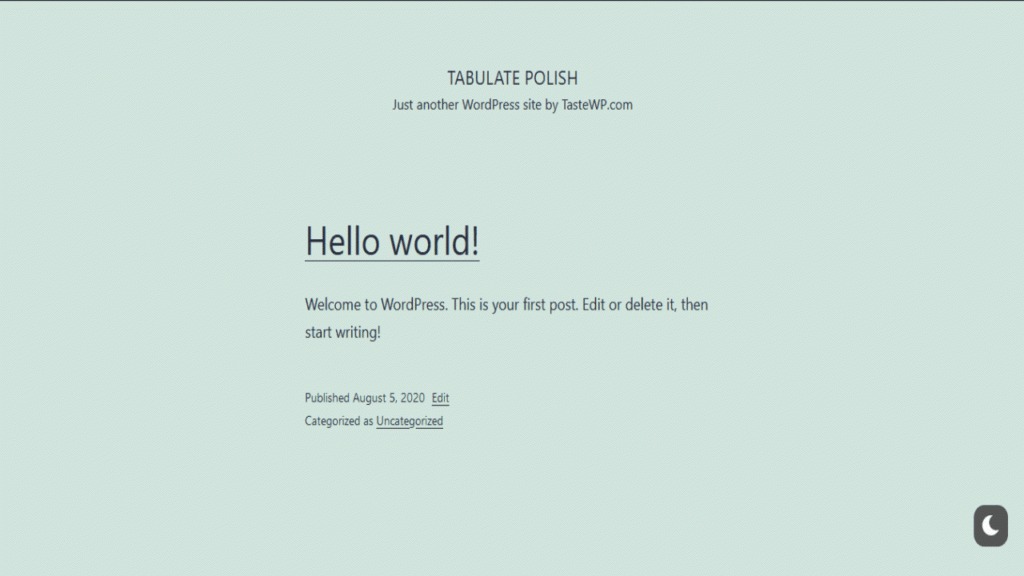
Image: Floating Switch Icon
Look at the bottom right corner of the image. That’s the floating switch right there. You can explore the Switch Settings option to find different switch styles.
Note that if you’re using the free version of the WP Dark Mode plugin, you’ll only get to choose from the first three styles.
You can also change the position of the floating switch so that it complements your website design and content.
Step 4: Customize Color Schemes
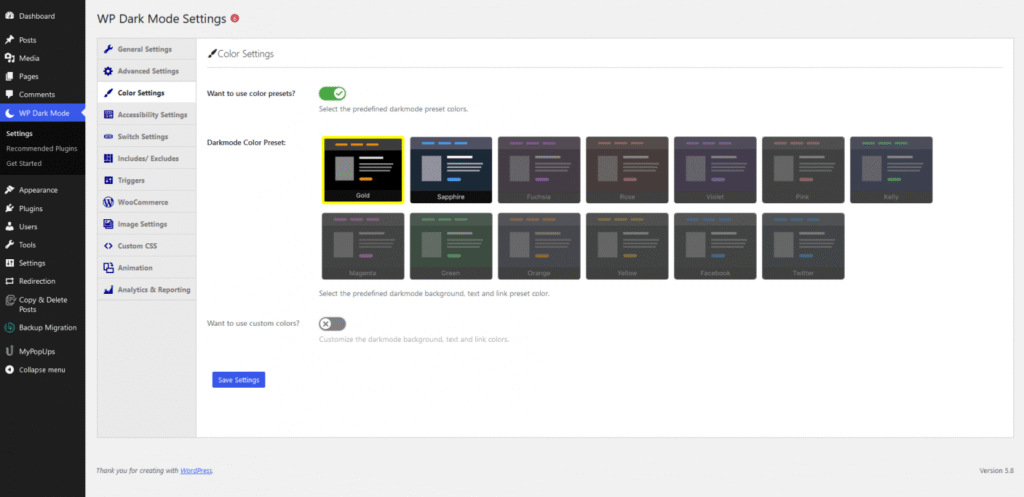
Image: WP Dark Mode Color Settings
Following previous steps, you’ll find Color Settings right under General Settings and Advanced Settings. Turn on Color Presets to use the specific dark mode color schemes directly. You can also take the time to customize the color palettes to personalize your website even more.
Note that you can only use the first two color presets if you’re using the free version of WP Dark Mode on your site.
Wrap-Up
While dark mode is comparatively better for the eyes, it has its cons as well. If you don’t use complementary color schemes, dark mode may cause significant eye strain.
However, it’s also true that in modern times, dark mode provides a sleeker look for websites than light mode. It’s best to prepare your website for both so users can choose according to their comfort level.
By following the instructions in this article, you can shift to dark mode in WordPress websites easily. Best of luck, and don’t forget to let us know about your dark mode experience!
FAQ
- Do I need a blue light filter if I use dark mode on websites?
Dark mode doesn’t act as an automatic blue light filter. However, it does reduce the overall brightness of the screen. As a result, there is less glare and less exposure to the blue light.
Hence, if you want to entirely eliminate or substantially decrease the blue light exposure, you’ll need to use a blue light filter separately.
- Do websites lag in dark mode?
No, website performance isn’t influenced by either light or dark mode. The dark mode simply uses a different color scheme i.e., lighter texts on darker backgrounds.
- Will I get fewer visitors if I use dark mode on websites?
Not necessarily. However, if you use contrasting color schemes that disrupt readability, it may affect the overall user experience. For instance – using grey fonts on a black background will make them less visible.
- Will my battery drain faster if I use dark mode on websites?
No, your battery won’t drain faster by using dark mode on websites. In many cases, it may even increase your battery life on OLED or AMOLED screens as white pixels require more power than black pixels on these screens.
Add your first comment to this post