









Managing a WooCommerce store means keeping track of stock levels, prices, SKUs, and product details every single day. For most store owners, that means logging into the dashboard repeatedly, updating products one by one, and hoping nothing slips through the cracks.
According to a study, poor inventory management costs businesses up to 11% of their annual revenue, mostly from stockouts and overstocking.
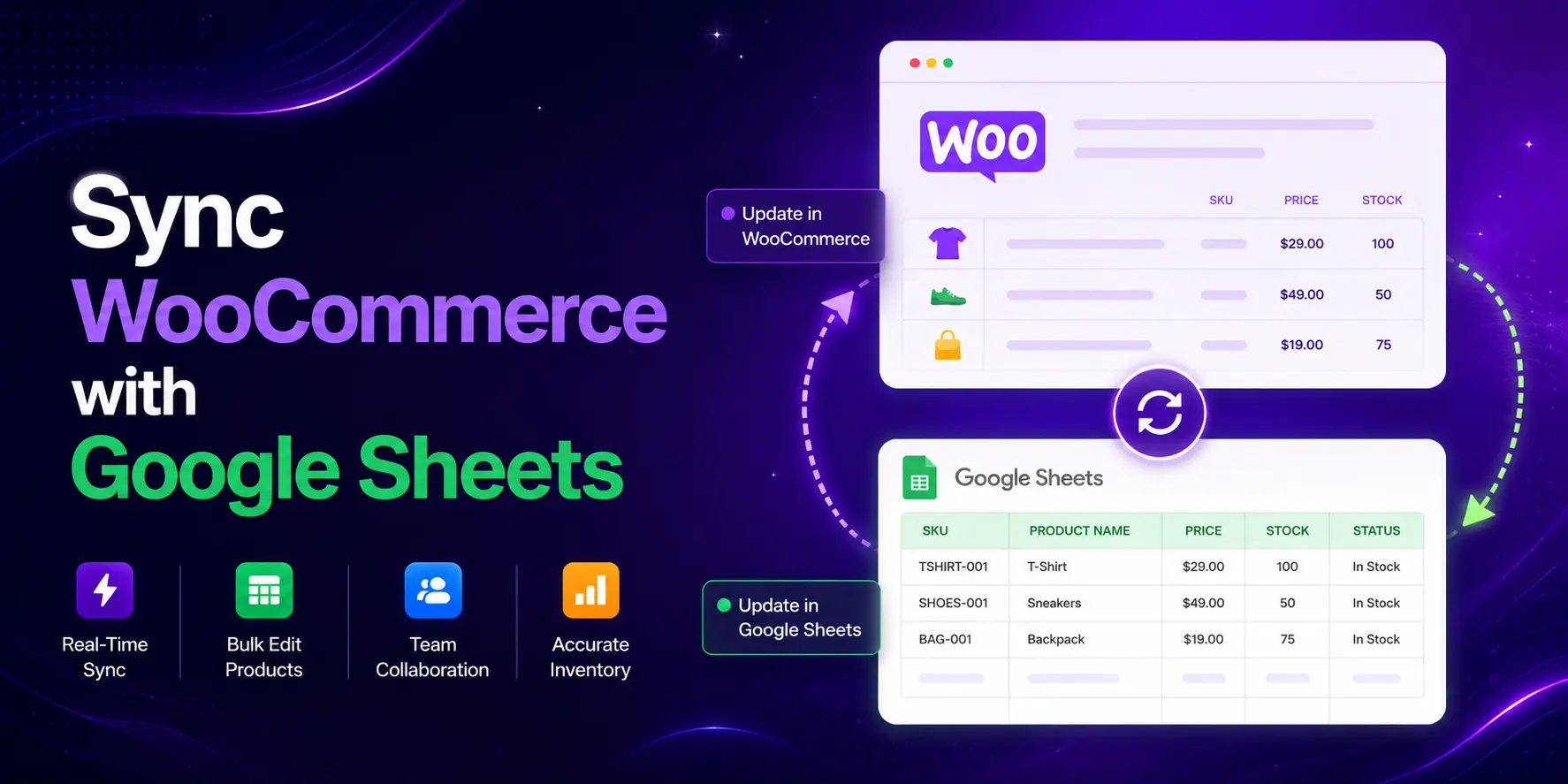
There is a better way to solve this. You can sync WooCommerce with Google Sheets and manage your entire inventory from a single spreadsheet. Update a price in the sheet, and it reflects in your store. Change stock in WooCommerce, and the sheet updates automatically.
This guide walks you through exactly how to do that, step by step.
Why Sync WooCommerce with Google Sheets?
WooCommerce powers over 4.5 million active stores worldwide and holds roughly 33% of the global ecommerce market. That is a massive number of store owners dealing with the same problem: product data is scattered, updates take too long, and inventory errors cost real money.
Google Sheets has over 900 million monthly active users. Most teams already use it. It is free, familiar, and accessible from anywhere. Connecting it to your WooCommerce store turns a simple spreadsheet into a live inventory control panel.
Here is what syncing WooCommerce with Google Sheets lets you do:
- Update product names, prices, and stock from one spreadsheet
- Bulk edit hundreds of products in minutes instead of hours
- Let your team update inventory without needing WordPress access
- Keep your sheet and store in sync automatically, in both directions
- Track stock changes and manage backorders without the dashboard
What Data Can You Sync Between WooCommerce and Google Sheets?
Before jumping into setup, it is worth knowing what data actually syncs. Here is a breakdown:
| Category | Synced Fields | Direction |
|---|---|---|
| Core Product Data | Name, Price, Sale Price, SKU, Stock Qty | Two-way |
| Product Status | Published, Draft, Pending, Trash | Two-way |
| Advanced Fields | Description, Tags, Categories, Images | Two-way |
| Variable Products | Variation stock, pricing, SKU, attributes | Two-way |
| Custom Fields | ACF fields and WooCommerce metadata | Two-way |
| Backorder Status | Enable/disable per product | Two-way |
What You Need to Sync WooCommerce with Google Sheets
To sync WooCommerce with Google Sheets, you need a plugin that connects the two using the Google Sheets API. The most straightforward option for WordPress users is FlexStock by WPPOOL.
FlexStock creates a live, two-directional connection between your WooCommerce store and a Google Sheet. Any change in the sheet syncs to the store. Any change in the store syncs to the sheet. The free version supports up to 500 products. The Ultimate plan removes that limit.
Before starting the setup, make sure you have:
- A WordPress site with WooCommerce installed and active
- A Google account with access to Google Cloud Platform
- A Google Sheet ready (you will create one during setup)
- FlexStock installed from the WordPress plugin directory
How to Sync WooCommerce with Google Sheets Using FlexStock
The setup process has six main stages. Follow them in order and you will have a fully synced store within about 10 to 15 minutes.
Step 1: Install and Activate FlexStock
Go to your WordPress admin dashboard, navigate to Plugins, and click Add New. Search for “FlexStock“, click Install Now, and then hit Activate.
Step 2: Set Up Google Cloud Credentials
This is the most technical part, but it is straightforward if you follow each step. After activation, open the FlexStock menu and click Start Setup. From there, click the Google Cloud Platform link to open it in a new tab. Create a new project, or select one you already have.
Next, go to Create Credentials and select Service Account. Fill in your account name, click Continue, and then Done. Click on the service account you just created, go to the Keys tab, and click Add Key. Select Create New Key, choose JSON format, and hit Create. The file will download to your computer automatically.
Go back to FlexStock and upload that JSON file. Then click the link inside the plugin to enable the Google Sheets API in your cloud project. Check the confirmation box and click Next.
Step 3: Connect Your Google Sheet
Create a new Google Sheet and give it a title. Copy the full URL from your browser, then paste it into the Sheet URL field inside FlexStock. Do the same for the tab name at the bottom of the spreadsheet, paste it into the Sheet Tab Name field, and click Next.
Step 4: Grant Editor Access
FlexStock will generate a service account email address. Open your Google Sheet, click Share, and paste that email into the sharing field. Set the permission to Editor and send the invite. Head back to FlexStock, confirm you have given access, and click Next.
Step 5: Add the Apps Script Code
This step is what makes real-time sync work. FlexStock will show you a block of Apps Script code. Copy it, then open your Google Sheet and go to Extensions and click Apps Script. Delete the default code already in the editor, paste the code from FlexStock, and hit Save. Click Run and follow the Google permission prompts. If you see an Advanced option, click it and allow access. Go back to FlexStock, confirm the script is added, and click Next.
Step 6: Add a Trigger and Complete Setup
In the Apps Script editor, find the Triggers option on the left sidebar (it looks like a clock icon) and click Add Trigger. Set both the function and the event type to onEdit, then save. Go back to FlexStock, confirm the trigger is active, and click Next. Finally, click Sync with Google Sheet to finish the setup.
Your WooCommerce products are now live in your Google Sheet. Any change you make in the spreadsheet will sync to your store automatically.
Real-Time vs. Scheduled Sync: Which One to Use?
FlexStock gives you two automatic sync options. Here is a quick comparison:
| Real-Time Auto Sync | Scheduled Auto Sync | |
|---|---|---|
| How it works | Syncs the moment you edit the sheet | Syncs every 10 minutes or custom interval |
| Best for | Live price changes, flash sales, urgent stock updates | Regular inventory updates, reporting, and accounting |
| Setup | Uses the Apps Script trigger you set in Step 6 | Configured inside FlexStock settings |
For most store owners, both work together. Real-time sync handles urgent changes. Scheduled sync keeps everything balanced in the background.
More Things You Can Do After Syncing
Once your WooCommerce store is connected to Google Sheets, you can go beyond basic stock management:
- Bulk add new products directly from the spreadsheet
- Sync product images using Google Sheets image URLs
- Create and display product attributes from your sheet
- Set up upsell and cross-sell products in bulk
- Manage product badges and brand information
- Handle variable product variations row by row
- Enable backorder management per product from the sheet
- Sync custom fields including ACF and WooCommerce metadata
Tips to Keep Your Sync Running Smoothly
- Do not delete product rows from the sheet. FlexStock blocks this by default, but double-check.
- Use the manual sync buttons (Sync on Google Sheets, Fetch from WooCommerce, Sync on WooCommerce) if auto-sync misses an update due to server issues.
- Make sure your REST API is not blocked. Some security plugins block it by default. Check FlexStock documentation if sync stops working.
- If you are managing a multivendor store with Dokan or other multivendor plugins, FlexStock has a dedicated Multivendor Addon for that.
Managing Multiple WooCommerce Stores from Google Sheets
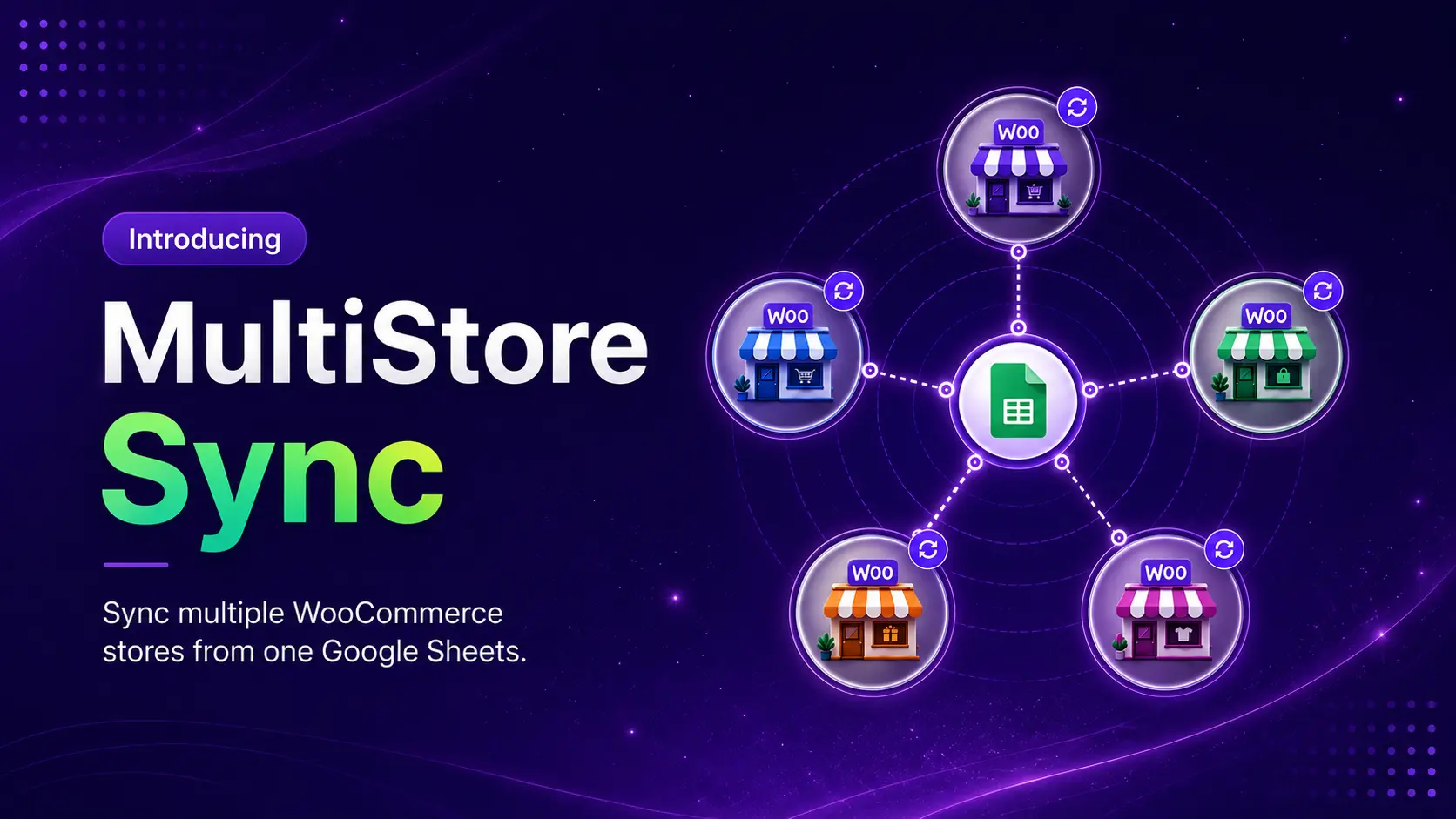
If you run more than one WooCommerce store, syncing each one individually gets old fast. FlexStock has a Multi-Store Sync addon that lets you connect multiple stores to a single Google Sheet and manage everything from one place.
What makes it different from most multistore tools is that it gives you two distinct modes depending on how your stores are set up.
Mode 1: Shared Stock Across Stores
In this mode, all your connected stores pull from one shared inventory. Any change you make, whether it is a price update, a new SKU, a description edit, or an image swap, automatically pushes to every store. You choose which fields to sync, so you are not forced to push everything everywhere. Updates happen in real time or on a schedule you set.
Mode 2: Independent Inventory
In this mode, all your stores connect to the same Google Sheet but stay completely separate. Each store gets its own tab, so Store A, Store B, and Store C never interfere with each other. A change in one store does not touch the others. What you get is a unified view of all your stores from one spreadsheet without any risk of accidental overwrites.
You can sync stock quantity, stock status, regular and sale prices, SKU, product names, descriptions, tags, images, categories, attributes, custom fields, image alt texts, and upsell and cross-sell products.
FlexStock Multi-Store Sync will soon launch as an early beta. All pro features are free during the beta period, and beta users get priority support along with one-to-one setup assistance.
Frequently Asked Questions
Can I sync WooCommerce with Google Sheets for free?
Yes. FlexStock’s free version syncs up to 500 products with two-way sync, real-time updates, scheduled auto sync, and bulk editing, all at no cost.
Do I need coding skills to sync WooCommerce with Google Sheets?
No. FlexStock provides the Apps Script code. You just copy and paste it into your Google Sheet. The whole setup takes about 15 to 20 minutes.
How does two-way sync work?
When you change data in Google Sheets, the Apps Script trigger fires and sends the update to your WooCommerce store through the API. When you change data in WooCommerce, FlexStock pushes the update to your Google Sheet automatically.
Will it work with variable products?
Yes. FlexStock creates separate rows for each product variation. You can update variation stock, pricing, SKU, and attributes directly from the sheet.
What happens if my sync stops working?
First, check that the Google Sheets API is still enabled in your Google Cloud project. Then make sure the REST API on your WordPress site is not blocked. FlexStock’s documentation also has a full list of possible errors and fixes.
Can multiple team members edit the sheet at the same time?
Yes. Because Google Sheets supports real-time collaboration, multiple team members can update the spreadsheet simultaneously. Each change triggers a sync back to the WooCommerce store.
Is FlexStock safe to use with my WooCommerce store?
Yes. FlexStock connects to your store through the official Google Sheets API and WooCommerce REST API. It does not store your product data on any third-party server. Everything stays between your WordPress site and your own Google Sheet.
What is the difference between the free and paid version?
The free version covers up to 500 products and includes two-way sync, real-time and scheduled auto sync, and bulk editing. The Ultimate plan removes the product limit and adds advanced features like custom field sync, image sync, product attribute management, upsell and cross-sell sync, and multivendor support.
Final Thoughts
Syncing WooCommerce with Google Sheets is one of the simplest ways to take back control of your inventory. Instead of chasing product updates across your dashboard, you get one live spreadsheet that does the heavy lifting.
FlexStock handles the sync automatically. You set it up once, connect your sheet, and your store stays updated whether you change data in the sheet or in WooCommerce.
You can download FlexStock for free from the WordPress plugin directory and get started in a few minutes. Learn more about WooCommerce inventory management.

Add your first comment to this post