How to Bulk Edit WooCommerce Products
Bulk editing WooCommerce products means updating multiple products at once instead of editing them one by one. This saves significant time when you need to change prices, inventory, categories, attributes, or any other product field across dozens or hundreds of items.
WooCommerce includes a built-in bulk edit feature, but it’s limited to basic fields and requires you to stay inside the WordPress dashboard.
When You Need to Bulk Edit Products
Common scenarios where bulk editing becomes essential:
- Updating prices across an entire product category (seasonal sales, supplier price changes)
- Adding or removing product tags/categories in bulk
- Changing stock status for multiple items at once
- Updating product descriptions or short descriptions
- Modifying SKUs, weights, or dimensions across product ranges
- Adjusting inventory levels after stocktake
- Enabling/disabling backorders for specific product groups
How to Bulk Edit Products in WooCommerce (Native Method)
WooCommerce’s built-in bulk editor works directly from the Products page:
- Go to Products → All Products in your WordPress admin
- Select the products you want to edit (use checkboxes)
- Click Bulk Actions dropdown at the top
- Choose Edit and click Apply
- A bulk edit panel appears where you can modify:
- Price (regular and sale price)
- Stock status and quantity
- Categories and tags
- Shipping class
- Visibility settings
- Click Update to apply changes
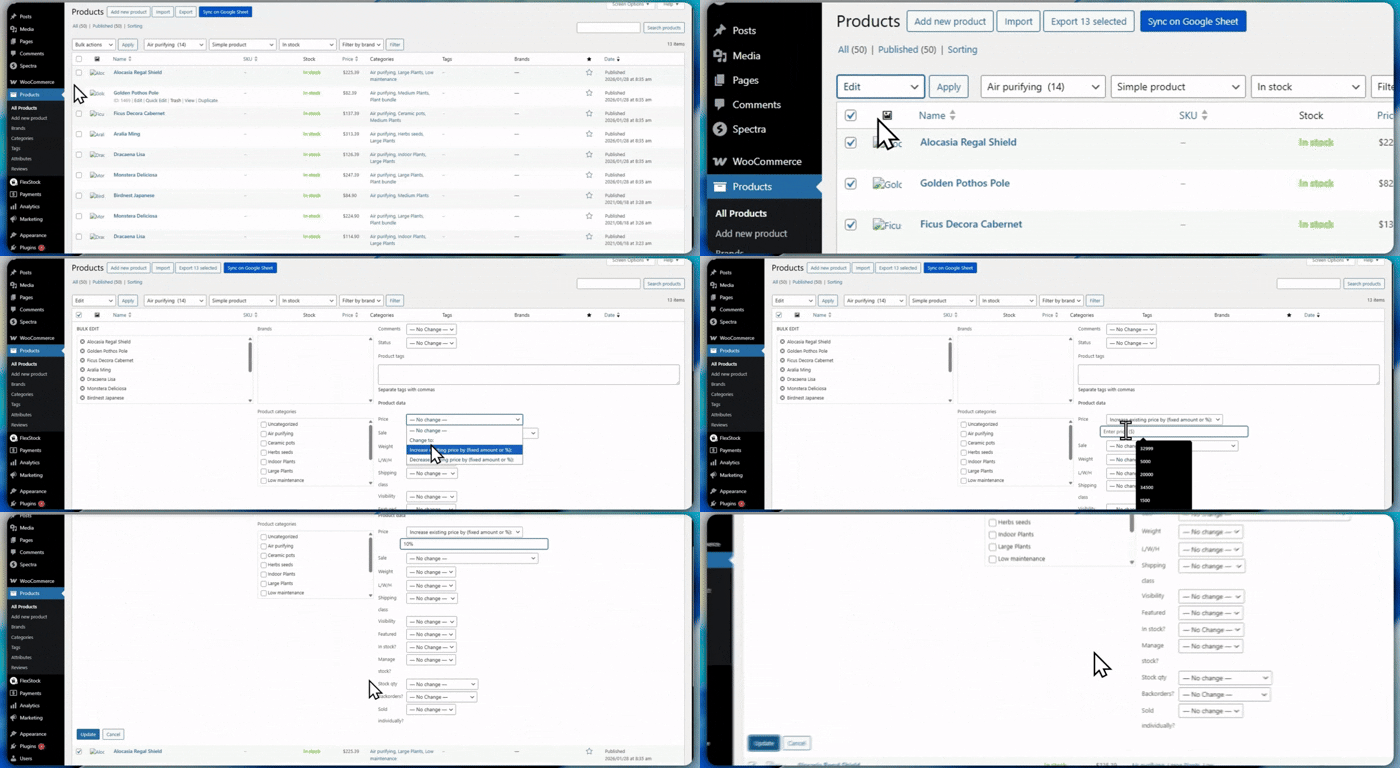
Limitations of the native bulk editor:
- Only works with simple fields
- Can’t edit custom fields or metadata
- No filtering beyond basic search
- Limited to what fits on one screen
- Can’t edit product variations in bulk easily
Where This Becomes Important in Real Operations
When you’re managing a catalog with hundreds of products, the native bulk editor becomes limiting fast.
For example, if you need to update inventory levels for 200+ products after receiving supplier stock data, or adjust prices across filtered subsets (like “all products from Brand X with stock below 10”), staying inside WooCommerce becomes repetitive and slow.
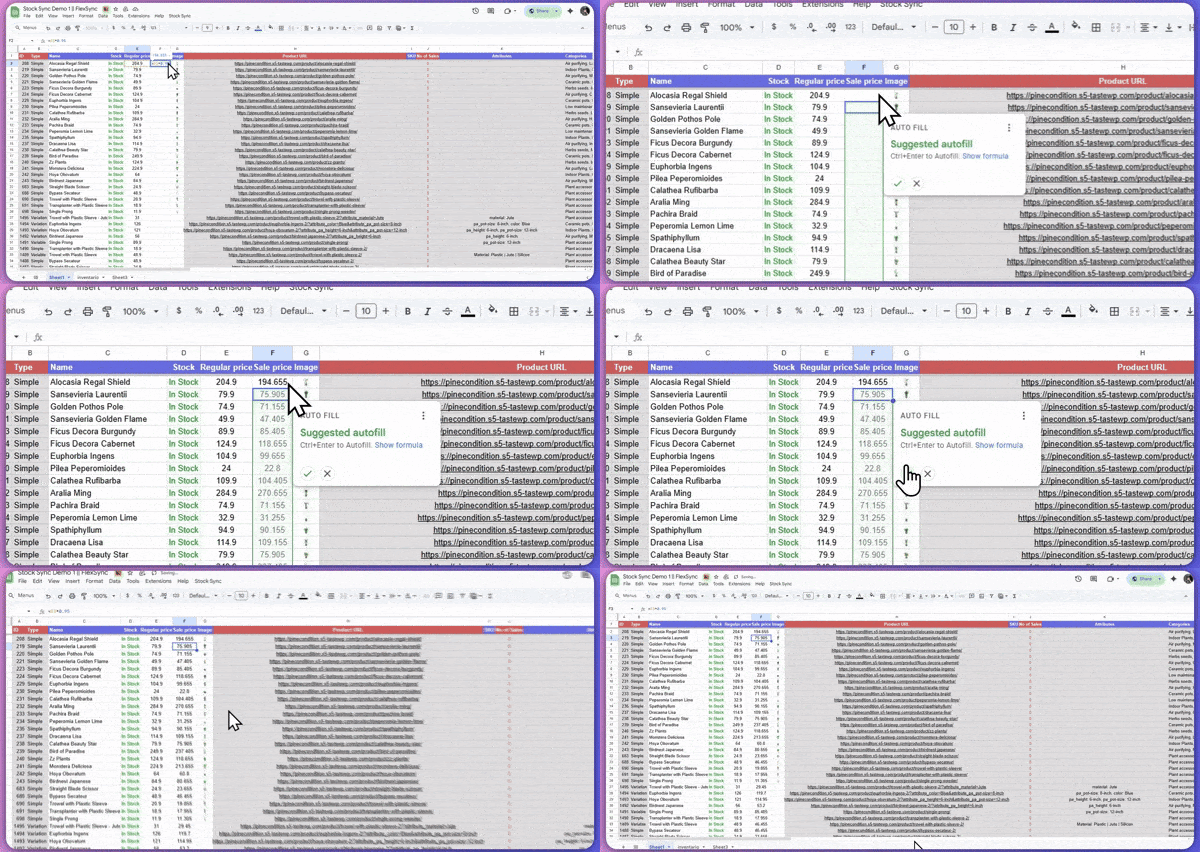
In workflows like that, many store owners prefer working in a spreadsheet view where they can filter, sort, and update product data more efficiently. That’s where a tool like FlexStock can quietly support the process by syncing your entire product catalog with Google Sheets, allowing bulk edits with familiar spreadsheet formulas, filtering, and two-way sync back to WooCommerce, especially useful when managing inventory, prices, or SKUs across large catalogs.
Best Practices for Bulk Editing Products
Before bulk editing, make sure to:
- Back up your database (especially before price or stock changes)
- Test on a small batch first (5-10 products) before updating hundreds
- Use filters wisely to target exactly the right products
- Double-check field mappings if using CSV imports or sync tools
- Check product variations separately (they often need different handling)
Pro tip: If you’re updating prices, consider using percentage increases rather than fixed amounts to preserve pricing structure across product ranges.
Start with small, controlled bulk updates. Once you’re confident, scale up to larger batches.