How to Hide a Category in WooCommerce Product Page
Hiding a category in WooCommerce means removing it from view on your shop page, product listings, or product detail pages without deleting it from your store. The category still exists on the backend. Customers just can’t see it.
This is useful when you want to keep certain products in your system without showing them publicly. Think of seasonal items that are off-cycle, wholesale products that are only for specific buyers, or internal categories your team uses for organizing inventory.
Why Store Owners Need to Hide Categories
WooCommerce gives you a lot of flexibility for creating and organizing categories. But it doesn’t always give you an easy way to control who sees them.
Here are some real situations where hiding a category makes sense:
- You’re selling Christmas items in July and don’t want them cluttering the main shop page
- You have a “Wholesale” category that should only be visible to registered business customers
- You’re testing new products and need a staging category that isn’t ready for public eyes
- You have an “Uncategorized” or internal tracking category that has no business being on the frontend
Beyond these, hiding certain categories also helps reduce clutter. A cleaner shop page is easier to navigate, and customers are more likely to stay and browse when they’re not overwhelmed by categories they don’t need.
How to Hide a Category in WooCommerce Product Page
There are a few ways to do this. The best method depends on how technical you are and exactly what you want to hide.
Method 1: Use the Built-In WooCommerce Display Settings
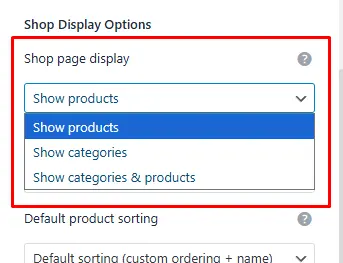
This is the simplest option and requires zero coding. It hides all categories from the shop page and shows only products.
- Go to Appearance > Customize in your WordPress dashboard
- Click WooCommerce
- Click Product Catalog
- Under Shop page display, select Show products
- Click Publish
This tells WooCommerce to display individual products on the shop page instead of category tiles. It won’t hide specific categories. But it solves the problem if you want categories gone from the main shop view entirely.
Method 2: Hide a Specific Category Using Code
If you only want to hide one or two specific categories, a small code snippet added to your theme’s functions.php file can do the job. Here’s an example:
php
add_action( 'woocommerce_product_query', 'hide_specific_category_from_shop' );
function hide_specific_category_from_shop( $q ) {
    $tax_query = (array) $q->get( 'tax_query' );
    $tax_query[] = array(
        'taxonomy' => 'product_cat',
        'field'    => 'slug',
        'terms'    => array( 'wholesale', 'internal-use' ),
        'operator' => 'NOT IN'
    );
    $q->set( 'tax_query', $tax_query );
}
Replace ‘wholesale’ and ‘internal-use’ with the actual slugs of the categories you want to hide. You can find a category’s slug by going to Products > Categories and checking the Slug column.
This is Best for Developers or store owners who are comfortable editing PHP files and want targeted control.
Method 3: Hide Categories by User Role
Want to show a category to admins or wholesale buyers but hide it from regular customers? You can do that with a slightly more advanced code filter that checks the logged-in user’s role before deciding what to show.
This approach works well for B2B stores with tiered access. The logic checks the user role and strips out restricted categories from the product query if the role doesn’t match.
Method 4: Use a Plugin (No Coding Needed)
If you’d rather not touch code at all, a plugin like WooCommerce Protected Categories gives you a visual interface to control category visibility. You can hide categories completely or protect them behind a password or login.
Steps with a plugin like this:
- Install and activate the plugin
- Go to Products > Categories
- Edit the category you want to hide
- Look for the Visibility or Protection settings added by the plugin
- Set it to hidden, password-protected, or role-restricted
- Save changes
Quick Comparison
| Method | Requires Code? | Hides Specific Categories? | Best For |
| Built-in Customizer | No | No (hides all) | Simple shop page cleanup |
| PHP Code Snippet | Yes | Yes | Targeted category control |
| User Role Filtering | Yes | Yes | B2B or tiered stores |
| Plugin | No | Yes | Flexible, no-code control |
Where the Default WooCommerce Approach Falls Short
WooCommerce doesn’t have a native “hide this category” button. That’s the honest reality. The Customizer setting hides all categories at once, which isn’t helpful when you only need one gone.
The code approach works, but it requires you to know the exact category slug, edit PHP files carefully, and update the code every time you add a new category you want hidden. For a store with 5 categories, that’s manageable. For a store with 50 or 100, it starts getting messy.
There’s also the issue of category display on the product page itself. Even after hiding a category from the shop page, it can still appear as a label on the single product page. That requires a separate code snippet to remove:
php
add_action( 'woocommerce_single_product_summary', function() {
    remove_action( 'woocommerce_single_product_summary', 'woocommerce_template_single_meta', 40 );
}, 1 );
This removes the full meta block. If you only want to remove the category label without removing other metadata like tags or SKU, you’d need more specific customization.
When Managing Categories at Scale Becomes a Challenge
Hiding individual categories is one thing. But when your store grows and you’re managing dozens of product categories across hundreds of products, keeping everything organized gets harder.
You might need to reassign categories in bulk, check which products are tagged with an outdated internal category, or find items that still belong to a category you were supposed to retire three months ago.
That kind of audit is painful to do one product at a time inside WooCommerce. In cases like that, many store owners prefer working with their product data in a spreadsheet format. That’s where a tool like FlexStock can quietly support the process by syncing your WooCommerce product catalog, including category assignments, with Google Sheets so you can filter, review, and update category data in bulk without clicking through endless product edit screens.