How to Duplicate a Product in WooCommerce
Duplicating a product in WooCommerce means creating an exact copy of an existing product listing. The copy includes the title, description, price, images, categories, tags, attributes, variations, and all other settings from the original. It gets saved as a draft so you can review and edit it before making it live.
Think of it like using a product as a template. Instead of building a new listing from zero, you start with something that already works and change only what is different.
Common examples: copying a hoodie to create the same hoodie in a new color, duplicating a seasonal product for next year, or cloning a complex variable product so you can use its variation structure as a base for a new item.
Why Store Owners Duplicate Products
Setting up a single WooCommerce product properly takes real effort. You write descriptions, configure pricing, set up shipping classes, assign categories, build out variations, and add custom fields. Doing all that over again for a similar product is slow and easy to get wrong.
Duplicating solves that. A few situations where it comes up regularly:
- You sell items that come in many colors or sizes and want a consistent product structure across all of them
- You have a seasonal product and want to bring it back without recreating the entire listing
- You are testing a new pricing structure or product layout and do not want to touch the live version
- You want to use a well-built product as a starting template for future additions to your catalog
It also reduces manual errors. When you type the same descriptions and settings repeatedly, mistakes creep in. Duplication keeps things consistent.
How to Duplicate a Product in WooCommerce
Method 1: Built-In Duplicate Feature (No Plugin Needed)
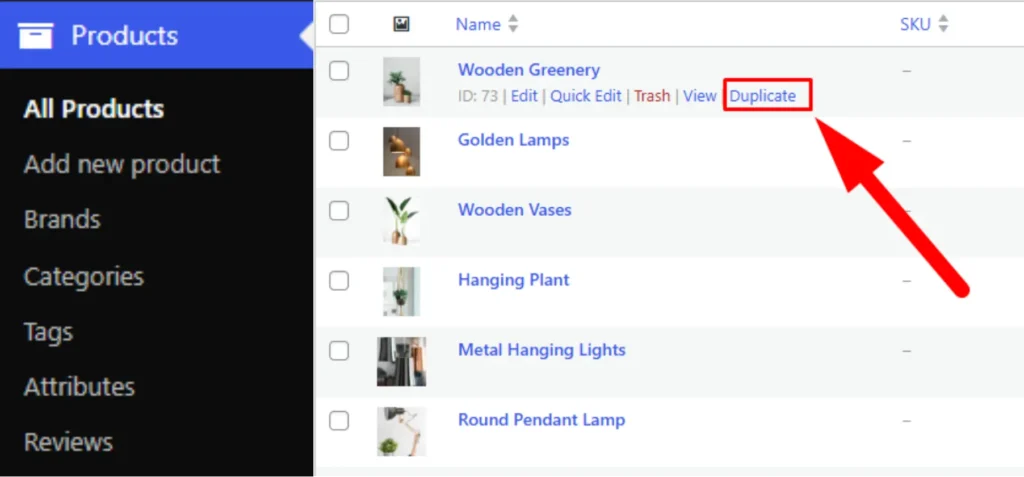
WooCommerce includes a duplicate option right inside the product list. It is the fastest way to copy a single product.
- Go to Products → All Products in your WordPress dashboard
- Find the product you want to copy
- Hover your mouse over the product row
- Click Duplicate from the options that appear (Edit, Quick Edit, Trash, View, Duplicate)
WooCommerce creates a copy of the product and saves it as a draft. The duplicated product appears in your list with “Copy of” added to the title. From there, open it, make your changes, and publish when ready.
That is all it takes for a single product. No plugins, no extra steps.
What gets copied: title, description, short description, price, sale price, SKU (you will need to update this), categories, tags, attributes, images, shipping class, and product data settings.What does not get copied: customer reviews and sales history. Those stay with the original.
Method 2: Duplicate from Inside the Product Editor
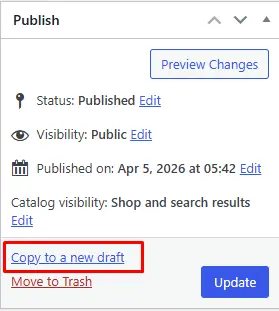
If you are already inside a product you want to copy, you do not have to go back to the product list.
- Open any product via Products → All Products → Edit
- Look at the top of the page for the Copy to a New Draft button (visible in the top right area of the editor)
- Click it to generate a duplicate that saves as a draft
This is the same result as Method 1, just accessed from a different location.
Method 3: Duplicate a Product Using a Plugin
The built-in duplicate feature is useful but basic. It only works on one product at a time and does not give you control over what gets copied. For more flexibility, a plugin handles it better.
A few options worth knowing:
- WooLentor (Post Duplicator module): Lets you duplicate any product or post type with one click. You can configure exactly what gets copied, including metadata, images, attributes, and custom fields. It also supports bulk duplication, which the built-in feature does not.
- Woo Easy Duplicate Product: A lightweight free plugin focused purely on product duplication. Simple to set up and works well for stores that just need a reliable copy function without extra features.
To use most of these plugins:
- Install and activate the plugin from Plugins → Add New
- Configure duplication settings if the plugin provides them (what to copy, post status after duplication, etc.)
- Go to Products → All Products
- Use the Duplicate button or bulk action that the plugin adds
Method 4: Bulk Duplicate Products
WooCommerce does not support bulk duplication out of the box. That is one of its real limitations. To copy many products at once, you need a plugin or an external tool.
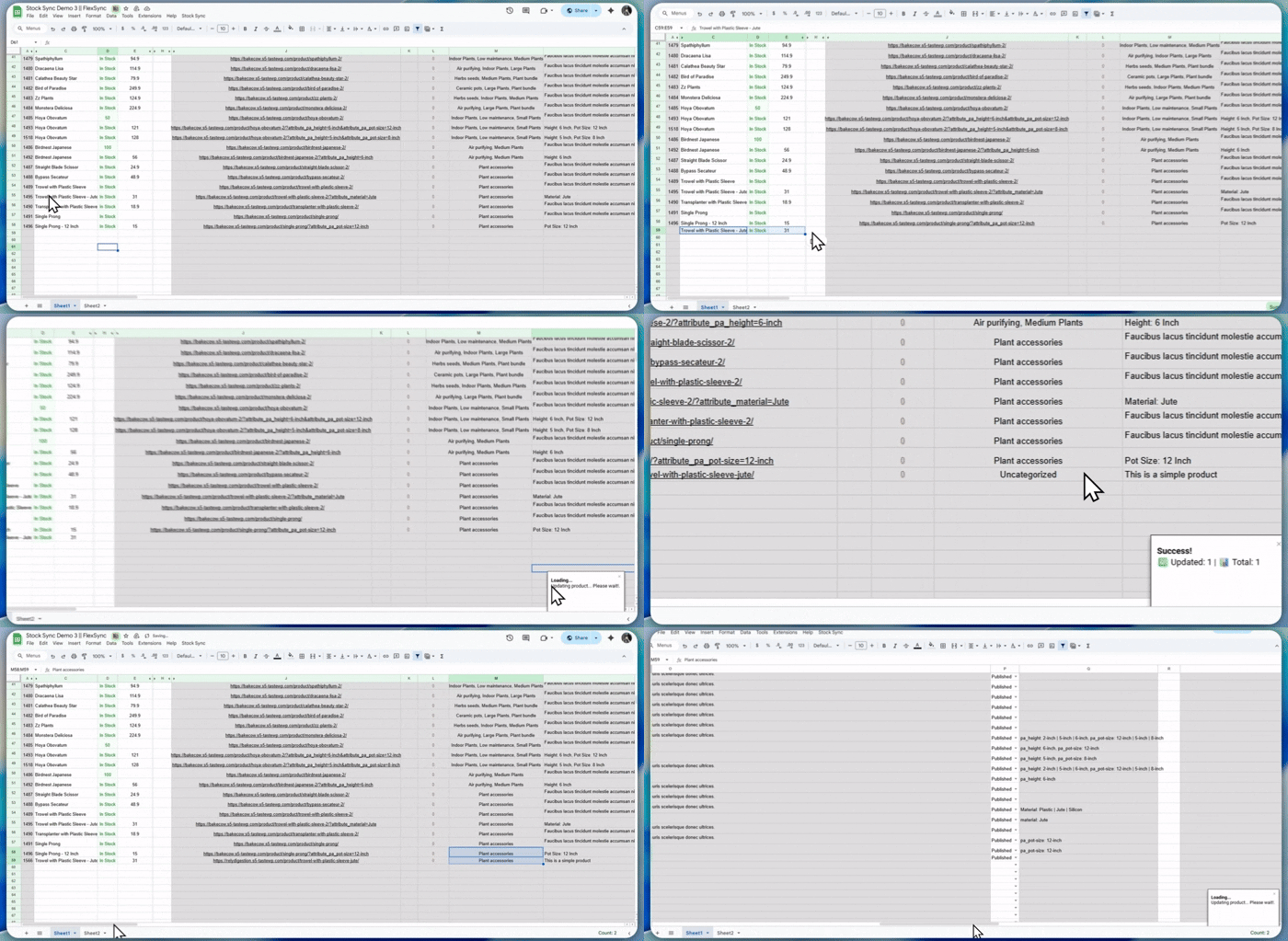
Some plugins like FlexStock support selecting multiple products and duplicating them in one action. The process typically looks like this:
- Go to the Connected Google Sheets
- Select and copy the product information that you want to copy
- Paste it in a new row
- Wait for sync to happen
- That’s it, done.
All selected products get copied and saved instantly. You can then update each one as needed directly from Google Sheets.
What Gets Copied vs. What Does Not
| Data | Copied | Notes |
| Title | Yes | “Copy of” is added automatically |
| Description | Yes | Identical to original |
| Price and sale price | Yes | Update if different |
| SKU | Yes | Needs to be changed to avoid conflicts |
| Images | Yes | Same images linked |
| Categories and tags | Yes | Same assignments |
| Attributes and variations | Yes | Full structure copied |
| Shipping class | Yes | |
| Custom fields and metadata | Yes (with plugins) | Built-in may miss some |
| Customer reviews | No | Stay with the original |
| Sales history | No | Unique to the original |
Where Native WooCommerce Falls Short
The built-in duplicate function does its job for simple use cases. But it has gaps that become frustrating quickly:
- No bulk duplication; you copy products one at a time only
- No control over what gets copied; everything comes with the clone, even data you might not want
- SKU conflicts can occur if you forget to update them on duplicated products
- Custom fields added via ACF or other plugins may not always carry over reliably
- The “Copy of” prefix added to the title needs manual cleanup on every duplicate
For stores with a few dozen products, this is manageable. Once you are working with hundreds of SKUs, the one-at-a-time limitation becomes a real bottleneck.
Quick Tips to Avoid Mistakes
- Update the SKU right away. Duplicate products carry over the original SKU. Two products sharing the same SKU causes inventory and reporting problems. Change it before publishing.
- Check the permalink. WooCommerce may generate a slug based on “copy-of-product-name.” Edit it to something clean before the product goes live, both for SEO and for tidy URLs.
- Keep duplicates as drafts until ready. Both the built-in tool and most plugins save copies as drafts by default. Do not publish until you have updated what needs to change.
- Do not duplicate reviews. Reviews are tied to real purchases on the original product. A duplicated listing starts fresh with no reviews, which is the correct behavior.
- Use duplication as a template strategy. Build one “master” product with all your formatting, shipping settings, and attribute structure in place. Then duplicate that template each time you add a new similar item instead of starting from scratch.
- Test with one product before doing bulk copies. If you are using a plugin for bulk duplication, try it on a single product first and check that everything copied correctly before running it across your whole catalog.