How to Hide Products in WooCommerce
Hiding a product in WooCommerce means removing it from public view without permanently deleting it. The product stays in your dashboard, but customers can no longer find it while browsing your shop, searching for items, or scrolling through category pages.
It is different from deleting a product. When you delete, the listing is gone for good. When you hide, everything stays intact and can be made visible again whenever you are ready.
Common examples include seasonal items that are not yet available, wholesale products meant only for registered buyers, out-of-stock listings you plan to restock, and test products still being set up.
Why Store Owners Hide Products
Most WooCommerce stores reach a point where not every product should be visible to every visitor. A few situations that come up often:
- A product is being prepared for launch but is not ready for sale yet
- Wholesale or trade prices should only appear to approved accounts
- Out-of-stock items are cluttering the catalog and hurting conversions
- You want to offer exclusive products to members or logged-in users only
- You are testing a product listing and do not want it going live by accident
In all of these cases, hiding beats deleting. The product data, images, and history stay safe and ready to go when you need them.
Understanding Your Visibility Options
Before going into the steps, it helps to know that WooCommerce actually offers four different catalog visibility settings built right in:
| Visibility Setting | Shows on Shop Pages | Shows in Search | Accessible by Direct Link |
| Shop and Search Results | Yes | Yes | Yes |
| Shop Only | Yes | No | Yes |
| Search Results Only | No | Yes | Yes |
| Hidden | No | No | Yes |
Notice that the built-in Hidden option still allows someone to reach the product if they have the direct URL. It is a display-level hide, not true access control. If you need stricter restriction, a plugin is required.
How to Hide Products in WooCommerce
Method 1: Change Catalog Visibility (Built-In, No Plugin Needed)
This is the quickest option for hiding individual products from shop pages and search results.
- Go to Products → All Products
- Open the product you want to hide
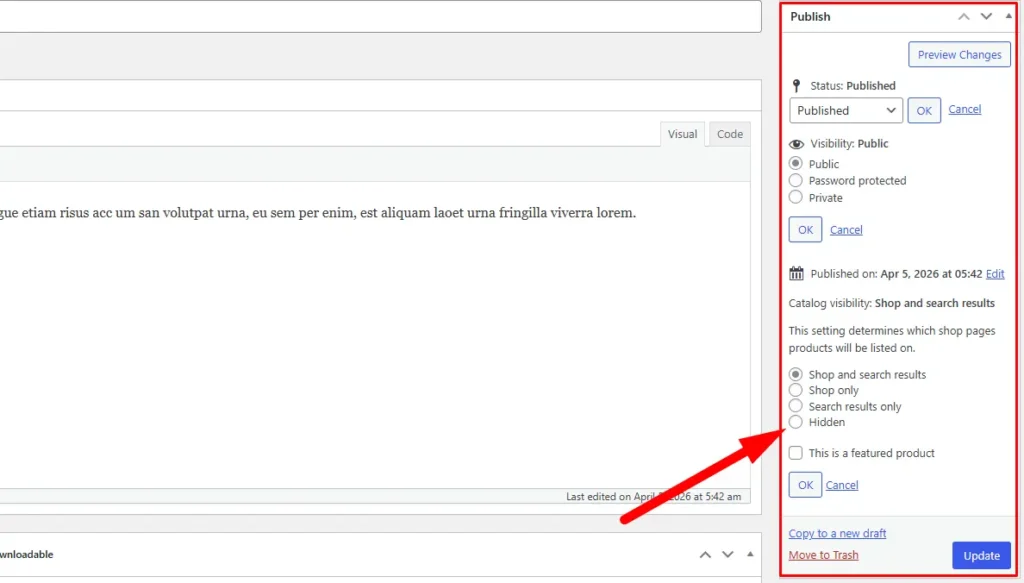
- On the right side, find the Publish panel
- Click Edit next to Catalog visibility
- Change the setting to Hidden
- Click OK, then click Update
The product will disappear from your shop pages and search results. Anyone with a direct link can still reach the product page, so this method works best for products that are not widely shared yet.
Best for: Quick, low-stakes visibility control on individual products.
Method 2: Set the Product to Draft
Changing a product to Draft removes it from the storefront entirely. It will not appear in search, shop pages, or by direct link for regular customers.
- Go to Products → All Products
- Open the product
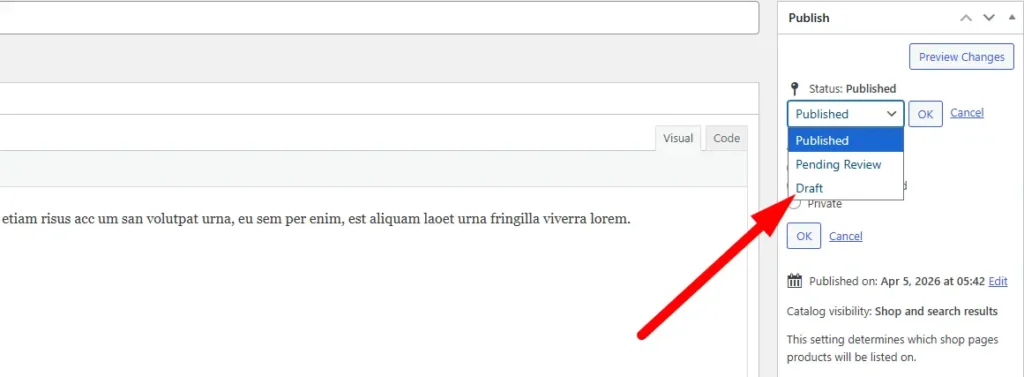
- In the Publish panel, click Edit next to Status
- Select Draft from the dropdown
- Click OK, then click Update
To bring it back, simply change the status back to Published.
Best for: Products being actively worked on or temporarily pulled from sale.
Method 3: Set the Product to Private or Password Protected
WooCommerce also lets you set individual product visibility to Private or Password Protected directly from the Publish panel.
- Open the product editor
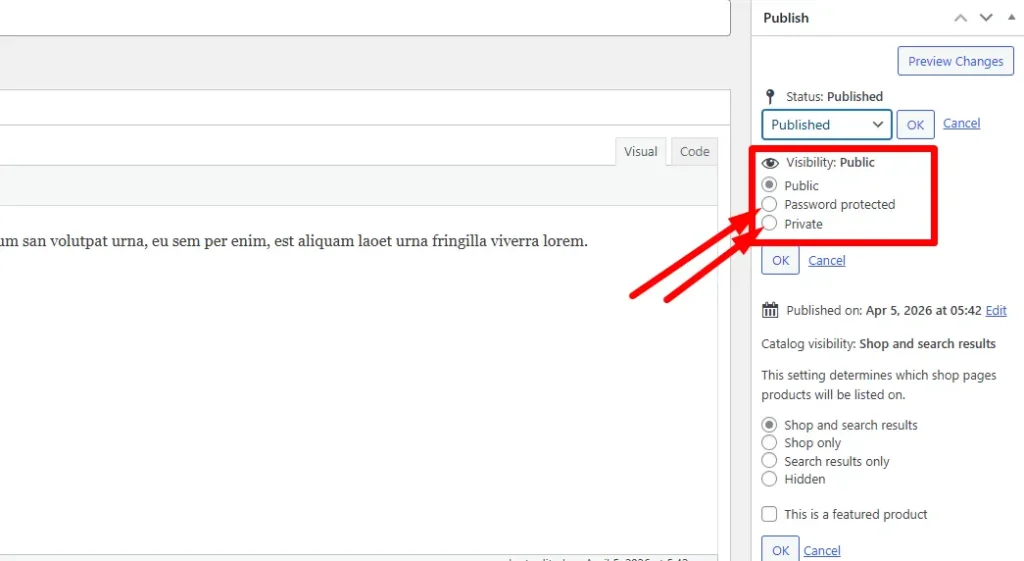
- In the Publish panel, click Edit next to Visibility
- Choose either:
- Private — only store admins and editors can see the product
- Password Protected — anyone with the correct password can view it
- Click OK, then Update
Password protection is useful for exclusive launches or VIP offers. Private is better for internal or admin-only products.
Best for: Exclusive products, private client listings, or admin-only items.
Method 4: Hide Out-of-Stock Products Automatically
If you want WooCommerce to hide all out-of-stock items automatically across your entire catalog, you can turn this on from settings. No need to do it product by product.
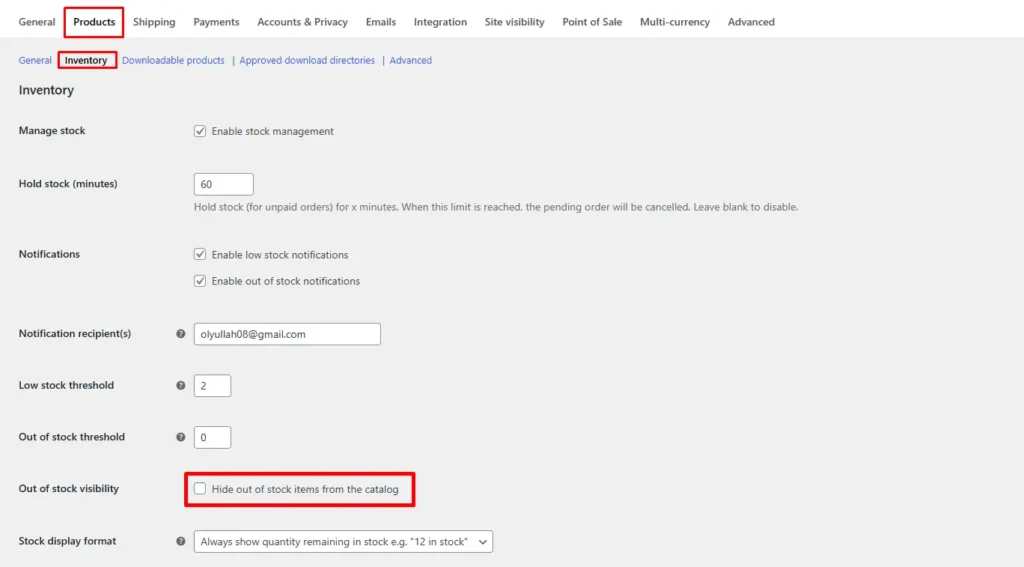
- Go to WooCommerce → Settings
- Click the Products tab
- Open the Inventory sub-tab
- Check the box for Hide out of stock items from the catalog
- Click Save changes
Every product with zero stock will now be hidden from the catalog automatically. When stock is updated, the product reappears.
Best for: Stores with frequently changing stock levels that want a cleaner catalog without manual work.
Method 5: Hide Products by User Role (Plugin Required)
For B2B stores, wholesale setups, or membership sites, the built-in visibility options are not enough. You may need certain products visible only to specific customer types.
The Products Visibility by User Roles plugin (available on the WooCommerce Marketplace) handles this. After installing:
- Go to WooCommerce → Product Visibility
- Use the Global Visibility tab to hide products from all non-logged-in or all registered customers
- Use the Visibility by User Roles tab to show or hide products for specific roles (for example, Wholesale Buyer, Subscriber, or Retailer)
- Under General Settings, decide whether hidden products should still be crawled by search engines
A common setup: hide a group of products from the general public, then open them back up for a specific role like Retailer or Wholesaler.
Best for: B2B stores, tiered customer setups, or members-only product access.
Method 6: Hide Entire Categories (Plugin Required)
If you have many products that all need the same visibility rules, managing them one at a time is not practical. A smarter approach is to group them into a category and hide the whole category at once.
Using a plugin like WooCommerce Protected Categories:
- Create a product category for your hidden items (for example, “Coming Soon” or “Wholesale Only”)
- Assign all relevant products to that category
- Edit the category and go to the Visibility section
- Choose Protected and set either password or user role access
- Configure the settings under WooCommerce → Settings → Products → Protected Categories
This is significantly more efficient when you have 20, 50, or 100 products that share the same access rules.
Best for: Wholesale catalogs, seasonal collections, or any group of products with shared access rules.
Where Native WooCommerce Falls Short
The built-in options work well for a handful of products. But they have limits that become real problems as your catalog grows:
- No built-in user role logic, you need a plugin for that
- You have to update products one at a time, which gets slow at scale
- The “Hidden” setting does not block direct URL access
- There is no bulk toggle for visibility across dozens of products at once
- No easy way to review which products are currently hidden across your whole catalog
For small stores with a handful of items, these gaps are manageable. For stores with hundreds of products, they create ongoing operational headaches.
When Managing Visibility at Scale
Here is where it gets genuinely difficult. Say you have 60 wholesale items, 20 seasonal products, and a handful of test listings. Each group has different visibility rules. Reviewing and updating them inside WooCommerce one product at a time is not practical.
Many store owners end up tracking product status outside WooCommerce entirely, often in a spreadsheet, just to keep a clear view of what is live and what is not.
That is where a tool like FlexStock can quietly support the process. It syncs your WooCommerce product catalog, including status and metadata, with Google Sheets. You can filter products by visibility status, review what is live across your full catalog, and push updates back to WooCommerce without opening individual product pages.