How to Export Products from WooCommerce
Exporting products from WooCommerce means pulling your product catalog out of WordPress and saving it as a file you can open, edit, or transfer elsewhere. The most common format is CSV, which stands for comma-separated values. Think of it as a spreadsheet where every row is a product and every column is a field like name, price, SKU, or stock quantity.
WooCommerce has had a built-in export tool since version 3.1. You do not need any plugin to use it.
Why Store Owners Export Products
There are a few situations where exporting becomes necessary, and some where it just saves a lot of time.
The most common reasons:
- Bulk editing – updating prices, descriptions, or stock levels across hundreds of products at once in a spreadsheet, then re-importing
- Backup – creating an offline copy of your product data before a major update or plugin migration
- Migration – moving your catalog to a new WooCommerce store, Shopify, or another platform
- Sharing data – sending your catalog to a supplier, distributor, or client in a readable format
- Analysis – reviewing pricing strategy or category structure in a spreadsheet or reporting tool
Editing 300 products inside WooCommerce one by one is not realistic. Exporting to a spreadsheet makes bulk changes fast and clean.
Methods to Export Products from WooCommerce
Method 1: Built-in Export Tool (No Plugin Needed)
This is the fastest way for most stores. It works on any WooCommerce installation running version 3.1 or later.
Steps:
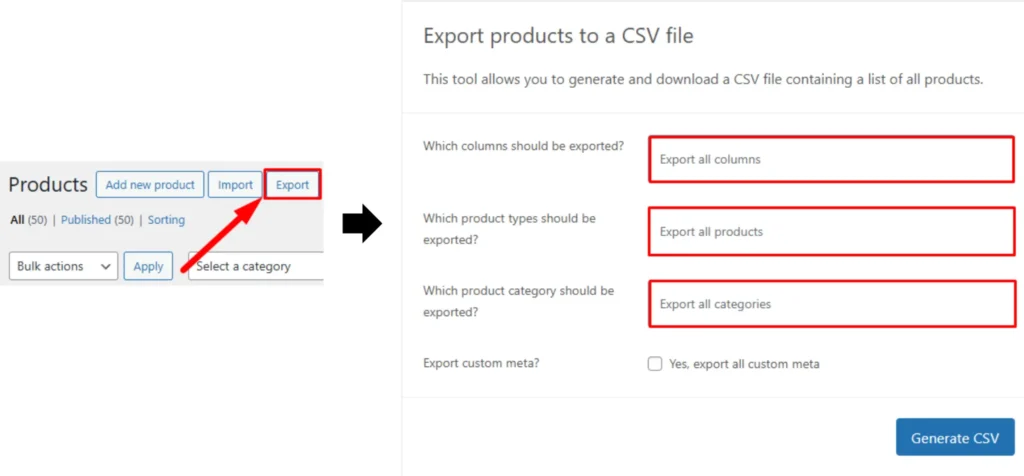
- Go to Products in your WordPress dashboard
- Click the Export button at the top of the screen
- Choose which columns to export. You can select All Columns or pick specific fields from the dropdown
- Choose which product types to include (all products, simple, variable, grouped, etc.)
- Filter by product category if needed
- Check Export Custom Meta if you want to include data from other plugins or custom fields. These export with a meta: prefix in the column name
- Click Generate CSV
- The CSV file downloads to your browser
Do not close the browser tab while the export runs. Large catalogs can take a moment.
What you get: A CSV file you can open in Google Sheets, Excel, or any spreadsheet tool. Variable products export with one row per variation, each linked to the parent product by a shared SKU.
Limitation: The built-in tool is straightforward but not very flexible. You cannot easily reorder columns, rename fields, apply advanced filters, or export directly to Google Sheets or XML.
Method 2: Using WP All Export (Plugin)
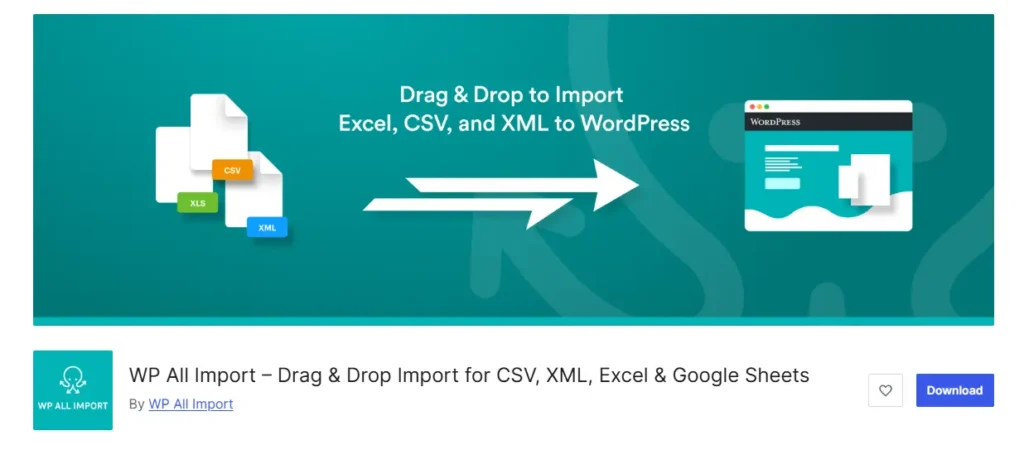
For stores that need more control, WP All Export is the most widely used third-party option. It supports CSV, Excel, XML, and Google Sheets exports.
Steps:
- Install and activate WP All Export
- Go to All Export → New Export
- Select WooCommerce Products as the post type
- Use the drag-and-drop interface to choose and arrange your export columns
- Apply filters to limit the export to specific products, categories, price ranges, or stock status
- Choose your export format (CSV, Excel, XML, or Google Merchant Center feed)
- Run the export and download the file
This plugin also lets you schedule automatic exports and connect to external tools through Zapier. It is a paid tool, but there is a free version with core features.
Method 3: WooCommerce Product CSV Import Suite (Premium Extension)
This is WooCommerce’s own premium extension for more advanced import and export needs. It supports exporting both products and product variations separately.
Steps:
- Navigate to WooCommerce → CSV Import Suite → Export Products
- Choose to export either products or variations
- Set options like export limit and whether to include hidden meta data
- For variations only, you can filter by parent product ID
- Click Export Products or Export Variations to download
This is useful if you specifically need to separate parent products from their variations in two different files.
Quick Comparison
| Method | Cost | Formats | Custom Filters | Best For |
| Built-in WooCommerce | Free | CSV only | Basic | Simple exports, backups |
| WP All Export | Free / Paid | CSV, Excel, XML, Sheets | Advanced | Complex exports, scheduling |
| CSV Import Suite | Paid | CSV | Moderate | WooCommerce-native workflows |
Where the Built-in Tool Starts to Show Limits
The native export works fine when you need a quick backup or a clean CSV to re-import somewhere. But once your store grows, the cracks appear.
You cannot export directly to Google Sheets. You cannot schedule recurring exports. You cannot filter by stock status and category at the same time. And if you have custom fields from third-party plugins, they show up in a raw meta:field_name format that takes cleanup before it is useful.
For a 50-product store, none of that matters. For a 2,000-product store with custom attributes, pricing tiers, and supplier codes, these gaps create real friction in daily operations.
Where This Becomes Important in Real Operations
Most store owners export products not for migration or backup, but for editing. They want to update a price column, fix 40 product descriptions, or add a missing field across a category. Opening a CSV in Excel and doing that work is fine for one-time changes.
The problem is keeping that edited data in sync with WooCommerce. You export, edit, re-import, and then realize the import did not handle your custom meta columns the way you expected. Or someone updated two products inside WooCommerce while you were working in the spreadsheet.
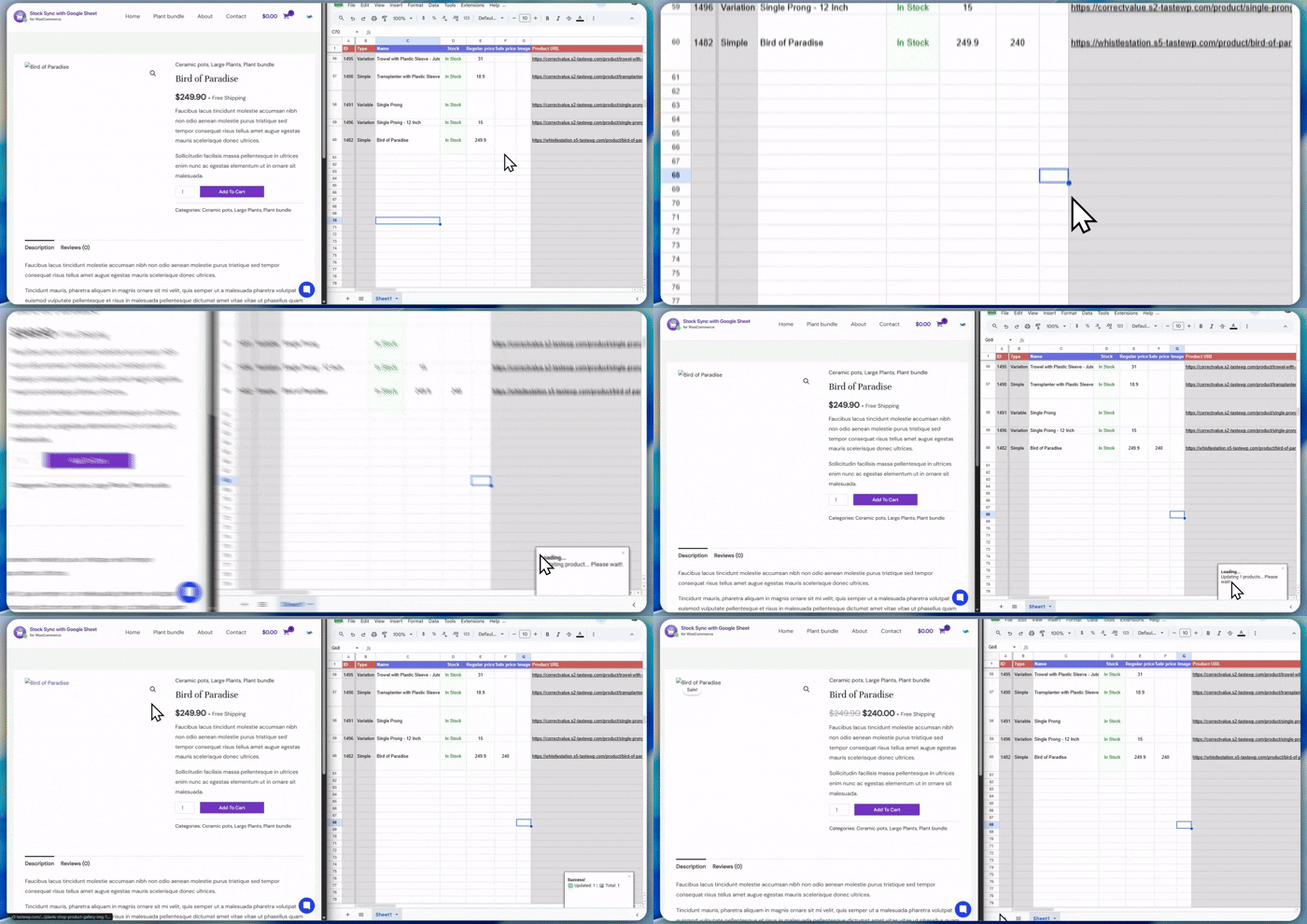
This is where tools like FlexStock solve a real problem. Instead of the export-edit-reimport cycle, it keeps your WooCommerce product data synced directly with Google Sheets. Changes you make in the sheet push back to WooCommerce automatically. It is not a replacement for knowing how to export, but it removes the back-and-forth entirely for day-to-day catalog management.
Quick Tips Before You Export
- Back up first. Before any bulk export and re-import, run a full site backup. One bad import can overwrite clean data.
- Start with a filtered export. If you are testing a new workflow, export one category or product type before running the full catalog.
- Avoid Excel for large exports. Excel has known issues with CSV encoding, especially with special characters. Google Sheets handles WooCommerce CSV files more cleanly.
- Check variable product handling. Variable products export as multiple rows. Make sure your workflow handles parent and variation rows correctly before editing.
- Keep column names intact. If you are re-importing the file, do not rename column headers. WooCommerce uses those headers to map data during import.
- Review custom meta columns. Fields exported with meta: prefixes need to stay in that format for the import to recognize them.