









This is an Ultimate feature, so to use it, you need to activate the Ultimate version of FlexOrder.
To filter WooCommerce orders efficiently from Google Sheets, follow these detailed steps. This integration enables a streamlined process, ensuring that order management is both accessible and user-friendly, directly from your Google Sheets interface.
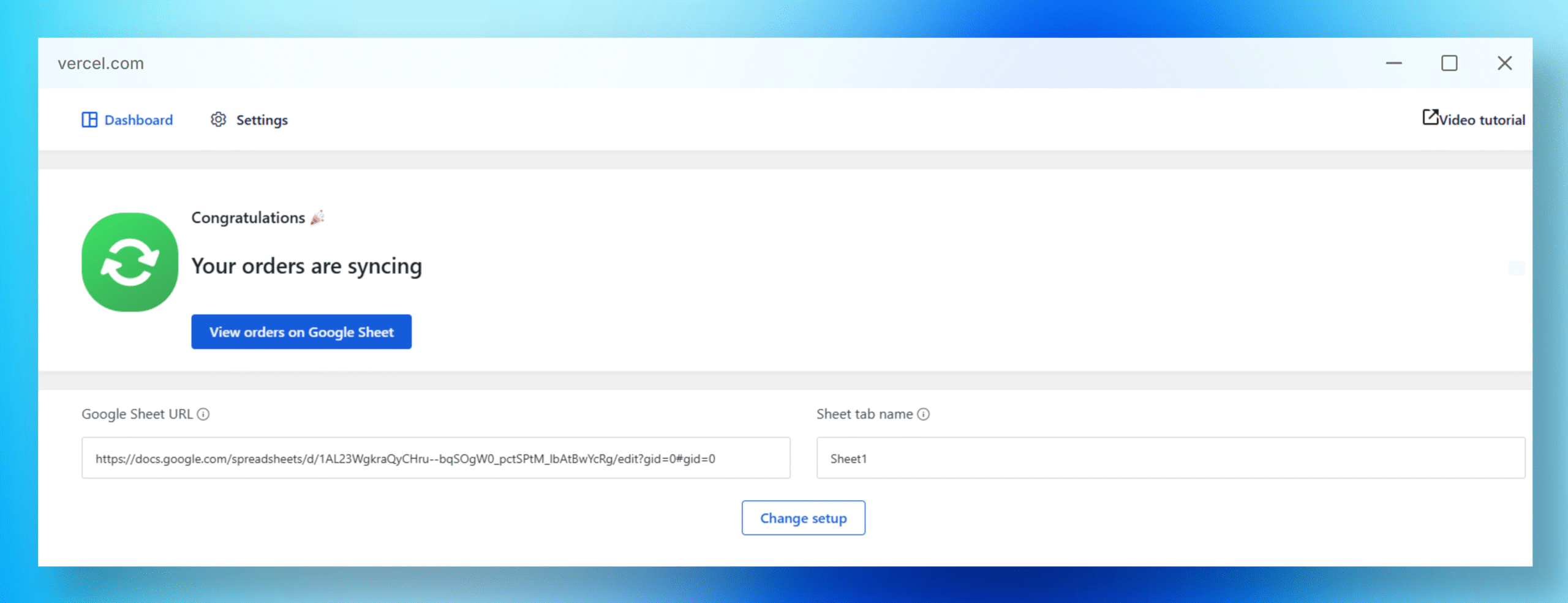
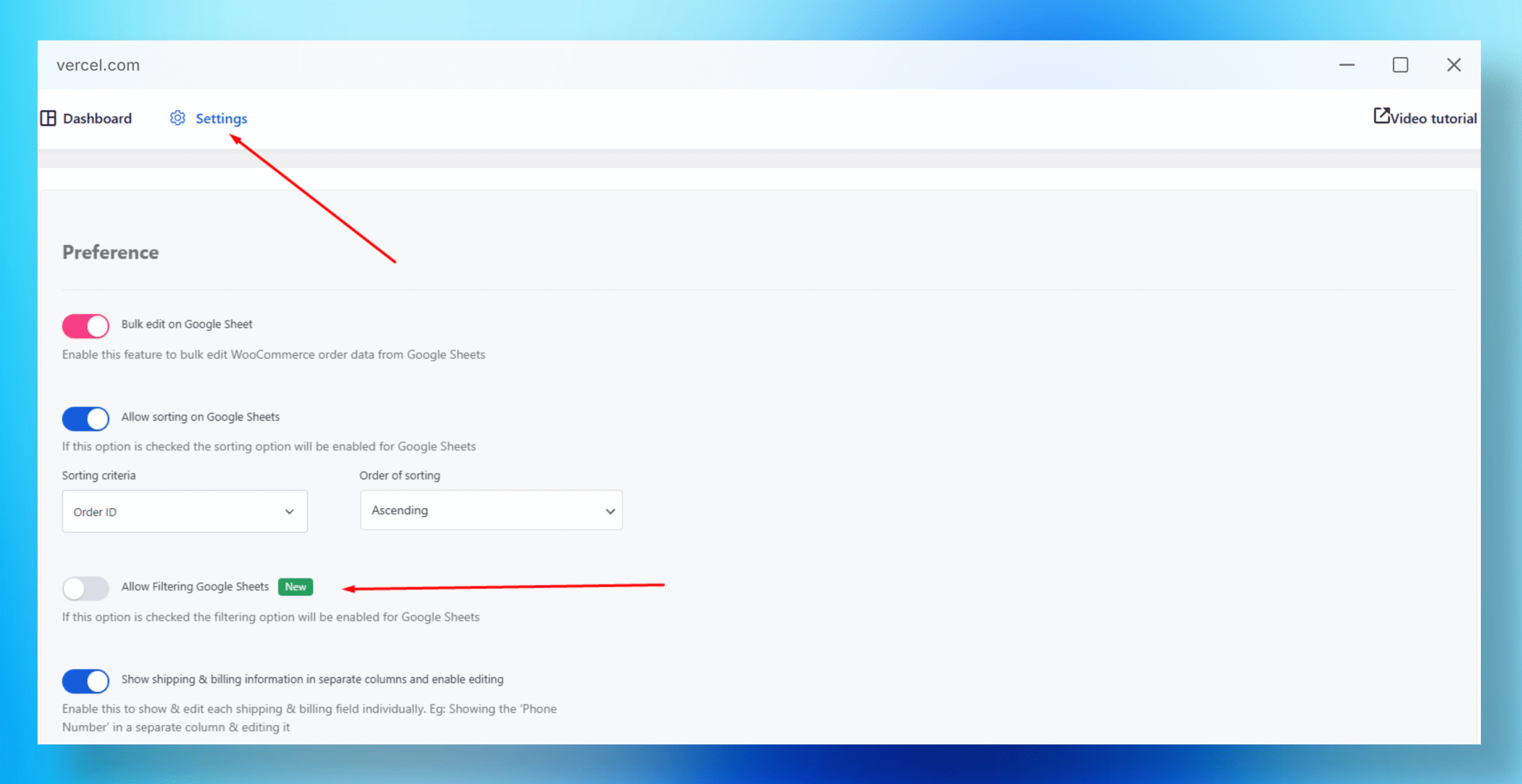
First, navigate to your WordPress Dashboard and go to “Order Sync with Google Sheet.” Click on “Settings” and enable the options.
In the settings section, you need to enable “Allow filtering Google Sheet.”
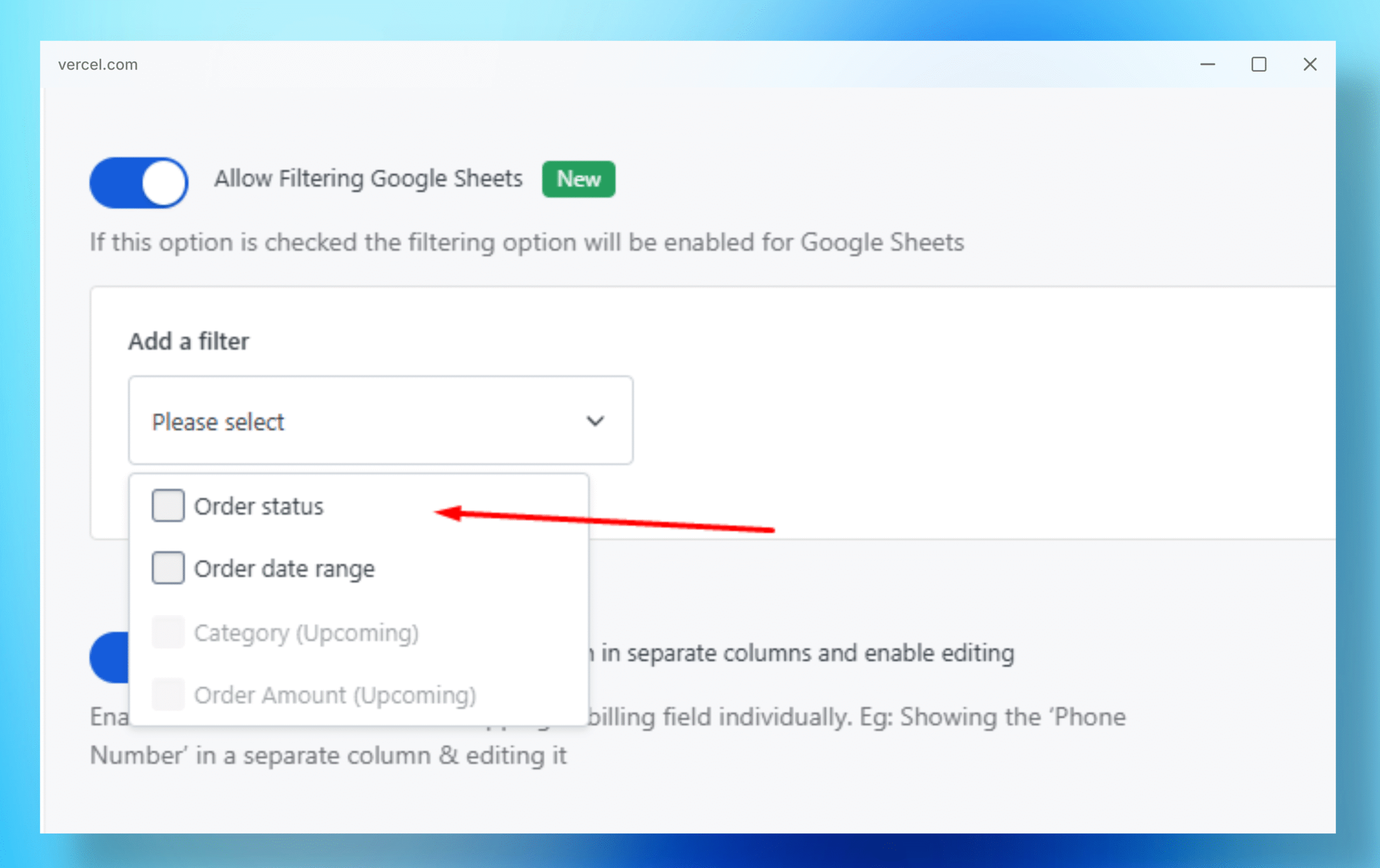
From this filter drop-down, you can select either the order status or the order date range, or you can select both.
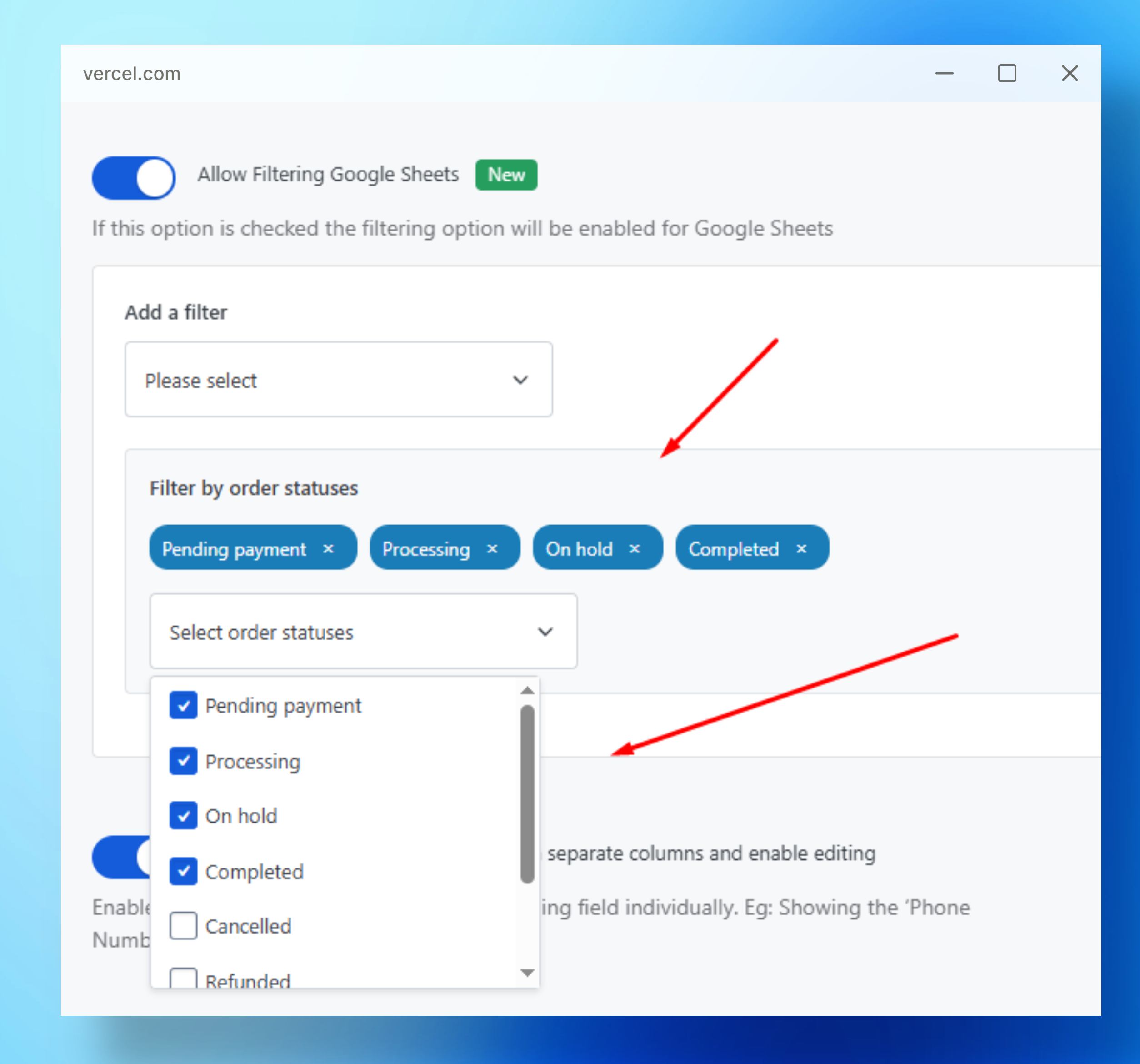
Here, you can select the “Order Status” as per your requirements.
Now you can view orders exactly the way you want by selecting filters, and they will be synced accordingly.
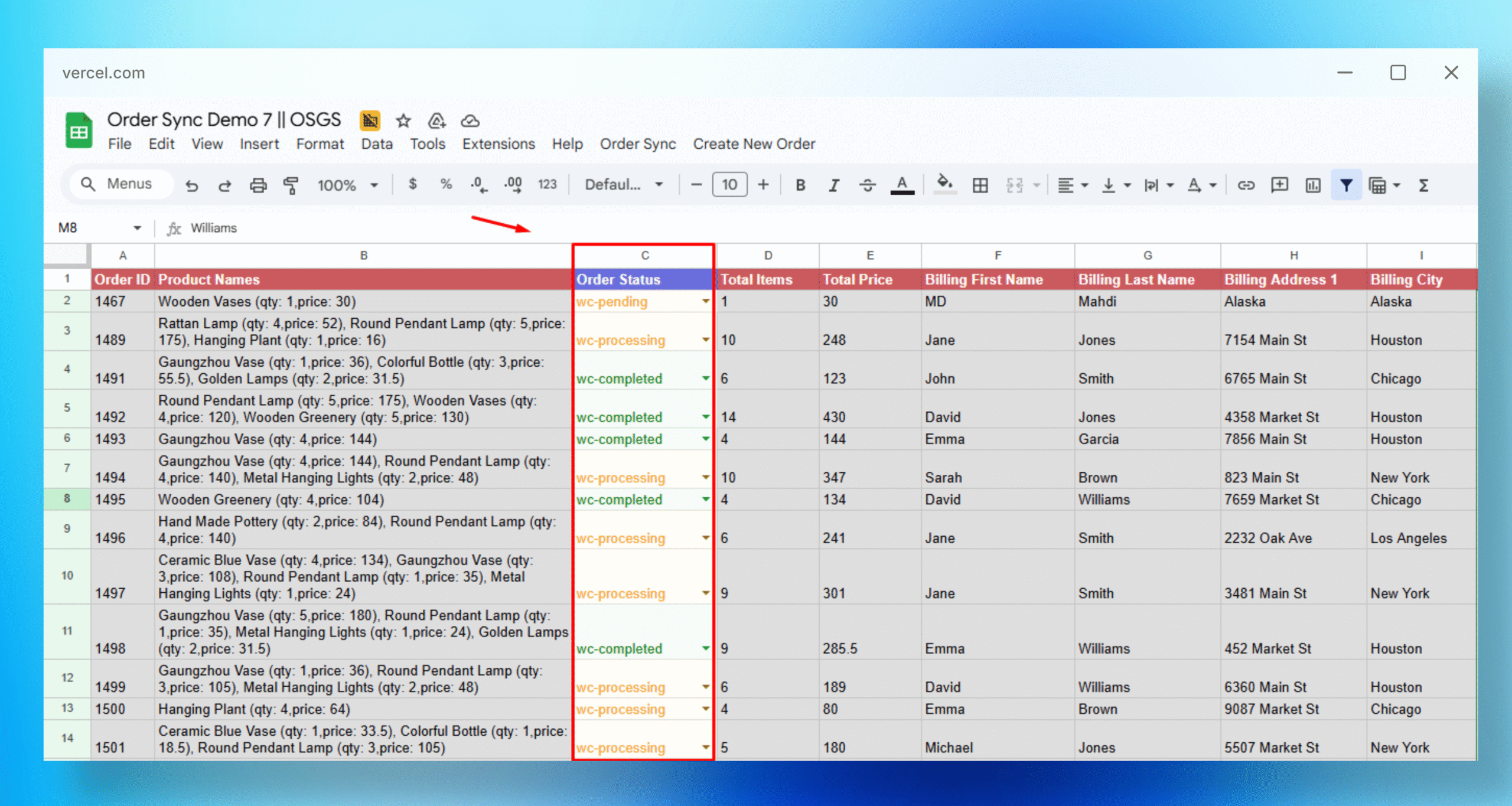
With FlexOrder Ultimate’s filtering system, you can now view exactly the WooCommerce orders you need in Google Sheets. Simply enable filtering in the settings, select your preferred order status and date range filters, and watch as your sheets automatically sync with your targeted order data.


Add your first comment to this post