









With Scheduled Auto Sync, FlexStock allows you to automatically synchronize data between WooCommerce and Google Sheets at fixed intervals. Follow the steps below to set it up:
Access Settings:
- Go to your WordPress Dashboard.
- Navigate to FlexStock → Settings → Sync Settings.
Choose Sync Mode:
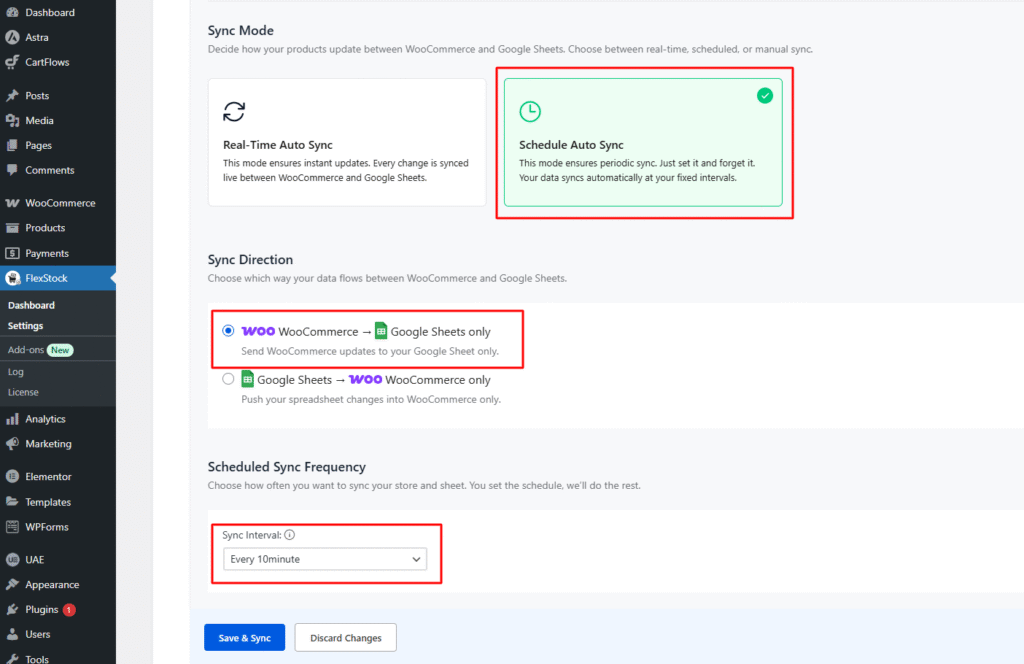
- Under Sync Mode, you will find Schedule Auto Sync (syncs data automatically at fixed intervals).➡ Select Schedule Auto Sync to enable scheduled synchronization

WooCommerce → Google Sheets (Free Version)
- Select WooCommerce → Google Sheets only.
- Under Scheduled Sync Frequency, the free version allows syncing every 10 minutes.
- Click Save & Sync.
Google Sheets → WooCommerce (Ultimate Version)
To push changes from Google Sheets back into your WooCommerce store, you’ll need the Ultimate Version of FlexStock.
- Ensure that the Ultimate version is activated before proceeding.
- You can [purchase it here] and follow our step-by-step activation guide.
Enable Google Sheets → WooCommerce Sync (Ultimate Version)
Once the Ultimate version is activated, select Google Sheets → WooCommerce only. In the Scheduled Sync Frequency dropdown, you’ll have multiple options, including:
- Every 10 minutes
- Every 30 minutes
- Every 1 hour
- Daily
- Weekly
Choose your preferred frequency. Click Save & Sync to apply changes.
That’s it! Your FlexStock plugin will now automatically keep WooCommerce and Google Sheets in sync according to your chosen schedule.


Add your first comment to this post