









The AI Summary feature allows you to automatically generate concise, intelligent summaries of your data tables using artificial intelligence. It helps users quickly understand the key insights from complex datasets without manually analyzing the table.
The feature supports two summary modes:
- Generate on Click (Live Summary)
- Instant Summary (Pre-Generated Summary)
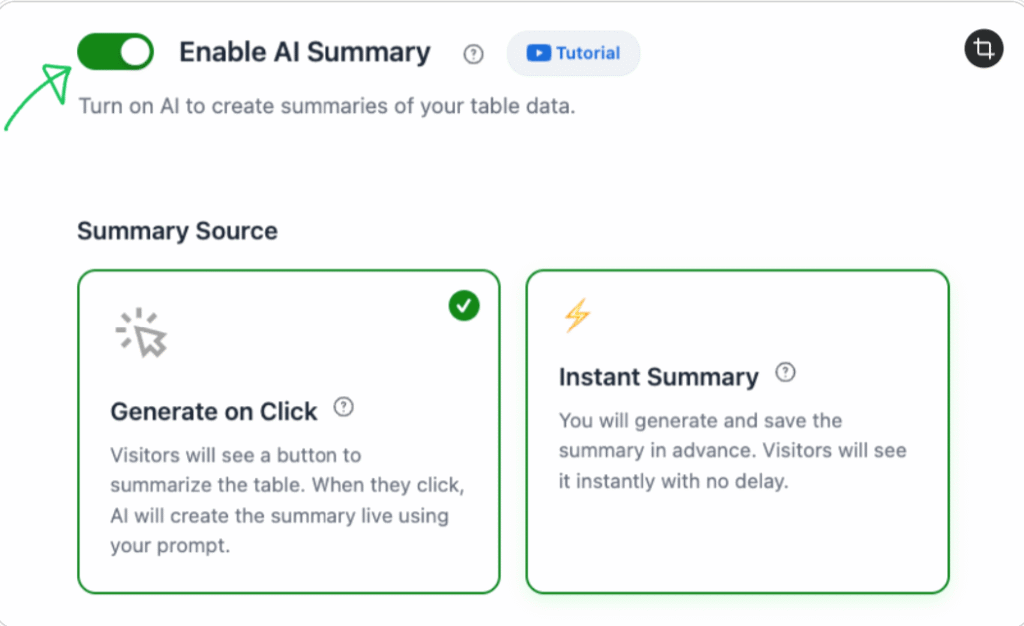
Each mode provides flexible configuration options to suit your site’s performance and user experience needs.
Connecting AI Configuration: Before using AI Summary, you must connect your AI provider.
Steps to Connect: #
Open Global Settings → AI Configuration Select AI Engine: Choose your preferred AI provider:
- ChatGPT (OpenAI)
- Gemini (Google AI)
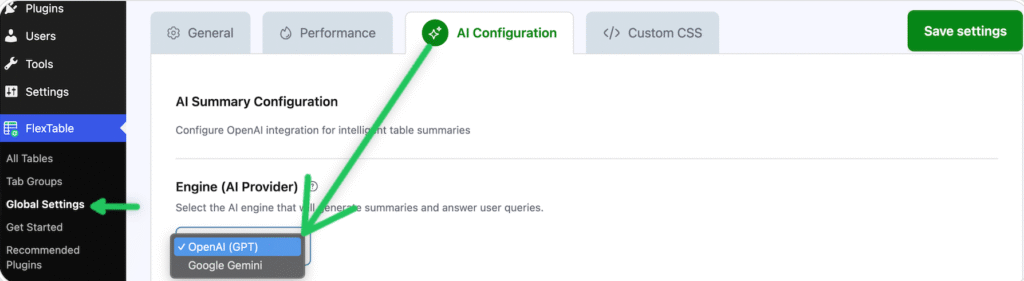
Enter API Key: Obtain your API key from your provider dashboard.
- For ChatGPT: https://platform.openai.com/account/api-keys
- For Gemini: https://aistudio.google.com
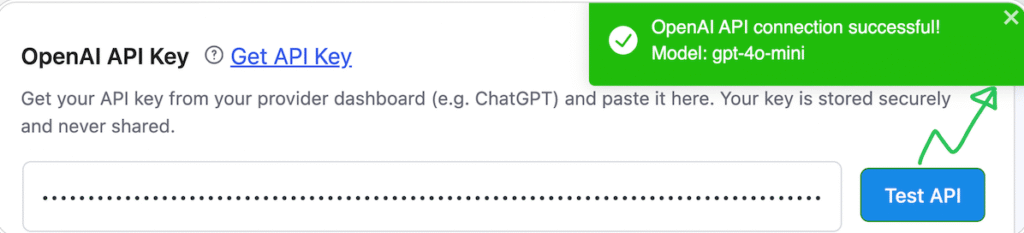
Paste your key in the OpenAI API Key field. Your API key is stored securely and never shared. Click the ‘Test API’ button to check the connection. If the connection is successful, a success pop-up will appear.
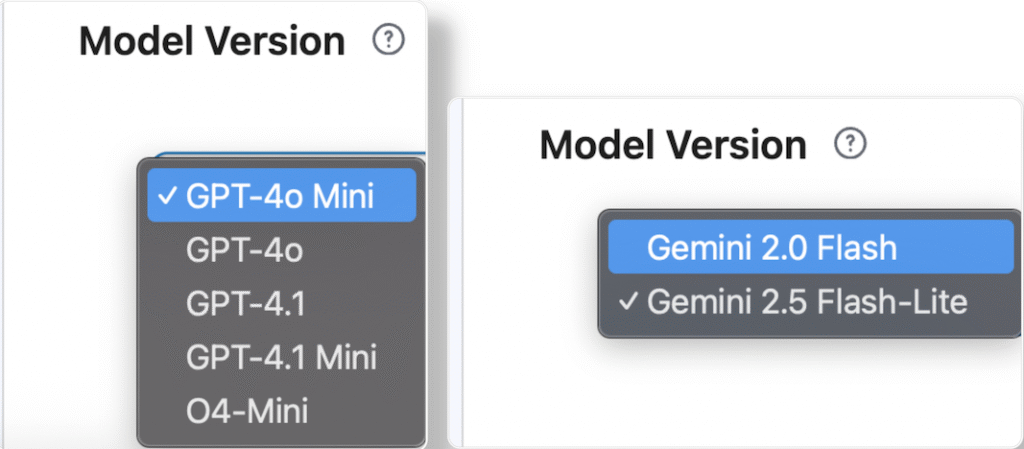
Select Model Version: Choose the AI model version your provider supports (e.g., GPT-4-turbo, Gemini 1.5 Pro).
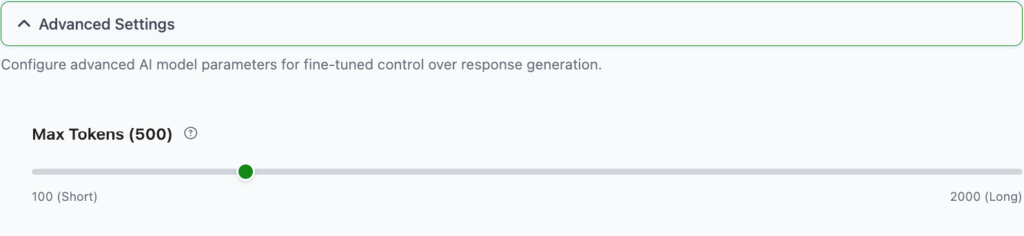
Configure Advanced Settings (Optional):
- Max Tokens (default: 800) – Sets the maximum summary length. Creativity (default: 0.3) – Controls randomness in responses.
- Lower = more precise.
- Higher = more creative.
- Frequency Penalty (default: 0.3) – Reduces repetitive text in summaries.
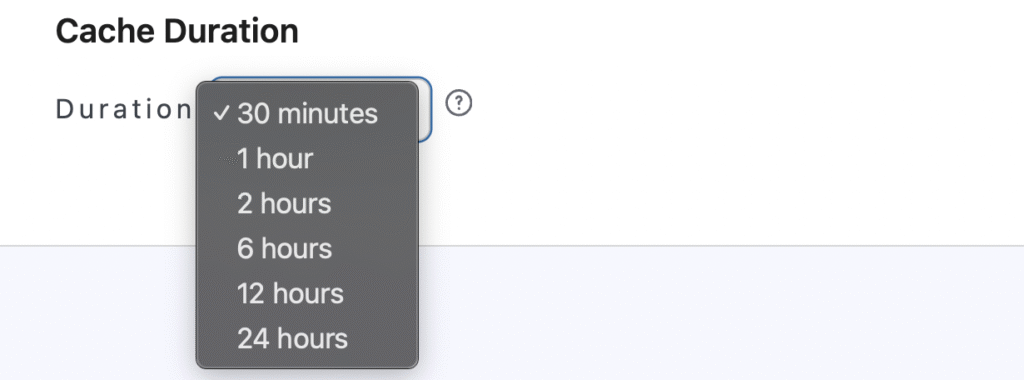
Cache Duration (default: 30 Minutes): Determines how long AI summaries are cached before refreshing.
AI is now fully configured and ready.
Mode 1: Generate on Click (Live Summary) #
In this mode, visitors see a “Summarize” button above/below your table. When they click it, AI reads the table. AI writes a summary instantly.
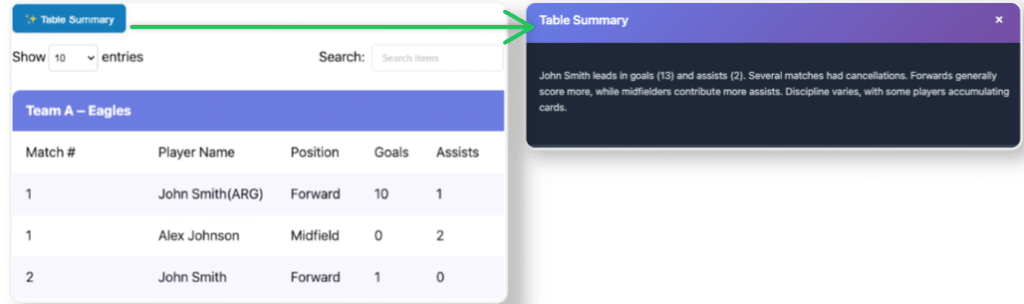
Settings:
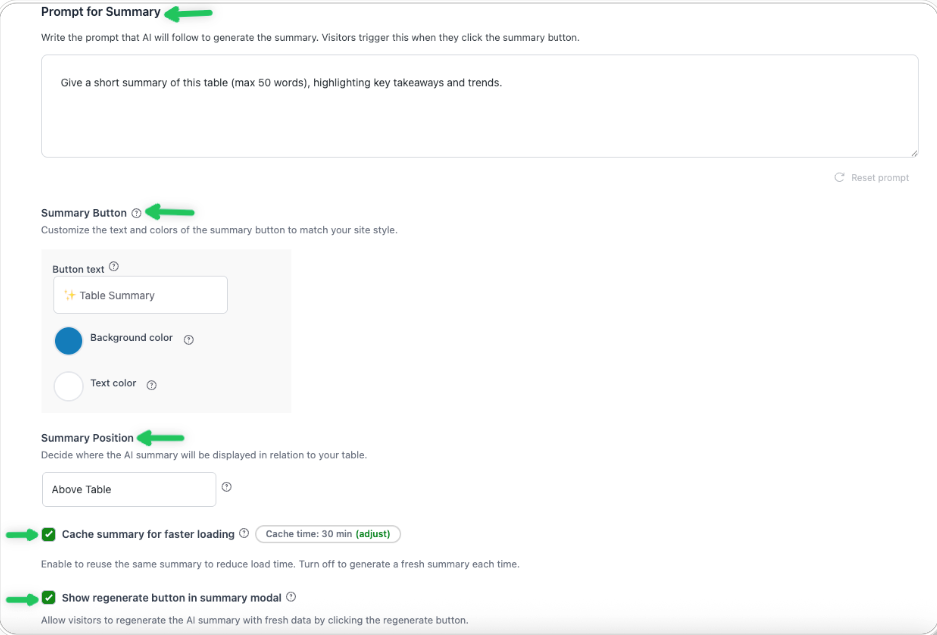
- Prompt for Summary: Tell AI what to write.
Example: “Summarize the main points in this table.” - Button Design: Change the color, text, and style.
- Summary Position: Choose if the summary shows above or below the table.
- Regenerate Button: Let users make a new summary with fresh data.
- Cache Option:
- ON: Save and reuse the same summary.
- OFF: Make a new one each time.
Mode 2: Instant Summary #
The summary is generated and saved beforehand, allowing visitors to see it instantly without any delay.
Settings: #
- Prompt for Summary: Tell AI what kind of summary to make.
- Preview: Check and edit the summary before saving.
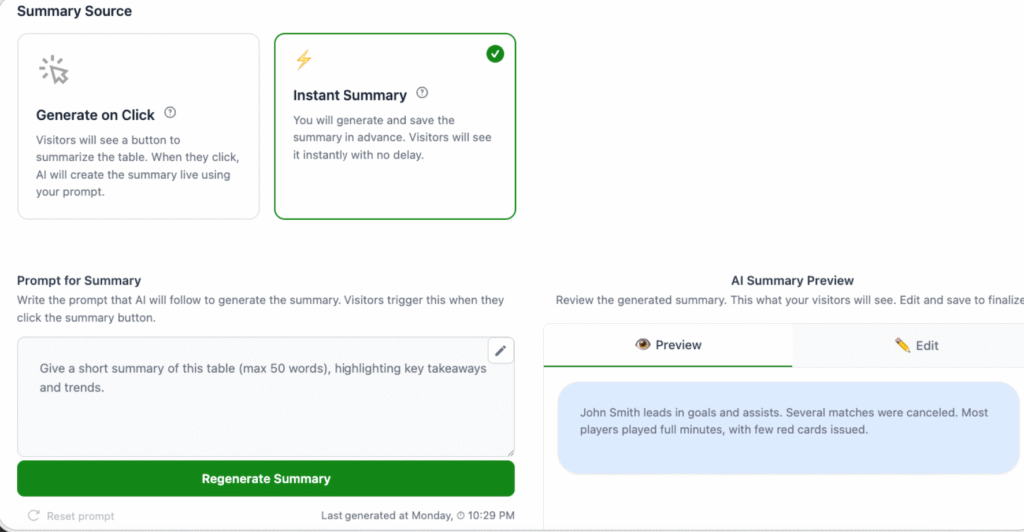
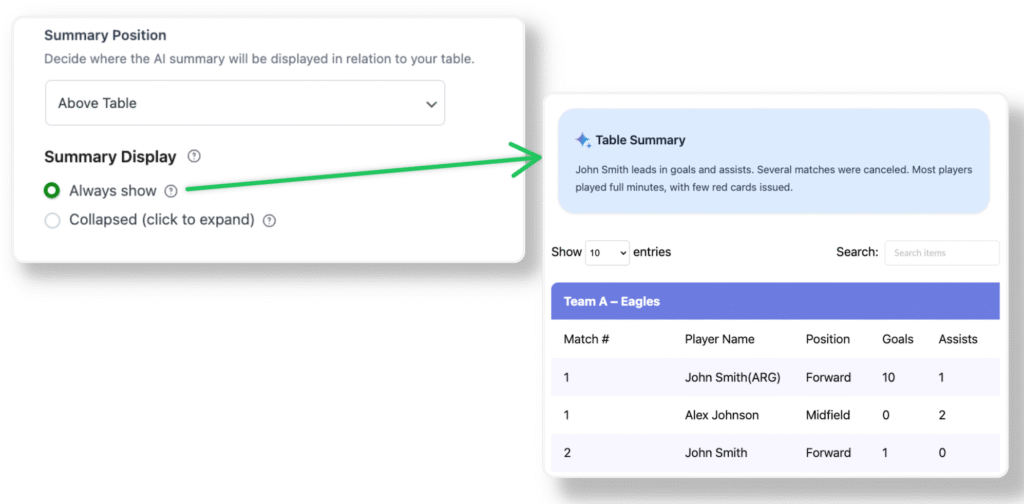
- Summary Position: Choose where it shows — above or below the table.
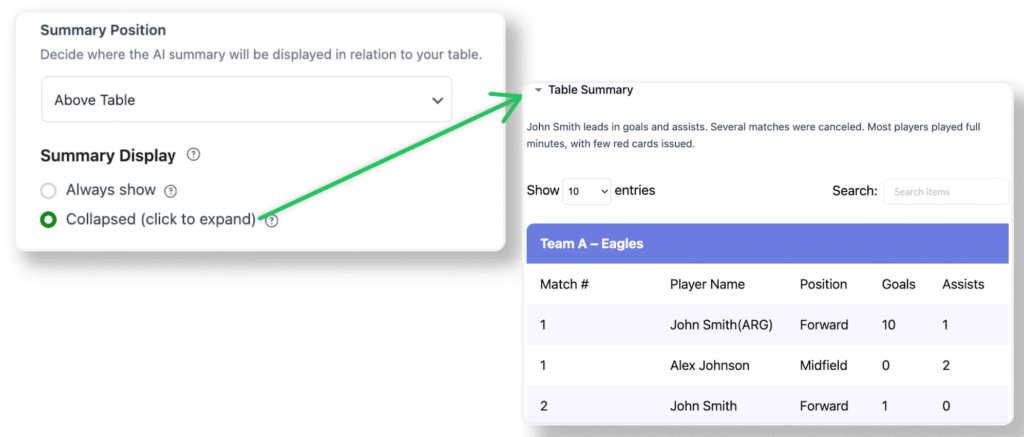
- Display Options:
- Always Show — Always visible.
Collapsed — Hidden until the user clicks to open.
That’s it! 🎉 #
Quick Tips: #
✅ Keep your prompt short and clear.
✅ Use caching for faster loading.
✅ Preview the summary before saving.
✅ Lower creativity = more accurate.
✅ Higher creativity = more fun.


Add your first comment to this post