









Overview: ArchiveMaster Custom MySQL Storage feature that allows users to store archived WooCommerce orders directly inside a current database or a separate database located on their own server or a remote MySQL server. With Custom MySQL Storage enabled, ArchiveMaster writes all archived WooCommerce orders data into a dedicated MySQL table, ensuring fast access and external portability of archived datasets.
This feature is part of the PRO version. Unlock it to enjoy even more!
How to Connect to Custom MySQL Storage #
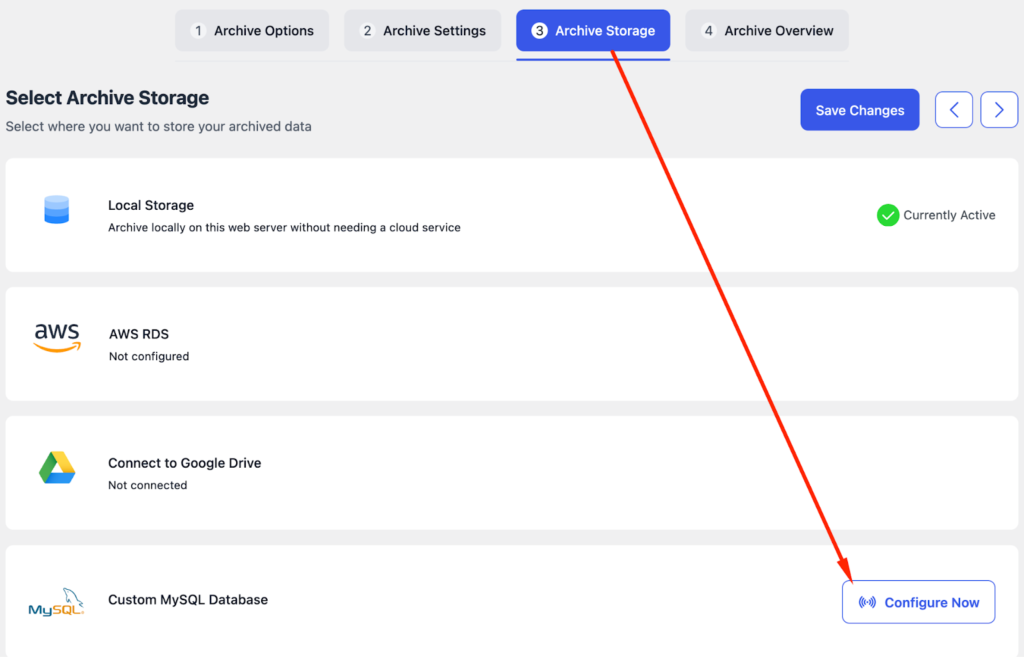
- Go to ArchiveMaster in your WordPress dashboard.
- Navigate to Archive Storage.
- Select Custom MySQL Database.
- Click “Configuration Now” to open the connection settings.
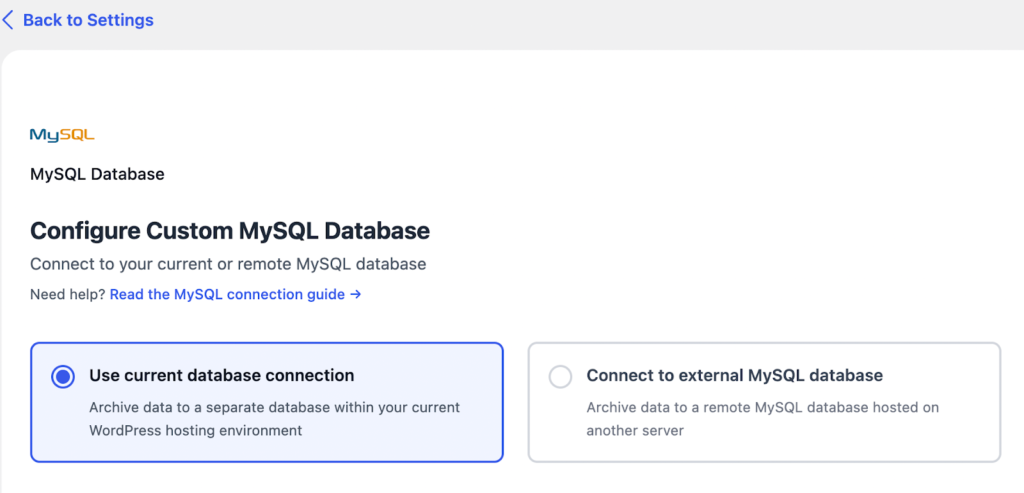
Database Options: Users can choose where to store their archived data. Supported options: #
1. Current / Separate Database (Same Server)
- Stores archived data within your WordPress hosting environment.
- Easy setup, fast access, no external server needed.
- MySQL user needs CREATE, INSERT, SELECT, and UPDATE privileges.
2. External / Remote MySQL Database
- Stores data on a separate server outside your hosting.
- Useful for large sites, isolated storage, or improved data security.
- Requires host, port, username, password, and remote MySQL access.
- MySQL user needs CREATE, INSERT, SELECT, and UPDATE privileges.
Quick Tip: Use current/separate for simplicity; use external for large sites or separate storage.
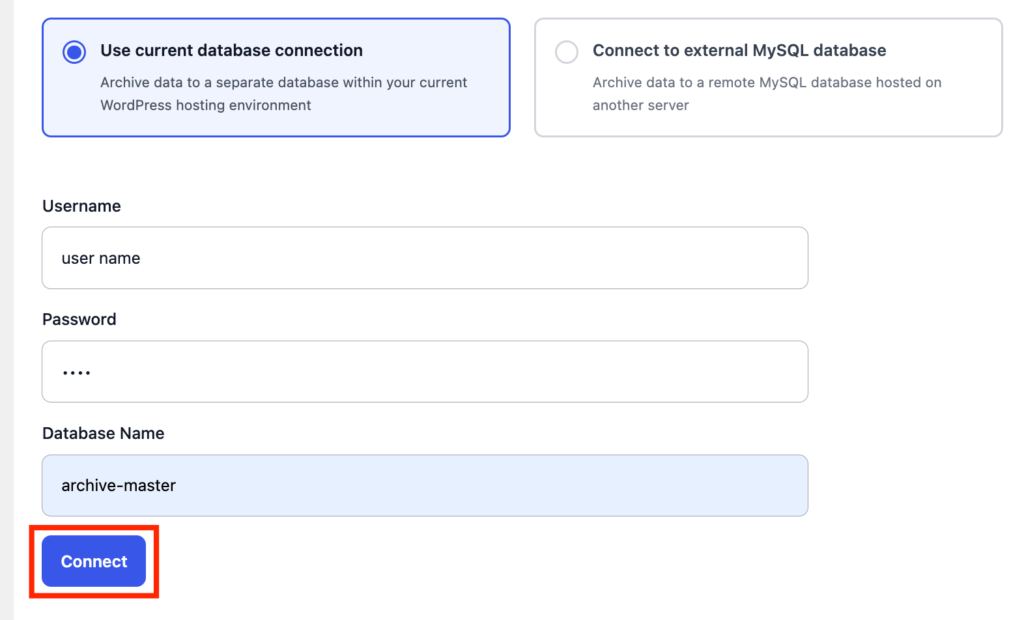
How to Connect Current database or a separate database: #
Select Use Current database or separate database. Enter the following details. #
- Username: The MySQL user with the privileges (CREATE, INSERT, SELECT, UPDATE). You can find or manage this in your hosting control panel (e.g., cPanel → MySQL Databases → Current Users).
- Password: The password you set when creating the MySQL user.
- Database Name: The name of the database (must exist on the same hosting environment; find it in cPanel → MySQL Databases).
Click Connect. Once connected, ArchiveMaster will store archived orders in a dedicated table inside the specified database.
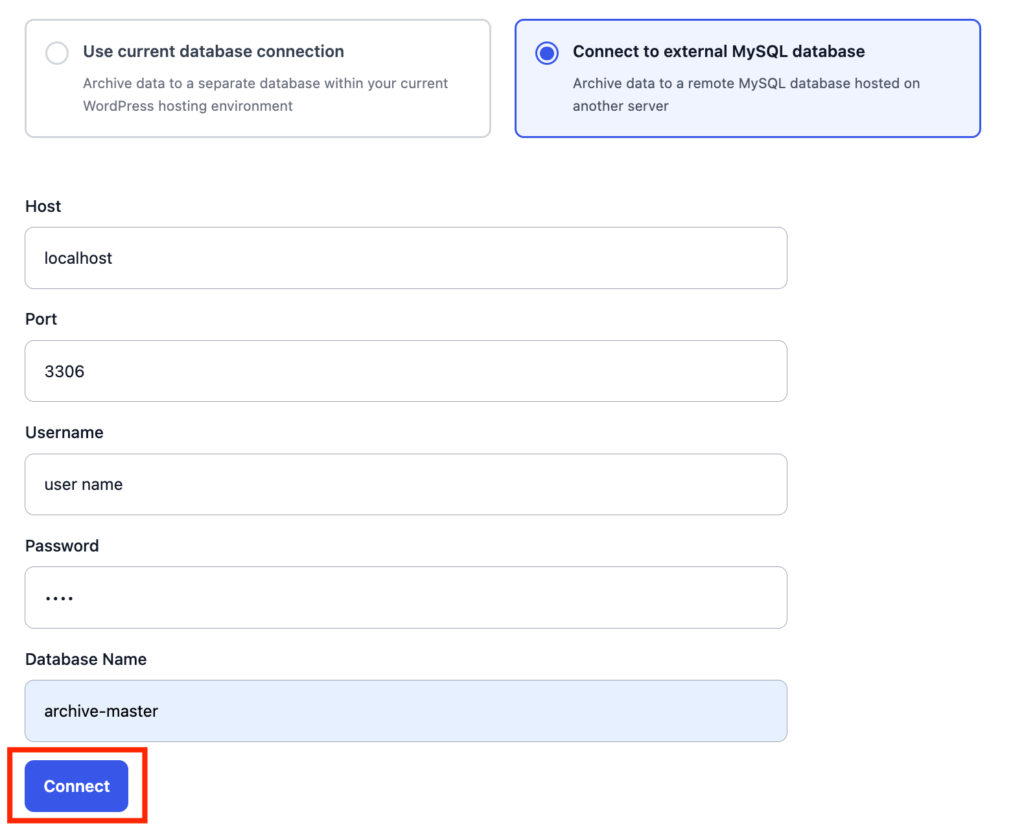
How to Connect to an External MySQL Database: Archive data to a remote MySQL database hosted on a different server.
How to Connect: Select Connect to External MySQL Database. Enter the remote server credentials: #
- Host / Server Address: Usually provided by your hosting provider or found in your hosting control panel (e.g., cPanel → Databases → Remote MySQL).
- Port: Default is 3306. Confirm if your host uses a different port.
- Username: The database user created in your hosting panel.
- Password: The password set when creating the database user.
- Database Name: The name of your database, found in your hosting panel.
Ensure remote MySQL access is allowed on the target server. Click Connect.
Successful Connection: If the database connection is verified, the following message appears:
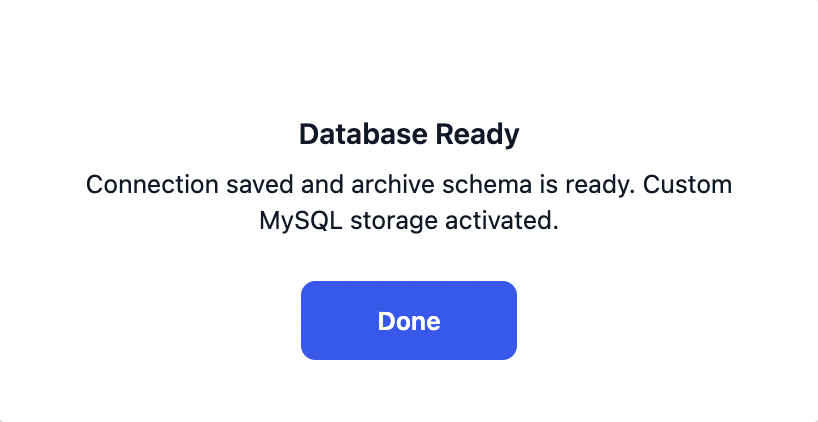
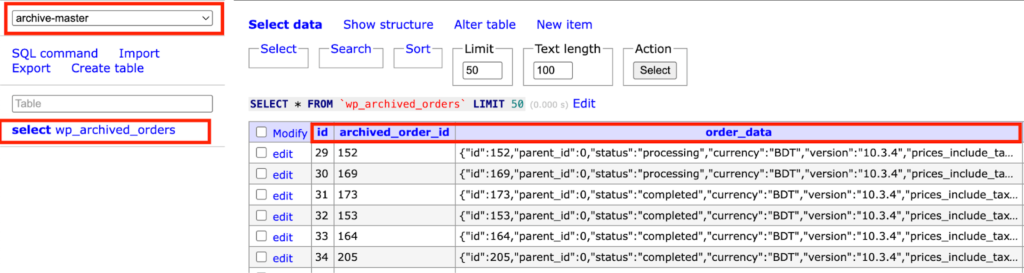
After the connection is established:
- The system stores all archived WooCommerce orders in the selected MySQL database.
- A dedicated table(wp_archived_orders) is created automatically if it does not exist.
Failed Connection: If there is an issue with credentials or access permissions, the following message appears:
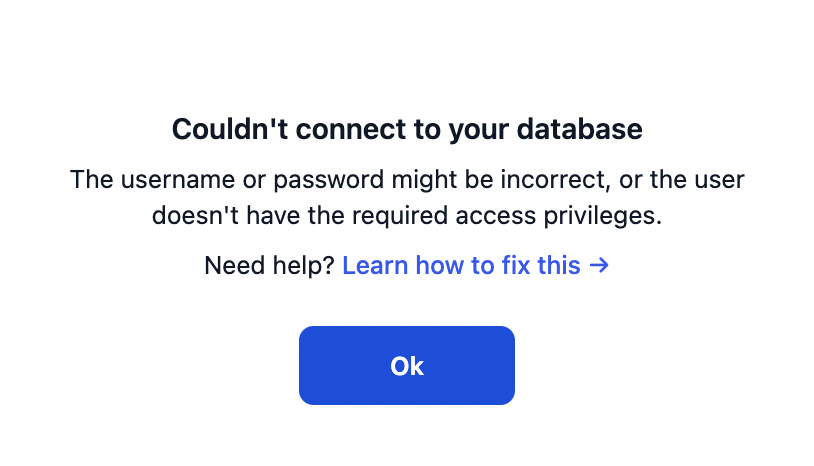
Failed Connection? Possible Reasons & Fixes
- Incorrect username/password → Check for typos or reset your password.
- Missing privileges → Ensure your database user has required permissions (CREATE, INSERT, SELECT).
- Wrong database name → Verify the database name matches exactly.
- Incorrect host → Confirm the host address (localhost or IP) is correct.
- Remote server restrictions → Check firewall/port settings and allow your IP if needed.


Add your first comment to this post