









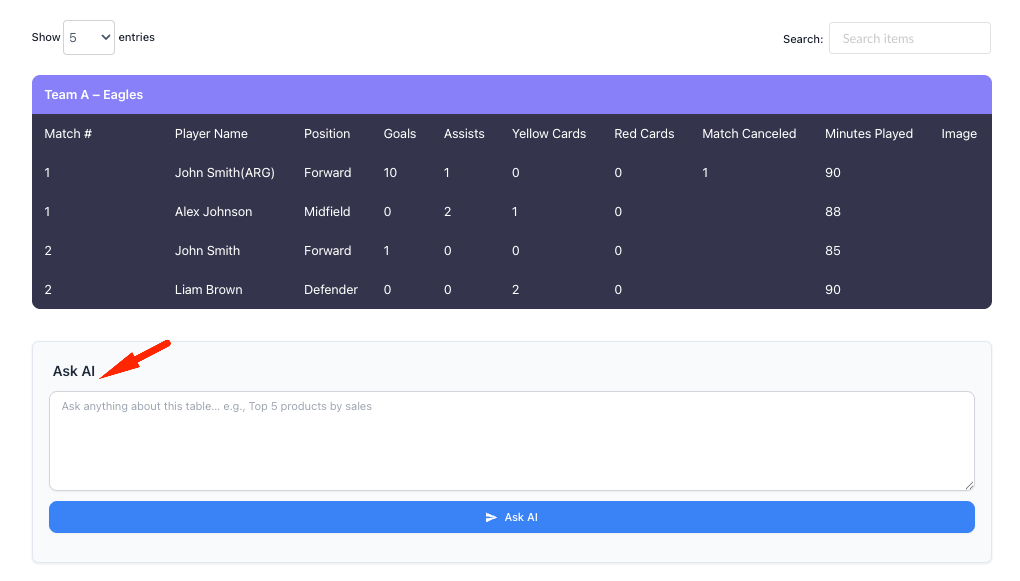
Ask AI is an interactive feature that enables visitors to ask natural-language questions about a data table and receive instant AI-powered insights. Once enabled, an Ask AI input box appears below the table on the frontend, empowering visitors to explore data using natural language, making insights faster and more accessible.
How Ask AI Works #
- A visitor types a question related to the table data.
- The AI analyzes the table content.
- A contextual response is generated based on the data shown in the table.
Example questions:
- “Top 5 products by sales”
- “Which category has the highest revenue?”
- “Show trends over time.”
Connecting AI #
To use Ask AI features in FlexTable, connect an AI provider in Global Settings. Go to FlexTable → Global Settings → AI Configuration, select your AI engine (ChatGPT or Gemini), and enter your API key from the provider dashboard. Click Test API to confirm the connection, then choose a supported model version.
👉 Please check this guide for detailed instructions on setting up AI in FlexTable.
Optional settings let you control response length, creativity, repetition, and cache duration. Once saved, AI is ready to use across all AI-powered features.
Enabling Ask AI #
When Ask AI is enabled for a table:
- A new control settings panel becomes available in the backend.
- A live preview is shown so you can see exactly how the Ask AI interface will appear to visitors.
- The Ask AI input box is displayed below the table on the frontend.

Control settings
- Section Heading: Customize the main heading text displayed above the Ask AI input box.
- Placeholder Text: Defines the helper text shown inside the input field before the visitor starts typing.
- Button Label: Controls the text displayed on the Ask AI action button.
Live Preview (Backend) #
The backend includes a Live Preview section so you can immediately see how your customizations affect the interface.
This ensures confidence before publishing changes to the frontend.
Frontend Experience
On the frontend:
- The Ask AI box appears below the table.
- Visitors can type questions directly related to the visible data.
- No configuration or technical knowledge is required from the visitor.
This creates a self-service, intuitive way for users to explore and understand data.
Tips for Getting the Most Out of Ask AI
- Use clear and descriptive column names in your table.
- Encourage visitors to ask specific questions (e.g., “Top 3”, “Highest”, “Compare”).
- Customize placeholder examples to reflect your most common use cases.
Keep the section heading simple and action-oriented.


Add your first comment to this post