









Table of Contents
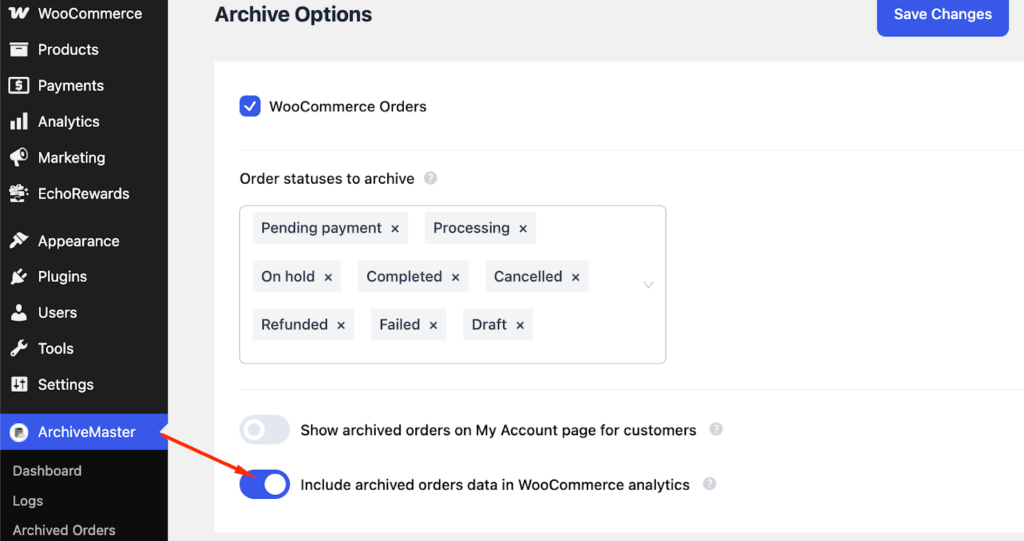
The Include Archived Orders Data in WooCommerce Analytics feature allows users to control whether archived orders are included in WooCommerce Analytics reports.
How to Enable the Feature
- Go to ArchiveMaster
- Open Archive Options
- Enable “Include archived orders data in WooCommerce analytics.”
- Save the settings
The analytics option will now be available in WooCommerce.
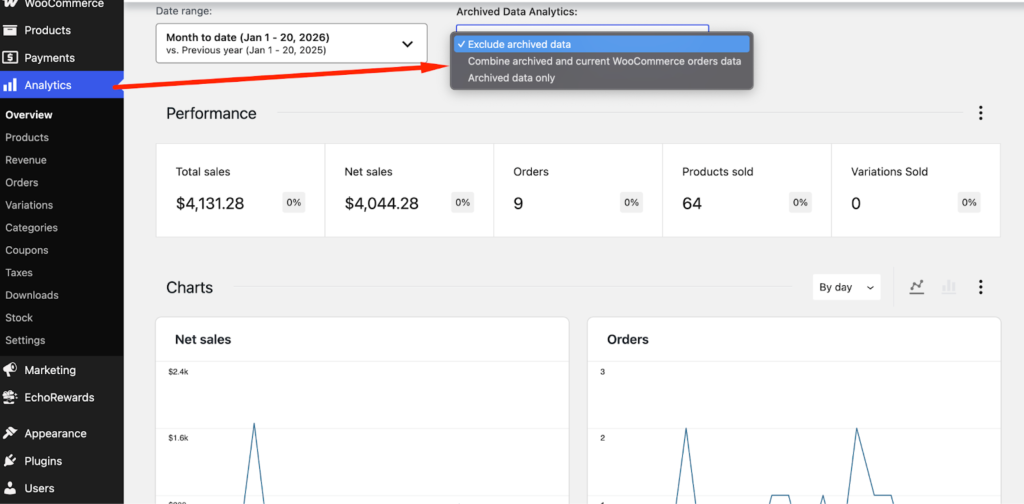
Where to Find Archived Data Analytics Options #
- Go to WooCommerce → Analytics
- Locate the Archived Data Analytics option
Archived Data Analytics Options:
1. Exclude Archived Data (Default) #
- Shows analytics from current/live WooCommerce orders only
- Archived orders are not included
2. Combine Archived and Current Orders Data #
- Shows analytics from both active and archived orders
- Best for full historical reporting
3. Archived Data Only #
- Shows analytics from archived orders only
- Current orders are excluded
Reports That Support Archived Data
This option works with these WooCommerce Analytics reports:
- Revenue
- Orders
- Products
- Variations
- Categories
- Coupons
- Taxes
- Stock
- Downloads
Advanced Filters Support
Archived data options also work with Advanced Filters, including:
- Product
- Category
- Order Status
- Customer Type
- Coupon Code
- Attributes (Size, Color, etc.)


Add your first comment to this post