









Sending website leads to a single WhatsApp number can sometimes lead to missed messages, delayed replies, and lost customers. By sending your WordPress leads directly to a WhatsApp group, you can ensure your entire sales or support team is notified instantly, improving response times and boosting your conversions.
FormyChat makes it incredibly simple to route all your website contact form submissions straight into a WhatsApp group.
Follow this quick step-by-step guide to set it up:
Step 1: Get Your WhatsApp Group Invite Link #
Before configuring the plugin, you need the invite link of the WhatsApp group where you want to receive your leads.
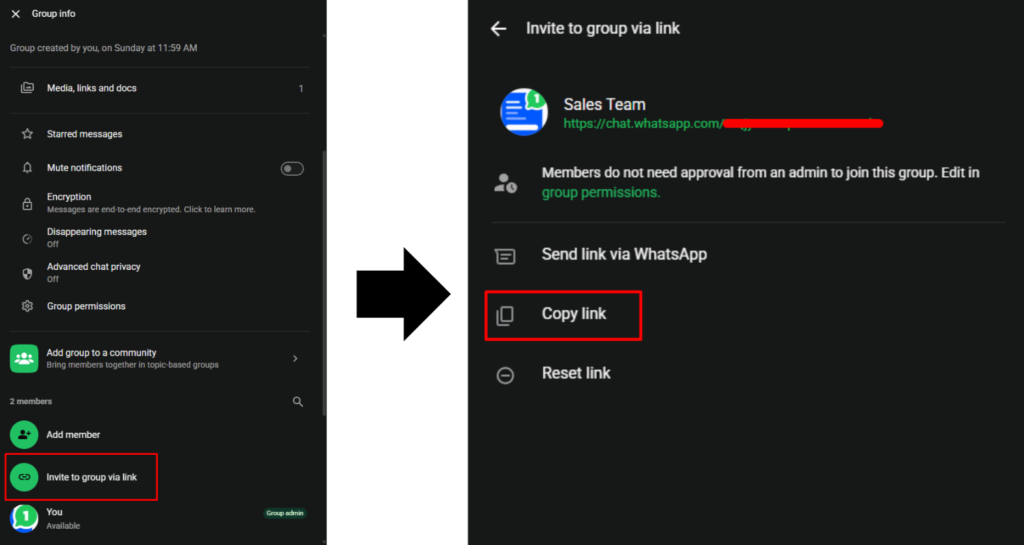
- Open your WhatsApp App or WhatsApp Web.
- Open the specific group you want to use (e.g., “Sales Team”).
- Click on the Group Info at the top.
- Scroll down and click on Invite via link.
Click Copy link to save the URL to your clipboard.
Step 2: Configure FormyChat Settings #
Now that you have the group link, it’s time to route your widget to the group.
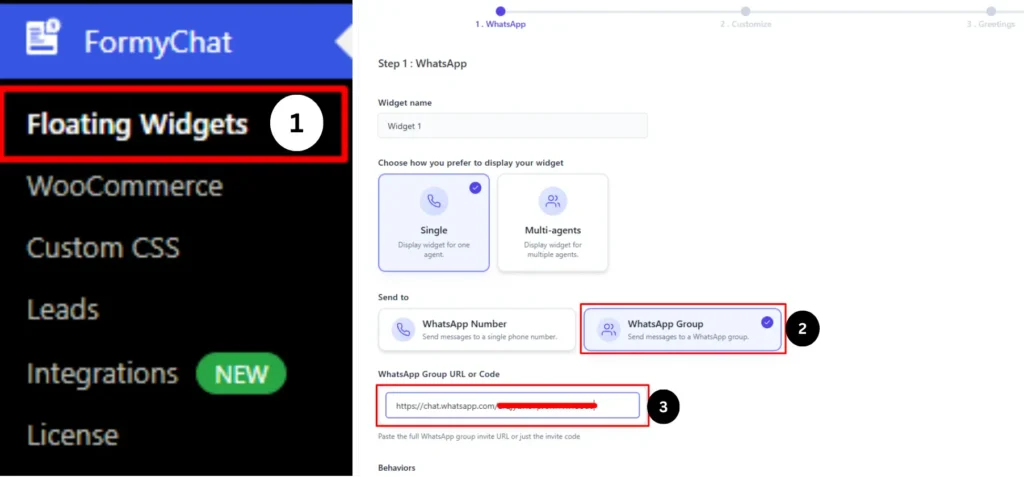
- Log in to your WordPress Dashboard.
- Navigate to FormyChat and open the setup for your floating widget.
- In the widget configuration under the Send to section, select the WhatsApp Group option.
- Paste the group invite link you copied earlier right into the WhatsApp Group URL or Code field.
Step 3: Customize & Save #
- Proceed through the setup steps to customize your widget icon, form fields, call-to-action text, and display triggers according to your website’s design. Learn more about widget customization in this doc.
- Once everything looks good, click Save to complete your setup.
How It Works for Your Visitors #
Here is the seamless experience your visitors will have on your live site:
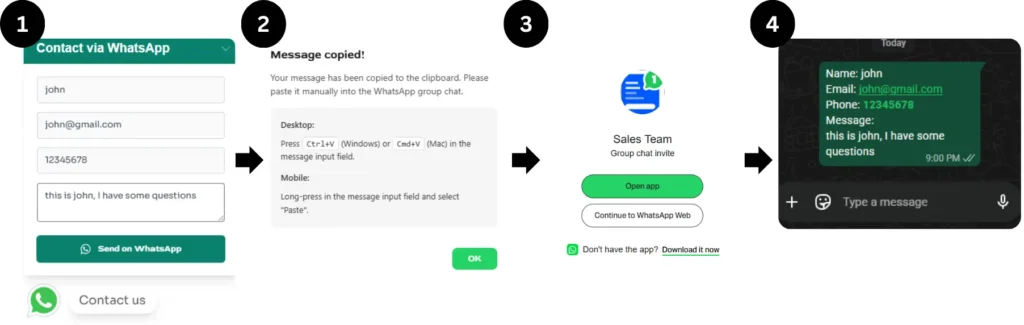
- A visitor clicks your FormyChat widget.
- They fill out their contact details (Name, Email, etc.) and hit Send on WhatsApp.
- FormyChat automatically formats their information and securely copies it to their clipboard.
- A quick pop-up appears directing them to click OK, which automatically opens the specific WhatsApp Group.
- The visitor simply joins the group and pastes the text into the chat box and hits Send.
Important Notes #
- WhatsApp Login Required: Website visitors must be logged into their WhatsApp account (via the mobile app or WhatsApp Web) to successfully send their message.
- Public Access via Link: Because the widget uses your group’s invite link to route the visitor, anyone who interacts with the widget can join the group.
- Admin Approval Settings: If you have “Approve New Participants” turned on in your WhatsApp group settings, visitors will have to wait for an admin to approve their join request before they can paste and send their lead details.
- Group Privacy & Permissions: Group privacy depends entirely on your native WhatsApp configurations. Ensure your group settings allow standard participants to “Send Messages” so leads can successfully drop their information.
- Visitor Visibility (Privacy Consideration): Keep in mind that since visitors are joining a WhatsApp group to send their message, they will become group members and may be able to see the phone numbers of other people in the group


Add your first comment to this post