









With FlexStock Plugin for WooCommerce, you can easily manage and import Upsell and Cross-sell product relationships directly from Google Sheets, instead of updating them one by one inside WooCommerce.
Using FlexStock with Google Sheets allows you to:
- Update multiple product relationships faster.
- Manage product recommendations in bulk.
- Keep your team’s workflow organized in a spreadsheet.
- Reduce manual errors from editing products one by one.
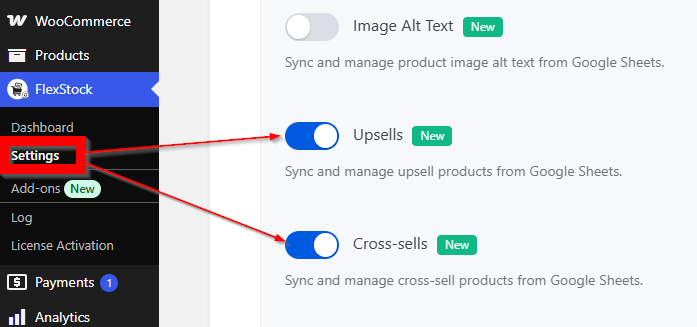
Step 1: Go to Your FlexStock Plugin Settings #
– Enable the Upsells/Cross-sells Columns option for Google Sheet, then click the Save & Sync button.
– This will add the required columns to your connected Google Sheet so you can manage product relationships there.
Step 2: Identify the Correct Columns #
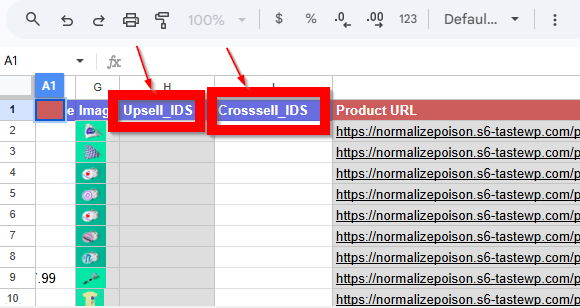
To add Upsells and Cross-sells, you need to use the correct columns in your Google Sheet.
Look for the following columns:
- Upsells
- Cross-sells
Step 3: Enter the Product References #
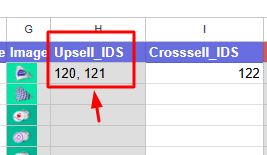
In the Upsells and Cross-sells columns, enter the related product references for each main product using Product IDs.
If you want to assign multiple products, separate them with a comma ( , )
Example format: 120,121,122
Step 4: Save and Sync the Sheet #
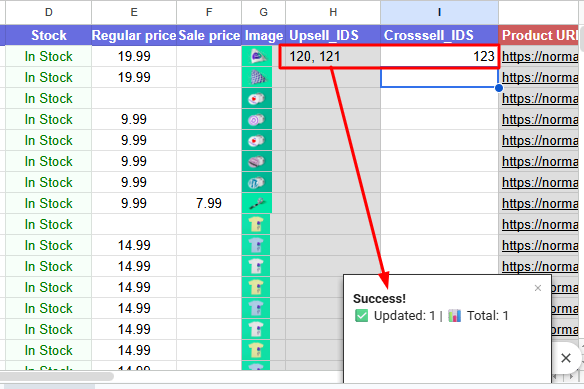
After entering the Upsell and Cross-sell values, save the changes in Google Sheets.
If your FlexStock setup syncs automatically, the updates will be sent to WooCommerce based on your sync schedule.
If needed, you can also run a manual sync from FlexStock.
Step 5: Verify the Product Relationships in WooCommerce #
Once the sync is complete, check the product inside WooCommerce.
- Go to Products in your WordPress Dashboard
- Edit the product you updated
- Open the Linked Products section
- Confirm that the Upsells and Cross-sells have been added correctly
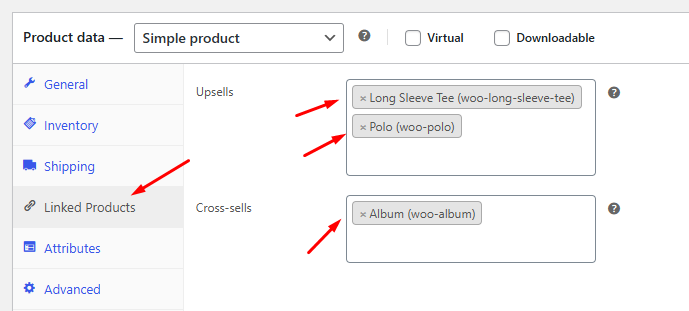
This confirms that FlexStock successfully imported the related product data from Google Sheets.
Result
After setup, your WooCommerce products will automatically display the assigned related products based on your theme and WooCommerce layout.
- Upsells on the single product page:

- Cross-sells on the cart page:
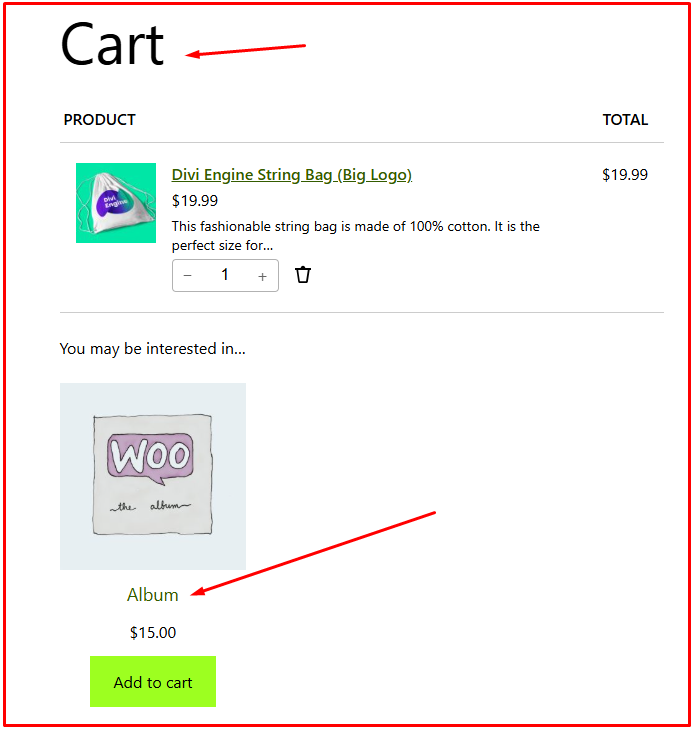
This helps customers discover more relevant products and can increase your store revenue.
Important Notes #
- Use only valid Product IDs
- Separate multiple IDs with a comma ( , )
- Products must already exist in WooCommerce
- Some WooCommerce themes may display Upsells and Cross-sells differently


Add your first comment to this post