









With FlexStock Plugin for WooCommerce, you can create and manage product attributes from Google Sheets, display them on parent products, and use them for variations.
This guide will show you how to do it step by step.
Step 1: Go to Your FlexStock Plugin Settings #
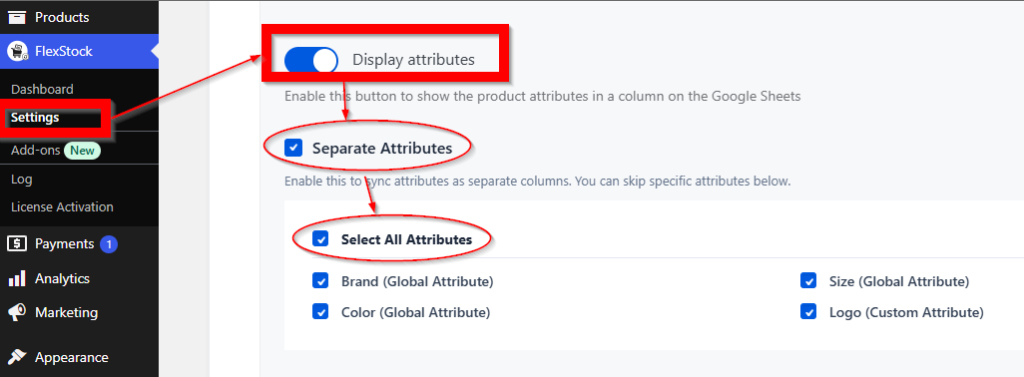
Go to your FlexStock Plugin settings in the WordPress dashboard.
Enable the attribute-related options you need, such as:
- Display Attributes
- Separate Attributes
Then click Save & Sync.
#
Step 2: Open the Connected Google Sheet #
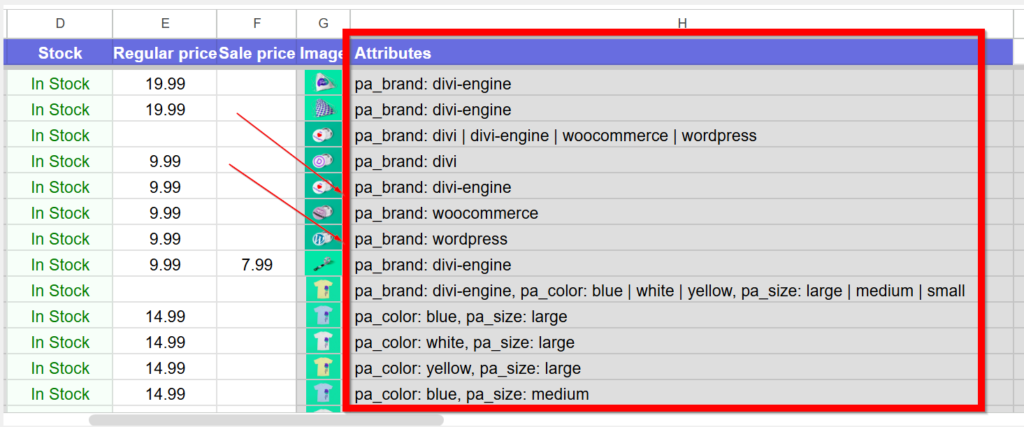
Open the Google Sheet connected to your WooCommerce store through FlexStock.
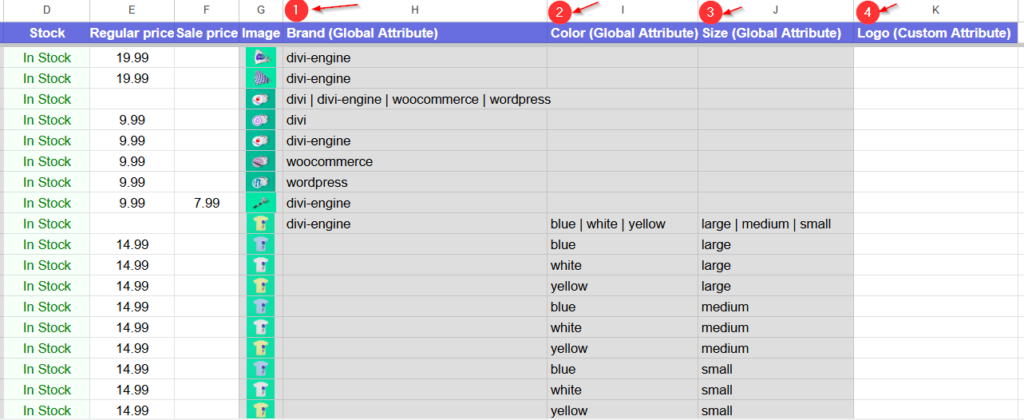
Locate the attribute columns used for your parent products.
Depending on your setup, these may appear as:
- Attributes
- separate attribute columns
- custom attribute columns created by FlexStock
#
Step 3: Create Attributes on the Parent Product #
To create product attributes, you need to enter them on the parent product row first.
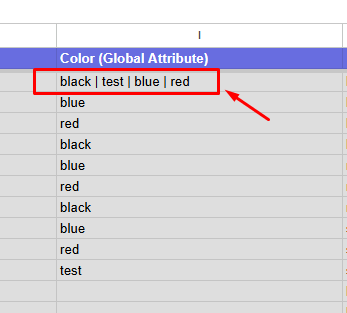
When adding multiple values for the same attribute, separate them using the pipe symbol: |
Example: #
If you want to create a Color attribute with multiple values, enter:
Red | Blue | Black
If you want to create a Size attribute with multiple values, enter:
Small | Medium | Large
Step 4: Insert Attribute Values for Each Variation #
Once the parent product attributes are created, you can insert the correct attribute value for each variation.
Each variation should use one value from the parent product’s attribute list.
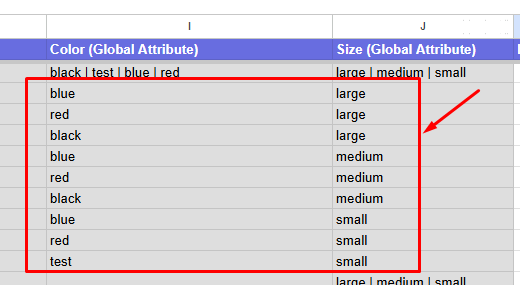
Example: #
If the parent product has:
- Color:
Red | Blue | Black - Size:
Small | Medium | Large
Step 5: Save and Sync the Sheet #
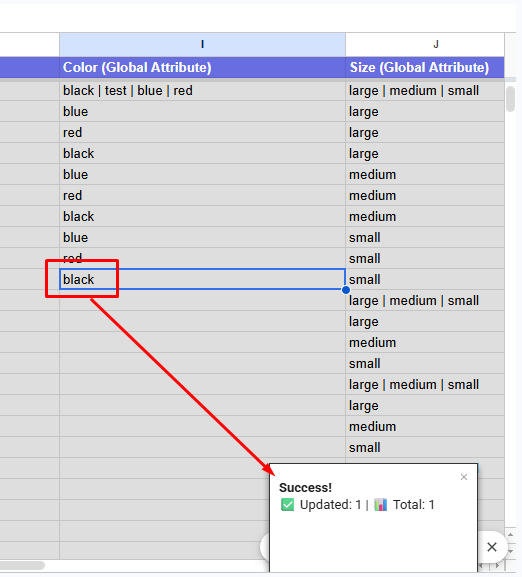
After adding the parent attributes and variation values, save your changes in Google Sheets.
If your FlexStock setup syncs automatically, the updates will be sent to WooCommerce based on your sync schedule.
Step 6: Verify the Attributes in WooCommerce #
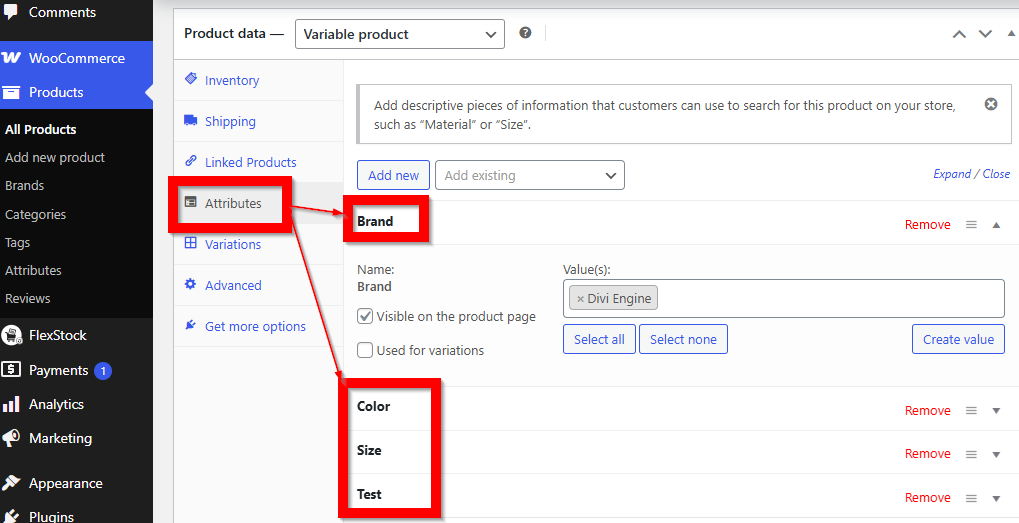
Once the sync is complete, go to your WooCommerce product in the WordPress dashboard.
Check the following:
- The parent product has the correct attributes.
- The attribute values are listed correctly.
- The variation products are using the matching values.
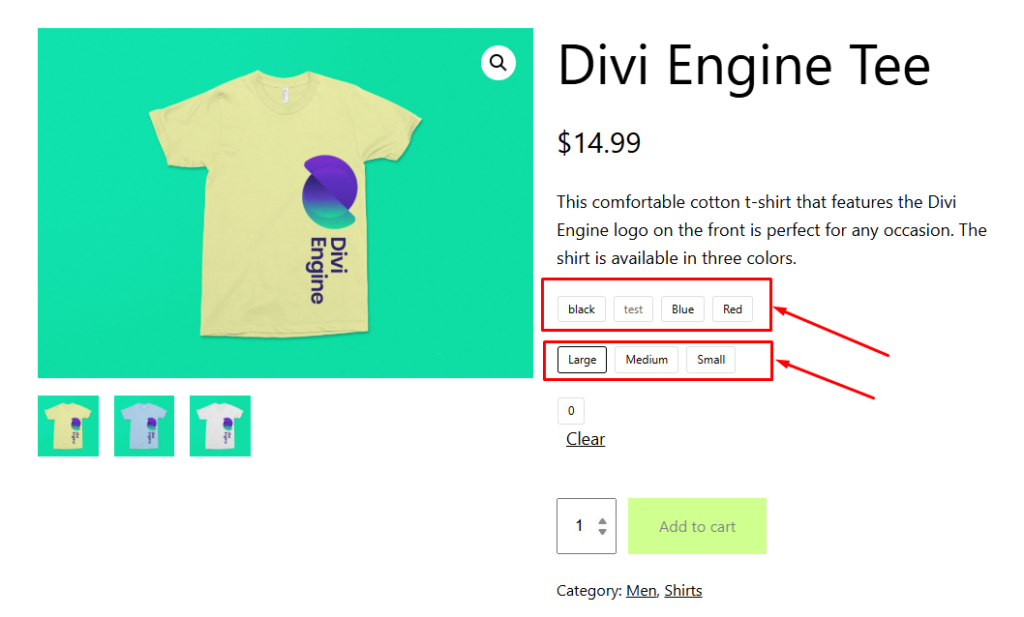
- The attributes are displayed on the product page if enabled.
Important Notes #
- Always create attributes on the parent product first.
- Use the pipe symbol | to separate multiple values.
- Variation values must exactly match the parent product attribute values.
- Enable Display Attributes if you want them shown on the front end.
- Use Separate Attributes for better organization if supported by your setup.
- If changes do not appear immediately, wait for the next sync or run a manual sync.


Add your first comment to this post