









Table of Contents
Go to your Dashboard · Opt-in to Plugins > Add New. Search for “Webinar and Video Conference with Jitsi Meet” > Click install and Activate the plugin.
- Extremely easy way to use the plugin by a page builder like Gutenberg, Elementor. Just go to add new a page or post and edit with page builder and click on add block > search ‘Jitsi Meet’ and click on it and update or publish the page or post. View the page to see the meeting.
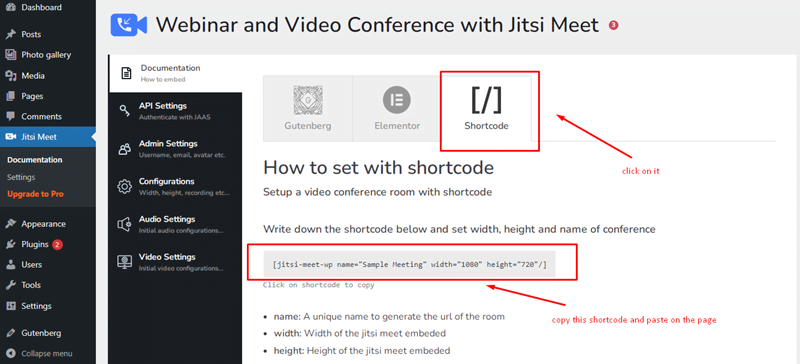
- Go to the dashboard click on the plugin ‘Jitsi Meet’ > documentation and copy the shortcode and paste it on the page. Like


Shortcodes no longer work with the Premium plugin???
The shortcode example referenced in the documentation is intended for the standard setup and is not compatible with the Premium workflow.
In the Premium version, each meeting has its own dedicated shortcode for embedding that specific meeting. Please use the shortcode generated in the Premium plugin.
We’ve released a new version of the plugin. The shortcode:
[jitsi-meet-wp name=”Example Meeting” width=”1080″ height=”720″/]
is now fully supported in both Free and Premium versions.
We’ve released a new version of the plugin. The shortcode:
[jitsi-meet-wp name=”Example Meeting” width=”1080″ height=”720″/]
is now fully supported in both Free and Premium versions.