









Overview: Recurring Meetings allow the meeting host to schedule meetings that automatically repeat on a predefined schedule. The system supports flexible recurrence patterns, including:
- Daily meetings
- Weekly meetings
- Monthly meetings
- Yearly meetings
Additionally, the meeting host can enable automated email reminders for registered participants before the meeting starts.
Important: Email reminders require the Register Meeting feature to be enabled. For registration setup instructions, see the Register Meeting documentation.
Creating a Recurring Meeting #
To create a recurring meeting:
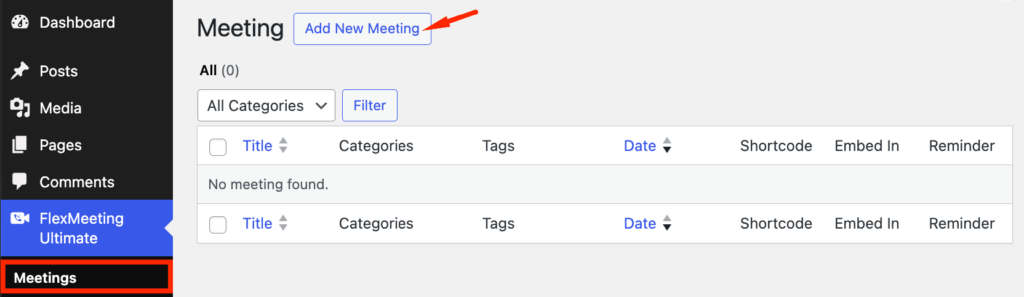
- Open the meeting creation page>Click to Add New Meeting
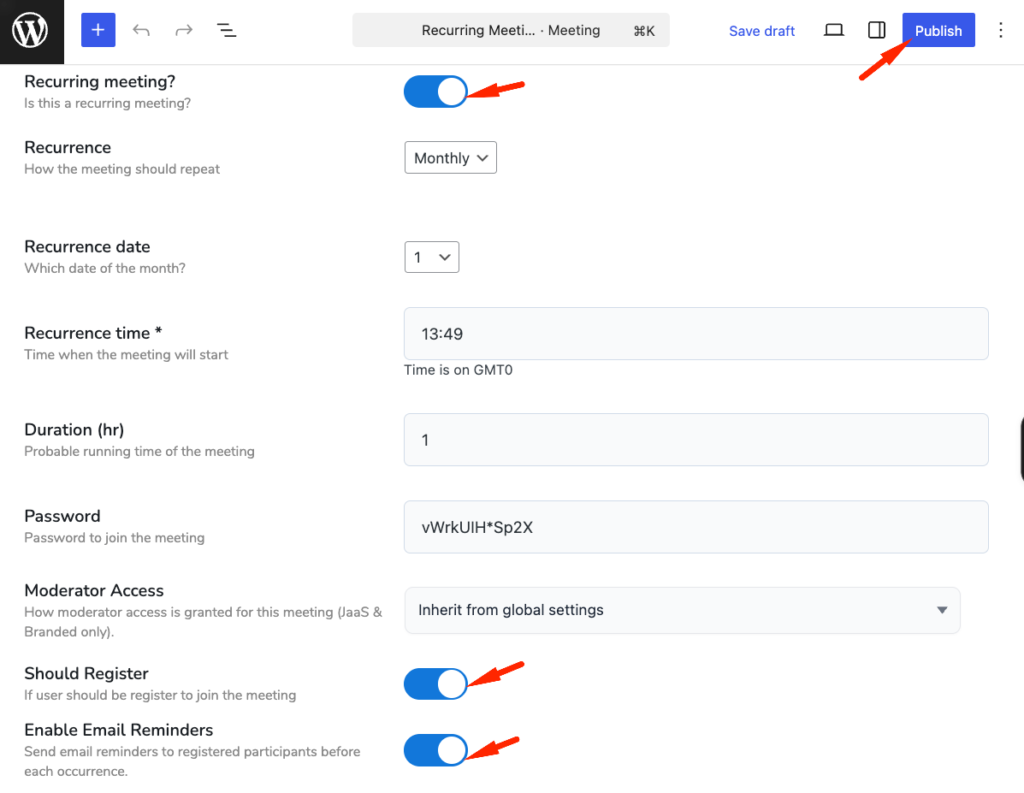
- Enable the Recurring Meeting toggle.
- Configure the recurrence settings.
- For Email reminders, enable:
- Meeting Registration
- Email Reminder Notifications
- Publish the meeting.
Recurrence Options #
Once the Recurring Meeting option is enabled, the meeting host can be configured to repeat.
Daily Recurrence #
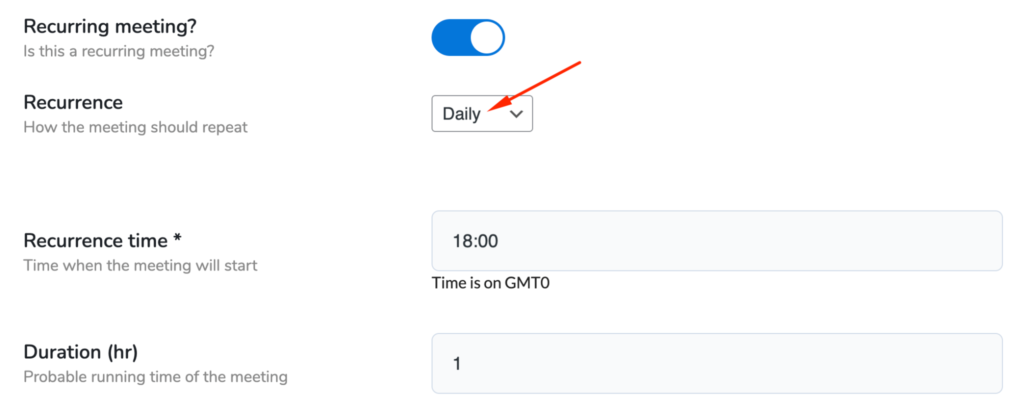
Select Daily to repeat the meeting every day.
Options include:
- Daily repetition
- Recurrence time
- Meeting duration
Example: A daily standup meeting is scheduled every day at 10:00 AM.
Weekly Recurrence #
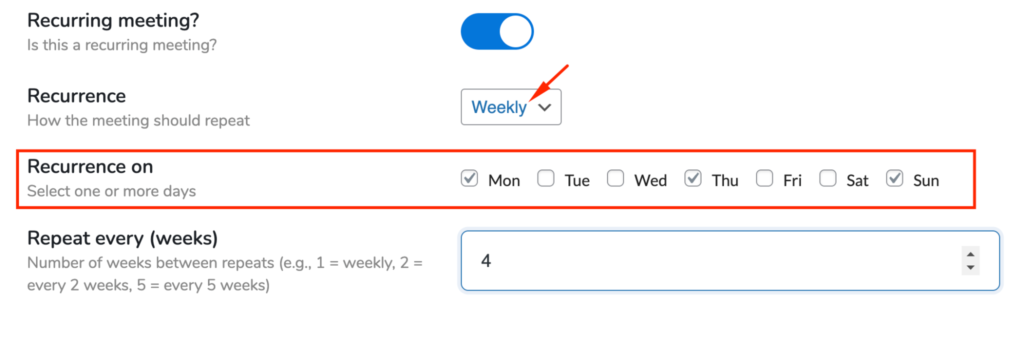
Select Weekly to repeat the meeting on specific weekdays.
Available Options #
- Select one or multiple weekdays
- Configure repetition intervals using Repeat Every
Repeat Every #
| Value | Meaning |
| 1 | Every week |
| 2 | Every 2 weeks |
| 5 | Every 5 weeks |
Example: A meeting that repeats every 2 weeks on Monday and Thursday.
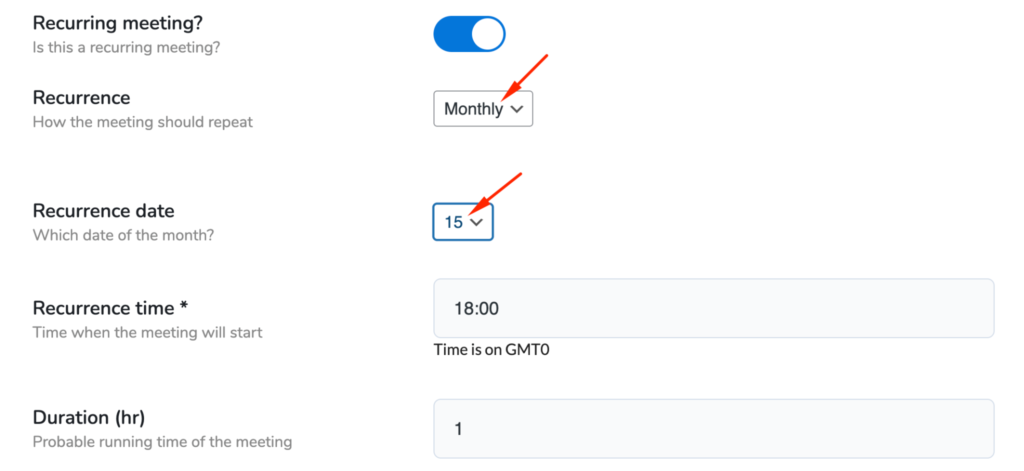
Monthly Recurrence #
Select Monthly to repeat the meeting on a specific date each month.
Available Options #
- Select recurrence date
- Configure meeting time
- Set meeting duration
Example: A meeting is scheduled on the 15th of every month.
Yearly Recurrence #
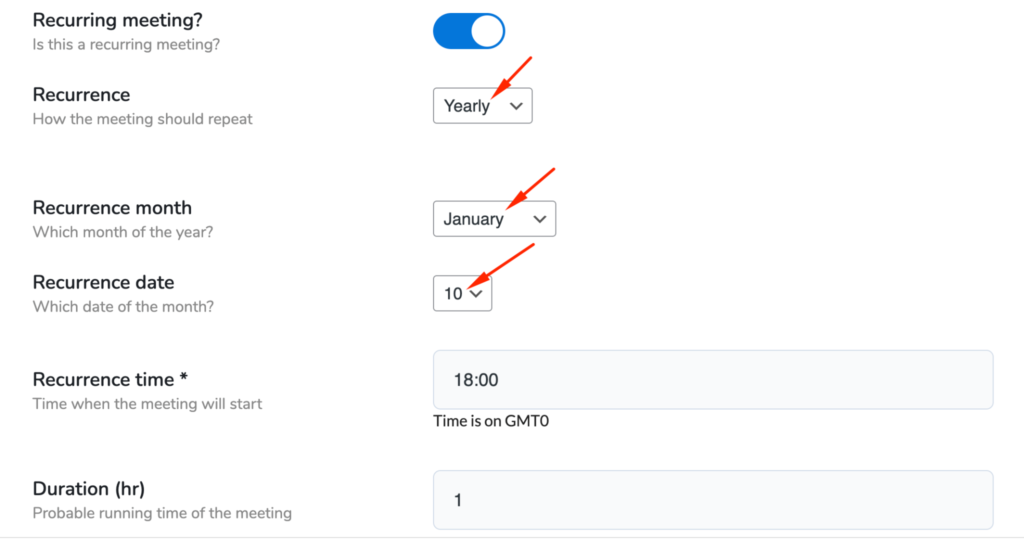
Select Yearly to repeat the meeting annually.
Available Options #
- Supports all months of the year, from January through December.
- Select recurrence month
- Select recurrence date
- Configure meeting time
- Set meeting duration
Example: An annual planning meeting is scheduled every January 10.
Email Reminder Notifications #
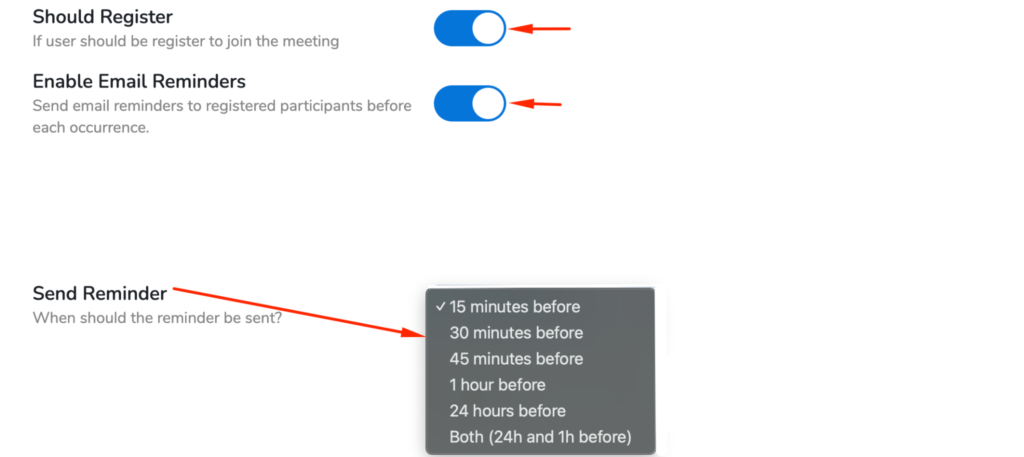
Recurring meetings support automated email reminder notifications.
The meeting host can notify participants before the meeting starts.
Prerequisite #
To enable email reminders: Register Meeting must be enabled
For registration setup instructions, see the Register Meeting documentation.
Important: To ensure email reminders are delivered successfully, an SMTP plugin must be configured on your website. Kindly verify that your email settings are set up properly.
Available Reminder Options #
The meeting host can choose one or multiple reminder times.
Supported reminder schedules include:
- Both (24h and 1h before)
- 24 hours before the meeting
- 1 hour before the meeting
- 30 minutes before the meeting
- 25 minutes before the meeting
- 15 minutes before the meeting
Multiple reminder options can be enabled simultaneously.
Example #
The meeting host may choose:
- 24 hours before
- 1 hour before
Participants will receive both reminder emails.
Sending Reminder Emails Manually #
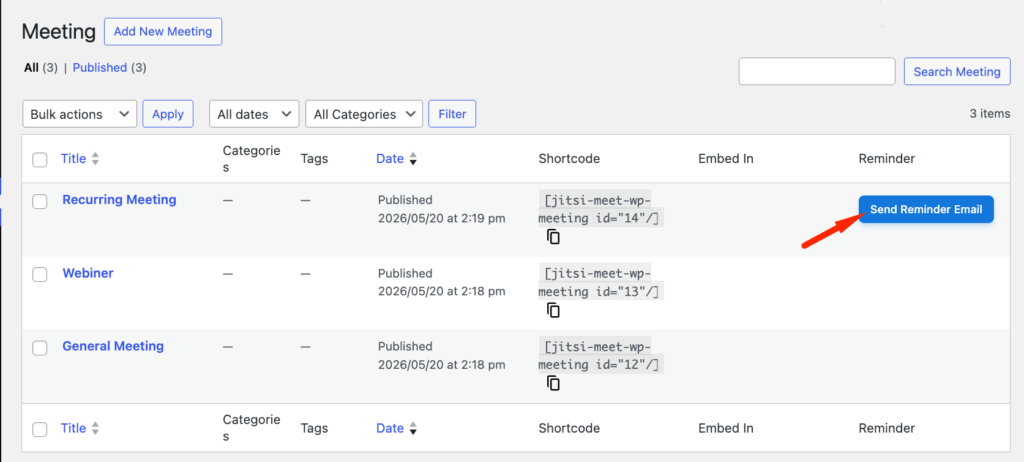
After publishing the meeting:
- Open the Meetings section in FlexMeeting.
- Locate the recurring meeting.
- On the right-side panel, open the Reminder option.
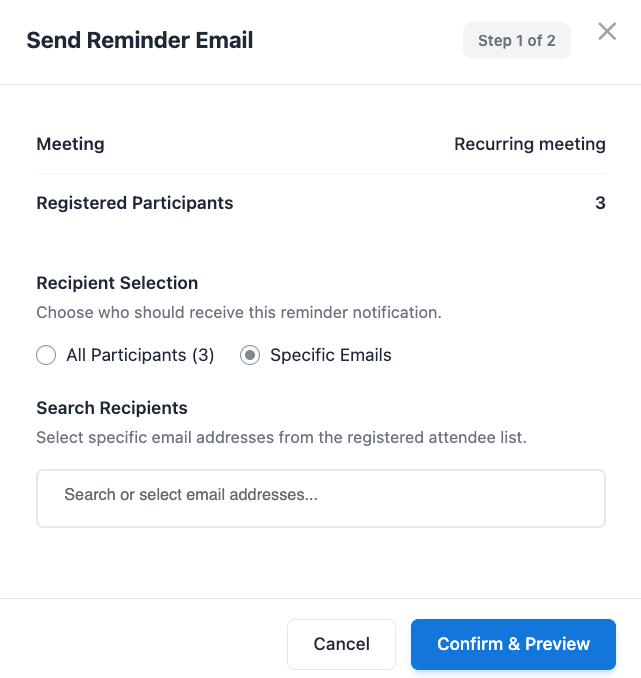
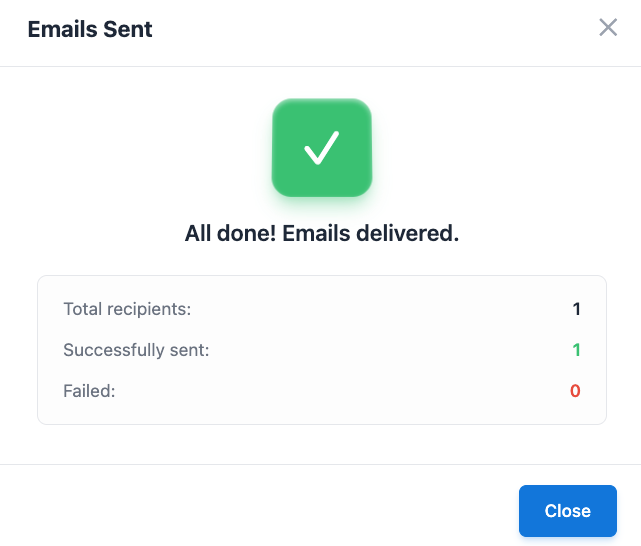
- Click Send Reminder Email.
Reminder Delivery Options #
The meeting host can send reminder emails to:
- A specific participant
- All registered participants
Only users registered for the meeting will receive reminder emails.
How It Fits Your Workflow #
Daily Team Standups #
Perfect for teams running daily check-ins, progress updates, or internal sync meetings. Set a recurring schedule once and automatically run meetings every day without manual setup.
Weekly Client & Business Meetings #
Ideal for agencies, businesses, and remote teams managing recurring weekly meetings with clients or team members. Flexible weekly scheduling allows meetings on one or multiple weekdays.
Online Classes & Coaching Sessions #
Perfect for educators and coaching programs running recurring live classes. Combine recurring meetings with registration and email reminders to keep students informed and improve attendance.
Webinars & Community Events #
Useful for membership sites and webinar hosts running recurring events with automated reminder emails to increase participant engagement and attendance.
Participant Experience #
When a participant registers for a meeting:
- The participant receives registration confirmation.
- Reminder emails are sent based on configured schedules.
- The email includes meeting information and join access.
- Participants can quickly join the meeting directly from the email.
Important Notes #
- Email reminders only work for registered users.
- Registration must be enabled before reminder notifications can be used.
- Multiple reminder schedules can be configured.
- Weekly recurrence supports multiple weekday selections.
- Reminder emails can be sent manually after publishing the meeting.


Add your first comment to this post