









To get started, make sure both the free and Ultimate versions of FlexStock– Stock Sync with Google Sheets are active on your site.
Prefer reading? Continue with our step-by-step guide below.
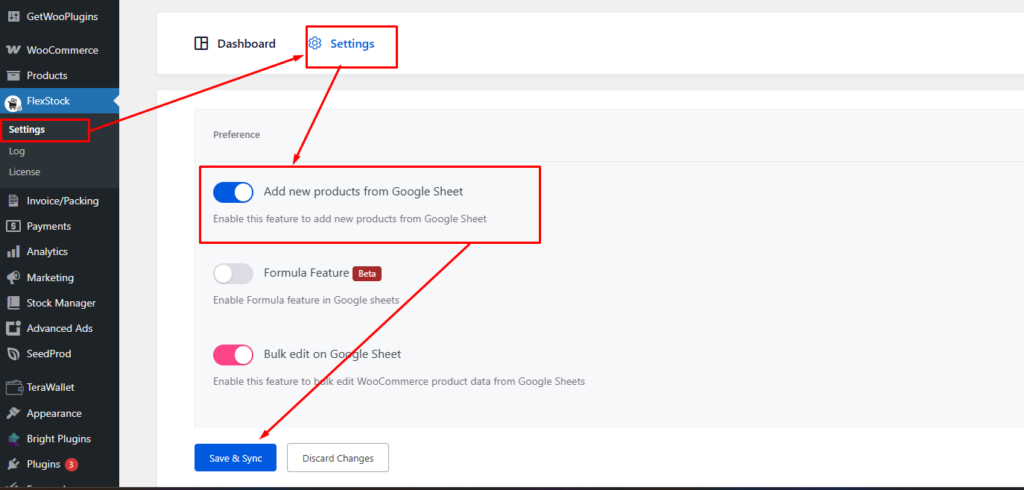
First go to FlexStock → Settings → Enable Add New Product Toggle →Save & Sync
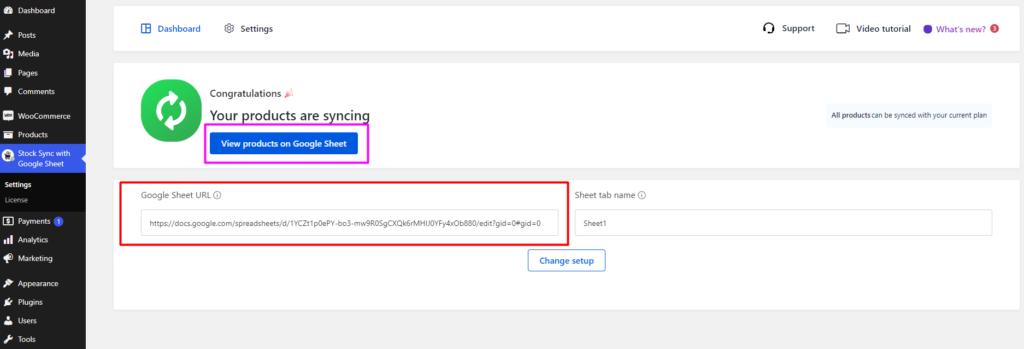
Next, navigate to your WP Dashboard → Stock Sync Dashboard → Copy Sheet URL.
Alternatively, you can directly access your sheet by clicking on View products on Google Sheet
Now, you can start adding your products. Simply fill in the available fields for product name, stock status (in stock or out of stock), price, image and both short and long descriptions.
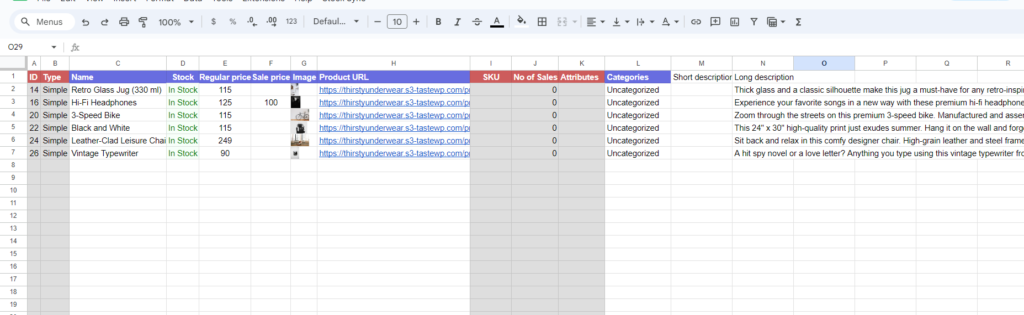
That’s all! Once you’ve added all the product details here, they will be formatted and automatically synced to your WooCommerce store


Add your first comment to this post